
Quickly connect your Anker Bluetooth speaker to any device in just a few simple steps! This guide makes pairing easy, so you can enjoy your music without any hassle.
Hey there, tech adventurers! Max here from AffTechy.com. Ever feel like you just want to blast your favorite tunes, but your awesome Anker speaker is giving you the silent treatment? We’ve all been there, right? Trying to get that perfect soundtrack for your day, your workout, or just a chill evening, and suddenly, the tech gets a little… tricky.
Sometimes, connecting gadgets can feel like solving a puzzle. You’ve got your speaker, your phone, maybe a tablet, and they just won’t talk to each other. It’s super frustrating when you’re ready to dive into your music, and instead, you’re staring at a blinking light on your speaker. But don’t worry, that’s exactly why I’m here!
My goal is to make technology feel as simple and fun as it should be. We’re going to ditch the confusing jargon and dive straight into making your Anker speaker sing. Think of me as your friendly guide, walking you through every little step.
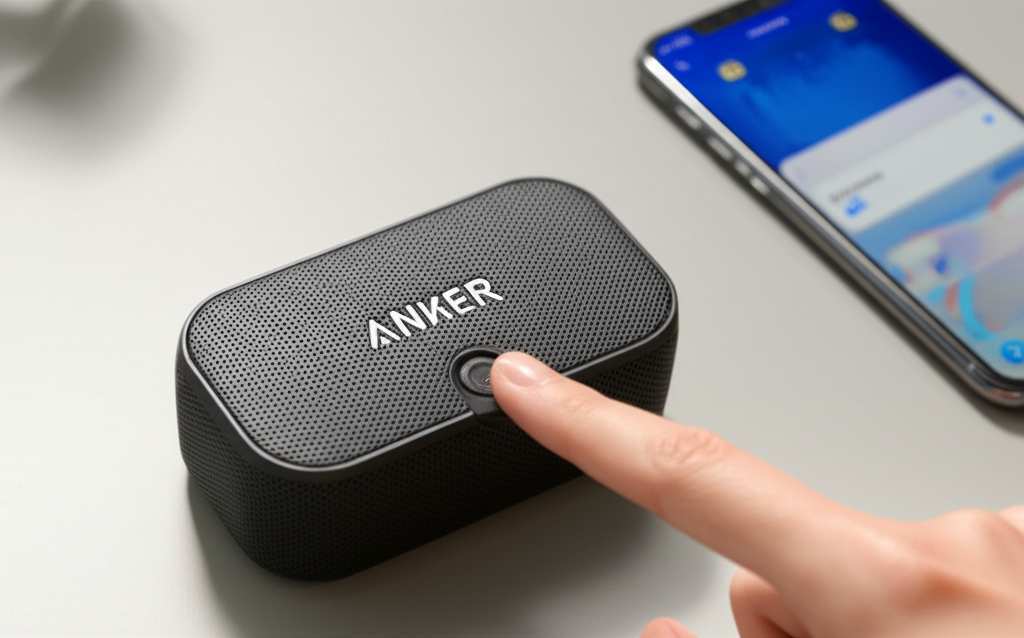
So, get ready to turn up the volume! We’ll make sure your Anker Bluetooth speaker is paired up and playing your favorite songs in no time. Let’s make this easy and get you listening to crystal-clear sound, pronto!
Let’s Get Your Anker Speaker Connected!
It’s awesome to have a portable speaker that sounds great and lasts for ages. Anker speakers are super popular for exactly that reason! They’re built tough, sound amazing, and are usually really easy to use. But sometimes, that first connection can be a little puzzling.
That’s where this guide comes in handy. We’ll walk through the super simple process of pairing your Anker Bluetooth speaker. You’ll be jamming out in just a few minutes. No stress, no complicated manuals needed!
Why Bluetooth Pairing Matters
Bluetooth is like a magic invisible wire. It lets your devices talk to each other without any cables. This means you can stream music from your phone to your speaker, or even connect your laptop for a better movie sound experience. It’s all about freedom and convenience!
Anker speakers use Bluetooth to give you that wireless freedom. Once paired, your speaker remembers your device. This makes connecting super quick the next time you want to listen to something. It’s like they become best friends who always know how to find each other.
What You’ll Need
Before we start, let’s make sure you have everything ready. It’s pretty straightforward!
Your Anker Bluetooth Speaker: Make sure it’s charged up! A dead battery won’t do much good.
Your Device: This could be your smartphone (iPhone or Android), tablet, or even your laptop.
Your Device’s Bluetooth: Make sure Bluetooth is turned ON on your device.
That’s it! See? We’re already keeping it simple.
The Magic of Pairing Mode
Every Bluetooth speaker has a special mode it needs to enter to find and connect with new devices. This is called “pairing mode.” Think of it like the speaker shouting, “Hey, I’m looking for a friend to connect to!”
On most Anker speakers, you’ll need to press and hold a specific button to get it into pairing mode. This button is usually the Bluetooth symbol itself or the power button. You’ll know it’s in pairing mode when you see a blinking light, often blue, or hear a little sound cue.
Step-by-Step: How to Pair Your Anker Bluetooth Speaker
Alright, let’s get down to business! Follow these simple steps, and you’ll be enjoying your tunes in no time.
Step 1: Power Up Your Anker Speaker
First things first, turn on your Anker speaker. You’ll usually see a power button, often with a battery symbol. Press it, and wait for the speaker to start up. Some Anker speakers might beep or have a light that turns on.
Step 2: Activate Pairing Mode
This is the key step! On your Anker speaker, find the Bluetooth button. It often looks like this: 🔊. You’ll need to press and hold this button for a few seconds.
How to tell it’s in pairing mode: You’ll usually hear a distinct sound, like a little chime or beep. The Bluetooth light on the speaker will start blinking rapidly, often blue. This blinking is the speaker’s way of saying, “I’m ready to connect!”
Different Anker models might have slightly different ways to enter pairing mode. For example, some might use the power button itself for a longer press to initiate pairing. If you’re unsure, a quick peek at your speaker’s manual (or a quick search online for your specific model) can clear things up.
Step 3: Open Bluetooth Settings on Your Device
Now, grab your phone, tablet, or computer. You need to tell your device to look for Bluetooth devices.
On iOS (iPhone/iPad): Go to `Settings` > `Bluetooth`. Make sure the Bluetooth toggle is switched ON.
On Android: Go to `Settings` > `Connected devices` (or `Connections`) > `Bluetooth`. Make sure the Bluetooth toggle is switched ON.
On Windows: Click the Start button, then `Settings` > `Devices` > `Bluetooth & other devices`. Make sure Bluetooth is toggled ON.
On macOS: Click the Apple menu, then `System Preferences` > `Bluetooth`. Make sure Bluetooth is turned ON.
Step 4: Find Your Anker Speaker in the List
Once Bluetooth is on your device, it will start scanning for nearby devices. Look for a list that says “Available Devices” or “Other Devices.” You should see your Anker speaker’s name appear here.
What to look for: The name will likely start with “Anker” followed by the model number or a specific name. For example, it might say “Anker Soundcore,” “Anker A3102,” or something similar.
If you don’t see it right away, don’t panic! Make sure your speaker is still in pairing mode (blinking light) and tap “Scan” or “Refresh” on your device if that option is available.
Step 5: Select Your Speaker to Connect
Once you see your Anker speaker’s name in the list, tap or click on it. Your device will then attempt to connect to the speaker.
Success! If the connection is successful, you’ll usually hear a confirmation sound from the speaker. The blinking light on the speaker will turn solid, indicating it’s now connected and ready to play. You’ll also see your speaker listed as “Connected” in your device’s Bluetooth settings.
If it asks for a passcode, it’s usually “0000” or “1234,” but most modern devices and speakers don’t require this anymore.
Step 6: Play Your Music!
That’s it! Your Anker speaker is now paired with your device. Open your favorite music app, podcast, or video and start playing. The sound should now come through your Anker speaker. Congratulations, you’ve mastered the pairing process!
Troubleshooting Common Pairing Issues
Sometimes, even with the best intentions, things don’t connect perfectly on the first try. Here are a few quick fixes for common problems:
Speaker Not Appearing in the List:
Ensure the speaker is powered on and in pairing mode (blinking light).
Make sure your device’s Bluetooth is on.
Try turning both your device’s Bluetooth off and on again.
Move the speaker and your device closer together.
Restart both your speaker and your device.
Connection Failed:
This often happens if the speaker was already connected to another device. Turn off Bluetooth on any other nearby devices that might have previously connected to the speaker.
Try unpairing the speaker from your device (in Bluetooth settings, “forget this device”) and then re-pair it from Step 1.
Sound Cutting Out or Lagging:
Ensure you are within Bluetooth range (usually around 30-50 feet, but can vary).
Obstacles like thick walls or metal can interfere with the signal.
Try closing other apps on your device that might be using a lot of processing power.
Make sure your speaker’s firmware is up to date (check Anker’s support site for your model).
Tip: Resetting Your Anker Speaker
If all else fails, many Anker speakers have a reset function. This often involves holding down a combination of buttons for a longer period. Check your speaker’s manual for specific instructions on how to perform a factory reset. This can clear out any glitches and help you start fresh.
Anker Speaker Models and Their Pairing Quirks
Anker has a whole family of speakers, and while they mostly follow the same pairing rules, there can be minor differences. Here’s a quick look at how some popular Anker models handle pairing:
| Speaker Model | Typical Pairing Button | Pairing Indicator | Notes |
| :——————- | :——————— | :————————————————– | :——————————————————————- |
| Anker Soundcore | Bluetooth Button | Blinking blue LED, audible chime | Press and hold Bluetooth button until light blinks rapidly. |
| Anker Soundcore 2 | Bluetooth Button | Blinking blue LED, audible chime | Similar to Soundcore, press and hold the Bluetooth button. |
| Anker Soundcore Boost| Bluetooth Button | Blinking blue LED, audible chime | May also have a “BassUp” button which is separate. |
| Anker Flare | Bluetooth Button | Pulsing blue LED, audible chime | The light ring pulses when in pairing mode. |
| Anker Motion+ | Bluetooth Button | Blinking blue LED, audible chime | Press and hold the Bluetooth button for a few seconds. |
| Anker Soundcore Liberty Air 2 (Earbuds, but good example) | N/A (Earbuds/Case) | Case LED blinking | Often involves putting earbuds in the charging case and holding a button. |
This table gives you a general idea. Always refer to your specific model’s manual for the most accurate instructions. Anker is known for making things user-friendly, so you shouldn’t have too much trouble.
Keeping Your Anker Speaker Happy: Maintenance Tips
Once your speaker is paired and sounding great, a little care goes a long way. Here are some simple tips to keep it in top shape:
Charge it Regularly: Don’t let the battery die completely too often. Modern lithium-ion batteries prefer partial charges.
Keep it Clean: Wipe down your speaker with a soft, dry cloth. Avoid harsh chemicals or getting moisture into the ports.
Protect from Extremes: While some Anker speakers are water-resistant, avoid exposing them to extreme heat, cold, or direct submersion unless specified.
Update Firmware: Occasionally, Anker releases firmware updates that can improve performance or add new features. Check their website for your model. You might need to use a computer for this.
Fun Facts About Bluetooth Technology
Did you know Bluetooth technology is named after a Viking king? King Harald Bluetooth united Danish tribes into one kingdom, just as Bluetooth technology aims to unite different devices. It’s pretty cool how everyday tech has such interesting origins!
Bluetooth operates in the 2.4 GHz frequency band, which is also used by Wi-Fi and microwave ovens. While they share the airwaves, Bluetooth is designed to work around these other signals efficiently. This is why sometimes your Wi-Fi might seem a bit slower when many Bluetooth devices are active nearby.
Pairing with Multiple Devices: A Quick Guide
Can your Anker speaker connect to more than one device? Yes, many Anker models can! They often support connecting to two devices simultaneously. This is super handy if you want to switch between listening to music on your phone and then taking a call on your tablet.
How it works: Once you’ve paired your first device (say, your phone), you put the speaker back into pairing mode (hold Bluetooth button) and pair your second device (your tablet).
Switching: The speaker will usually prioritize one device for audio playback. If you start playing music on your tablet, it will pause your phone’s audio. When you stop playback on the tablet, your phone’s music might resume, or you might need to manually select it again.
Reconnecting: Your speaker will usually remember the last two devices it was paired with. When you turn it on, it will try to connect to those devices automatically.
This feature is a lifesaver for busy people who juggle multiple gadgets. It means less fiddling with settings and more time enjoying your audio.
Anker Speaker Sound Quality: What to Expect
Anker speakers are known for offering great value. You often get impressive sound quality for the price. Many models feature 360-degree sound, meaning the music fills the room no matter where you are standing.
Bass: Some Anker speakers, like the Soundcore Boost or Motion+, have enhanced bass features. This means you get a deeper, more powerful sound for music genres that benefit from it.
Clarity: You can expect clear highs and mids, making vocals and instruments sound crisp and distinct.
Volume: Anker speakers can get quite loud, perfect for outdoor gatherings or just filling your home with music.
For a deeper dive into Anker’s audio tech, you can check out reviews on sites like CNET or TechRadar. They often break down the sound profiles of different models.
Frequently Asked Questions (FAQ)
Here are some common questions beginners ask about pairing Anker Bluetooth speakers:
Q1: My Anker speaker won’t enter pairing mode. What should I do?
Make sure the speaker is powered on. Try pressing and holding the Bluetooth button for at least 3-5 seconds. If that doesn’t work, try pressing and holding the power button for a longer duration (check your manual). Sometimes a quick reset can help; try turning it off and on again.
Q2: Can I connect my Anker speaker to two phones at the same time?
Many Anker speakers support connecting to two devices simultaneously. You’ll pair the first device, then put the speaker back into pairing mode to connect the second device. The speaker will typically play audio from whichever device is currently playing sound.
Q3: How do I forget a device from my Anker speaker?
Most Anker speakers don’t store a list that you can directly edit on the speaker itself. To “forget” a device, you usually need to go into your phone’s or computer’s Bluetooth settings and select “Forget Device” or “Unpair.” If you want to clear all previous pairings, performing a factory reset on the speaker (check your manual) is the best way.
Q4: My Anker speaker is paired but no sound is coming out. What’s wrong?
First, check the volume on both your device and the speaker. Ensure the speaker is selected as the audio output device in your device’s sound settings. Try disconnecting and reconnecting the speaker. Also, verify that the correct audio source is selected on your device (e.g., not muted or paused).
Q5: Is my Anker speaker compatible with my TV?
Most Anker Bluetooth speakers can connect to TVs that have Bluetooth capability. You’ll follow the same pairing steps: put the speaker in pairing mode and find it in your TV’s Bluetooth settings. Some older TVs might not have Bluetooth, in which case you might need a separate Bluetooth transmitter.
Q6: How long does it take to pair an Anker speaker?
Typically, pairing an Anker speaker takes less than a minute! Once it’s paired the first time, subsequent connections are usually automatic and even faster.
Q7: What does the blinking light on my Anker speaker mean?
A blinking light on an Anker speaker usually means it’s in pairing mode and searching for a device to connect to. A solid light typically indicates that it is successfully connected to a device and ready to play audio.
Conclusion: Your Anker Speaker, Ready to Rock!
And there you have it! You’ve successfully learned how to pair your Anker Bluetooth speaker. We’ve gone through powering it up, getting it into pairing mode, connecting it to your devices, and even troubleshooting common hiccups. You’ve also seen how Anker speakers stack up and picked up some handy maintenance tips.
Remember, technology is meant to be enjoyed. With these simple steps, you’re all set to experience the freedom and fantastic sound quality of your Anker speaker. No more confusing manuals or frustrating connection issues!
So go ahead, connect your phone, your tablet, or your laptop. Explore your music library, dive into podcasts, or enhance your movie nights. The sound is ready when you are.
Now go enjoy amazing sound and make every moment louder and better! Happy listening!


