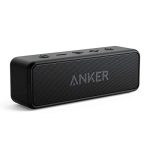
Quick Summary: Pairing your Anker Bluetooth speaker is super simple! Just turn it on, put it in pairing mode (usually holding a Bluetooth button), and then select it from your phone or device’s Bluetooth list. If it isn’t connecting, a quick restart of both devices often does the trick!
Hey There, Tech Explorer! Let’s Get Your Anker Speaker Jamming!
Isn’t it awesome when you can instantly fill your space with your favorite tunes or get lost in a movie with booming sound? A good speaker can totally change the game for parties, chilling at home, or even just making your commute more enjoyable. But sometimes, getting that new gadget connected feels like trying to crack a secret code, right? I get it – with all the buttons and blinking lights, it’s easy to feel a little lost.
That’s where I come in! I’m Max, your go-to tech buddy from AffTechy.com, and I’m here to make tech stuff feel super simple and fun. Forget those complicated manuals and confusing jargon. We’re going to break down how to pair your Anker Bluetooth speaker, step-by-step, like we’re just chatting over coffee. You’ll have your tunes flowing in no time, and you’ll feel like a pro doing it.
Ready to unlock the awesome sound of your Anker speaker? Great! Let’s dive in and get this pairing party started.

Why Bluetooth Speakers Are So Awesome
Think about it: no tangled wires, just pure, unadulterated sound freedom. Bluetooth speakers are like portable magic wands for your audio. Want to blast your workout playlist in the garage? Easy. Want to create a cozy movie night atmosphere in the living room? Done. They’re versatile, user-friendly, and they make sharing music with friends a total breeze. Anker has made some really popular ones because they’re reliable and sound pretty darn good for the price.
Unpacking Your Anker Speaker (The Exciting Part!)
Okay, so you’ve got your brand-new Anker Bluetooth speaker. That’s fantastic! The first thing you’ll want to do is unbox it carefully. Inside, you’ll usually find the speaker itself, a charging cable (often USB-C these days!), and maybe a small instruction booklet. Don’t worry too much about that booklet for now; I’m going to walk you through everything you need to know.
Before we get to pairing, it’s always a good idea to give your new speaker a little juice. Plug it in using the included cable and let it charge up. Most Anker speakers have handy LED lights that show you when they’re charging and when they’re ready to go. While it’s charging, you can get your phone or tablet ready.
Getting Your Anker Speaker Ready to Connect
So, your speaker is charged and ready to roll. Now, let’s get it into that special “pairing mode” state. This is like telling your speaker, “Hey, I’m looking for a new friend to connect to!”

Finding the Power Button
First things first, you need to turn your speaker on. Look for a power button. It’s usually pretty obvious – often marked with a power symbol (a circle with a line through it) or just labeled “Power.” Press and hold it for a second or two until you hear a little chime or see a light turn on.
The Magic of Pairing Mode
After turning it on, you need to activate pairing mode. This is where the Bluetooth connection actually begins. On most Anker speakers, you’ll find a dedicated Bluetooth button. It might have the universal Bluetooth symbol (a stylized “B”) on it.
Press and Hold: Typically, you need to press and hold this Bluetooth button for a few seconds.
Listen for a Sound: You’ll usually hear a distinct sound or series of beeps when your speaker enters pairing mode.
Look for a Blinking Light: A small LED light next to the Bluetooth button will often start blinking, usually blue. This blinking is your signal that it’s actively searching for a device to connect to.
Different Anker models might have slight variations, but this “press and hold the Bluetooth button until it blinks” trick works for most of them. If you have a specific model like the Soundcore Flare or Motion+, the steps are generally the same, but it’s always good to keep an eye out for any unique indicators.
Connecting Your Phone or Tablet: The Main Event!
Now that your Anker speaker is broadcasting its availability, it’s time to tell your phone or tablet to find it. Bluetooth pairing is a two-way street!
Step 1: Open Your Device’s Bluetooth Settings
This is the same place you’d go if you were trying to connect to Bluetooth headphones or a car stereo.
On iPhones/iPads: Go to `Settings` > `Bluetooth`.
On Android Phones/Tablets: Go to `Settings` > `Connections` (or `Connected devices`) > `Bluetooth`.
Make sure Bluetooth is toggled ON. You’ll see a list of devices that are already paired and a section for “Available Devices” or “Other Devices.”
Step 2: Scan for Devices
Your phone or tablet should automatically start scanning for nearby Bluetooth devices. If it doesn’t, there’s usually a “Scan” or “Refresh” button you can tap.
Step 3: Find Your Anker Speaker
In the list of available devices, keep an eye out for your Anker speaker. The name will usually be something like “Anker Soundcore [Model Name]” or just “Anker [Model Name].” For example, you might see “Soundcore Boost” or “Anker A3143.”
Step 4: Tap to Connect!
Once you see your speaker’s name in the list, simply tap on it. Your device will then attempt to connect to the speaker.
Step 5: Confirmation Time!
If everything goes smoothly, you’ll hear a confirmation sound from your Anker speaker, and the blinking blue light will usually turn solid. On your phone or tablet, the speaker’s name will move from the “Available Devices” list to your “Paired Devices” list. See? Easy peasy!
When Things Go Wrong: Quick Fixes for Pairing Problems
Honestly, most of the time, pairing is a breeze. But sometimes, tech throws us a curveball. If your Anker speaker isn’t pairing, don’t panic! Here are a few super-common fixes that solve about 90% of connection issues.
1. Is it Really Charged?
It sounds obvious, but a low battery can sometimes mess with Bluetooth. Make sure your speaker has enough power. If it was low, give it some charge and try again.
2. Restart Both Devices (The Universal Fix!)
This is the oldest trick in the tech book for a reason – it works!
Turn off your Anker speaker: Hold the power button until it turns off.
Turn off your phone/tablet’s Bluetooth: Go into your device’s Bluetooth settings and toggle it off.
Wait a few seconds.
Turn your Anker speaker back on and put it in pairing mode again.
Turn your phone/tablet’s Bluetooth back on and try scanning for devices.
This simple restart clears out any temporary glitches that might be preventing a connection.
3. Forget the Device and Re-pair
Sometimes, your device might remember an old connection attempt that went wrong. You need to “forget” the speaker and start fresh.
On your phone/tablet: Go to Bluetooth settings. Find your Anker speaker in the list of paired devices (even if it didn’t fully pair, it might show up here). Tap on it, and you should see an option to “Forget device,” “Unpair,” or “Remove.”
Once forgotten: Turn off Bluetooth on your device, turn your speaker off and on again into pairing mode, turn your device’s Bluetooth back on, and scan.
4. Too Many Devices Already Connected?
Most Bluetooth speakers can only be actively connected to one device at a time. If your speaker is already connected to your laptop, it won’t connect to your phone.
Check other devices: See if your Anker speaker is connected to anything else. If it is, disconnect it from that device first.
5. Is it Too Far Away?
Bluetooth has a good range, but it’s not infinite! Try bringing your phone and speaker closer together, especially during the initial pairing process. Walls and other electronic devices can sometimes interfere with the signal.
6. Update Your Device’s Software
Sometimes, older operating system versions can have compatibility issues with newer Bluetooth devices. Check if your phone or tablet has any software updates available. Installing them can sometimes resolve connectivity problems.
Understanding Your Anker Speaker Controls
Your Anker speaker usually has a few handy buttons right on top or on the side. Knowing what they do can make your life a lot easier.
Power Button: Turns the speaker on and off.
Bluetooth Button: Used to enter pairing mode or sometimes to reconnect to the last device.
Volume Up/Down Buttons: Controls the sound level. Long-pressing these might skip tracks forward or backward (check your specific model!).
Play/Pause Button: Starts or stops the music. This button often has a dual purpose, like answering or ending calls if your speaker has a microphone.
Tips for Keeping Your Anker Speaker Happy
Once you’ve got your speaker paired and sounding great, here are a few pro tips to keep it running smoothly:
Keep it Charged: While many Anker speakers have long battery life, charging it when you’re not using it ensures it’s always ready for action.
Clean Gently: Dust and grime can build up. Use a dry, soft cloth to wipe your speaker clean. Avoid harsh cleaners or submerging it unless it’s specifically advertised as waterproof.
Protect from Extremes: Avoid leaving your speaker in direct sunlight for too long, or in very cold or hot environments, as this can affect the battery and internal components.
Check for Firmware Updates: Some Anker speakers, especially newer ones, can receive firmware updates via an app. These updates can improve performance and fix bugs. Check the Anker or Soundcore app for your specific model.
Comparing Anker Speaker Features: What Matters?
Anker makes a variety of Bluetooth speakers, each with its own strengths. Here’s a quick rundown of what you might find and why it’s cool.
| Feature | Anker Soundcore Boost | Anker Soundcore Motion+ | Anker Soundcore 3 | Notes |
| :—————— | :——————– | :——————— | :—————— | :——————————————- |
| Sound Quality | Rich bass, balanced | Hi-Res Audio, clear | Enhanced Bass | Look for ‘Hi-Res Audio’ for premium sound. |
| Battery Life | Up to 12 hours | Up to 12 hours | Up to 24 hours | Longer life means more party time! |
| Water Resistance | IPX5 (Splashproof) | IPX7 (Waterproof) | IPX7 (Waterproof) | IPX7 is great for poolside or bathroom jams. |
| Connectivity | Bluetooth 4.2 | Bluetooth 5.0 | Bluetooth 5.0 | Newer Bluetooth is more stable and efficient.|
| App Support | No | Yes (Custom EQ) | Yes (Custom EQ) | Apps let you tweak the sound to your taste. |
| Power Output | 20W | 30W | 16W | Higher wattage generally means louder sound. |
This table gives you a glimpse into what to expect. The Motion+ is often lauded for its amazing sound quality for its price, while the Soundcore 3 offers incredible battery life and waterproofing. It really depends on what’s most important for how you’ll use it! For more in-depth reviews and comparisons, sites like CNET often provide excellent insights.
Pairing Multiple Devices (Anker’s Party Mode!)
Some Anker speakers have a neat feature called “PartyCast” or “Stereo Pairing.” This lets you connect two Anker speakers together for an even bigger sound experience, or connect multiple speakers to one audio source.
Stereo Pairing (Two Links):
If you have two identical Anker speakers (e.g., two Soundcore 3s), you can often pair them together to create a true stereo sound.
1. Pair One Speaker: Connect the first speaker to your phone as usual.
2. Activate Stereo Mode: On one of the speakers, you’ll usually need to press and hold a specific button (often the Bluetooth button or a dedicated TWS button) for a few seconds. You might hear a confirmation sound.
3. The Other Speaker Connects: The second speaker should then automatically connect to the first.
4. Enjoy! Both speakers will now play music in stereo.
PartyCast / Multi-Speaker Sync (Many Links):
Some newer Anker models allow you to connect many speakers together wirelessly.
1. Pair Master Speaker: Connect the first speaker to your phone. This will be your “master” speaker.
2. Activate PartyCast: On the master speaker, press and hold the PartyCast button (or the designated sync button).
3. Sync Other Speakers: Turn on your other Anker speakers and press their PartyCast buttons. They should find and sync with the master speaker.
Always check your speaker’s manual for the exact steps for stereo or multi-speaker modes, as the button combinations can vary!
Anker Bluetooth Speaker FAQ: Your Burning Questions Answered!
Let’s tackle some common questions beginners might have.
Q1: My Anker speaker won’t turn on. What should I do?
A: First, make sure it’s charged! Plug it in for at least 30 minutes. If it still won’t turn on, try holding the power button down for a full 10-15 seconds as a reset. If that doesn’t work, there might be an issue with the battery or power button.
Q2: How do I know if my Anker speaker is actually in pairing mode?
A: Look for a blinking blue LED light, usually near the Bluetooth symbol. You’ll also often hear a distinct pairing sound or series of beeps when it enters pairing mode.
Q3: Can I connect my Anker speaker to my laptop?
A: Absolutely! The process is the same as connecting to your phone. Go to your laptop’s Bluetooth settings, make sure Bluetooth is on, and then select your Anker speaker from the list of available devices.
Q4: My Anker speaker keeps disconnecting. Why?
A: This could be due to a few reasons:
Low Battery: Ensure the speaker is well-charged.
Interference: Other Bluetooth devices or Wi-Fi routers nearby can sometimes cause interference.
Distance: The further your device is from the speaker, the weaker the connection.
Outdated Bluetooth: Ensure your source device has up-to-date software.
Forget and Re-pair: Sometimes simply forgetting the device and pairing it again can fix persistent disconnections.
Q5: How do I reset my Anker Bluetooth speaker to factory settings?
A: Many Anker speakers can be reset by holding down the Power button and the Volume Down button simultaneously for about 5-10 seconds while the speaker is on. You might hear a chime or see the lights change. This will clear all previous pairings. Always check your specific model’s manual for the exact reset procedure.
Q6: Can I use my Anker speaker while it’s charging?
A: Yes, most Anker Bluetooth speakers are designed to be used while they are plugged in and charging. This is super convenient if you have a long playlist and a nearby power outlet!
Q7: What does “IPX7” rating mean for my Anker speaker?
A: An IPX7 rating means your speaker is waterproof! It can be submerged in up to 1 meter (about 3 feet) of water for up to 30 minutes. This makes it perfect for use by the pool, in the shower, or even if it gets caught in the rain, though you should rinse it with fresh water afterward if exposed to salt or chlorinated water.
You’ve Got the Sound Goggles On!
See? Connecting your Anker Bluetooth speaker is totally doable, and hopefully, with these steps and quick fixes, you’re feeling super confident. We’ve covered turning it on, getting into pairing mode, connecting your devices, and even how to troubleshoot those pesky little hiccups.
Remember, the key is often just restarting things and ensuring your speaker is ready to make some noise. Don’t be afraid to try these steps out. Tech is meant to make life more fun, not frustrating!
Now, go on and fill your world with your favorite beats. Whether it’s relaxing melodies or high-energy anthems, good sound makes every moment better — go enjoy it!