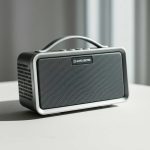
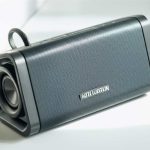
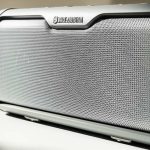
Connecting your Altec Lansing Bluetooth speaker is super simple! Follow these easy steps to pair your phone and enjoy your music in minutes. No tech headaches, just awesome sound.
Hey there, tech adventurers! Max here from AffTechy.com, your go-to spot for making gadgets feel like old friends. You know, sometimes you just want to blast your favorite tunes, listen to a podcast, or make movie night sound epic. That’s where a good Bluetooth speaker comes in handy. And Altec Lansing? They make some seriously cool ones.
But then comes that moment. You unbox your shiny new speaker, ready to fill your space with sound, and you see those little buttons. You wonder, “How do I actually get my phone to talk to this thing?” It can feel a little puzzling at first, right? Don’t sweat it! That’s exactly why I’m here.
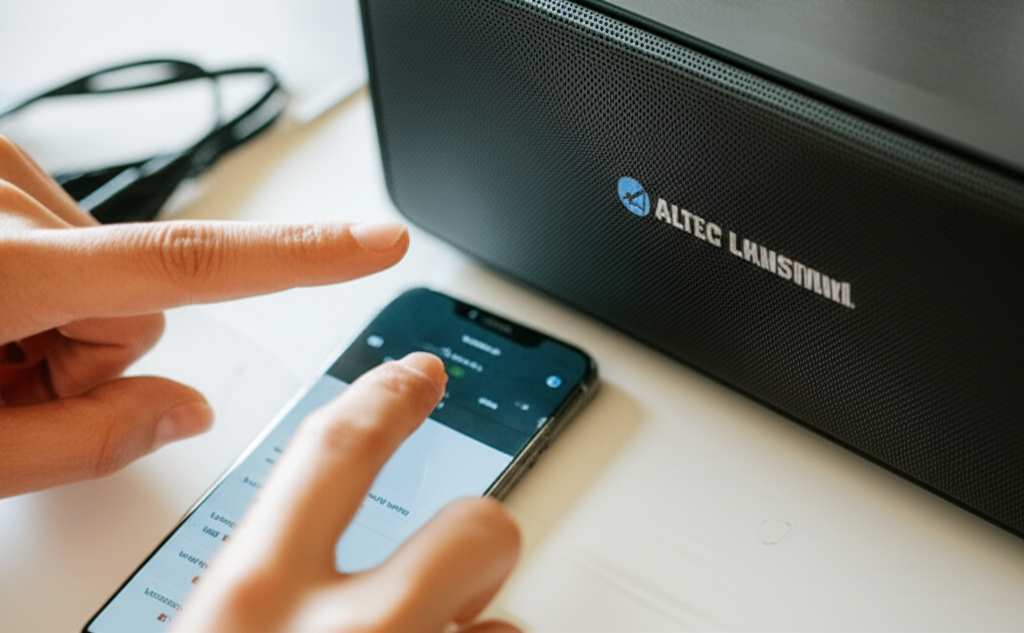
We’re going to walk through connecting your Altec Lansing Bluetooth speaker to your phone. It’s way simpler than you might think. Think of me as your friendly guide, holding your hand through the whole process. We’ll make sure you’re jamming out in no time. Let’s break it down step by step!
Why We Love Bluetooth Speakers (And Altec Lansing!)
Bluetooth speakers have totally changed how we enjoy audio. They’re portable, easy to use, and give you that freedom from tangled wires. Imagine setting up a picnic with great music, or having a backyard party with sound that fills the space. It’s all possible with a good Bluetooth speaker.
Altec Lansing has been around for ages, making awesome sound gear. They know what they’re doing when it comes to quality and reliability. Their Bluetooth speakers are known for being durable and delivering clear, powerful sound. Plus, they often have cool designs that look great anywhere.
So, whether you just got an Altec Lansing speaker or you’re thinking about it, knowing how to connect it is key. It’s the first step to unlocking all that great sound. And trust me, it’s a super easy first step.
Getting Your Altec Lansing Speaker Ready to Pair
Before we even think about connecting to your phone, let’s make sure your speaker is ready to go. This is like getting your car warmed up before a road trip. A few quick checks and you’re golden.
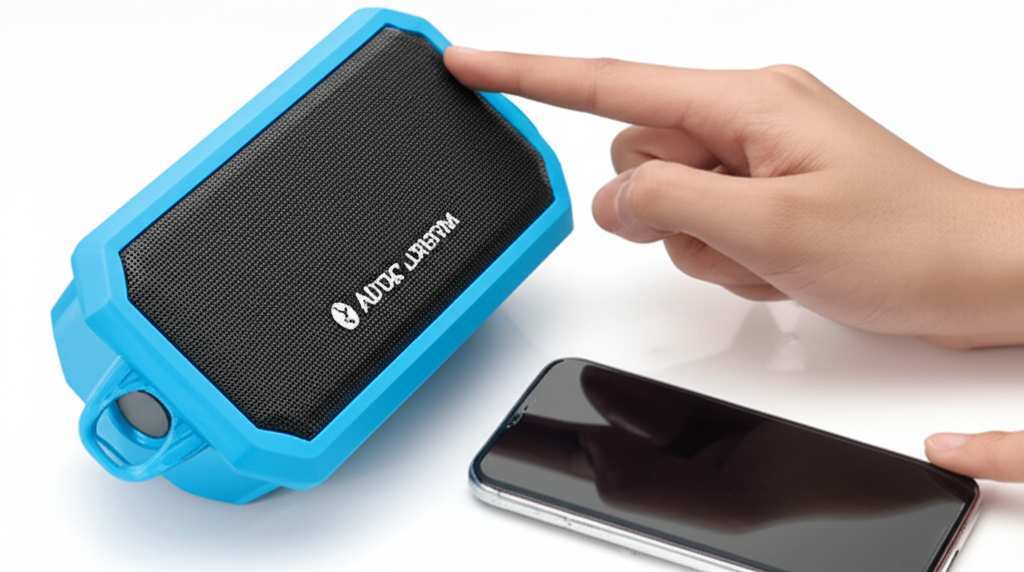
First things first, you need to power up your speaker. Most Altec Lansing speakers have a power button. It’s usually pretty obvious, often marked with a circle and a line symbol. Just give it a press and hold it for a second or two. You’ll usually hear a little chime or see a light come on. That means it’s alive!
Next, make sure your speaker has some juice. If it’s a rechargeable one, give it a good charge before you start. You don’t want your music to die halfway through your first song! Look for a charging port (usually USB) and plug it in. A charging indicator light will often show you it’s getting power.
The Magic of Bluetooth Pairing: What You Need to Know
So, what exactly is Bluetooth? Think of it as invisible radio waves that let devices talk to each other wirelessly. It’s like a secret handshake between your phone and your speaker. They can exchange sound data without needing any cables. Pretty neat, huh?
For your Altec Lansing speaker to connect, it needs to be in “pairing mode.” This is like telling the speaker, “Hey, I’m looking for a new friend to connect with!” Each Altec Lansing model might have a slightly different way to get into pairing mode, but it’s usually pretty straightforward.
Most of the time, there’s a dedicated Bluetooth button. You’ll press and hold this button for a few seconds. You’ll often see a flashing light, usually blue, or hear a specific sound. This flashing light is your signal that the speaker is ready to be discovered by your phone.
Step-by-Step: Connecting Your Altec Lansing Speaker to Your Phone
Alright, let’s get down to business! This is where the magic happens. We’ll go through this together, nice and slow. You’ll be listening to your favorite tunes before you know it.
Step 1: Power On Your Altec Lansing Speaker
As we talked about, turn on your speaker. Find that power button and press it. You should see a light illuminate or hear a startup sound. This confirms your speaker is powered up and ready for the next step.
Step 2: Activate Bluetooth Pairing Mode on Your Speaker
Now, find the Bluetooth button on your Altec Lansing speaker. It might have a little Bluetooth symbol next to it. Press and hold this button. You’ll usually see a light start to flash, often blue. This flashing light means your speaker is actively searching for devices to connect to.
Tip: If you’re not sure which button is which, check your speaker’s manual. It’s usually a small booklet that came in the box. You can also often find the manual online by searching for your speaker’s model number.
Step 3: Enable Bluetooth on Your Phone
This is where we get your phone ready. Go into your phone’s settings. Look for the “Bluetooth” option. It’s usually near the top, right under Wi-Fi or network settings. Tap on it.
Once you’re in the Bluetooth menu, you’ll see a switch or toggle. Make sure it’s turned ON. You should see a list of available Bluetooth devices appear. This is your phone scanning for nearby speakers, including yours!
Step 4: Select Your Altec Lansing Speaker from the List
On your phone’s Bluetooth screen, you’ll see a list of devices that are available to pair. Look for the name of your Altec Lansing speaker. It might be something like “Altec Lansing XYZ” or just “Altec Lansing.”
Once you find it, tap on its name. Your phone will then try to connect to the speaker. You might hear a confirmation sound from your speaker, and the flashing light should turn solid. This means you’re successfully connected!
Step 5: Play Some Music and Enjoy!
That’s it! You’re connected. Now you can open your music app, choose a song, and play it. The sound should now come out of your Altec Lansing speaker. If it doesn’t, double-check that the volume is turned up on both your phone and the speaker.
Troubleshooting Common Connection Issues
Sometimes, things don’t go perfectly on the first try. Don’t worry, these little hiccups are super common! Here are some quick fixes if your Altec Lansing speaker isn’t connecting.
Speaker Not Showing Up?
Make sure your speaker is actually in pairing mode (flashing light).
Try turning your phone’s Bluetooth off and then back on again.
Move your phone closer to the speaker.
Restart both your phone and your speaker.
Connection Dropping or Lagging?
Ensure you are within the Bluetooth range. This is usually about 30 feet (10 meters), but walls and other electronics can interfere.
Try disconnecting and reconnecting.
Check if there are too many other Bluetooth devices active nearby.
Speaker Won’t Pair at All?
Make sure the speaker isn’t already connected to another device. Many speakers can only connect to one device at a time.
Try forgetting the speaker on your phone. Go to your phone’s Bluetooth settings, find your Altec Lansing speaker in the list of paired devices, and tap “Forget” or “Unpair.” Then, try pairing again from scratch.
Understanding Altec Lansing Speaker Features
Altec Lansing speakers come with a variety of cool features. Knowing what they do can help you get the most out of your speaker.
Here are some common features you might find:
IPX Rating: This tells you how resistant your speaker is to water and dust. For example, IPX7 means it can be submerged in water up to 1 meter for 30 minutes! Perfect for pool parties or beach days.
Multi-Pairing/Multi-Link: Some speakers can connect to two devices at once, or you can link multiple Altec Lansing speakers together for stereo sound or a wider audio experience.
Battery Life: This is how long your speaker can play music on a single charge. Longer battery life means more music, less waiting.
Built-in Microphone: If your speaker has a microphone, you can use it for hands-free calls. Your music will pause when you take a call, and you can talk through the speaker.
Voice Assistant Compatibility: Some speakers can work with Siri, Google Assistant, or Alexa. You can ask them questions or control your music just by speaking.
Altec Lansing Speaker Connectivity Options: A Quick Look
While Bluetooth is the star, some Altec Lansing speakers offer other ways to connect your audio. This can be super handy if you have devices that don’t have Bluetooth.
Here’s a quick comparison:
| Connection Type | How it Works | Best For |
|---|---|---|
| Bluetooth | Wireless connection between devices. | Most smartphones, tablets, laptops. |
| 3.5mm Aux-in Port | Wired connection using an audio cable. | Older devices, computers without Bluetooth, stable connection. |
| USB Playback | Playing music directly from a USB drive. | Music collections on USB sticks, no phone needed. |
The 3.5mm Aux-in port is a classic! It uses a standard audio cable, just like headphones used to plug in. If your phone still has a headphone jack, you can use this. It’s also great for a super reliable connection if you don’t want to worry about Bluetooth signals. Some newer Altec Lansing models might even let you plug in a USB drive with music files directly!
Tips for the Best Bluetooth Sound Experience
Want to make your Altec Lansing speaker sound its absolute best? Here are a few friendly tips to enhance your listening pleasure.
Placement Matters: Don’t hide your speaker in a corner! Placing it in an open space, perhaps on a table or shelf, will help the sound travel better and fill the room. Avoid placing it directly against a wall, as this can sometimes muffle the bass.
Keep it Charged: For the longest listening sessions, make sure your speaker is fully charged before you start. Most speakers will give you a warning sound when the battery is low.
Update Your Devices: Sometimes, outdated software on your phone or speaker can cause connection issues. Make sure your phone’s operating system and your speaker’s firmware (if applicable) are up to date.
Clean Your Speaker: Dust and debris can sometimes affect speaker performance. Gently clean the speaker grille with a soft, dry brush.
* Explore the App (If Available): Some Altec Lansing speakers might have a companion app. These apps can sometimes offer EQ settings or firmware updates that can improve sound quality and connectivity.
A great resource for understanding Bluetooth technology and its capabilities can be found on sites like CNET. They often have in-depth guides that explain how these wireless connections work.
Frequently Asked Questions (FAQ)
Got more questions? No worries, I’ve got you covered! Here are answers to some common things people ask about connecting Altec Lansing Bluetooth speakers.
-
How do I know if my Altec Lansing speaker is in pairing mode?
You’ll usually see a light on the speaker blinking, often blue. You might also hear a specific sound or tone. This indicates it’s ready to be discovered by your phone or other device.
-
My phone can’t find my Altec Lansing speaker. What should I do?
First, make sure your speaker is powered on and in pairing mode. Then, try turning your phone’s Bluetooth off and on again. Also, ensure your phone is close enough to the speaker.
-
Can I connect my Altec Lansing speaker to more than one device at a time?
Some Altec Lansing models support multi-pairing, meaning they can connect to two devices simultaneously. Others can only connect to one device at a time. Check your speaker’s manual or product description to be sure.
-
How do I disconnect my Altec Lansing speaker from my phone?
You can either turn off Bluetooth on your phone, or go to your phone’s Bluetooth settings, find the speaker in the list, and select “Disconnect” or “Unpair.” You can also usually turn off the speaker itself.
-
My Altec Lansing speaker was connected before, but now it won’t connect. Why?
It’s possible the speaker is still trying to connect to a previously paired device, or the connection was lost. Try “forgetting” the speaker in your phone’s Bluetooth settings and then re-pairing it from scratch.
-
What does the IPX rating on my Altec Lansing speaker mean?
The IPX rating tells you how well your speaker is protected against water. For example, IPX7 means it can withstand being submerged in water up to 1 meter deep for 30 minutes, making it great for outdoor or poolside use.
-
Can I use my Altec Lansing speaker while it’s charging?
Yes, most Altec Lansing Bluetooth speakers can be used while they are charging. This is convenient if you want to listen to music for an extended period and have access to a power source.
Altec Lansing Speaker Model Comparison (Example)
To give you an idea of what different Altec Lansing speakers offer, here’s a look at a couple of popular models. Features can vary, so always check the specific model you’re interested in!
| Feature | Altec Lansing Jacket J-2 | Altec Lansing Orbit M |
|---|---|---|
| Bluetooth Version | 4.0 | 5.0 |
| Water Resistance | IPX5 (Splashproof) | IP67 (Waterproof & Dustproof) |
| Battery Life | Up to 6 hours | Up to 8 hours |
| Multi-Pair/Link | No | Yes (can link multiple Orbit M speakers) |
| Aux-in Port | Yes | No |
| Carabiner Clip | Yes | Yes |
As you can see, the Orbit M offers a more modern Bluetooth version and better water resistance, which is great for adventure. The Jacket J-2, however, still has an Aux-in port, which might be important for some users. Choosing depends on what you need most!
Wrapping Up: Your Sound, Your Way!
See? Connecting your Altec Lansing Bluetooth speaker is a breeze! You’ve learned how to power it up, get it into pairing mode, and link it with your phone. We’ve also covered some handy troubleshooting tips and explored what makes these speakers so great.
Now you’re all set to enjoy crystal-clear sound for your music, podcasts, and calls. Don’t be afraid to experiment with different music genres and see how rich and full your audio can sound. You’ve got the power to transform any space into your personal concert hall or quiet listening room.
So go ahead, press play, and let the good times roll. You’ve got this! Now go enjoy amazing sound and make every moment louder and better!