Yes, your Bluetooth sound box can absolutely connect to your smart TV via Bluetooth! This opens up a world of immersive audio for your favorite shows and movies. We’ll guide you through the simple steps to make this connection happen.
## Can Bluetooth Sound Box Connect to Smart Tv via Bluetooth?
Imagine this: you’re settling in for a movie night, ready to be blown away by the cinematic experience. The picture is stunning, but the built-in TV speakers are just… lacking. They’re tinny, lack bass, and don’t quite capture the immersive feeling you crave. What if you could easily connect your trusty Bluetooth sound box, the one you use for parties or enjoying music, to your smart TV for a truly amplified audio adventure? It’s a question many of us ponder, and thankfully, the answer is often a resounding yes!
For years, connecting external audio to your TV meant wrestling with cables. HDMI ARC, optical cables – they work, but they tether you to your television. The magic of wireless technology, however, has revolutionized how we enjoy our entertainment. Bluetooth, in particular, has become ubiquitous, making the prospect of wirelessly boosting your TV’s sound more accessible than ever. So, let’s dive in and explore how your Bluetooth sound box can become your smart TV’s new audio best friend.
## Understanding Bluetooth Connectivity in Smart TVs
Smart TVs are, by definition, “smart” because they have integrated processing power and operating systems, much like a smartphone or a computer. This intelligence extends to their connectivity options. Many modern smart TVs come equipped with built-in Bluetooth technology. This allows them to communicate wirelessly with a variety of devices, including headphones, keyboards, mice, and, of course, Bluetooth sound boxes.
### How to Check if Your Smart TV Supports Bluetooth
The first crucial step is to confirm if your smart TV actually has Bluetooth. This information is usually found in the TV’s user manual or on the manufacturer’s website. If you don’t have the manual handy, you can typically check within the TV’s settings menu.
* **Navigate to Settings:** On most smart TVs, you’ll find a “Settings” or “Gear” icon.
* **Look for Connectivity Options:** Within settings, search for sections like “Network,” “Sound,” “Connections,” or “Bluetooth.”
* **Find the Bluetooth Menu:** If your TV has Bluetooth, you’ll see an option to turn it on or off, and often a list of available devices or a pairing option.
If you can’t find any mention of Bluetooth in your TV’s settings or manual, it’s possible your TV doesn’t have this feature built-in. But don’t despair! We’ll cover alternatives later.
### The Importance of Bluetooth Version
Bluetooth technology has evolved over the years. Newer versions, like Bluetooth 5.0 and above, offer improved range, speed, and stability compared to older versions. While most sound boxes and smart TVs will work together regardless of minor version differences, having compatible versions can lead to a smoother, more reliable connection. For example, if your smart TV has Bluetooth 5.0, it can take advantage of its enhanced features when connecting to a sound box that also supports it.
## Pairing Your Bluetooth Sound Box with Your Smart TV
Once you’ve confirmed both your TV and sound box are Bluetooth-enabled, the pairing process is usually quite straightforward. Think of it like introducing two new friends to each other so they can communicate.
### Putting Devices into Pairing Mode
This is the most critical step. Both your TV and your sound box need to be discoverable by each other.
#### For Your Bluetooth Sound Box:
* **Check the Manual:** Every sound box is slightly different. Consult its user manual for specific instructions on how to activate pairing mode.
* **Common Methods:** Usually, there’s a dedicated Bluetooth or pairing button on the sound box itself. You might need to press and hold this button for a few seconds until a light starts blinking or you hear an audio cue indicating it’s in pairing mode.
* **Power On:** Ensure your sound box is powered on and has sufficient battery if it’s a portable unit.
#### For Your Smart TV:
* **Access Bluetooth Settings:** Go back to your TV’s Bluetooth menu (as described in the previous section).
* **Scan for Devices:** Your TV will likely have an option to “Scan,” “Search,” or “Add Device.” Select this to have your TV look for nearby Bluetooth devices.
* **Make the TV Discoverable (If Necessary):** Some TVs might need to be in a discoverable state to pair with a new device, though often they are designed to scan for new devices automatically.
### Selecting and Connecting the Sound Box
After your TV scans for devices, you should see a list of available Bluetooth items. Your sound box should appear on this list, often by its brand name or model number.
1. **Locate Your Sound Box:** Find your sound box’s name in the list on your TV screen.
2. **Select and Connect:** Use your TV remote to select your sound box and then choose the “Connect” or “Pair” option.
3. **Confirmation:** You might see a confirmation message on your TV, and your sound box might emit a sound or change its indicator light to show a successful connection.
Once connected, your smart TV’s audio should automatically be routed through your Bluetooth sound box. You can then test it by playing some content.
## Troubleshooting Common Bluetooth Connection Issues
While the pairing process is usually smooth, sometimes technology throws us a curveball. If you’re having trouble connecting your Bluetooth sound box to your smart TV, don’t worry. Here are some common issues and how to fix them.
### Audio Lag or Latency
This is perhaps the most common complaint with Bluetooth audio. You might notice a slight delay between the video on the screen and the sound coming from your sound box. This is known as audio latency.
* **Why it Happens:** Bluetooth signals take a tiny fraction of a second to travel wirelessly, which can cause a noticeable lag, especially during fast-paced scenes or gaming.
* **Potential Solutions:**
* **Check TV Settings:** Some smart TVs have an “Audio Delay” or “Lip Sync” setting that allows you to manually adjust the audio to match the video. Experiment with this setting.
* **Use a Different Codec (Advanced):** Some Bluetooth connections support different audio codecs (like aptX Low Latency, if both devices support it). These are designed to minimize delay. Check your device manuals.
* **Consider a Wired Connection:** If latency is a major issue for critical viewing or gaming, a wired connection (like an optical cable or HDMI ARC) will always provide the most immediate audio. For those with Roku TVs, understanding options like [Can You Connect Roku Tv To Bluetooth Speaker Amazing Sound](https://afftechy.com/can-you-connect-roku-tv-to-bluetooth-speaker-amazing-sound/) can be helpful for optimizing sound.
### Connection Drops or Instability
If your sound box keeps disconnecting or the audio cuts out intermittently, there could be several reasons.
* **Interference:** Other wireless devices (microwaves, Wi-Fi routers, other Bluetooth devices) can interfere with the Bluetooth signal. Try to minimize these.
* **Distance:** Keep your sound box relatively close to your TV. While Bluetooth has a decent range, walls and distance can weaken the signal.
* **Power Saving:** Some sound boxes or TVs might have aggressive power-saving modes that can disrupt Bluetooth connections. Check your device settings.
* **Restart Devices:** A simple restart of both your TV and your sound box can often clear temporary glitches. Turn them off, unplug them for a minute, and then turn them back on.
* **Forget and Re-pair:** On your TV, “forget” or “unpair” the sound box from its Bluetooth device list. Then, go through the pairing process again.
### Sound Box Not Appearing in TV’s Device List
If your sound box simply isn’t showing up on your TV’s Bluetooth scan, here’s what to check.
* **Is it in Pairing Mode?** Double-check that your sound box is actively in pairing mode. The indicator light should be blinking, not solid.
* **Is the TV Scanning?** Ensure your TV is actively searching for new devices.
* **Is the Sound Box Already Connected Elsewhere?** Many Bluetooth devices can only connect to one source at a time. If your sound box is already connected to your phone or tablet, disconnect it from that device first.
* **Distance and Obstructions:** Ensure the sound box is within a reasonable range of the TV and there are no major obstructions.
* **Reboot Both Devices:** As mentioned, a simple reboot can sometimes resolve detection issues.
## When Your Smart TV Doesn’t Have Built-in Bluetooth
What if your smart TV is a bit older, or its specifications just don’t include Bluetooth? This doesn’t mean you’re out of luck. You can still enjoy wireless audio with your Bluetooth sound box by using an external Bluetooth transmitter.
### Using a Bluetooth Transmitter
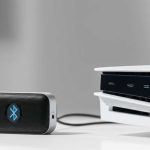
A Bluetooth transmitter is a small device that plugs into your TV’s audio output port and wirelessly broadcasts the audio signal.
#### Types of Audio Outputs to Look For:
* **3.5mm AUX Jack:** This is a common headphone-style jack found on many TVs.
* **RCA Audio Out:** These are typically red and white jacks. You might need an adapter cable to connect from RCA to 3.5mm.
* **Optical (Toslink) Audio Out:** This is a digital audio port that offers excellent sound quality. Many transmitters have an optical input.
#### How to Connect with a Transmitter:
1. **Choose a Transmitter:** Select a Bluetooth transmitter that supports the audio output on your TV. Many also support the low-latency aptX codec, which is beneficial for minimizing audio lag.
2. **Connect the Transmitter:** Plug the transmitter into your TV’s audio output using the appropriate cable (3.5mm, RCA to 3.5mm, or optical).
3. **Power the Transmitter:** Most transmitters are powered via a USB cable, which you can often plug into a USB port on your TV or a separate USB power adapter.
4. **Put the Transmitter in Pairing Mode:** Follow the transmitter’s instructions to put it into pairing mode. This usually involves pressing and holding a button.
5. **Pair Your Sound Box:** Put your Bluetooth sound box into pairing mode.
6. **Connect:** The transmitter and sound box should then automatically connect to each other. Once paired, your TV’s sound will be transmitted wirelessly to your sound box.
This method is fantastic for breathing new life into older TVs and making them compatible with modern wireless audio devices. For example, if you have a Hisense TV that lacks Bluetooth, a transmitter is a great solution. [Can Hisense Tv Connect To Bluetooth Speaker Easy Fix](https://afftechy.com/can-hisense-tv-connect-to-bluetooth-speaker-easy-fix/) often involves solutions like these.
## Maximizing Your Bluetooth Sound Experience
Once you’ve successfully connected your Bluetooth sound box to your smart TV, you’ll want to ensure you’re getting the best possible audio experience.
### Checking Audio Settings on Your TV
Beyond just pairing, explore your TV’s audio settings.
* **Sound Output:** Ensure your TV is set to output audio to the external Bluetooth device. Sometimes, you might need to explicitly select “Bluetooth Audio” or similar.
* **Equalizer Settings:** If your TV has equalizer settings, you can tweak them to enhance bass, treble, or mid-tones to your liking, which will affect the sound coming from your sound box.
* **Surround Sound Modes:** Experiment with any virtual surround sound modes your TV offers. While a sound box is typically stereo, these modes can sometimes add a sense of spaciousness.
### Firmware Updates
Manufacturers often release firmware updates for both smart TVs and Bluetooth devices. These updates can fix bugs, improve performance, and sometimes even add new features.
* **Check for TV Updates:** In your smart TV’s settings, look for a “Software Update” or “Firmware Update” option. Keep your TV connected to the internet to receive these.
* **Check for Sound Box Updates:** Some advanced Bluetooth sound boxes might have companion apps that allow for firmware updates. Consult your sound box’s manual.
Regularly checking for and installing these updates can often resolve stubborn connectivity issues and ensure your devices are running optimally.
### Understanding Limitations
While connecting a Bluetooth sound box to a smart TV offers great convenience, it’s important to be aware of its limitations:
* **Audio Quality:** While generally good, Bluetooth audio quality can sometimes be compressed compared to a wired connection, especially with older Bluetooth versions or less sophisticated codecs.
* **Number of Devices:** Most TVs can only connect to one Bluetooth audio device at a time. If you’re looking to connect multiple speakers, you’d typically need a different setup or a specialized transmitter. You can explore [Can I Connect To More Than One Bluetooth Speaker Amazing](https://afftechy.com/can-i-connect-to-more-than-one-bluetooth-speaker-amazing/) for more on this.
* **Battery Life:** If you’re using a portable Bluetooth sound box, remember that it relies on battery power. Ensure it’s charged before a long viewing session.
## Conclusion: Elevate Your Home Entertainment
So, can your Bluetooth sound box connect to your smart TV via Bluetooth? In most cases, the answer is a definite yes! This simple wireless connection can dramatically enhance your viewing experience, turning ordinary TV sound into something truly captivating. Whether your smart TV has built-in Bluetooth or you opt for a convenient Bluetooth transmitter, the path to richer, more immersive audio is well within reach.
Remember to always check your device specifications, follow the pairing instructions carefully, and don’t hesitate to troubleshoot common issues. With a little effort, you can unlock a world of superior sound for all your favorite shows, movies, and games. Happy listening!
Key Takeaways
- Most modern smart TVs have built-in Bluetooth capabilities, allowing them to wirelessly connect to external audio devices like Bluetooth sound boxes.
- The process involves putting both your TV and sound box into pairing mode, then selecting the sound box from the TV’s Bluetooth device list.
- Not all smart TVs or sound boxes support Bluetooth, so it’s important to check your device specifications before attempting to connect.
- Potential for audio lag (latency) exists with Bluetooth connections, which can be noticeable during fast-paced action or gaming.
- Older TVs may require a Bluetooth transmitter connected via the audio output (like an AUX or optical port) to enable wireless sound.
- Firmware updates for your TV and sound box can sometimes resolve connectivity issues and improve performance.
Frequently Asked Questions
Can I connect any Bluetooth sound box to my smart TV?
Generally, yes, but it’s best to check the compatibility. Most modern smart TVs and Bluetooth sound boxes use standard Bluetooth protocols that allow them to connect. Always check your TV and sound box manuals for specific Bluetooth capabilities.
What if my smart TV doesn’t have Bluetooth?
If your smart TV lacks built-in Bluetooth, you can use an external Bluetooth transmitter. This device plugs into your TV’s audio output (like an AUX or optical port) and broadcasts the sound wirelessly to your Bluetooth sound box.
Will there be a delay between the video and audio?
Yes, it’s possible to experience a slight audio delay (latency) with Bluetooth connections. This is more noticeable with older Bluetooth versions or during fast-paced content. Some TVs and transmitters offer audio delay settings to help compensate.
How do I put my Bluetooth sound box into pairing mode?
The method varies by brand and model. Usually, you’ll need to press and hold a dedicated Bluetooth or pairing button on the sound box until an indicator light blinks, signaling it’s ready to connect.
Can I connect my Bluetooth sound box to multiple devices at once?
Most Bluetooth sound boxes can only actively connect to one audio source at a time. If you want to switch from your TV to your phone, you’ll need to disconnect from the TV first before connecting to your phone.
What should I do if my TV can’t find my Bluetooth sound box?
Ensure your sound box is in pairing mode and close enough to the TV. Also, check that the sound box isn’t already connected to another device. Sometimes, restarting both the TV and the sound box can resolve detection issues.