Experiencing an HDMI ARC connection issue with your sound box? Don’t worry, it’s a common problem with straightforward solutions. This guide dives into why your sound box might not be connecting via HDMI ARC, covering everything from simple cable checks to more complex settings adjustments on your TV and sound system. Get your home theater audio back on track quickly!
Why Is My Sound Box Not Connecting to Hdmi Arc
So, you’ve got a new sound box, eager to experience that cinematic audio from your TV, and you’ve heard about HDMI ARC (Audio Return Channel). It sounds like the perfect way to simplify your setup – one cable for both audio and video! But then, frustration sets in when your sound box isn’t connecting to HDMI ARC. You’ve plugged everything in, but… silence. Or maybe just a garbled mess. Don’t throw in the towel just yet! This is a super common issue, and usually, there’s a simple fix waiting to be discovered.
Many people run into this problem. You’re expecting seamless integration, but your TV and sound box are playing hard to get with each other. The beauty of HDMI ARC is that it allows your TV to send audio back to your sound box through the same HDMI cable that usually sends video *to* the TV. This means you can often control the sound box’s volume with your TV remote, and it simplifies cabling immensely. But when it doesn’t work, it feels like a major roadblock to your home entertainment dreams.
Let’s break down why your sound box might be giving you the silent treatment and how to get that sweet, sweet audio flowing. We’ll go through the common culprits, from the simplest checks to the slightly more involved troubleshooting steps.
- HDMI ARC requires specific ports: Both your TV and sound box need to have dedicated HDMI ports labeled “ARC” for the connection to work.
- Cable quality matters: Using an older or damaged HDMI cable can prevent ARC from functioning correctly. Opt for a High-Speed or Ultra High-Speed certified cable.
- Enable ARC in settings: Both your TV and sound box likely have a setting to enable HDMI ARC or CEC (Consumer Electronics Control) that needs to be turned on.
- Device compatibility is key: Not all TVs and sound boxes support HDMI ARC, or they might have specific requirements for it to function.
- Firmware updates can help: Outdated software on your TV or sound box can cause connectivity issues. Ensure both devices have the latest firmware installed.
- Power cycling is a common fix: Sometimes, simply unplugging and replugging both devices can resolve temporary glitches.
[FEATURED_IMAGE_PLACEHOLDER]
📑 Table of Contents
Understanding HDMI ARC: The Basics
Before we dive into troubleshooting, it’s good to have a basic understanding of what HDMI ARC is and how it’s supposed to work. ARC stands for Audio Return Channel. Think of it like a two-way street for audio signals. Normally, an HDMI cable sends audio and video from a source (like a Blu-ray player or game console) *to* your TV. With ARC, the TV can send audio *back* to your sound box or AV receiver using that same HDMI cable.
The “ARC” Designation is Crucial
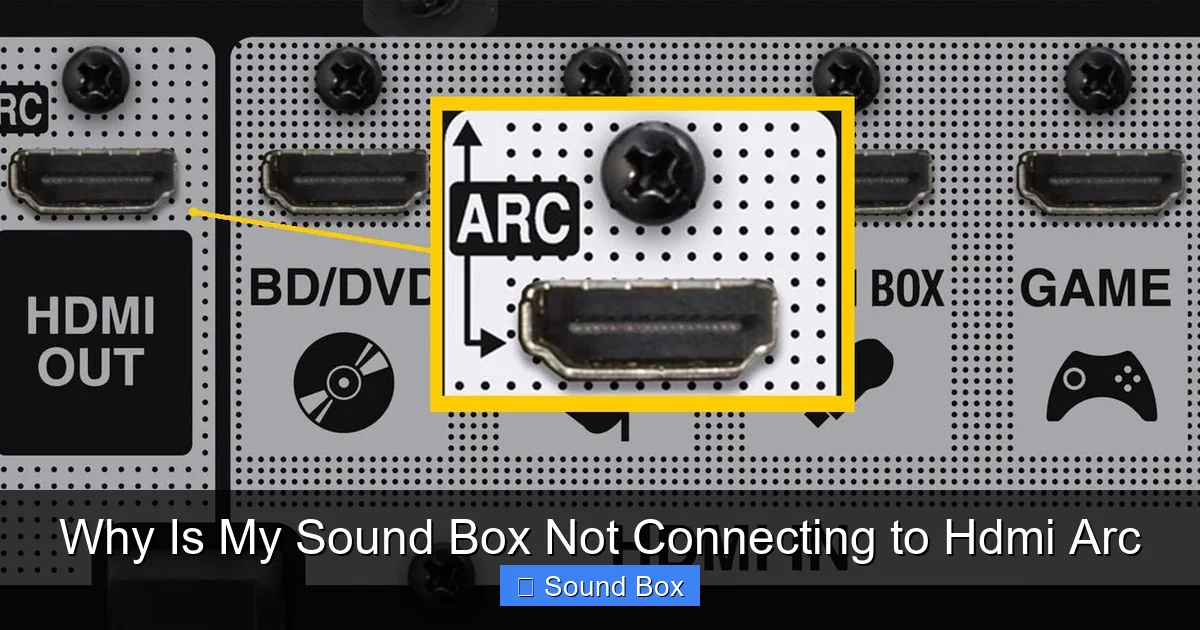
This is probably the most overlooked aspect. For HDMI ARC to work, you need a specific HDMI port on both your TV and your sound box. Look for an HDMI port that is explicitly labeled “ARC” or “HDMI (ARC).” Sometimes it might say “HDMI IN (ARC)” or “HDMI OUT (ARC).” It’s absolutely essential that the cable connecting your TV and sound box is plugged into these designated ARC ports on *both* devices. If you’re using a regular HDMI port on either device, ARC won’t function.
CEC: The Unsung Hero (or Villain)
HDMI ARC often works hand-in-hand with a feature called HDMI CEC (Consumer Electronics Control). CEC allows devices connected via HDMI to control each other. This is what enables features like using your TV remote to control your sound box’s volume. Different manufacturers have different names for CEC, such as:
- Samsung: Anynet+
- LG: Simplink
- Sony: BRAVIA Sync
- Panasonic: Viera Link
- Philips: EasyLink
- Toshiba: Regza Link
If CEC isn’t enabled on both your TV and sound box, ARC might not activate or function correctly. So, keeping an eye on CEC settings is important.
Step-by-Step Troubleshooting for Connection Issues
Visual guide about Why Is My Sound Box Not Connecting to Hdmi Arc
Image source: lifewire.com
Now that we know the basics, let’s get down to fixing it. We’ll start with the easiest checks and move to more involved solutions.
1. Check Your Cables and Ports
This sounds simple, but it’s the most frequent cause of problems.
The Right HDMI Port
As mentioned above, double-check that you are using the HDMI ports specifically labeled “ARC” on both your TV and your sound box. They are usually the last HDMI input port on the TV and a specific output/input port on the sound box.
HDMI Cable Quality
Not all HDMI cables are created equal, especially when it comes to ARC. Older HDMI cables might not have the bandwidth or the necessary pins enabled for ARC to function reliably.
- Recommendation: Use a “High-Speed” HDMI cable or, even better, an “Ultra High-Speed” HDMI cable. These are designed to handle the higher bandwidth required for modern HDMI features, including ARC.
- Test with a different cable: If you’re unsure about your current cable, try a brand-new, certified High-Speed HDMI cable. It’s a relatively inexpensive thing to rule out.
Physical Connections
Ensure the HDMI cable is firmly seated in both ports. Sometimes, a loose connection can cause intermittent issues or prevent the connection from being established at all. Gently push the cable in on both ends until you feel a secure connection.
2. Enable HDMI ARC and CEC Settings
This is where most people find their solution. Both your TV and your sound box have settings that need to be configured for ARC to work.
On Your TV:
Navigate through your TV’s settings menu. The exact location varies by brand, but you’re generally looking for:
- HDMI Settings: Look for an option related to HDMI control or CEC.
- Enable CEC: Turn on the CEC feature. Remember the manufacturer-specific names for this (Anynet+, Simplink, etc.).
- Enable ARC: There might be a separate setting specifically for enabling HDMI ARC. Make sure this is switched on. Some TVs automatically enable ARC when CEC is turned on for the ARC HDMI port.
- Audio Output Settings: Ensure your TV’s audio output is set to the correct option. This is often labeled as “HDMI ARC,” “External Speakers,” or “Receiver.” Avoid settings like “TV Speakers” or “Optical Out.”
On Your Sound Box:
Your sound box will also have similar settings. Check its user manual or on-screen display for:
- HDMI Input/Output Settings: Look for an option related to HDMI control or CEC.
- Enable CEC: Turn this on if available.
- Enable ARC: Some sound boxes have a specific ARC setting.
- Input Selection: Ensure your sound box is set to the correct HDMI input that is connected to the TV’s ARC port.
It’s crucial to enable these settings on *both* devices.
3. Power Cycle Your Devices
This is a classic IT fix for a reason – it often works! A power cycle, or “reboot,” can clear temporary glitches in the devices’ internal processors.
The Process:
- Turn off your TV and your sound box.
- Unplug both devices from the power outlet.
- Wait for at least 60 seconds. This allows any residual power to drain.
- Plug both devices back into the power outlet.
- Turn on your TV first, and then turn on your sound box.
- Test the HDMI ARC connection again.
This simple step can resolve communication errors between the two devices.
4. Update Firmware/Software
Manufacturers regularly release firmware updates to improve performance, fix bugs, and add new features. An outdated firmware on either your TV or your sound box could be the reason your HDMI ARC connection isn’t working.
How to Update:
- Check Your TV: Go to your TV’s settings menu, usually under “Support,” “System,” or “About,” and look for a “Software Update” or “Firmware Update” option. Your TV will likely need to be connected to the internet for this.
- Check Your Sound Box: Similarly, check your sound box’s manual or settings for firmware update instructions. Some sound boxes update automatically when connected to Wi-Fi, while others might require a USB drive or a specific app.
Make sure both devices are running the latest available software.
5. Try a Different HDMI Cable or Port (if available)
If you suspect the cable or port, even after trying a new cable, it’s worth exploring other options.
- Another ARC Port: Some TVs have more than one HDMI port, and occasionally, one might be more reliable for ARC than another (though this is rare). If your TV has multiple ARC-labeled ports, try the other one.
- Non-ARC Ports (as a test): While not a solution for ARC, plugging the HDMI cable into a non-ARC port on the TV (and ensuring the sound box is set to the correct input) can help you verify if basic HDMI audio transmission is working. This is more for isolating the issue to the ARC functionality itself.
6. Check Device Compatibility
It’s worth confirming that your specific TV and sound box models actually support HDMI ARC. While most modern smart TVs and sound boxes do, older models or very basic devices might not.
- Consult Manuals: The user manuals for both your TV and sound box are your best resource. They will clearly state if HDMI ARC is supported.
- Manufacturer Websites: You can also check the product specifications on the manufacturers’ websites.
If your devices don’t support ARC, you’ll need to consider alternative audio connection methods like optical audio cables or standard HDMI connections (though these won’t offer the convenience of ARC. If you’re having trouble with your sound system, you might find solutions in articles about common sound issues. For example, if your sound is crackling, there are specific fixes for that.
7. Factory Reset (Last Resort)
If all else fails, a factory reset on either your TV or your sound box can sometimes resolve deep-seated configuration issues.
Be warned: A factory reset will erase all your custom settings, downloaded apps, and network configurations, so you’ll need to set everything up again from scratch.
- TV Reset: Look in your TV’s system or support settings for a “Factory Reset” or “Initialize” option.
- Sound Box Reset: Check your sound box’s manual for instructions on how to perform a factory reset. This often involves holding down certain buttons for a period.
It’s generally advisable to try resetting one device at a time and testing the connection after each reset.
Common Scenarios and What They Mean
Visual guide about Why Is My Sound Box Not Connecting to Hdmi Arc
Image source: speakersninja.com
Let’s look at a few common symptoms and what they might tell you:
Scenario 1: No Sound at All
If you’ve followed all the steps and there’s still no sound from your sound box when using HDMI ARC, it points towards:
- Incorrect port usage (not using the ARC ports).
- ARC or CEC not enabled on one or both devices.
- An issue with the HDMI cable itself.
- The TV’s audio output setting is incorrect.
Scenario 2: Sound Works, But Remote Control Doesn’t
This usually indicates that the HDMI ARC audio signal is passing through, but the CEC (Consumer Electronics Control) portion of the communication isn’t working.
- Action: Focus on the CEC settings. Ensure CEC is enabled on both devices, and check if there are any specific CEC options within those settings that might be disabled. Try different names for CEC if your device offers multiple options.
Scenario 3: Intermittent Audio or Dropped Sound
If the sound cuts in and out, it could be a sign of a loose connection, a faulty HDMI cable that’s not consistently transmitting data, or sometimes even a minor HDMI handshake issue that a power cycle or firmware update can fix.
- Action: Re-seat the HDMI cable, try a different, high-quality cable, and perform a full power cycle. If the problem persists, check for firmware updates for both devices. You might also want to check out articles on why your bluetooth speaker is connected but no sound, as some general connectivity principles apply.
When to Seek Further Help
If you’ve gone through all these steps and your sound box is still stubbornly refusing to connect via HDMI ARC, it might be time to consider the following:
- Contact Manufacturer Support: Reach out to the customer support for both your TV and your sound box. They can often provide model-specific troubleshooting or confirm if there’s a known issue.
- Professional Repair: In rare cases, there might be a hardware defect with the HDMI ARC port on your TV or sound box. A qualified electronics repair technician might be able to diagnose and fix this.
Getting your sound box connected via HDMI ARC should significantly enhance your TV watching experience. By systematically working through these troubleshooting steps, you’re highly likely to identify and resolve the issue. Remember to be patient, check the small details like port labels and settings, and don’t underestimate the power of a simple reboot!
Frequently Asked Questions
What is HDMI ARC and why is it important?
HDMI ARC (Audio Return Channel) is a feature that allows your TV to send audio signals back to your sound box or AV receiver through the same HDMI cable used for video. This simplifies your audio setup and often allows your TV remote to control the sound box volume.
Do I need a special HDMI cable for ARC?
While any HDMI cable might work, it’s highly recommended to use a “High-Speed” or “Ultra High-Speed” certified HDMI cable. These cables are designed for better performance and reliability with advanced features like ARC.
Can I connect any sound box to my TV via HDMI ARC?
No, both your TV and your sound box must explicitly support HDMI ARC for the connection to work. Check the user manuals or specifications of both devices to confirm compatibility.
What does it mean if my TV remote controls the volume on my sound box using HDMI ARC?
This is a feature enabled by HDMI CEC (Consumer Electronics Control), which often works alongside ARC. It allows devices connected via HDMI to communicate and control each other, meaning your TV remote can manage the sound box’s volume.
My sound box is connected via HDMI but I still have no sound. What should I do?
First, ensure you are using the HDMI ports specifically labeled “ARC” on both the TV and sound box. Then, verify that HDMI ARC and CEC are enabled in the settings of both devices. Also, confirm your TV’s audio output is set to external speakers or ARC.
Is it possible that my TV or sound box is too old to support HDMI ARC?
Yes, older TVs and sound systems might not have been manufactured with HDMI ARC support. HDMI ARC started becoming more common around 2009-2010, but its widespread adoption and reliability improved in later years.