Your Bluetooth speaker crackling? Don’t worry! This guide has simple fixes to get your music sounding clear again. We’ll cover common causes and easy steps to troubleshoot the noise.
Hey there, fellow tech lovers! You know that feeling, right? You’ve got your favorite playlist ready to go, maybe you’re about to dive into an epic movie scene, or perhaps you’re just chilling with a podcast. You connect your trusty Bluetooth speaker, and then… crackle, pop, hiss. Ugh. It’s like a tiny gremlin decided to join your audio party and is messing with the sound. It’s super frustrating when your sound system decides to act up, especially when you just want to enjoy your tunes or catch every word of that dialogue.
Picking out the perfect Bluetooth speaker can already feel like a quest sometimes, with all the specs and features flying around. But once you’ve got one, you expect it to just work, right? And when it doesn’t, especially with that annoying crackling sound, it can make you wonder what’s going on. Is the speaker broken? Is it your phone? Is it something in the air? Don’t you worry your head about it! I’m here to help you figure out exactly why your Bluetooth speaker might be crackling and, more importantly, how to fix it. We’re going to break this down step by step, making it super simple.
Let’s talk about sound. The magic of a Bluetooth speaker is its ability to wirelessly beam audio from your device to the speaker. This is usually done using radio waves, kind of like how your Wi-Fi works but for sound. When everything is working perfectly, it’s seamless. But sometimes, these radio waves can get a little mixed up or interrupted, and that’s when you might hear that unwanted crackling. It’s not a sign that your speaker is a lost cause, though! Most of the time, it’s something simple we can sort out.
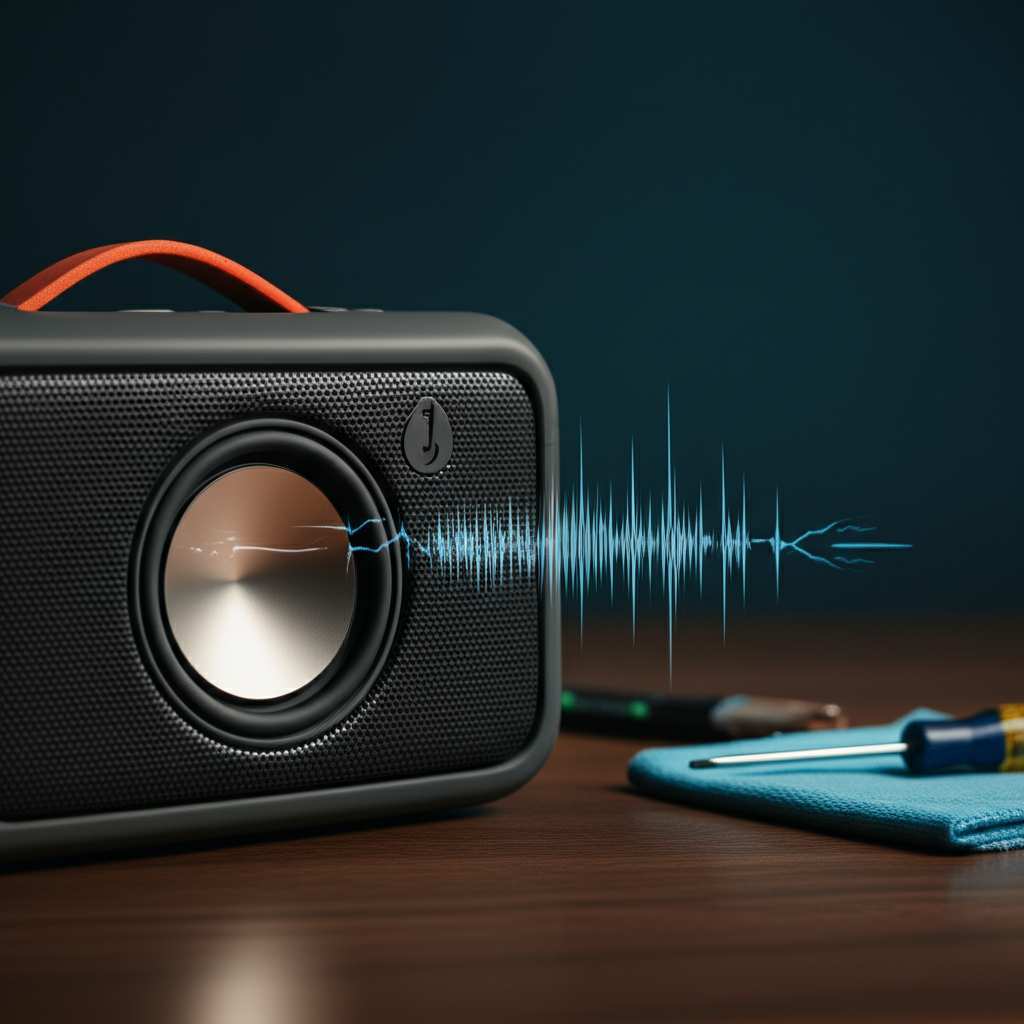
Think of it like a conversation. If there’s a lot of background noise, or if you’re too far apart, it’s hard to hear clearly. Bluetooth is similar. It needs a clear path to send that sound data. When that path gets cluttered or weak, the sound can get choppy and crackly. We’ll explore all the common culprits, from simple distance issues to interference from other gadgets, and I’ll show you how to tackle each one.
Why Is My Bluetooth Speaker Crackling? The Usual Suspects
So, what’s really going on when your speaker starts making those fuzzy noises? It’s usually a combination of a few things, and understanding them is the first step to fixing them. Don’t feel overwhelmed; we’re going to go through them one by one.
1. Distance and Obstacles: The Bluetooth Bubble
Bluetooth has a certain range, and it’s not infinite! If you’re too far away from your speaker, the signal can weaken. Imagine shouting to someone across a football field – they might not hear you clearly. The same happens with Bluetooth signals.
The Sweet Spot: Most Bluetooth speakers have an optimal range of about 30 feet (10 meters) in an open space.
Wall Woes: Walls, doors, and even large furniture can act like barriers, weakening the signal. Each obstacle is like trying to talk through another room.
What to Do: Try moving your device and speaker closer together. Sometimes, just a few steps can make a huge difference. Keep them in the same room if possible, and try to minimize obstructions between them.
2. Interference: Too Many Signals in the Air
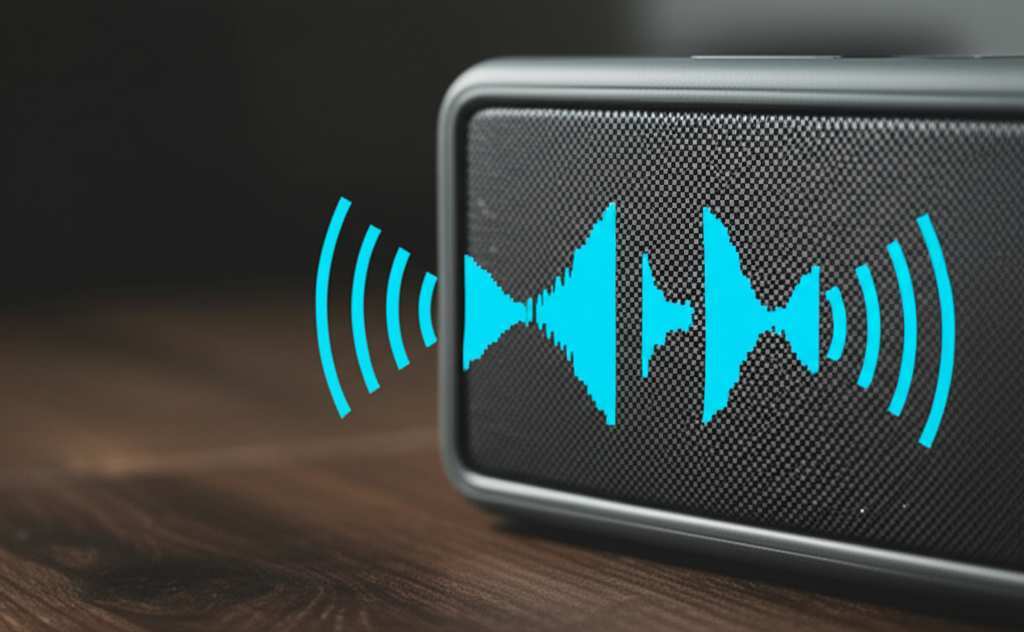
Our world is buzzing with wireless signals. Your Wi-Fi router, microwave ovens, other Bluetooth devices, even some cordless phones can create “noise” that messes with your speaker’s signal. It’s like trying to listen to one conversation in a room full of people talking loudly.
Common Culprits:
Wi-Fi routers
Microwave ovens (when in use)
Other Bluetooth devices (like headphones, smartwatches, or other speakers)
Certain USB 3.0 devices
Some fluorescent lights
What to Do:
Move Away: Try moving your speaker and device away from these potential sources of interference.
Turn Off Unused Devices: Temporarily turn off other Bluetooth devices you aren’t using.
Check Your Router: If your Wi-Fi is interfering, you might be able to change the Wi-Fi channel on your router settings, though this is a bit more advanced. For now, just keeping distance is usually enough.
3. Low Battery: When Devices Get Tired
Just like us, electronic devices don’t always perform their best when their battery is low. A weak battery in either your Bluetooth speaker or your connected device (like your phone or tablet) can lead to a weak signal and, you guessed it, crackling.
Speaker Battery: If the speaker’s battery is critically low, it might struggle to maintain a strong connection.
Device Battery: Similarly, a phone or tablet running on fumes might not have enough power to send a consistent Bluetooth signal.
What to Do: Plug in your Bluetooth speaker and charge your connected device. It’s always a good idea to keep them both charged, especially before a long listening session.
4. Outdated Software or Firmware: Time for an Update!
Technology evolves, and sometimes your gadgets need a little refresh to keep up. Outdated software on your device or firmware on your speaker can cause compatibility issues and performance glitches, including audio problems.
Device Software: Your smartphone or tablet’s operating system (iOS or Android) gets updates that can improve Bluetooth performance.
Speaker Firmware: Some speakers have firmware that can be updated via a companion app or the manufacturer’s website. This is less common for very basic speakers but important for feature-rich ones.
What to Do:
Update Your Device: Check for software updates on your phone or tablet and install them.
Check Speaker Updates: Visit the manufacturer’s website for your specific speaker model to see if there are any firmware updates available. Follow their instructions carefully.
5. Corrupted Bluetooth Connection: A Glitch in the Matrix
Sometimes, the connection itself can get a bit jumbled. Think of it like a tangled phone cord – it’s still connected, but the signal isn’t coming through perfectly. Resetting the Bluetooth connection can clear out these glitches.
What’s Happening: The Bluetooth pairing information between your device and speaker can sometimes become corrupted.
What to Do:
Forget and Re-pair: On your device, go to your Bluetooth settings. Find your speaker in the list of paired devices, and select “Forget” or “Unpair.” Then, put your speaker back into pairing mode and connect it again as if it were new. This is often the most effective fix!
6. Audio File Quality: Not All Sounds Are Created Equal
While less common for general crackling, sometimes the source of the audio itself can be the issue. If you’re playing a very low-quality audio file or streaming from a service with a poor connection, the audio data might be corrupted before it even gets to your speaker.
Low Bitrate: Audio files with a very low bitrate (meaning less data per second) can sound compressed and sometimes distorted.
Streaming Issues: If you’re streaming music or video, a weak internet connection can cause the audio to stutter or crackle as it buffers.
What to Do: Try playing a different audio file or streaming from a different source. If the problem goes away, the original file or stream might have been the issue. Check your internet connection if you’re streaming.
7. Physical Damage or Speaker Issues: The Last Resort
If you’ve tried everything else and the crackling persists, there’s a small chance the speaker itself might have a hardware problem. This could be anything from a loose internal component to a damaged speaker driver.
Signs of Damage: Did the speaker fall recently? Has it been exposed to moisture? Are there any visible dents or damage?
What to Do: If you suspect physical damage, it’s probably time to contact the manufacturer for support or consider a repair or replacement.
Let’s Get Practical: Step-by-Step Troubleshooting
Okay, so we know the possible reasons. Now, let’s get our hands dirty and actually fix this crackling sound. We’ll start with the easiest steps and move towards the more involved ones.
Step 1: The Classic Restart (For Both Devices!)
This is the IT support person’s favorite. Turning things off and on again fixes a surprising number of problems.
1. Turn off your Bluetooth speaker. Make sure it’s completely powered down.
2. Turn off Bluetooth on your connected device. Go into your phone’s or tablet’s settings and toggle off Bluetooth.
3. Wait 30 seconds. Give everything a moment to reset.
4. Turn Bluetooth back on on your device.
5. Turn on your Bluetooth speaker.
6. Try reconnecting them.
This simple step can clear temporary glitches in both devices.
Step 2: Check the Distance and Environment
This is super quick to test.
1. Bring your device and speaker closer together. Aim for within 10 feet (3 meters) with no obstacles in between.
2. Move away from potential interference. If you were near a microwave or a busy Wi-Fi router, step away.
3. Test the sound. Does the crackling stop or reduce? If yes, you’ve found your culprit! You’ll need to manage your environment or keep devices closer.
Step 3: Forget and Re-pair the Connection
This is your next go-to for connection issues.
1. On your smartphone or tablet:
Go to Settings.
Tap on Bluetooth.
Find your speaker in the list of “Paired Devices” or “My Devices.”
Tap the info icon (usually an “i” in a circle) next to your speaker’s name.
Select “Forget This Device” or “Unpair.” Confirm if prompted.
2. On your Bluetooth speaker:
Put your speaker back into pairing mode. This is usually done by pressing and holding a dedicated Bluetooth button until a light flashes or you hear a sound. Check your speaker’s manual if you’re unsure.
3. On your device:
Go back to your Bluetooth settings.
Your speaker should appear in the list of available devices.
Tap on its name to re-pair it.
This process rebuilds the Bluetooth connection from scratch, often clearing any corrupted data.
Step 4: Update Your Devices
Keeping software fresh is key to smooth operation.
For your smartphone or tablet:
iPhone/iPad: Go to Settings > General > Software Update.
Android: Go to Settings > System > System update (or similar wording, it varies by manufacturer).
Download and install any available updates.
For your Bluetooth speaker:
Check the manufacturer’s website for your specific model. Look for a “Support” or “Downloads” section.
If firmware updates are available, they’ll usually provide instructions on how to download and install them, often using a computer or a dedicated app.
Step 5: Test with Different Audio Sources
Let’s rule out the music itself.
1. Play a different song from your music library.
2. Try a different music app or streaming service.
3. Play a podcast or YouTube video.
4. If the crackling disappears with certain audio, the problem was likely with the original file or streaming quality.
Step 6: Check Battery Levels
A simple but often overlooked step.
1. Plug in your Bluetooth speaker to its charger.
2. Ensure your connected device (phone, tablet, etc.) has a decent charge, or plug it in too.
3. See if the crackling improves once both devices have sufficient power.
What Else Can Cause Crackling? A Deeper Dive
Sometimes, the issue might be a bit more specific. Let’s look at a few more detailed scenarios.
Speaker-Specific Issues
Some speakers have features that can sometimes cause problems if not configured correctly or if they glitch.
Multi-point Pairing: If your speaker can connect to two devices at once, sometimes the switching between them can cause audio hiccups. Try disconnecting one device to see if it helps.
EQ Settings: Some advanced speakers have built-in equalizers (EQs) or sound modes. A poorly adjusted EQ could potentially make certain frequencies sound harsh or distorted, though usually not a crackle. If you’ve been fiddling with these, try resetting them to default.
Power Saving Modes: Some speakers might have aggressive power-saving features that could affect audio processing when not in active use.
Device-Specific Issues
Your phone or tablet might be contributing to the problem in ways you don’t expect.
Bluetooth Version Mismatch: While most modern devices are compatible, very old devices might have issues with newer Bluetooth standards. However, this is rare.
Background Apps: Some apps running in the background might consume processing power, potentially affecting the audio output. Try closing unnecessary apps.
Audio Codecs: Bluetooth uses different codecs (like SBC, AAC, aptX) to transmit audio. While usually seamless, sometimes a negotiation issue between codecs can occur. This is quite technical and usually fixed by the “forget and re-pair” step.
Helpful Tools and Settings
Let’s look at some settings you can tweak on your device.
For iOS (iPhone/iPad) Users
1. Bluetooth Settings: As mentioned, forget and re-pair.
2. Audio Settings: Go to Settings > Accessibility > Audio/Visual. Ensure “Mono Audio” is off (unless you need it) and that “Balance” is centered. Also, check “Reduce Loud Sounds” – if it’s on, it might be limiting audio quality in a way that sounds like crackling.
3. Low Power Mode: While unlikely to cause crackling, it can sometimes affect performance. Try disabling it if your battery is low.
For Android Users
1. Bluetooth Settings: Forget and re-pair.
2. Developer Options: This is a hidden menu, but it can offer advanced Bluetooth settings. To enable:
Go to Settings > About phone.
Tap “Build number” seven times.
Go back to Settings > System > Developer options.
Look for “Bluetooth audio codec” and “Bluetooth audio sample rate.” You can try changing the codec to SBC (it’s the most compatible) or experiment with sample rates. Be careful here; if you’re unsure, it’s best not to change these settings.
3. Sound Settings: Go to Settings > Sound & vibration > Advanced. Check for any settings that might affect audio quality.
Fun Fact: Bluetooth 5.0, released in 2016, offers up to 2x the speed and 4x the range of Bluetooth 4.2, meaning fewer connection issues and less crackling for compatible devices!
Quick Troubleshooting Table
Here’s a handy cheat sheet to help you diagnose the crackling.
| Problem Area | Likely Cause | Quick Fix |
| :———————– | :——————————————— | :————————————————————————— |
| Connection Strength | Too far from speaker; obstacles | Move device and speaker closer; clear line of sight. |
| Wireless Interference| Other devices (Wi-Fi, microwaves, Bluetooth) | Move away from interference sources; turn off unused devices. |
| Power Levels | Low battery on speaker or device | Charge both the speaker and your connected device. |
| Software Glitches | Temporary connection error | Restart speaker and device; forget and re-pair the Bluetooth connection. |
| Outdated Software | Old operating system or speaker firmware | Update your device’s OS; check for speaker firmware updates. |
| Audio Source Quality | Poorly encoded audio file or weak stream | Try a different song, artist, or streaming service. |
| Hardware Issue | Speaker damage or internal fault | Contact manufacturer support or consider repair/replacement if still under warranty. |
This table is your quick-reference guide. If the first few lines don’t solve it, keep moving down the list!
Frequently Asked Questions (FAQ)
Got more questions buzzing in your head? Let’s clear them up!
Q1: My Bluetooth speaker is crackling only sometimes. What’s happening?
A1: This often points to intermittent interference or a weak signal. Try to notice if the crackling happens when you move around, when certain appliances turn on (like a fridge or microwave), or when your phone is doing something else in the background. Managing your environment is key here!
Q2: I have multiple Bluetooth devices connected. Could that be the problem?
A2: Yes, it absolutely could! If your speaker supports multi-point connection (connecting to two devices at once), the switching between them can sometimes cause audio issues. Even if not, having too many active Bluetooth devices near each other can sometimes cause interference. Try disconnecting other Bluetooth devices to see if it helps.
Q3: Is it bad for my speaker if it crackles? Will it break it?
A3: Generally, occasional crackling due to connection issues is more annoying than harmful. It’s like a brief stutter in speech. However, if the crackling is constant and severe, especially if it’s accompanied by distorted or popping sounds that seem like they’re coming from the speaker itself (not just a connection issue), it could* indicate a problem with the speaker’s internal components. In that case, it’s best to stop using it and get it checked.
Q4: I just bought a new Bluetooth speaker and it’s crackling. What should I do?
A4: Don’t panic! New gadgets can sometimes have setup quirks. First, make sure it’s fully charged. Then, try the “forget and re-pair” steps with your device. Also, ensure you’re within the recommended Bluetooth range and away from major interference sources. If the problem persists with a new speaker, it might be a rare manufacturing defect, and you should contact the seller or manufacturer for a replacement.
Q5: Can I fix a crackling speaker if it’s a hardware problem?
A5: For most users, repairing hardware issues on a Bluetooth speaker isn’t practical or cost-effective. These devices are often sealed, and internal components can be delicate. If it’s a hardware fault, your best bet is to check if it’s under warranty and contact the manufacturer for repair or replacement. If it’s out of warranty, it might be time to consider a new speaker.
Q6: My speaker sounds fine with my phone but crackles with my laptop. Why?
A6: This is a great clue! It suggests the problem is likely with the laptop’s Bluetooth connection or software. Try updating the Bluetooth drivers on your laptop (you can usually find these on the laptop manufacturer’s support website). Also, try forgetting and re-pairing the speaker on the laptop. Ensure no other devices connected to the laptop are causing interference.
Q7: How far can Bluetooth speakers actually reach?
A7: The standard Bluetooth range is typically around 30 feet (10 meters) in open, unobstructed spaces. However, this can be significantly reduced by walls, furniture, or even your body. Some newer Bluetooth versions (like 5.0 and above) can theoretically reach much further (up to 100 feet or 40 meters), but this is under ideal conditions and often depends on both the speaker and the connected device supporting these extended ranges.
Conclusion: Enjoying Clear Sound Again!
So there you have it! We’ve journeyed through the world of Bluetooth crackles and emerged victorious. You’ve learned about the common reasons behind that annoying fuzz – from simple distance issues and wireless interference to software glitches and low batteries. More importantly, you’ve got a clear, step-by-step guide on how to tackle these problems.
Remember, most of the time, a crackling Bluetooth speaker is a fixable annoyance. A quick restart, a bit of re-pairing, moving things around, or checking for updates can work wonders. You’re now equipped to troubleshoot like a pro and get your audio back to its crystal-clear best. Don’t let a little crackle ruin your vibe!
Now go forth, test out these tips, and enjoy your music, podcasts, and movies without any unwanted sound distractions. Your ears will thank you, and every beat will sound amazing. Happy listening!