Want to use your Echo Dot as a Bluetooth speaker without Wi-Fi? It’s totally doable! Just pair your phone or tablet directly to your Echo Dot, and stream your music, podcasts, or audiobooks hassle-free. No internet needed for your sound!
Hey there, tech explorers! Max here from AffTechy.com, your go-to spot for making gadgets easy and fun. You know how sometimes you just want to play your favorite tunes from your phone without dealing with Wi-Fi hassles? Maybe you’re out camping, or your internet is acting up. It’s a common situation, and speakers play a big part in our daily lives, don’t they? Whether it’s for pumping up your workout playlist, diving into an audiobook, or just setting a chill vibe, good sound makes everything better. But sometimes, figuring out which speaker to use or how to connect it can feel like a puzzle. Don’t worry, I’ve got your back! I’m here to guide you through using your awesome Amazon Echo Dot as a Bluetooth speaker, even when your Wi-Fi is taking a break. Let’s make this super simple, just like chatting with a friend over coffee. Ready to unlock some awesome audio power? Let’s break it down step by step.
Your Echo Dot: More Than Just a Smart Assistant
Most of us think of our Echo Dots as the helpful voice assistants in our homes. They answer questions, set timers, and play music when we ask. But did you know they have a hidden talent? Yep, your Echo Dot is also a fantastic Bluetooth speaker. This means you can connect your phone, tablet, or even your laptop to it. Then, whatever audio you play on your device will come out of your Echo Dot. It’s like giving your Echo Dot a whole new job description!
Why Go Bluetooth Without Wi-Fi?
Imagine this: you’re at the beach, your phone has all your favorite summer jams downloaded, but there’s no Wi-Fi. Or maybe you’re in a hotel room with spotty internet, and you want to listen to a podcast. These are perfect moments to connect your phone directly to your Echo Dot via Bluetooth. You skip the need for an internet connection altogether. Your Echo Dot becomes a standalone speaker, delivering great sound from your device. It’s pure audio freedom!
Let’s Talk About Pairing: The Magic of Bluetooth
Bluetooth is a wireless technology that lets devices talk to each other over short distances. Think of it like a secret handshake between your phone and your Echo Dot. Once they do this handshake (called pairing), they remember each other. So, the next time you want to play audio, they can connect much faster. It’s a super handy way to share sound.
Step-by-Step: Connecting Your Echo Dot (No Wi-Fi Needed!)
Here’s the fun part! Getting your Echo Dot connected is pretty straightforward. We’ll walk through it together.
Step 1: Wake Up Your Echo Dot
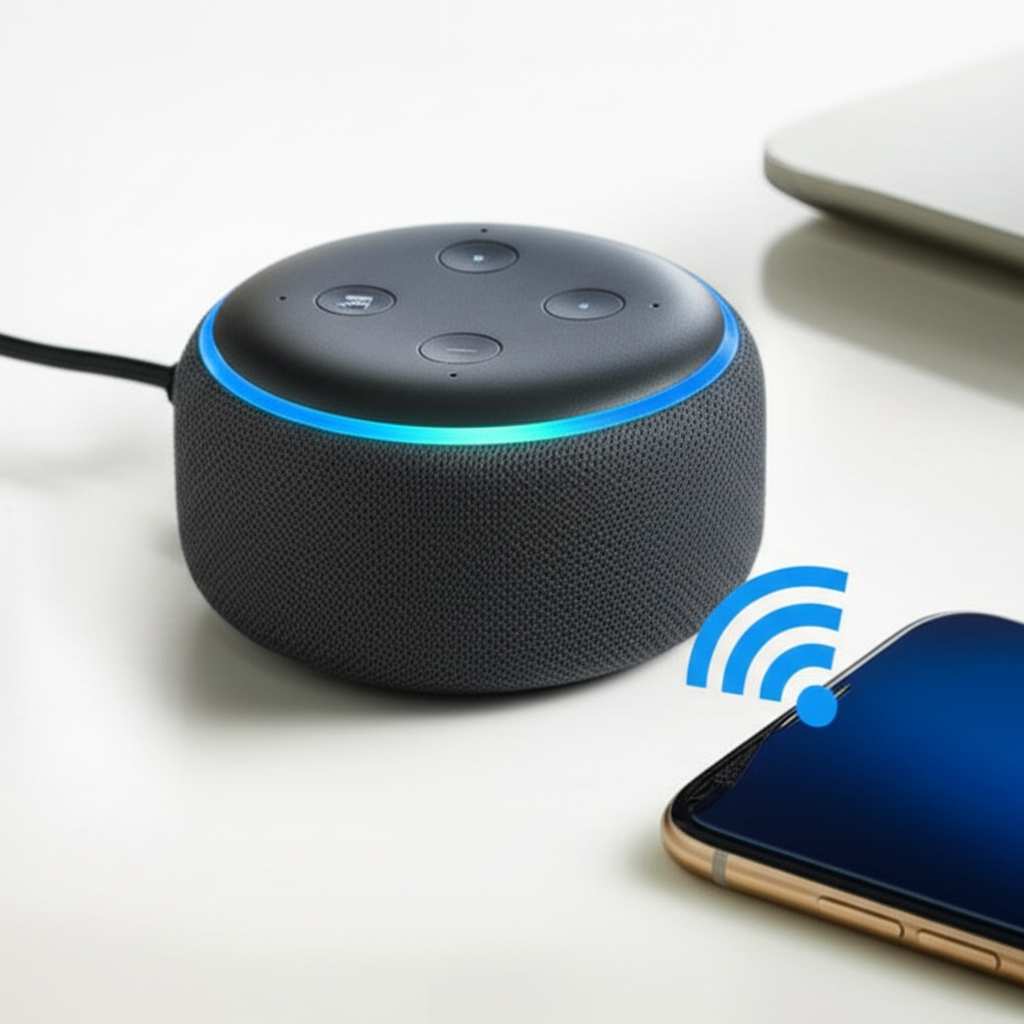
First, make sure your Echo Dot is plugged in and powered on. You should see a blue light ring, which means it’s ready to go. If it’s your first time setting it up or you’ve reset it, it might be in setup mode. But for Bluetooth pairing, it just needs to be awake and available.
Step 2: Put Your Echo Dot in Pairing Mode
This is the key step for connecting it without Wi-Fi. You need to tell your Echo Dot to be ready to find new devices.
Option 1: Voice Command: You can simply say, “Alexa, pair Bluetooth.” Your Echo Dot should respond by saying it’s in pairing mode and ready to connect. This is the easiest way if your Echo Dot is already set up and connected to Wi-Fi for its initial setup. However, if you are troubleshooting a no-Wi-Fi situation and have never paired before, or want to reset existing pairings, the manual button method is more reliable.
Option 2: Alexa App (If you’ve used it before): if you have previously set up your Echo Dot and have the Alexa app on your phone or tablet, you can open the app.
Go to Devices.
Select your Echo Dot.
Tap the Settings gear icon in the top right corner.
Scroll down to Bluetooth Connections and tap it.
Tap “Pair a New Device.”
Alexa will then try to find new devices to pair with.
Step 3: Prepare Your Phone or Tablet
Now, grab the device you want to play sound from – your smartphone or tablet. You need to turn on its Bluetooth.
On most Android phones: Swipe down from the top of your screen to open the Quick Settings panel. Look for the Bluetooth icon and tap it to turn it on. You might need to tap and hold the icon to go to the full Bluetooth settings menu.
On iPhones/iPads: Go to Settings, then tap on Bluetooth. Make sure the toggle switch is turned on.
Step 4: Find and Select Your Echo Dot
Once Bluetooth is on, your phone or tablet will start searching for nearby Bluetooth devices.
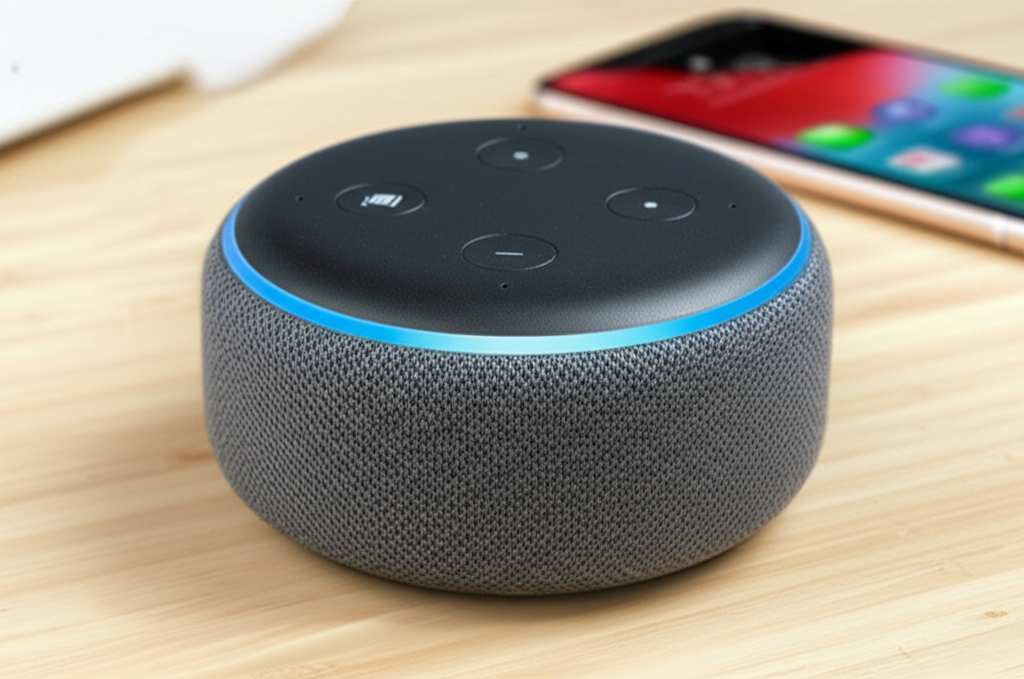
Look for the name of your Echo Dot in the list of available devices. It’s usually named something like “Echo-Dot-XYZ” or similar.
Tap on the name of your Echo Dot to start the pairing process. Your phone might ask you to confirm a code or just go ahead and connect.
Step 5: Confirmation and Sound!
Your Echo Dot should announce that it has connected to your device. You might hear a little chime, and the blue light ring might change or disappear. Now, you’re connected!
Open any app on your phone or tablet that plays audio – like Spotify, Apple Music, YouTube, or a podcast app.
Hit play! The sound should now come from your Echo Dot. Congratulations, you’ve done it!
Important Notes for Offline Use
When you’re using your Echo Dot as a Bluetooth speaker without Wi-Fi, here’s what to keep in mind:
Initial Setup: To pair Bluetooth for the first time, your Echo Dot usually needs to be connected to Wi-Fi for initial setup and to access its core functions and the Alexa app where you manage settings. However, once paired, Bluetooth connections generally work even if the Wi-Fi is down, as the device connection itself doesn’t require an active internet flow. If you’ve never paired Bluetooth before and have no Wi-Fi, you might need to use a temporary Wi-Fi hotspot (like from your phone) just to get that initial Bluetooth pairing done once. After that, you’re good to go offline for audio streaming.
Voice Commands: Without Wi-Fi, Alexa’s voice commands for streaming music services (like “Alexa, play summer hits on Spotify”) or asking general questions won’t work. But that’s okay! You’re using it as a Bluetooth speaker, so you’ll control playback and choose your audio directly from your phone or tablet.
Device Control: You can control volume using your voice (“Alexa, volume up”) or by pressing the volume buttons on your Echo Dot. The play/pause controls on your phone or tablet will also work.
Pairing Limit: An Echo Dot can remember a certain number of paired devices. If you’ve paired many devices before, you might need to “forget” an old device from your Echo Dot’s Bluetooth list via the Alexa app (if you have Wi-Fi temporarily) or by saying “Alexa, disconnect Bluetooth” then initiating pairing again, to make room for a new one.
Quick Troubleshooting Tips
Sometimes, tech can be a little quirky. If you’re having trouble, don’t fret! Here are a few quick fixes.
Echo Dot Not Found? Make sure your Echo Dot is in pairing mode and your phone’s Bluetooth is on. Try restarting both devices. Sometimes a simple reboot fixes everything.
Connection Drops? Ensure your phone is close enough to the Echo Dot. Thick walls or other electronic devices can sometimes interfere with the signal.
No Sound? Double-check that your Echo Dot is actually connected in your phone’s Bluetooth settings and that the volume is turned up on both your phone and the Echo Dot. Make sure you haven’t accidentally muted your phone.
Echo Dot Models and Bluetooth Capabilities
Most Amazon Echo Dot models come equipped with Bluetooth capabilities, making them versatile audio companions. The specific generation might influence things like Bluetooth version (which affects range and stability) or audio quality, but the core functionality of acting as a Bluetooth speaker is standard.
Let’s take a quick look at how some popular models stack up in their general audio features, keeping in mind that Bluetooth functionality is present across the board:
| Echo Dot Model | Release Year | Primary Speaker Size | Audio Quality | Bluetooth Version |
|---|---|---|---|---|
| Echo Dot (3rd Gen) | 2018 | 1.6-inch | Good for its size, improved bass over previous gen | Bluetooth 5.0 |
| Echo Dot (4th Gen) | 2020 | 1.6-inch | Clearer sound, improved mids and highs | Bluetooth 5.0 |
| Echo Dot with Clock (4th Gen) | 2020 | 1.6-inch | Same as Echo Dot (4th Gen) | Bluetooth 5.0 |
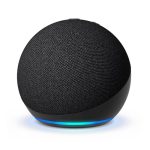
| Echo Dot (5th Gen) | 2022 | 1.73-inch (slightly larger) | Best audio quality of the Dot line, more bass, clearer vocals, improved spatial audio feel | Bluetooth 5.1 |
This table shows that while all these Dots can serve as Bluetooth speakers, the newer generations, like the 5th Gen, often offer a better audio experience due to improvements in speaker size and design. The Bluetooth versions (5.0 and 5.1) are quite robust for typical home use and provide efficient connections.
Benefits of Using Echo Dot as a Bluetooth Speaker
There are plenty of reasons why you’d want to use your Echo Dot this way. Let’s list a few:
No Extra Cost: You’re already using your Echo Dot, so there’s no need to buy a separate Bluetooth speaker. It’s a fantastic way to get more value out of a device you already own.
Convenience: If you have an Echo Dot in a room, you can instantly turn it into a speaker for your phone without having to find and set up another device.
Portability (within your home): While not truly portable like a battery-powered speaker, you can easily move your Echo Dot to any room with a power outlet and use it as a speaker, which is great for parties or moving around the house.
Sound Quality Boost: The Echo Dot generally offers better sound quality than the built-in speakers on most phones or older tablets. You get a richer, fuller sound experience.
Offline Functionality: As we’ve discussed, the real game-changer is its ability to function as a dependable speaker even when your Wi-Fi is offline. This is a huge plus for situations where internet access is unreliable or unavailable.
When Does Bluetooth Make More Sense Than Wi-Fi Streaming?
While Alexa’s Wi-Fi streaming is super convenient for smart home control and voice requests, Bluetooth has its own starring moments.
When Wi-Fi is Down: This is the obvious one. If your internet connection is out, Bluetooth is your lifeline for any audio playback on your Echo Dot.
Using Specific Apps: Some apps might not have direct Alexa integration, or you might prefer the playback controls within the app itself on your phone. Bluetooth lets you use any app seamlessly.
Quick, Ad-Hoc Listening: Need to quickly play a song or a short audio clip from your phone without saying “Alexa, play…”? Just pair and play. It’s often faster for simple, immediate audio needs.
On-the-Go Audio (in specific scenarios): If you’re in a hotel room or a friend’s place that has Wi-Fi issues but you have your Echo Dot and know the power outlet, you can still use its Bluetooth feature if you’ve set it up previously. (Just remember that initial setup often requires Wi-Fi).
The Future of Echo Dot Audio
Amazon is always updating its devices, and we see improvements in sound quality and connectivity with each new generation. While Wi-Fi streaming offers smart features, the reliable Bluetooth functionality ensures your Echo Dot remains a versatile speaker for all your audio needs, internet or not. For more insights into the evolution of smart speakers, check out reviews from trusted tech sources like CNET.
Frequently Asked Questions (FAQs)
Q1: Do I really need Wi-Fi to use my Echo Dot as a Bluetooth speaker?
A1: For the very first Bluetooth pairing, your Echo Dot usually needs an active Wi-Fi connection to get set up and accessible in the Alexa app. However, once it’s paired, you can disconnect from Wi-Fi, and your Echo Dot will still function as a Bluetooth speaker. You just won’t be able to use Alexa’s voice commands that require the internet.
Q2: Can I pair my Echo Dot with more than one device at a time?
A2: No, an Echo Dot can only be actively connected to one device via Bluetooth at a time. If you want to connect a new device, you’ll need to disconnect the current one first.
Q3: How do I disconnect my phone from my Echo Dot’s Bluetooth?
A3: You can disconnect by turning off Bluetooth on your phone or tablet, or by saying, “Alexa, disconnect Bluetooth” to your Echo Dot. You can also manage connections in the Alexa app.
Q4: Will my Echo Dot announce when it’s connected or disconnected?
A4: Yes, your Echo Dot will usually announce “Connected to [your device name]” when the pairing is successful and “Disconnected from [your device name]” when it loses the connection or you disconnect it.
Q5: Can I use my Echo Dot as a Bluetooth speaker for my TV or computer?
A5: Yes, if your TV or computer supports Bluetooth audio output, you can pair them with your Echo Dot just like you would with your phone or tablet. This can be a great way to enhance your TV’s sound without buying a separate soundbar.
Q6: What if my Echo Dot doesn’t show up in my phone’s Bluetooth list?
A6: Make sure your Echo Dot is in pairing mode by saying “Alexa, pair Bluetooth” or by initiating pairing from the Alexa app. Also, ensure your phone’s Bluetooth is on and try moving your phone closer to the Echo Dot. Restarting both devices can also help.
Q7: Is the audio quality good enough for music lovers?
A7: For its compact size, the Echo Dot offers pretty good sound, especially the newer generations (like the 5th Gen). It’s definitely an upgrade from most phone speakers. However, if you’re an audiophile seeking room-filling, high-fidelity sound, you might consider larger dedicated Bluetooth speakers. But for everyday listening, podcasts, or casual music, it’s more than adequate!
Wrapping It All Up: Your Sound, Your Way!
So there you have it! You’ve learned how to transform your Amazon Echo Dot into a fantastic Bluetooth speaker, completely bypassing the need for Wi-Fi. It’s a simple trick that unlocks a lot of convenience, especially when you’re offline or just want a quick and easy audio boost for your phone or tablet. You can enjoy your music, podcasts, and audiobooks anywhere in your home with surprisingly good sound, all from a device you already love.
Remember, tech is all about making life easier and more enjoyable. By exploring features like Bluetooth pairing, you’re getting the most out of your gadgets. Don’t be afraid to experiment and find new ways to use your devices. You’ve got this! Now go ahead, pair up, and let the amazing sound fill your world. Enjoy every beat and every word!