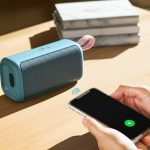
Quick Summary: Connecting your Kicker Bluetooth speaker is super easy! Just turn it on, put it in pairing mode, and select it on your phone or device. You’ll be jamming to your favorite tunes in minutes. Let’s get that awesome Kicker sound flowing!
Hey there, tech adventurers! Max here from AffTechy.com, your go-to spot for making gadgets feel like your best pals. Ever feel like music just makes everything better? Whether you’re chilling at home, having a picnic in the park, or just want to blast your favorite podcast, a good speaker is a game-changer. But sometimes, figuring out how to get these cool gadgets talking to your phone can feel like solving a puzzle.
I remember when I first got my hands on a Kicker speaker. The sound was amazing, but getting it to connect felt a little… mysterious. There are buttons, lights, and sometimes a whole dance of blinking signals. If you’ve ever looked at your new Kicker speaker and thought, “How on earth do I make this thing sing?”, you’re in the right place. We’re going to break down connecting your Kicker Bluetooth speaker into super simple steps. No confusing tech jargon, just easy-peasy instructions. Let’s make that awesome Kicker sound fill your world!
Why Kicker Bluetooth Speakers Rock
Kicker has been a big name in sound for ages. They started with car audio, so they know a thing or two about making things loud and clear. Their portable Bluetooth speakers bring that same quality to your everyday life. You get that punchy bass and crisp highs wherever you go.
These speakers are built tough, too. Many are water-resistant or even waterproof, perfect for poolside parties or beach days. Plus, they often have long battery life, meaning the music keeps going as long as you do. It’s like having a portable concert hall in your backpack!
Let’s Get Your Kicker Speaker Ready to Play
So, you’ve got your shiny new Kicker Bluetooth speaker. Awesome! The first step is always about getting it powered up. Most Kicker speakers have a rechargeable battery. You’ll want to make sure it has enough juice for your listening session. Some models might even come with a charging cable straight out of the box.
Look for the charging port, usually on the back or bottom of the speaker. Plug it in using the provided cable and a USB power adapter. You’ll often see a little light that tells you it’s charging. Once that light changes or turns off, your speaker is ready to go. It’s like feeding your speaker so it has energy for a great performance!
Step 1: Power On Your Kicker Speaker
This one’s straightforward, but important! Find the power button on your Kicker speaker. It’s usually a pretty prominent button, often marked with a universal power symbol (a circle with a line through it). Press and hold it for a few seconds.
You’ll likely hear a little sound or see a light turn on. This means your speaker is awake and ready to party! Some Kicker speakers might have different power indicators, like a blinking light that changes color. Just a quick press and hold is usually all it takes.
Step 2: Activate Bluetooth Pairing Mode
This is where the magic happens. Your speaker needs to tell other devices, like your phone, “Hey, I’m here and ready to connect!” This is called pairing mode. On most Kicker Bluetooth speakers, there’s a dedicated Bluetooth button.
Press and hold this Bluetooth button. You might hear a specific sound, like a chime or a beep, that signals it’s in pairing mode. Often, a Bluetooth icon light will start blinking. This blinking light is your cue that the speaker is actively looking for a device to connect to. It’s like your speaker is waving a little flag saying, “Pick me!”
Pro Tip: If you don’t see a dedicated Bluetooth button, check your speaker’s manual. Sometimes, the power button doubles as the pairing button, or you might need to press a different combination of buttons. But for most Kicker models, a separate Bluetooth button is the way to go.
Step 3: Find and Select Your Kicker Speaker on Your Device
Now, let’s switch over to your smartphone, tablet, or computer. You need to tell your device to look for nearby Bluetooth devices. On most phones, you’ll find this in the Settings menu. Look for a section labeled “Bluetooth.”
Tap on “Bluetooth” to open the Bluetooth settings. Make sure Bluetooth is turned ON. Your device will then start scanning for available devices. You should see a list appear under “Available Devices” or “Other Devices.”
Look for the name of your Kicker speaker in this list. It might be something like “Kicker XYZ” or “Kicker [Model Number].” It’s usually pretty easy to spot. Once you find it, tap on its name.
Step 4: Confirm the Connection
After you tap the speaker’s name, your device will try to connect. You might hear another sound from your Kicker speaker, often a different chime or a confirmation beep. This usually means the connection was successful!
On your device’s screen, the speaker’s name should now move to a list of “Paired Devices” or “Connected Devices.” The blinking light on your Kicker speaker will also likely change. It might turn solid, or the blinking might stop altogether. This solid light is the speaker’s way of saying, “We’re connected and ready to play!”
If, for some reason, it doesn’t connect, don’t worry! Just try repeating steps 2 and 3. Sometimes, devices just need a second try to find each other. You might also want to make sure your speaker is still in pairing mode (blinking light) and that your device’s Bluetooth is definitely on.
Connecting to Multiple Devices: The Basics
Some Kicker speakers can remember multiple devices. This is super handy if you want to switch between your phone and your tablet, for example. Once a device is paired, your Kicker speaker should automatically reconnect to it the next time you turn it on and have Bluetooth enabled on that device.
However, most Kicker speakers can only actively play music from one device at a time. If you want to connect a new device, you might need to disconnect the current one first. This is usually done through your device’s Bluetooth settings – just select “Disconnect” or “Forget Device.” Then, put your Kicker speaker back into pairing mode to connect the new device.
Understanding Kicker Speaker Features: What’s What?
Kicker packs some cool features into their speakers. Let’s quickly look at a few common ones you might see:
-
Bluetooth Version: This tells you how advanced the Bluetooth technology is. Newer versions (like Bluetooth 5.0 and above) mean a more stable connection, better range, and often lower power usage. It’s like having a faster, more reliable highway for your music data.
-
IP Rating: This is a rating for how resistant your speaker is to dust and water. For example, an IPX7 rating means it can be submerged in water for a short period. Perfect for the beach or pool!
-
Battery Life: Measured in hours, this is how long your speaker can play on a single charge. Kicker speakers often boast impressive battery life, letting the party go all day long.
-
Stereo Pairing (TWS): Some Kicker models allow you to connect two identical speakers together for a true stereo sound experience. It’s like giving your music two powerful channels for richer, more immersive audio.
-
Built-in Microphone: This allows you to use your speaker as a speakerphone for calls. Just a tap can answer or end a call, and you can talk through the speaker.
Troubleshooting Common Connection Issues
Even with easy tech, sometimes things don’t go as planned. Here are a few common hiccups and how to fix them:
-
Speaker not showing up in device list:
- Make sure the speaker is powered ON and in pairing mode (blinking Bluetooth light).
- Ensure your device’s Bluetooth is ON.
- Try moving your device closer to the speaker.
- Restart both your speaker and your device.
-
Connection is unstable or drops frequently:
- Check that you’re within the Bluetooth range (usually around 30-50 feet, but can vary).
- Minimize obstacles between your device and the speaker.
- Turn off Bluetooth on other nearby devices that might be trying to connect.
- Ensure your Kicker speaker’s firmware is up to date (check Kicker’s website for instructions if available).
-
No sound even though connected:
- Check the volume on both your device and your speaker.
- Make sure the correct audio output is selected on your device (if it offers multiple options).
- Try disconnecting and reconnecting the speaker.
- Play a different song or audio source to rule out an issue with the original file.
-
Speaker won’t enter pairing mode:
- Ensure the speaker is charged. Low battery can sometimes prevent features from working.
- Try a different button press sequence if you suspect it’s not the dedicated Bluetooth button. Consult your manual!
Kicker Speaker Models & Connection Features: A Quick Look
Kicker offers a range of portable Bluetooth speakers, and while the core connection process is similar, some models have unique features. Here’s a little peek at what you might find:
| Model Example | Key Connection Feature | Typical Bluetooth Version | Stereo Pairing (TWS)? |
|---|---|---|---|
| Kicker Music | Rugged, waterproof design | 4.2 | Yes (with another Music speaker) |
| Kicker Bullfrog BF | 360-degree sound, extended range | 4.0+ | Yes (with other Bullfrog models) |
| Kicker Explorer (EX) Series | Compact and portable, often with carabiner clip | 4.2 or higher | No |
As you can see, even within Kicker’s lineup, there are slight variations. The core steps to connect via Bluetooth remain the same: power on, pair, connect. But knowing about features like TWS can help you decide if you want to expand your sound system later. Always check the specific model you have for its unique capabilities!
Frequently Asked Questions (FAQs)
Q1: How do I know if my Kicker speaker is in pairing mode?
Great question! Usually, you’ll see a Bluetooth indicator light on the speaker blinking. Some speakers also make a specific sound, like a chime or a beep, to let you know they are ready to connect.
Q2: My phone can’t find my Kicker speaker. What should I do?
Don’t panic! First, double-check that your Kicker speaker is powered on and actively in pairing mode. Then, make sure Bluetooth is turned on in your phone’s settings. Sometimes, simply moving the speaker and your phone closer together or restarting both devices can solve the problem.
Q3: Can I connect my Kicker speaker to more than one device at a time?
Most Kicker Bluetooth speakers can only play audio from one device at a time. However, they can often remember multiple previously paired devices. To connect a new device, you might need to disconnect the current one from your speaker or your device’s Bluetooth settings.
Q4: How long does the battery on a Kicker Bluetooth speaker last?
Battery life varies by model, but Kicker speakers are known for their longevity! Many models can last anywhere from 8 to 20 hours or even more on a single charge. Always check your specific model’s specifications for the exact playtime.
Q5: What does it mean if the Bluetooth light on my Kicker speaker is solid instead of blinking?
A solid Bluetooth light usually means your speaker is already connected to a device. If you want to pair it with a different device, you’ll need to put it back into pairing mode, which typically involves pressing and holding the Bluetooth button until the light starts blinking again.
Q6: Can I use my Kicker speaker to make phone calls?
Many Kicker portable speakers come with a built-in microphone, allowing them to function as a speakerphone. Once connected via Bluetooth, you can usually answer or end calls by pressing a button on the speaker. It’s super convenient for hands-free chats!
Q7: My Kicker speaker is connected, but there’s no sound. What’s wrong?
This can be frustrating, but it’s usually an easy fix! First, check the volume levels on both your phone and the speaker – sometimes one is turned down. Also, ensure that the speaker is selected as the audio output on your device. If those don’t work, try disconnecting and reconnecting the speaker.
Enjoy Your Kicker Sound!
And there you have it! Connecting your Kicker Bluetooth speaker is really as simple as a few button presses and taps. We’ve gone from powering it up, getting it into pairing mode, finding it on your device, and finally, enjoying that fantastic Kicker sound.
Remember, these speakers are designed to bring great audio to your life with ease. Don’t be afraid to experiment a little. Try pairing it with different devices, explore features like TWS if your model supports it, and take it on your next adventure. You’ve got the know-how now to make every moment sound better.
Now go crank up your favorite tunes, dive into that podcast, or make your movie nights epic. You’ve got the power to make it happen with your Kicker speaker. Happy listening!