Pairing your Bluetooth speaker is super simple! In just a few easy steps, you’ll be jamming to your favorite tunes wirelessly. Let’s get your sound connected without any fuss.
Hey there, tech explorers! Ever get that feeling when you unbox a shiny new gadget, and then… well, you’re not quite sure what to do next? I totally get it. That’s how I felt the first time I saw all those buttons and blinking lights on a Bluetooth speaker. It can seem a little intimidating, right?
But here’s the awesome truth: getting your music from your phone to your speaker is easier than making toast. Whether you want to blast your workout playlist at the gym, set the mood for a backyard barbecue, or just enjoy clearer sound for your favorite podcast, a Bluetooth speaker is your best friend. And connecting it? That’s the magic part!
Don’t worry about complicated tech jargon or confusing manuals. We’re going to walk through this together, step by simple step. Think of me as your friendly guide, holding your hand through the whole process. We’ll make sure your speaker is singing in harmony with your devices in no time. Ready to dive in?
Why Bluetooth Speakers Are Awesome
Let’s chat for a sec about why these little sound machines are so popular. They’re like portable magic boxes for your music! Imagine this: you’re at the park, or maybe just chilling in your living room. Instead of being tethered by wires, you can place your speaker anywhere and have your tunes follow you.
They’re super handy for parties, outdoor adventures, or even just making your movie nights sound way more epic. Plus, the sound quality on many of them is just fantastic. You get big sound from a small package, and it’s all wireless. Pretty cool, huh?
Getting Started: What You’ll Need
Before we jump into pairing, let’s make sure you’re all set. You don’t need much, honestly. The most important things are:
- Your Bluetooth speaker (of course!).
- Your phone, tablet, or computer (the device you want to play music from).
- A charged speaker and a charged device. Nothing kills the vibe faster than a dead battery!
That’s it! See? No need for a degree in rocket science. We’re keeping this super simple.
Let’s Talk About Pairing: The Big Picture
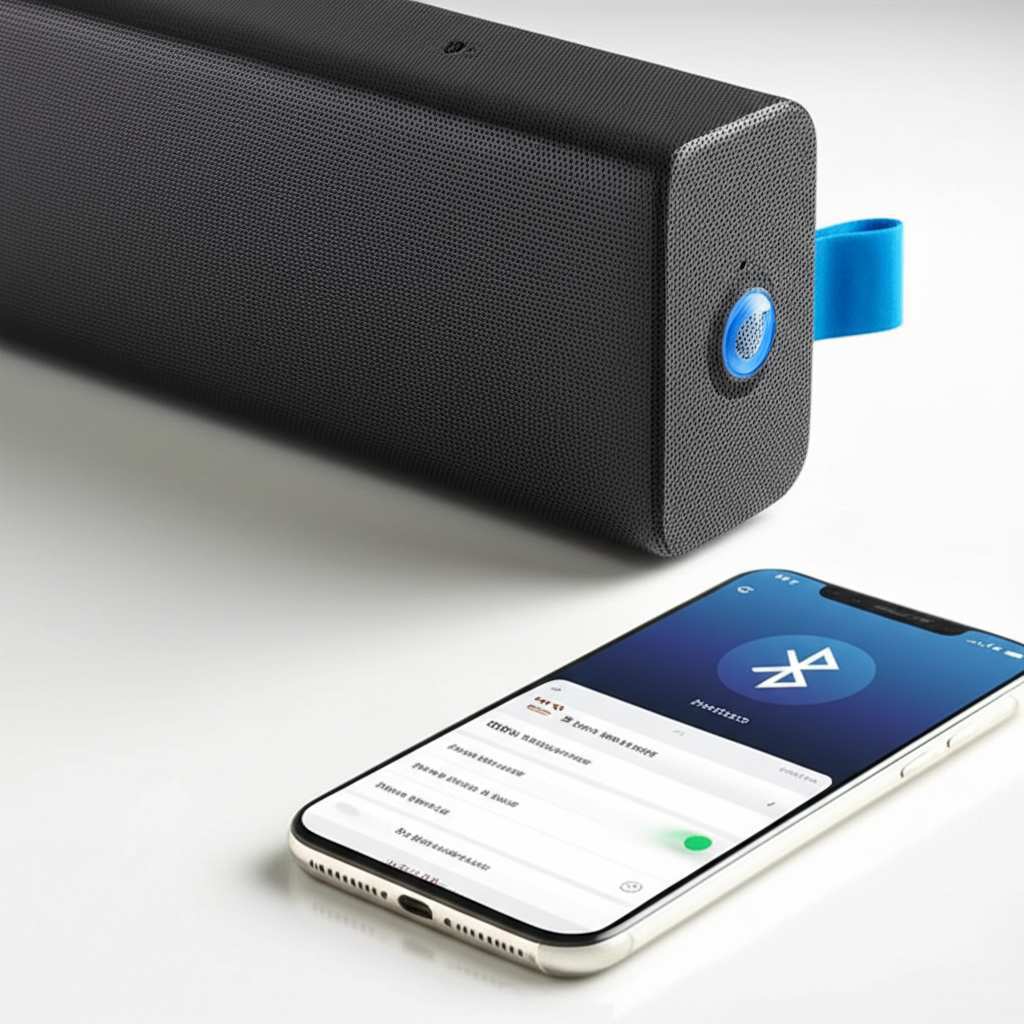
So, what exactly is pairing? Think of it like introducing two friends who’ve never met. You bring them together, they shake hands (or, in this case, exchange digital signals), and then they know how to talk to each other whenever they want. Once paired, your speaker and device remember each other, making future connections a breeze.
The process usually involves putting your speaker into a special “pairing mode” and then telling your phone or tablet to look for it. Your device will then find the speaker, and you’ll confirm the connection. Easy peasy!
Step-by-Step: How to Pair Your Bluetooth Speaker
Alright, this is where the magic happens! Follow these steps, and you’ll have your sound system up and running in a jiffy. We’ll cover both your speaker and your phone/tablet.
Step 1: Power Up Your Speaker and Put It in Pairing Mode
First things first, turn on your Bluetooth speaker. You’ll usually see a power button that you need to press and hold for a few seconds. Listen for a little chime or look for a blinking light. This light often tells you if it’s on or ready to connect.
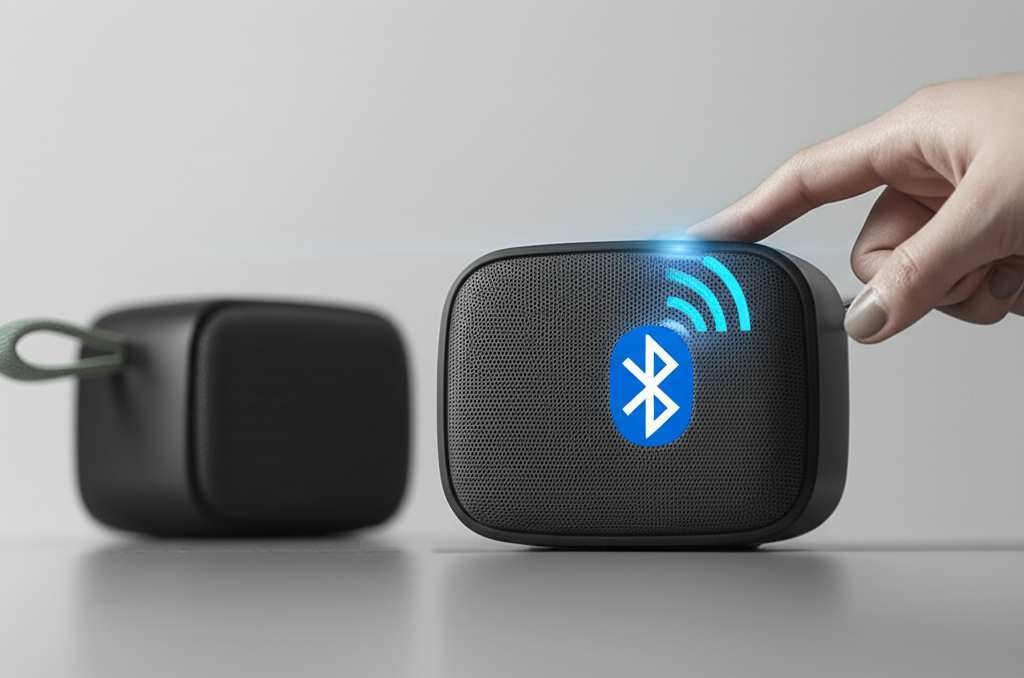
Now, the crucial part: pairing mode. Most speakers have a dedicated Bluetooth or pairing button. It might have a little Bluetooth symbol on it (it looks like a sideways figure-eight with a loop at the top). Press and hold this button for a few seconds. You’ll usually hear a distinct sound, or the indicator light will start blinking rapidly. This blinking means it’s actively searching for a device to connect to.
Pro Tip: Every speaker is a little different. If you can’t find the pairing button, a quick peek at your speaker’s manual (or a quick search online for your speaker model + “pairing mode”) will tell you exactly what to do. Some speakers automatically go into pairing mode the first time you turn them on.
Step 2: Activate Bluetooth on Your Phone or Tablet
Now, let’s get your phone or tablet ready. You need to turn on its Bluetooth feature. This is usually found in your device’s settings menu.
On most smartphones and tablets (like iPhones, iPads, and Android devices), you can quickly access Bluetooth by swiping down from the top of your screen to open the control center or quick settings panel. Look for the Bluetooth icon (the same one you saw on your speaker) and tap it to turn it on. You should see it light up or change color, indicating that Bluetooth is active.
Step 3: Search for Your Speaker on Your Device
With Bluetooth turned on, your phone or tablet will start looking for nearby Bluetooth devices. You’ll need to go back into your Bluetooth settings menu to see the list of available devices.
On an iPhone or iPad, go to Settings > Bluetooth. On Android, it’s usually Settings > Connected devices > Bluetooth (the exact path might vary slightly by Android version). You’ll see a list under “Available Devices” or “Other Devices.”
Step 4: Select Your Speaker from the List
Scroll through the list of available devices. You should see the name of your Bluetooth speaker appear. It might be the brand name (like “JBL Flip 5” or “Sony SRS-XB23”) or a model number. Sometimes, it’s just a generic name like “Bluetooth Speaker.”
Tap on the name of your speaker. Your device will then try to connect. You might hear another sound from your speaker, or the blinking light will change to a solid, steady light. This solid light is your signal that the connection is successful!
Step 5: Confirm the Connection (If Needed)
In most cases, tapping the speaker name is all you need to do. However, some devices or speakers might ask you to confirm the connection. You might see a prompt asking “Pair with [Speaker Name]?” or even a PIN code. If you see a PIN, it’s usually “0000” or “1234,” but your speaker’s manual will confirm this.
Just tap “Pair” or “Connect” if prompted. Once confirmed, your speaker is officially paired with your device! You’ll usually see your speaker listed under “Paired Devices” or “My Devices” in your Bluetooth settings from now on.
Step 6: Play Your Music!
That’s it! You’ve successfully paired your Bluetooth speaker. Now, open your favorite music app, podcast player, or video, and hit play. The sound should now come out of your Bluetooth speaker instead of your phone or tablet. Congratulations, you’ve done it!
Connecting to Different Devices
The general process for pairing is pretty much the same for most devices, but here’s a quick rundown for common ones:
Pairing with a Smartphone or Tablet (Recap)
This is the most common scenario. We covered it above, but to recap:
- Turn on speaker, put it in pairing mode (usually by holding the Bluetooth button).
- On your phone/tablet, go to Settings > Bluetooth.
- Turn Bluetooth ON.
- Select your speaker’s name from the list of available devices.
- Confirm if prompted.
Pairing with a Computer (Windows)
Computers are a bit different, but still straightforward.
- Turn on speaker, put it in pairing mode.
- On your Windows PC, click the Start button, then go to Settings (the gear icon).
- Click on “Devices,” then “Bluetooth & other devices.”
- Make sure Bluetooth is turned ON.
- Click “Add Bluetooth or other device.”
- Select “Bluetooth.”
- Choose your speaker from the list.
- Follow any on-screen prompts.
Pairing with a Computer (Mac)
Macs make it pretty simple too.
- Turn on speaker, put it in pairing mode.
- On your Mac, click the Apple menu in the top-left corner.
- Select “System Settings” (or “System Preferences” on older macOS versions).
- Click on “Bluetooth.”
- Make sure Bluetooth is turned ON.
- Your Mac will scan for devices. Your speaker should appear in the list.
- Click “Connect” next to your speaker’s name.
Troubleshooting Common Pairing Problems
Sometimes, things don’t go perfectly on the first try. Don’t panic! Here are some common hiccups and how to fix them.
- Speaker Not Showing Up: Make sure your speaker is actually in pairing mode. The light should be blinking fast. Also, ensure it’s close enough to your device. Bluetooth has a range, usually around 30 feet (10 meters), but walls and distance can affect it.
- Connection Failed: Try turning both your speaker and your device’s Bluetooth off and then on again. Sometimes, a simple restart clears things up. Also, check if your speaker is already connected to another device. Most speakers can only connect to one device at a time. Disconnect it from the other device first.
- Sound Cutting Out: This can happen if you’re too far from the speaker, or if there’s interference. Try moving closer. Other wireless devices (like Wi-Fi routers, microwaves, or other Bluetooth devices) can sometimes interfere.
- Can’t Find Speaker After Initial Pairing: Once paired, your speaker should reconnect automatically when you turn it on and have Bluetooth enabled on your device. If it doesn’t, go to your device’s Bluetooth settings, find the speaker in your “Paired Devices” list, and tap on it to reconnect.
- Speaker Won’t Turn On: Double-check that the speaker is charged! Use the charging cable that came with it.
If you’re still stuck, consult your speaker’s manual or the manufacturer’s website. They often have helpful troubleshooting guides.
Features to Look For in a Bluetooth Speaker
When you’re picking out a Bluetooth speaker, it’s good to know what makes one stand out. Here are some key things to consider:
- Sound Quality: This is a big one! Listen to it if you can, or read reviews focusing on sound. Some speakers are better for bass, others for clear vocals.
- Battery Life: How long can it play music on a single charge? If you plan on using it outdoors or for long periods, look for 10+ hours.
- Portability & Durability: Do you need something small and light for your backpack? Or maybe something waterproof for the beach or pool? Look for features like IP ratings (e.g., IPX7 means it can be submerged in water).
- Connectivity Options: While Bluetooth is key, some speakers also have an AUX input for wired connections or even USB ports for charging other devices.
- Extra Features: Some speakers have built-in microphones for hands-free calls, voice assistant integration, or the ability to pair two speakers together for stereo sound.
Choosing the right speaker depends on how and where you’ll use it most. Think about your lifestyle!
A Quick Look at Speaker Battery Life
Battery life is super important for portable speakers. Here’s a little comparison to give you an idea of what to expect:
| Speaker Type | Typical Battery Life (Hours) | Best For |
|---|---|---|
| Mini Portable Speakers | 6-12 Hours | Quick listening sessions, travel |
| Mid-Size Portable Speakers | 10-20 Hours | Day trips, backyard parties |
| Large/Rugged Speakers | 15-30+ Hours | Extended outdoor use, serious party power |
As you can see, there’s a wide range! If you’re going camping for the weekend, you’ll want a speaker with longer battery life. For just chilling in your room for an hour or two, even a shorter battery life might be fine.
Understanding Bluetooth Versions
You might see terms like “Bluetooth 4.0” or “Bluetooth 5.0.” What’s the deal? Think of it like Wi-Fi versions – newer is generally better!
Bluetooth 4.0/4.1/4.2: These are older but still very common. They work well for basic audio streaming. They have a decent range and power efficiency.
Bluetooth 5.0 and later: These are the newer standards. They offer:
- Faster Speeds: Better for streaming high-quality audio with less lag.
- Longer Range: You can often be further away from your speaker and still maintain a strong connection.
- Improved Power Efficiency: This can mean longer battery life for both your speaker and your device.
- Better Connectivity: Less prone to interference.
While you can pair older Bluetooth versions with newer ones, using the same version or a newer version on both devices usually gives you the best experience. It’s a bit like how you need a compatible USB port for a new type of flash drive. For more on Bluetooth tech, check out this explainer from CNET.
Tips for Maintaining Your Bluetooth Speaker
To keep your speaker sounding great and working for a long time, a little care goes a long way.
- Keep it Clean: Dust and grime can affect sound quality and even buttons. Wipe it down gently with a dry, soft cloth. For tougher spots, a slightly damp cloth (not wet!) might work, but avoid getting moisture into any ports.
- Charge Responsibly: Use the correct charger. Overcharging or using the wrong charger can damage the battery. Most modern speakers have built-in protection, but it’s still good practice.
- Protect from Extremes: Extreme heat or cold can damage the electronics and battery. Don’t leave your speaker in a hot car or out in the freezing cold for extended periods.
- Water Resistance: If your speaker is water-resistant, know its limits! “Water-resistant” doesn’t always mean “waterproof.” Check the IP rating to understand what it can handle (e.g., splashes, rain, or full submersion).
- Store Properly: If you’re not using it for a while, store it in a cool, dry place. A full charge isn’t always best for long-term storage; around 50-70% is often recommended.
FAQ: Your Bluetooth Speaker Questions Answered!
Got more questions buzzing around? Let’s tackle a few common ones.
Q1: Do I need Wi-Fi to use a Bluetooth speaker?
Nope! Bluetooth speakers use radio waves to connect directly to your device, not your Wi-Fi network. This is why they’re so great for using outdoors or anywhere you don’t have Wi-Fi.
Q2: Can I pair my Bluetooth speaker with multiple devices at once?
Most Bluetooth speakers can only be actively paired and play audio from one device at a time. However, some newer or more advanced speakers can remember multiple devices. You might be able to switch between them, but usually, you have to disconnect from one before connecting to another.
Q3: How do I “unpair” my speaker from my phone?
To unpair, go to your device’s Bluetooth settings, find your speaker in the list of paired devices, and select the option to “Forget Device” or “Unpair.” This removes the saved connection, and you’ll have to pair them again like new if you want to reconnect.
Q4: Why does my speaker keep disconnecting?
This can happen if the battery is low on either the speaker or your device, if you’re out of range, or if there’s interference from other devices. Try moving closer, fully charging both devices, and minimizing other wireless signals around you.
Q5: Can I use my Bluetooth speaker as a speakerphone?
Many Bluetooth speakers have a built-in microphone and can function as a speakerphone. If your speaker has a call button or a microphone icon, it likely supports this feature. You’ll usually need to accept the call on your phone, and the audio will transfer to the speaker.
Q6: How far can my Bluetooth speaker reach?
The range for Bluetooth is typically around 30 feet (10 meters) in open spaces without obstructions. However, walls, furniture, and even your own body can reduce this range. Newer Bluetooth versions, like 5.0, often offer longer effective ranges.
Q7: Is it okay to leave my Bluetooth speaker plugged in all the time?
While most modern speakers have smart charging systems to prevent overcharging, it’s generally best for battery health to unplug them once they’re fully charged. Some manufacturers recommend unplugging when not in use for extended periods, but for daily use, it’s usually fine.
You’re Now a Bluetooth Pairing Pro!
See? Connecting your Bluetooth speaker is a piece of cake. You’ve learned how to get it into pairing mode, find it on your phone or tablet, and establish that sweet, sweet wireless connection. Plus, you’ve got tips for troubleshooting and keeping your speaker in tip-top shape.
The world of wireless sound is now open to you! Whether you’re creating the ultimate party atmosphere, enjoying a solo listening session, or adding some epic sound to your movie night, your Bluetooth speaker is ready to shine. Don’t be afraid to experiment with different devices or even explore pairing two speakers for an even bigger sound experience. For more insights on audio tech, you might find articles on TechRadar helpful.
Now go forth and enjoy amazing sound! Make every moment louder, clearer, and more fun!