Turn your Alexa Echo Dot into a wireless Bluetooth speaker easily! This guide shows you how to connect your phone or tablet for richer sound for music, podcasts, and more, making your Echo Dot even more useful.
Hey there, tech explorers! Ever feel like your music could sound a whole lot better? Or maybe you’ve got a fantastic playlist you want to share with friends, but your phone’s speaker just doesn’t cut it. We’ve all been there, right? It’s like having a great recipe but only a tiny oven to bake it in!
Sometimes, getting the best sound experience feels like a puzzle. You see all these different speakers, and the tech specs can make your head spin faster than a DJ at a party. But what if I told you that one of the coolest gadgets you probably already own could be your new favorite speaker? Yep, I’m talking about your trusty Amazon Echo Dot!
It’s pretty amazing how much power is packed into that little cylinder. While Alexa is super smart with her voice commands, she also has a secret talent: she can be a fantastic Bluetooth speaker. This means you can stream all your favorite audio directly from your phone or tablet to your Echo Dot.
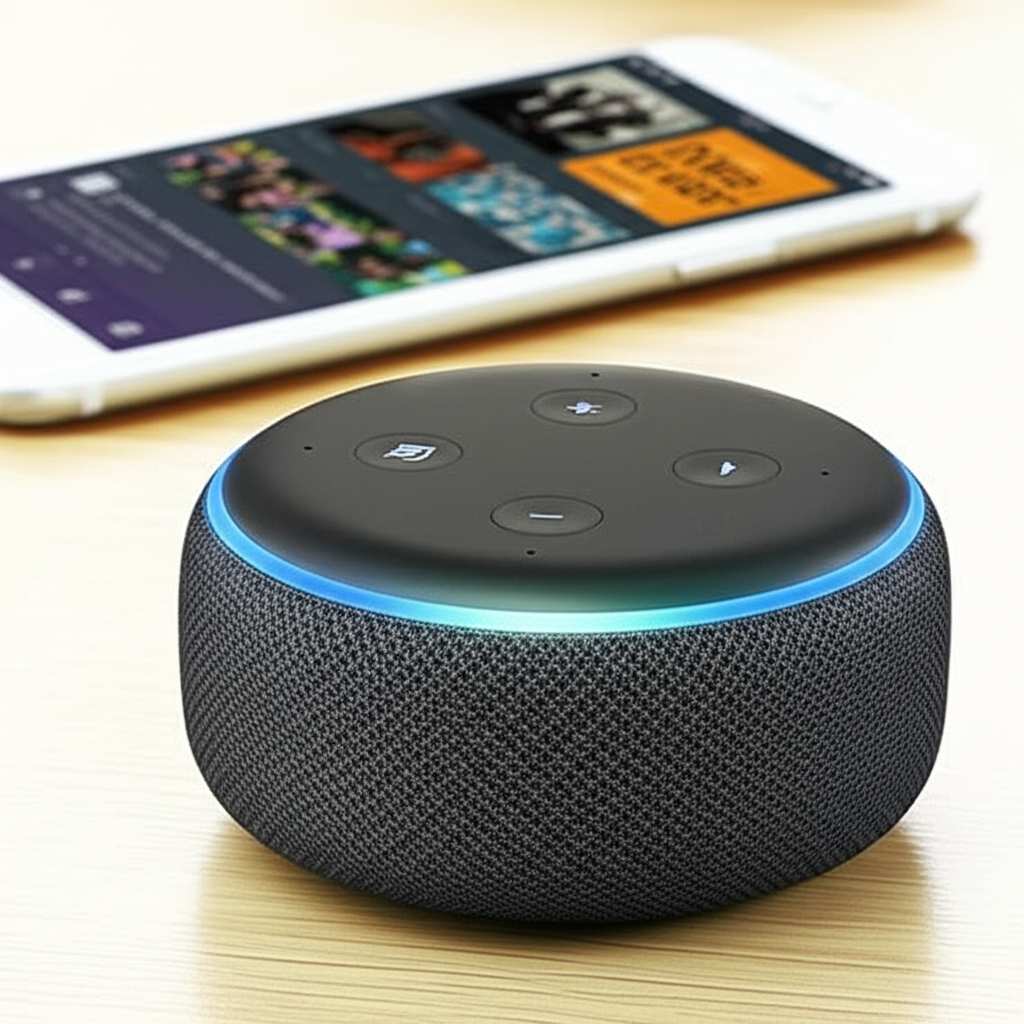
Think about it – no more tiny phone speakers for your morning tunes or that podcast you love. You can fill your room with richer, clearer sound. And the best part? It’s incredibly simple to set up. No complicated wires, no confusing settings, just easy-peasy audio magic.
Ready to unlock this awesome feature? Let’s dive in and make your Echo Dot sing with your music!
Why Use Your Echo Dot as a Bluetooth Speaker?
So, why would you want to use your Echo Dot as a Bluetooth speaker when it already plays music through Amazon Music or Spotify? Great question! It really comes down to flexibility and convenience.
Imagine you’re cooking and want to listen to a podcast from an app that Alexa doesn’t directly support. Or maybe you’ve got a special playlist on YouTube that you want to blast out for everyone to hear. Connecting your phone via Bluetooth lets you play anything your phone can play, straight through your Echo Dot. It’s like giving your Echo Dot a super-powered audio connection to your entire digital life.
Plus, the sound quality from an Echo Dot is generally much better than what you get from most phone speakers. It fills a room more effectively, giving you a richer listening experience for your music, audiobooks, or even movie sound. It’s a simple way to upgrade your sound without buying a new speaker.
Let’s Get Connected: Step-by-Step Guide
Setting up your Echo Dot as a Bluetooth speaker is super straightforward. You’ll mostly be using the Alexa app on your smartphone or tablet. If you haven’t downloaded it yet, head over to your app store and search for “Amazon Alexa.” It’s free and essential for managing your Echo devices.
Once you have the app, make sure your Echo Dot is plugged in and connected to your Wi-Fi. This is important because the app uses your Wi-Fi to talk to your Echo Dot. After that, you’re ready to pair!
Step 1: Put Your Echo Dot in Pairing Mode
First things first, you need to tell your Echo Dot to look for new devices to connect to. There are two main ways to do this:
Using Voice Commands: This is my favorite way because it’s so quick! Just say, “Alexa, pair Bluetooth.” Your Echo Dot will respond, usually saying something like, “You are now in pairing mode. Find me in the Bluetooth settings on your device.” You’ll also see a blue light ring appear on top of the Echo Dot, which means it’s ready.
Using the Alexa App: If you prefer using the app, open it on your phone or tablet. Tap on “Devices” at the bottom. Then, select your Echo Dot from the list. Scroll down and tap on “Bluetooth Devices.” You should see an option to “Pair a New Device.” Tap that, and your Echo Dot will go into pairing mode.
Step 2: Connect Your Phone or Tablet
Now that your Echo Dot is ready to connect, it’s time to tell your phone or tablet to find it.
On your iPhone/iPad: Go to “Settings.” Tap on “Bluetooth.” Make sure Bluetooth is turned on. Your phone will start scanning for nearby devices. You should see “Echo Dot” (or the name you’ve given your Echo Dot) appear in the list of available devices. Tap on it to connect.
On your Android Phone/Tablet: Go to “Settings.” Tap on “Connections” or “Connected devices.” Then, tap on “Bluetooth.” Make sure it’s switched on. Your device will search for available devices. Look for your Echo Dot in the list and tap to pair.
You might see a notification on your phone asking you to confirm the pairing. Just tap “Pair” or “Connect.” Once connected, your Echo Dot will usually announce, “Connected to [Your Device Name],” and the blue light ring will disappear, meaning it’s successfully paired.
Step 3: Play Your Audio!
That’s it! Your Echo Dot is now acting as a Bluetooth speaker for your phone or tablet. Open any app that plays audio – like Spotify, Apple Music, YouTube, Audible, or even a web browser. Play your music, podcast, or video, and the sound will come out of your Echo Dot.
You can control the volume using your phone’s volume buttons or by asking Alexa. For example, you can say, “Alexa, set volume to 5,” or “Alexa, turn it up.” Pretty cool, right?
Switching Back to Alexa’s Smart Features
One of the best things about using your Echo Dot as a Bluetooth speaker is that it’s super easy to switch back to using Alexa’s voice commands.
When you’re done listening to your phone, you can simply disconnect it. You can do this through your phone’s Bluetooth settings by tapping on your Echo Dot and selecting “Disconnect.” Or, you can ask Alexa to disconnect: “Alexa, disconnect Bluetooth.”
After disconnecting, your Echo Dot will go back to its normal, always-listening state, ready for your voice commands. If you want to connect your phone again later, you usually don’t have to go through the whole pairing process again. Just make sure Bluetooth is on your phone, and say, “Alexa, connect to my phone,” or open the Alexa app and connect from the Bluetooth devices menu. It should reconnect automatically!
Troubleshooting Common Connection Issues
Sometimes, tech can be a little stubborn. If you’re having trouble connecting your Echo Dot to your phone, don’t worry! Here are a few common issues and how to fix them:
Echo Dot Not Appearing in Bluetooth List:
Make sure your Echo Dot is in pairing mode. Try saying, “Alexa, pair Bluetooth” again.
Check that Bluetooth is actually turned on on your phone or tablet.
Move your phone closer to the Echo Dot. Bluetooth has a limited range.
Restart both your Echo Dot and your phone. Unplug the Echo Dot for 10 seconds, then plug it back in.
Connection Fails or is Interrupted:
Ensure no other devices are actively connected to your Echo Dot via Bluetooth. An Echo Dot can typically only be actively paired with one device at a time.
Check the distance between your phone and the Echo Dot. Walls and other electronic devices can interfere with the signal.
Forget the device on your phone and re-pair it. Go to your phone’s Bluetooth settings, find your Echo Dot, tap “Forget” or “Unpair,” and then go through the pairing steps again.
No Sound After Connecting:
Check the volume on both your phone and your Echo Dot. They are controlled independently.
Make sure the correct audio output is selected on your phone. Sometimes, it might still be trying to play through your phone’s speaker.
Try playing audio from a different app to see if the issue is with a specific app.
Fun Fact:
Did you know that Bluetooth technology is named after a Viking king? Harald Bluetooth united Danish tribes and King Harald’s fascination with communication led to the naming of this wireless technology!
Understanding Echo Dot Bluetooth Capabilities
Your Echo Dot supports Bluetooth 4.2, which is pretty standard for many wireless devices. This version offers a good balance of range and power efficiency. It allows for a stable connection within a typical room, usually up to about 30 feet (or 10 meters) in open space.
It’s important to remember that while your Echo Dot can receive audio via Bluetooth, it’s not a standalone Bluetooth speaker in the traditional sense. It still needs to be connected to your Wi-Fi network to function as an Alexa device. The Bluetooth connection is purely for streaming audio from another device.
Comparing Echo Dot Audio to Other Speakers
It’s natural to wonder how your Echo Dot stacks up against other speakers. While it’s not going to replace a high-end audiophile system, it’s a solid performer for casual listening.
Here’s a quick look at what you can expect:
| Speaker Type | Typical Sound Quality | Connectivity Options | Price Range (Approx.) | Best For |
| :—————– | :——————– | :————————————————- | :——————– | :——————————————- |
| Echo Dot | Decent, clear | Bluetooth, Wi-Fi (for Alexa skills) | $30 – $60 | Casual listening, voice control, smart home |
| Dedicated BT Speaker | Varies (Good to Excellent) | Bluetooth, sometimes Wi-Fi, Aux-in | $50 – $300+ | Portable music, parties, enhanced audio |
| Smart Speaker (larger) | Good to Very Good | Wi-Fi, Bluetooth | $70 – $200+ | Premium sound, smart features, whole-home audio |
| Phone Speaker | Basic, tinny | N/A (built-in) | N/A | Quick alerts, personal listening |
As you can see, the Echo Dot fits nicely into the budget-friendly, decent-quality category. Its real strength is its versatility – it’s a smart assistant and a capable Bluetooth speaker. For everyday music streaming or catching up on podcasts while you work, it’s often more than enough. If you’re looking for booming bass for a dance party or critical listening for professional audio work, you might want to consider a dedicated Bluetooth speaker.
Tips for the Best Sound Experience
Want to get the most out of your Echo Dot as a speaker? Here are a few simple tips:
Placement Matters: Try placing your Echo Dot on a flat, stable surface. Avoid corners or enclosed spaces, as this can sometimes muffle the sound. A shelf or table in the middle of the room often works well.
Adjust Volume on Both Devices: Remember that you have volume controls on both your phone and your Echo Dot. For the clearest sound, try to keep your phone’s volume at a moderate level (around 70-80%) and then adjust the Echo Dot’s volume to your preference. This can help prevent distortion.
Keep it Updated: Ensure your Alexa app and your Echo Dot’s software are up to date. Amazon regularly releases updates that can improve performance and connectivity.
Use the Right Audio Source: For the best audio quality, use music streaming services that offer higher bitrates or lossless audio if available.
When to Consider a Dedicated Bluetooth Speaker
While the Echo Dot is fantastic for its dual functionality, there are times when a dedicated Bluetooth speaker might be a better fit.
Portability is Key: If you need a speaker to take to the beach, a picnic, or just move around the house easily without needing Wi-Fi, a portable Bluetooth speaker is the way to go. Many have built-in batteries for hours of playback.
Superior Sound Quality is a Must: For true music lovers or those who appreciate deep bass and crisp highs, dedicated speakers often offer a much richer and more immersive sound experience. Brands like Bose, JBL, and Sony are known for their excellent audio quality. You can read more about top Bluetooth speakers on sites like CNET.
Waterproof or Rugged Needs: If you plan to use your speaker outdoors, near a pool, or in dusty environments, look for speakers with IPX ratings for water and dust resistance.
Think of your Echo Dot as your all-around home assistant that can also play music well. A dedicated Bluetooth speaker is designed specifically for playing music and often excels in specialized areas.
FAQs About Using Echo Dot as a Bluetooth Speaker
Q1: Can I use my Echo Dot as a Bluetooth speaker without Wi-Fi?
A1: No, your Echo Dot needs to be connected to Wi-Fi to function as a smart device and to manage its Bluetooth settings through the Alexa app. The Bluetooth connection is just for streaming audio from your phone to the Echo Dot.
Q2: How do I disconnect my phone from my Echo Dot?
A2: You can disconnect by saying, “Alexa, disconnect Bluetooth,” or by going into your phone’s Bluetooth settings and tapping “Disconnect” next to your Echo Dot’s name.
Q3: Can multiple devices connect to my Echo Dot at once?
A3: An Echo Dot can remember multiple devices, but it can only be actively connected and playing audio from one device at a time. If you want to switch to a different device, you’ll need to disconnect the current one first.
Q4: What happens to Alexa’s voice when I’m playing music from my phone?
A4: When you’re streaming audio via Bluetooth, your Echo Dot won’t respond to “Alexa” commands. The audio from your phone will take priority. To use Alexa, you’ll need to disconnect your phone first or pause the audio.
Q5: Can I connect my Echo Dot to my TV via Bluetooth?
A5: Yes! Many Echo Dot models can pair with Bluetooth-enabled TVs. This can be a great way to improve your TV’s audio, especially if it sounds a bit weak. Just follow the same pairing steps as you would for your phone.
Q6: Will using Bluetooth drain my Echo Dot’s battery?
A6: Echo Dots need to be plugged in to work, so battery life isn’t a concern. However, it will slightly increase its power consumption when actively streaming Bluetooth audio.
Q7: Can I use my Echo Dot as a Bluetooth speaker for my computer?
A7: Absolutely! You can pair your computer (Windows or Mac) with your Echo Dot just like you would a phone. Go to your computer’s Bluetooth settings and pair with the Echo Dot to stream audio from your PC.
Wrapping Up: Your Sound, Your Way!
See? Using your Alexa Echo Dot as a Bluetooth speaker is super simple and incredibly handy. You’ve learned how to pair your devices, troubleshoot common hiccups, and even understand how it fits into the world of speakers. It’s all about making your tech work for you, in a way that feels easy and natural.
Now you can enjoy your favorite tunes, podcasts, or audiobooks with richer sound, all without needing extra gadgets. This little trick adds so much more value to a device you likely already have sitting on your shelf. So go ahead, connect your phone, pick your favorite track, and enjoy the upgrade!
Now go enjoy amazing sound and make every moment louder and better!