
Want to jam out to your favorite tunes wirelessly? Using a Bluetooth speaker is super easy! Just pair your device, connect, and enjoy great sound anywhere, anytime. Let’s get you started in minutes!
Hey there, tech adventurers! Max here from AffTechy.com, your go-to spot for making gadgets feel like your best pals. Today, we’re diving into something that brings joy and awesome sound to our lives: Bluetooth speakers. You know, those nifty little boxes that let you blast your music, enjoy movies, or level up your gaming sound without a single wire? It can feel a bit daunting when you first unbox one, right? All those buttons and blinking lights can seem a little mysterious. But trust me, it’s way simpler than you think!
Think about it: you’re having a picnic, and suddenly your phone’s tiny speaker just isn’t cutting it. Or maybe you want to create a cozy movie night atmosphere without tangled cords. That’s where our Bluetooth buddy shines! It’s your ticket to big, clear sound wherever life takes you. We’re going to break down exactly how to get one of these bad boys up and running, from the very first step to enjoying your favorite playlist. No confusing tech jargon, just plain, simple talk.
So, grab your speaker, maybe a snack, and get comfy. We’re about to unlock the magic of wireless sound together. Let’s make this super easy and fun, step by step!
Why Bluetooth Speakers Are Awesome
So, what’s the big deal with Bluetooth speakers? They’re like portable sound wizards! You can take them to the beach, your backyard, or just from room to room in your house. The sound quality is often way better than your phone or laptop. Plus, no more tripping over wires or being stuck near an outlet. It’s freedom for your music!
First Things First: Getting Your Speaker Ready
Before we can even think about pairing, your speaker needs a little juice. Most Bluetooth speakers come with a USB cable. You’ll plug this into the speaker and then into a power source. This could be a USB wall adapter (like your phone charger), a power bank, or even a USB port on your computer.
Charging Up: A Quick Guide
Most speakers have an indicator light that shows you it’s charging. It might be red while charging and turn green or blue when it’s full. Some might blink until they’re fully charged. It’s a good idea to give it a good charge before your first use, just to be sure.
Check the Port: Look for a small port on your speaker. It usually says “DC IN” or has a USB symbol.
Use the Right Cable: Most speakers come with a USB-to-micro-USB or USB-C cable.
Find a Power Source: Plug the other end into a USB adapter, computer, or power bank.
Watch the Light: Most speakers have a charging indicator light.
Let’s Talk About Pairing: Connecting Your Device
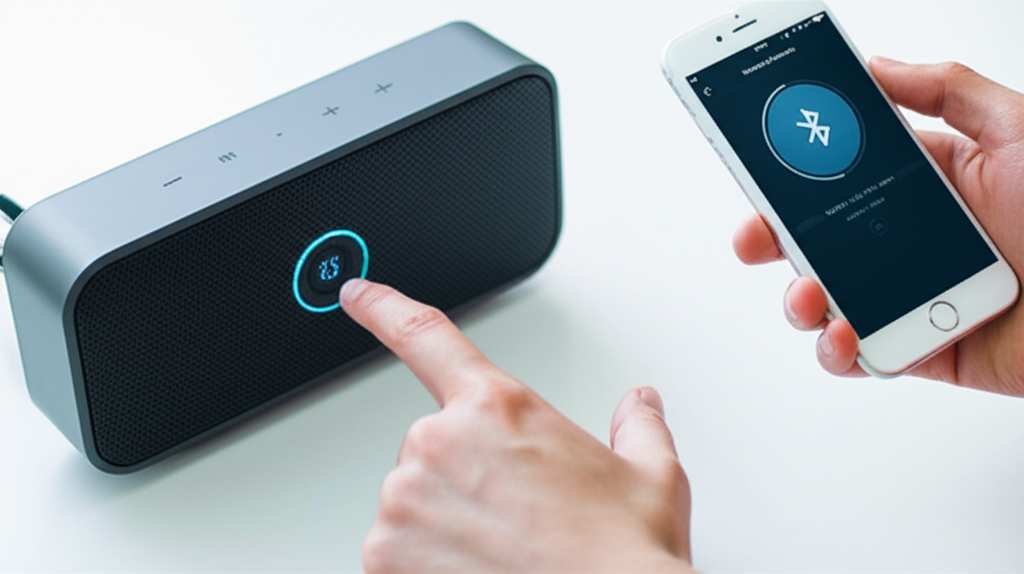
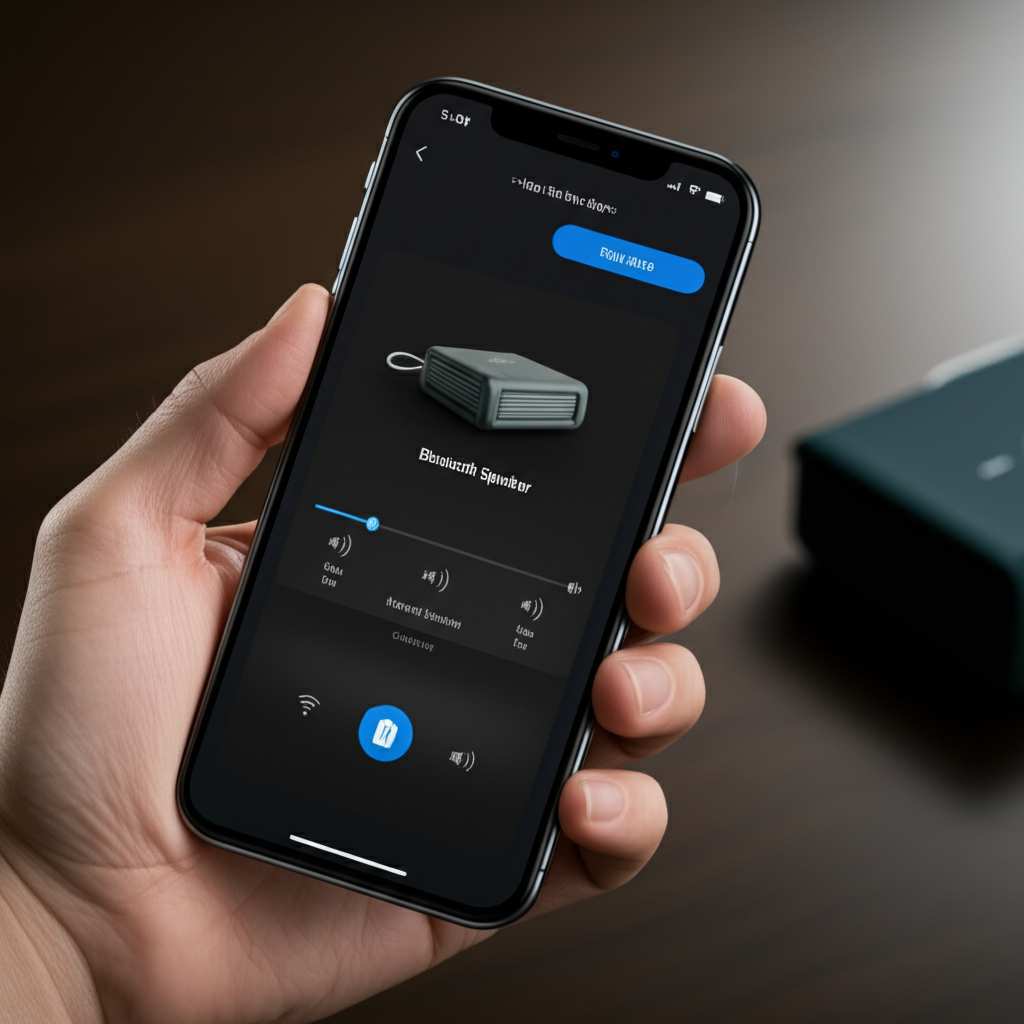
This is the magic moment! Pairing is just a fancy word for telling your speaker and your phone (or tablet, or laptop) to recognize each other. Once they’re paired, they’ll remember each other for future use. It’s like introducing two friends who then become buddies.
Step-by-Step Pairing Process
Here’s how you do it, nice and easy:
1. Turn on your Bluetooth speaker. You’ll usually find a power button. Press and hold it until you hear a beep or see a light flash. This often means it’s in pairing mode.
2. Turn on Bluetooth on your device. This is usually in your phone or tablet’s settings menu. Look for “Bluetooth” and toggle it on.
3. Scan for devices. Your device will start looking for nearby Bluetooth gadgets.
4. Select your speaker. You’ll see a list of available devices. Find the name of your speaker (it might be something like “JBL Flip” or “Sony SRS-XB”). Tap on it to connect.
5. Confirm if needed. Sometimes, your device might ask you to confirm a pairing code. Just tap “Pair” or “Connect.”
6. You’re connected! You should hear a sound from the speaker, or its light might change to show it’s connected.
Finding Your Speaker’s Name
Can’t find your speaker’s name on the list? Check the speaker’s manual or its packaging. Sometimes, the name is printed right on the speaker itself. If it’s a brand new speaker, it’s often in a discoverable mode right out of the box.
Using Your Connected Speaker: The Fun Part!
Now that your speaker is paired and connected, you can start playing music! It’s really straightforward.
Playing Music and Media
Simply open your favorite music app, podcast player, or video app on your phone or tablet. When you hit play, the sound should automatically come out of your Bluetooth speaker. If it doesn’t, check your device’s media settings; there might be an option to choose the audio output device.
Volume Control
You can control the volume in two places:
On your device: Use the volume buttons on your phone or tablet.
On your speaker: Most speakers have dedicated volume up and down buttons.
It’s usually best to set your device’s volume to about 75% and then use the speaker’s volume controls for fine-tuning. This often gives you the best sound quality without distortion.
Exploring Speaker Features: What Do Those Buttons Mean?
Bluetooth speakers come with various buttons and features. Let’s break down the common ones you’ll find.
Common Buttons and Their Jobs
Power Button: Turns the speaker on and off. Sometimes you hold it to enter pairing mode.
Volume Up/Down: Adjusts the loudness.
Play/Pause Button: Starts and stops your music. It might also answer calls if your speaker has a microphone.
Bluetooth Button: Sometimes, you need to press this to put the speaker into pairing mode.
Microphone Button (if applicable): Used to answer or end calls. You might also be able to activate your phone’s voice assistant (like Siri or Google Assistant).
Aux-in Port: A port for plugging in devices with a headphone jack using an audio cable. This is a good backup if Bluetooth isn’t working or for older devices.
Advanced (But Still Easy!) Features
Some speakers have extra cool features that make them even more useful.
Speakerphone Functionality
Many Bluetooth speakers have a built-in microphone. This means you can use your speaker as a hands-free speakerphone! When a call comes in, just press the play/pause button (or the dedicated call button) on your speaker to answer. You can then talk normally, and your voice will be picked up by the speaker’s mic. Press it again to end the call. It’s super handy when you’re busy in the kitchen or have your hands full.
Multi-Speaker Pairing (Stereo or Party Mode)
Some speakers can connect to another identical speaker. This is awesome for creating a stereo sound experience or filling a larger space with music. You’ll usually need to press a specific button combination on both speakers to link them up. Check your speaker’s manual for details on how to do this. It really makes a difference for parties!
Water Resistance
You’ll often see ratings like IPX4 or IPX7. This means the speaker can handle splashes or even be submerged in water for a short time! Perfect for the shower, pool, or beach. Just make sure you know what your speaker’s rating means before you take it for a swim.
Troubleshooting Common Issues
Sometimes, tech can be a little quirky. If your speaker isn’t working as expected, don’t worry! Here are a few common hiccups and how to fix them.
Speaker Won’t Connect?
Check Bluetooth: Make sure Bluetooth is on for both your device and the speaker.
Distance: Ensure your device is close to the speaker. Bluetooth has a range, usually around 30 feet (10 meters).
Restart: Turn both your device and the speaker off and then back on again. This solves a surprising number of problems!
Forget and Re-pair: On your device’s Bluetooth settings, find your speaker, tap “Forget Device” or “Unpair,” and then try pairing again from scratch.
Too Many Devices: Some speakers can only connect to one device at a time. Make sure it’s not already connected to another phone or tablet.
Sound is Choppy or Cutting Out?
Interference: Other wireless devices (like microwaves or Wi-Fi routers) can sometimes interfere. Try moving the speaker or your device away from these.
Low Battery: A low battery on either the speaker or your device can sometimes cause issues.
Distance: Again, make sure you’re within the Bluetooth range.
Speaker Won’t Turn On?
Check Charge: Is it fully charged? Try charging it for at least 30 minutes.
Power Button: Make sure you’re pressing the power button correctly. Some require a long press.
Comparing Popular Bluetooth Speaker Types
Not all Bluetooth speakers are created equal! They come in all shapes, sizes, and price points. Here’s a quick look at some common types.
| Speaker Type | Best For | Key Features | Typical Price Range |
| :—————— | :———————————————- | :—————————————————— | :—————— |
| Portable Mini | On-the-go listening, travel, small spaces | Compact, lightweight, good battery life, often water-resistant | $20 – $100 |
| Rugged/Outdoor | Adventures, beach, pool, construction sites | Durable, shockproof, waterproof, loud sound | $50 – $200 |
| Home/Stereo Pair| Filling a room, better sound quality, home use | Larger drivers, deeper bass, can often be paired in stereo | $100 – $300+ |
| Smart Speaker | Voice control, music streaming, smart home integration | Built-in voice assistant (Alexa, Google Assistant), Wi-Fi + Bluetooth | $50 – $250+ |
When choosing, think about where you’ll use it most. If it’s for your desk, a small portable one might be perfect. If you’re hosting parties, a larger or stereo-pairable option could be better.
Tips for Getting the Best Sound from Your Speaker
Want to make your music sound even better? Here are a few simple tips:
Placement Matters: Don’t hide your speaker in a corner! Placing it on a flat, stable surface in an open area will help the sound travel better. For bass, placing it near a wall can sometimes boost it.
Keep it Charged: Batteries perform best when they aren’t constantly at critical levels. Keep your speaker charged when you can.
Update Firmware: Some speakers can be updated. Check the manufacturer’s app or website for any updates, as they can sometimes improve performance or fix bugs.
Experiment with EQ: If your speaker has an app, it might offer equalizer (EQ) settings. Play around with these to adjust bass, treble, and mids to your liking.
Fun Fact!
Did you know Bluetooth technology is named after a Viking king? Harald Bluetooth united Danish tribes in the 10th century, and the technology’s ability to unite devices wirelessly seemed like a fitting tribute! You can read more about the history of Bluetooth on sites like Wired.
Frequently Asked Questions (FAQ)
Here are some common questions beginners have about Bluetooth speakers.
—
Q1: How do I know if my speaker is charged?
A1: Most speakers have an LED light that changes color or turns off when fully charged. Check your speaker’s manual for specifics, but often a red light means charging and a blue or green light means it’s ready to go!
Q2: Do I need an app to use my Bluetooth speaker?
A2: For basic listening, no! You just need to pair it with your device. Some speakers have companion apps for advanced features like firmware updates, EQ settings, or multi-speaker pairing, but they’re not always required for everyday use.
Q3: Can I use my Bluetooth speaker with my TV?
A3: Yes, if your TV has Bluetooth capabilities! If not, you might need a separate Bluetooth transmitter that plugs into your TV’s audio output. It’s a great way to get better sound for movies without buying a whole new sound system.
Q4: How far can the Bluetooth connection reach?
A4: Typically, the range is about 30 feet (10 meters) in an open space. Walls and other electronic devices can reduce this range. For the best connection, keep your device and speaker reasonably close.
Q5: What does “water-resistant” mean for a speaker?
A5: It means the speaker can handle splashes or rain (like an IPX4 rating) or can even be submerged in shallow water for a short time (like an IPX7 rating). Always check the specific IP rating for your speaker to know its limits!
Q6: Can I connect two Bluetooth speakers together?
A6: Some speakers allow you to pair two identical speakers for stereo sound or to play music in different rooms. You’ll usually need to press a specific button sequence on both speakers to link them. Check your manual!
Q7: My speaker is connected but no sound is playing. What do I do?
A7: First, check the volume on both your device and the speaker – make sure neither is muted or turned all the way down. Then, try pausing and playing your audio again. If that doesn’t work, disconnect and re-pair the speaker.
—
You’re Ready to Rock!
See? Using a Bluetooth speaker is totally within reach. We’ve covered charging, pairing, using it for music and calls, understanding those buttons, and even fixing common issues. You’ve got the knowledge to set up your speaker and start enjoying richer, wireless sound.
Don’t be afraid to experiment! Try connecting different devices, take your speaker outside, and see how it transforms your listening experience. It’s all about making technology work for you and bringing more enjoyment into your day.
Now go enjoy amazing sound and make every moment louder and better! Happy listening!


