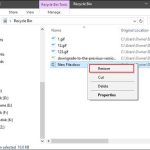
To unzip files on your laptop quickly, simply right-click the zipped file and select “Extract Here” or “Unzip.” If you’re using Windows, you can also double-click the file and drag the contents out. On a Mac, a double-click usually does the trick. It’s a simple process that makes accessing compressed files effortless!
In just a few clicks, you can easily unzip files on any laptop to access their contents. Whether you’re using Windows or Mac, the process is straightforward and doesn’t require additional software. Once unzipped, you’ll be able to view, edit, or move the files as needed, making file management more efficient.
Unzipping files on your laptop might seem intimidating at first, but it’s actually a quick and simple task. When you receive a zipped file, your goal is to extract its contents so you can work with them freely. Luckily, both Windows and Mac operating systems have built-in tools that make this process seamless. No need for extra software—just a few clicks, and your files are ready to use. This guide will walk you through how to unzip files on your laptop quickly, whether you’re using Windows or Mac, so you can access your files without any hassle.

How to Unzip Files on Laptop
Unzipping files on a laptop might seem tricky at first, but it is actually a simple process once you know the steps. Many files come compressed to save space, and knowing how to unzip them allows you to access their contents easily. This section will guide you through everything you need to know about unzipping files on your laptop.
Understanding ZIP Files and Why They Are Used
A ZIP file is a compressed folder that contains one or multiple files and folders. They are used to make large files smaller, making them faster to send or download. ZIP files also help organize related files into a single package.
When you receive a ZIP file, you need to unzip or extract it to access how it looks inside. Without unzipping, the contents remain hidden in the compressed package. Knowing this helps in managing files more efficiently on your laptop.
Common Types of Compressed Files
While ZIP files are the most common, other formats such as RAR, 7Z, and TAR are also used for compression. Each format has its own method for unzipping, but ZIP files are widely supported across many operating systems.
Most Windows and Mac laptops come with built-in tools to handle ZIP files directly. For other formats like RAR, you may need special software. Understanding the file type helps you choose the right method to extract files successfully.
Steps to Unzip Files on Windows Laptop
Using Built-in Windows Tools
Windows has a straightforward way to unzip files. First, locate the ZIP file you want to extract. Right-click on it to open a context menu.
Select the option labeled “Extract All.” A new window will appear, prompting you to choose a location to save the unzipped files. Click “Extract,” and Windows will do the rest.
The extracted files will appear in the folder you specified. You can now open, edit, or move these files as needed. This method works well for most ZIP files and is very user-friendly.
Using Third-Party Software
If you need more advanced options or are handling other formats like RAR or 7Z, third-party software comes in handy. Programs like WinRAR, 7-Zip, and WinZip are popular choices.
After installing one of these, right-click the ZIP file and select the software’s extraction option. They often provide additional features, such as extracting specific files or creating new compressed files.
Many of these tools are free or offer free trials, making them accessible for everyday use. Always download from trusted sources to keep your laptop safe from malware.
Steps to Unzip Files on Mac Laptop
Using Built-in Archive Utility
Mac laptops come with a built-in tool called Archive Utility that automatically extracts ZIP files. To use it, simply double-click the ZIP file.
The files will then be extracted into a folder with the same name as the ZIP file in the same location. If you want to change the destination, you can do so before unzipping by right-clicking the file.
This method is quick and handy for most ZIP files without needing extra software. It’s perfect for users who prefer simple solutions integrated into their Mac system.
Using Third-Party Applications
For handling other compressed file formats or more options, apps like The Unarchiver or WinZip for Mac are excellent. Install the app and open the ZIP file with it.
The app will guide you through the extraction process, allowing you to choose where to save the files. These tools often support a range of formats beyond ZIP, giving you more flexibility.
Tips for Managing Unzipped Files
- Organize Files: After unzipping, create folders to keep related files together for easier access.
- Check File Safety: Always scan unzipped files for viruses before opening, especially if downloaded from unknown sources.
- Rename Files: Adjust file names to make them descriptive and easier to find later.
- Backup Important Data: Keep copies of original ZIP files in case you need to re-extract or share them later.
Troubleshooting Common Problems
File Won’t Unzip or Extract
If the file won’t unzip, ensure it’s not corrupted by re-downloading or requesting a new copy. Also, check that you have enough storage space on your laptop.
Using updated software is essential because older versions may not support newer formats. Restart your computer if extraction seems stuck or unresponsive.
Extraction Fails with Error Messages
Error messages can occur if the file is password protected or if the file is incomplete. Enter the correct password if prompted and verify the integrity of the ZIP file.
If issues persist, try using different extraction software to rule out compatibility problems. Clearing temporary files and updating your operating system helps prevent future errors.
Additional Features and Options
Many extraction tools offer additional functions like splitting large files into smaller parts, creating password-protected archives, or compressing files to save space. Exploring these features can be helpful for advanced file management.
Some software allows batch extraction, which is useful when dealing with multiple ZIP files at once. This saves time and effort compared to extracting files individually.
Related Topics for Better File Management
Understanding how to zip files on your laptop complements the skill of unzipping. Learning to compress files can help you save storage space and send files more efficiently.
Other related topics include managing cloud storage, organizing downloads, and backing up important data regularly. Knowing these skills builds a more effective approach to handling digital files.
By mastering the process of unzipping files and related tasks, you can handle all your files with confidence. Whether you’re using Windows or Mac, easy-to-follow steps ensure your files are always accessible and organized.
How to Unzip Files
Frequently Asked Questions
What are the steps to extract files from a ZIP folder on a Windows laptop?
To extract files from a ZIP folder on a Windows laptop, right-click on the ZIP file and select “Extract All.” Choose a destination folder where you want the files to be saved. Click “Extract,” and the files will be unpacked into the selected location for easy access.
How can I unzip files on a Mac using built-in tools?
On a Mac, locate the ZIP file you want to open and double-click it. The system will automatically extract the contents into the same folder. If you want to specify a different location, right-click the ZIP file, select “Open With,” then choose “Archive Utility,” and follow the prompts to extract the files to your preferred folder.
Are there third-party applications available to unzip files on my laptop?
Yes, several third-party applications like WinRAR, 7-Zip, and WinZip can help you unzip files efficiently. These tools often provide additional features such as extracting from different archive formats, password protection, and creating compressed files. Download and install one of these programs, then right-click the ZIP file and select the appropriate option from the context menu provided by the software.
What should I do if a ZIP file doesn’t open on my laptop?
If a ZIP file refuses to open, first check if the file is corrupted or incomplete. Try downloading it again or obtaining a different copy. Make sure your unzip tool is up to date. If you’re using Windows, you can also try using a different program like 7-Zip or WinRAR. If the issue persists, inspect the file extension or seek a compatible program that supports the archive format.
Can I unzip multiple files at once on my laptop?
Yes, most unzip tools allow you to extract multiple ZIP files simultaneously. Select all the files you want to extract, right-click, and choose the extraction option provided by your software or system. You can also organize the files into a folder beforehand to simplify the process. This feature helps save time when handling many compressed archives at once.
Final Thoughts
To unzip files on a laptop, locate the compressed file in your folder. Right-click and select the ‘Extract All’ option, then choose a destination folder. Some operating systems have built-in tools, while others require third-party software.
Ensure you have the necessary permissions and enough storage space. Follow these simple steps to efficiently access your files. Knowing how to unzip files on a laptop makes managing downloads seamless and quick.