To quickly reset your router from your computer, simply access the router’s admin page via your web browser, find the reset option, and click it. This method is straightforward and saves you the trouble of physically pressing tiny reset buttons.
In just a few steps, you can restore your router to its factory settings right from your computer. This process is perfect when your internet connection is acting up or you want to clear custom settings. By logging into the router’s interface, you can perform a reset remotely without any hardware hassle, making troubleshooting more convenient and efficient.
If your internet keeps dropping or you need to wipe your settings clean, resetting your router from your PC is a simple and effective solution. It allows you to quickly troubleshoot connectivity issues or prepare the device for a fresh start, all without leaving your desk. This guide will walk you through the easy steps to get your router reset directly from your computer, saving you time and effort.

How to Reset Router from Computer: A Complete Guide
Why Reset Your Router?
Resetting your router can fix many internet problems. If your Wi-Fi is slow or not working, resetting might help. It also clears out old settings that could cause issues.
Types of Router Resets
There are two main types of resets. A soft reset restarts your router without deleting settings. A hard reset restores default factory settings, erasing all custom configurations.
How to Perform a Soft Reset
Soft resetting your router is simple. You can restart it from your computer or by pressing a physical button. Here’s how:
- Close all internet-connected apps on your computer.
- Open your web browser and type your router’s IP address into the address bar.
- Login using your username and password.
- Look for the ‘Restart’ or ‘Reboot’ option in the menu.
- Click ‘Restart’ and wait for the router to reboot.
Finding Your Router’s IP Address
Your router’s IP address lets you access its settings. Common addresses are 192.168.1.1 or 192.168.0.1. To find it:
On Windows
- Press the Windows key + R, then type ‘cmd’ and hit Enter.
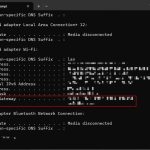
- Type ‘ipconfig’ and press Enter.
- Look for the ‘Default Gateway’ – this number is your router’s IP address.
On Mac
- Open System Preferences and click on ‘Network’.
- Select your connected network, then click ‘Advanced’.
- Go to the ‘TCP/IP’ tab to find the router’s address.
Logging Into Your Router
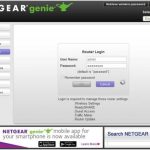
Once you have the IP address, open a browser and enter it into the address bar. This brings you to the login page.
Default Credentials
Many routers use default usernames like ‘admin’ and passwords like ‘password’ unless changed. If these do not work, check your router manual or look for a sticker on the device.
Performing a Hard Reset to Factory Settings
A hard reset restores your router to its original settings. This is useful if you forget your password or want a fresh start.
Using the Reset Button
Most routers have a small reset hole. Use a paperclip to press and hold the button for about 10 to 30 seconds. Release it and wait for the router to reboot.
Why Factory Reset Might Be Necessary
Factory reset helps fix persistent problems, remove malware, or clear incorrect settings. Keep in mind, it will erase your Wi-Fi name, password, and custom configurations.
Configuring Your Router After Reset
After resetting, you need to set up your router again. This includes changing your Wi-Fi name and password for security.
Accessing Router Settings
Login with default credentials and change your Wi-Fi network name (SSID) and password. Make sure to choose a strong password that’s easy for you to remember.
Updating Firmware
Updating your router’s firmware improves performance and security. Check the manufacturer’s website for the latest firmware and follow their instructions to update.
Additional Tips for Managing Your Router
Here are some helpful tips:
- Keep your router’s firmware up to date.
- Change default passwords to prevent unauthorized access.
- Place the router in a central location for better Wi-Fi coverage.
- Secure your network with strong encryption like WPA3.
Remote Management of Your Router
Some routers allow remote control through a secure web portal or app. This makes it easier to reset or modify settings without direct access.
Enabling Remote Access
Log into the router and look for the remote management options. Enable it if you want to manage your router from outside your home network.
Security Precautions
Always use a strong password for remote access, and disable this feature when not needed. This prevents unauthorized users from gaining control.
Common Troubleshooting During Reset
If your router does not reset properly, try these solutions:
- Ensure you hold the reset button long enough.
- Check your internet connection and cables.
- Update your router’s firmware if possible.
- Reset your router through the manufacturer’s app if available.
Benefits of Resetting Your Router Regularly
Resetting your router periodically can improve performance. It clears cached data and refreshes network settings, ensuring a smoother internet experience.
Summary of Steps to Reset Router from Computer
– Access your router’s IP address via a web browser.
– Login with your credentials.
– Choose to restart or reset the device.
– If hard resetting, hold the reset button.
– Reconfigure settings after reset.
Additional Resources and Support
Check your router’s user manual or manufacturer’s website for specific instructions. Many brands also offer customer support for technical issues.
Related Topics
– How to Change Wi-Fi Password
– Improving Home Wi-Fi Signal
– Securing Your Network from Hackers
– Setting Up Guest Networks
By understanding how to reset your router from your computer, you can maintain a fast, secure internet connection. Regular resets and updates keep your network running smoothly and protect your personal data. Following these detailed steps ensures you can troubleshoot issues quickly and effectively.
How to Reset a Router | Internet Setup
Frequently Asked Questions
How can I access my router’s admin panel from my computer?
You can access your router’s admin panel by opening a web browser and entering the default IP address, such as 192.168.1.1 or 192.168.0.1, into the address bar. Log in with your username and password, which are often printed on the router or set during setup. Once logged in, you can find options to reset or restart your router as needed.
What steps should I follow to reset my router without using physical buttons?
If your router supports remote management, log into its admin panel through your web browser. Navigate to the system or maintenance section, where you might find an option to reboot or reset the device remotely. Confirm your choice, and the router will restart or reset based on your selection.
Can I reset my router settings through a command on my computer?
Yes, some routers support command-line access through protocols like Telnet or SSH. Use a terminal emulator to connect to the router’s IP address, then enter specific commands (such as ‘reset’ or ‘reload’) to restart or reset the device. Make sure you have the necessary credentials and permissions before executing these commands.
What should I do if I forget my router’s login credentials before resetting?
If you forget your login details, you might need to perform a physical reset by pressing and holding the reset button on the back of the router for about 10-15 seconds. This action restores factory settings, including default login credentials. Afterward, access the admin panel using the default username and password listed on the router or in the user manual.
Is it possible to reset the router’s firmware remotely from my computer?
Updating or resetting the firmware usually requires accessing the admin panel through a browser. Once logged in, look for the firmware update section. Follow the instructions to upload a new firmware file if needed. Be cautious, as interrupting the process can cause issues with your device.
Final Thoughts
To reset your router from your computer, start by opening a web browser and entering your router’s IP address. Log into the router’s admin interface using your credentials. Find the reset or restore factory settings option and click it to complete the process. Knowing how to reset router from computer helps in troubleshooting and improving your network’s performance efficiently.