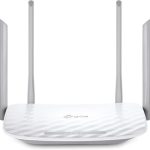
To quickly monitor devices connected to your WiFi router, access your router’s admin panel through a web browser, navigate to the connected devices section, and review the list of active devices. Using dedicated apps or network monitoring tools can also simplify this process, providing real-time updates and notifications. Regularly checking your network ensures all devices are authorized and helps spot any unusual activity promptly.
Monitoring devices on your WiFi router is essential for maintaining network security and performance. Whether you’re worried about unauthorized users or just want to keep track of your household devices, the process is straightforward. You can do this by logging into your router’s settings, which is typically done through a web browser, or by using specialized apps that streamline the task. In this guide, we’ll walk you through easy steps to see who’s connected to your WiFi, how to identify unfamiliar devices, and ways to enhance your network security. Staying vigilant keeps your connection safe and running smoothly.

How to Monitor Devices on Wifi Router: A Complete Guide
Understanding Why Device Monitoring Matters
Monitoring devices connected to your wifi router helps you keep your network secure and running smoothly. It allows you to see which devices are online, identify unfamiliar connections, and manage bandwidth usage. Being aware of connected devices also helps protect your family’s online safety.
Accessing Your Router’s Admin Panel
The first step in monitoring devices is logging into your router’s admin panel. Most routers have a web interface accessible through a browser. To do this, open a browser and type your router’s IP address, such as 192.168.1.1 or 192.168.0.1. You’ll need the admin username and password, often found on the router’s label or in the manual.
Locating the Device List on Your Router
Once logged in, navigate to the section labeled “Connected Devices,” “Device List,” or “DHCP Clients.” This section displays all devices currently connected to your network. Each device is identified by its IP address, MAC address, and sometimes, device name.
Understanding Device Information
The device list provides important details like IP addresses, MAC addresses, and device names. The MAC address uniquely identifies each device. Recognizing familiar device names helps you determine which devices belong to your household, while unfamiliar entries could be potential intruders.
Using Built-in Router Features for Monitoring
Many routers include features to monitor device activity. These might be called “Device List,” “Traffic Monitor,” or “Bandwidth Usage.” These tools show real-time data about how much internet each device consumes, making it easier to manage overall network performance.
Checking Bandwidth Usage for Each Device
Monitoring bandwidth helps identify devices that use the most data. Some routers show detailed charts or tables with upload and download speeds per device. This info is useful if you notice slow internet speeds or want to limit certain devices.
Implementing MAC Address Filtering
Mac address filtering allows you to control which devices can connect to your network. You can add approved MAC addresses and block unknown or unwanted devices. This feature helps prevent unauthorized access and improves network security.
How to Set Up MAC Filtering
Access your router’s settings and find the MAC filtering section. Add the MAC addresses of your trusted devices. Enable the filter to restrict access only to those devices. Remember, you can always update the list as new devices connect.
Using Third-party Monitoring Software
Apart from router features, you can use third-party apps for advanced monitoring. Tools like Fing, Wireshark, or NetSpot provide detailed insights into your network. These apps often offer user-friendly dashboards and additional controls.
Benefits of Third-party Tools
Third-party apps can offer features like device location tracking, usage history, and alerts for new connections. They can also provide detailed reports about your network’s health, security risks, and performance issues.
Setting Up Parental Controls
Many routers come with parental control features to manage device access. You can set time limits, block certain websites, or disable internet access for specific devices. This helps manage your children’s online activity more effectively.
How to Configure Parental Controls
Navigate to the parental controls section in your router’s menu. Select devices or user profiles, then specify restrictions or schedules. These controls usually allow you to customize settings per device or user.
Noticing Unfamiliar Devices
If you see unknown devices on your network, it’s vital to act immediately. Change your wifi password to lock out unrecognized devices. Enable network encryption, such as WPA3 or WPA2, for better security.
Steps to Remove Unauthorized Devices
Access your device list, identify unfamiliar connections, and note their MAC addresses. Change your wifi password, then reconnect only trusted devices. Consider setting up a guest network for visitors to keep your main network secure.
Monitoring Devices for Network Optimization
Regularly reviewing device activity helps improve network speed and reliability. Identifying bandwidth hogs allows you to prioritize essential devices. It also assists in troubleshooting connectivity problems.
Creating a Schedule for Regular Checks
Set weekly or monthly reminders to review your device list. Keep your firmware updated, which often includes security patches and monitoring enhancements. Staying vigilant ensures a more secure and efficient network.
Understanding the Impact of Device Monitoring on Privacy
While monitoring is important, always respect privacy boundaries. Inform household members about monitoring practices. Use tools responsibly to maintain trust and security within your network.
Monitoring devices on your wifi router is a straightforward but essential task. It provides peace of mind, enhances security, and helps optimize your internet performance. By understanding how to access device lists, utilize monitoring tools, and set controls, you can manage your network with confidence. Regular checks and proactive security measures ensure your connected environment remains both safe and efficient.
How To See Who's Connected To Your WiFi Router
Frequently Asked Questions
How can I see all devices connected to my Wi-Fi network?
Access your router’s admin panel through a web browser, usually by entering the router’s IP address (such as 192.168.1.1). Log in with your admin credentials, then navigate to the section labeled ‘Connected Devices’, ‘Device List’, or similar. This page displays all devices currently using your network, including their IP addresses, MAC addresses, and device names.
What steps should I take to identify unknown devices on my Wi-Fi?
First, review the list of connected devices in your router’s admin interface. Cross-reference the device names and MAC addresses with your known devices. If you find any unfamiliar devices, note their MAC addresses and perform a quick online search to identify the manufacturer. To enhance security, consider changing your Wi-Fi password and enabling MAC address filtering to restrict access to recognized devices.
How can I set up alerts for new device connections to my Wi-Fi?
Many routers offer notification features that alert you when a new device connects. Log into your router’s settings, locate the notifications or alerts section, and enable alerts for new device connections. Some routers send email notifications or push alerts through companion apps. If your router doesn’t have this feature, consider installing third-party firmware like DD-WRT or OpenWRT, which provide advanced monitoring options, including real-time alerts for new devices.
Final Thoughts
Monitoring devices on your wifi router is straightforward with the right tools. Access your router’s admin panel through a web browser and navigate to the device list or connected devices section. You can also use dedicated apps or software that provide real-time updates and detailed device information.
Regularly checking these lists helps identify unknown devices and manage your network security. To monitor devices on wifi router effectively, stay vigilant and update your firmware for better security features.
In summary, how to monitor devices on wifi router involves using the router’s interface or specialized apps to keep track of connected devices. This approach ensures your network remains secure and well-managed.