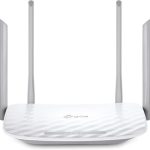
To block websites on your WiFi router quickly, access your router’s settings via its IP address, find the website filtering or parental control options, and add the URLs you want to restrict. This prevents specific sites from being accessible on your network. Use device-specific settings or third-party parental control software for more tailored restrictions.
Blocking websites on a WiFi router is a straightforward process that can help you manage what content your family or employees access. Whether you’re aiming to restrict adult content, social media during work hours, or any other sites, the router’s built-in controls are your first line of defense. By logging into your router’s admin panel, you can set up filters, block particular URLs, or create user profiles with specific permissions. This method keeps unwanted sites off your entire network without the need for individual device adjustments. It’s an effective way to maintain a safe and productive online environment while giving you peace of mind about what’s accessible through your WiFi connection.

How to Block Websites on WiFi Router: A Complete Guide
Understanding Why You Might Want to Block Websites
Many users choose to block certain websites on their WiFi routers for various reasons. These reasons include protecting children from inappropriate content, preventing access to distracting sites during work or study, or blocking malicious sites to keep your network secure. Knowing why you want to block websites will help you decide the best method to implement.
Accessing Your Router’s Admin Panel
Before you can block websites, you need to access your router’s admin panel. Most routers are accessed through a web browser. To do this, you usually type the router’s IP address into your browser’s address bar, such as 192.168.0.1 or 192.168.1.1. Enter your login credentials when prompted, which are often set to defaults like “admin” for both username and password unless changed.
Finding the Website Filtering Settings
Once inside the admin panel, look for sections like “Parental Controls,” “Access Restrictions,” or “Firewall.” These sections contain options to block websites. The location of these settings depends on your router’s brand and firmware version. Consult your router’s manual or support site if you’re unsure where to find these options.
Blocking Websites Using URL Filtering
Many routers enable URL filtering, allowing you to specify the websites to block directly. To do this, go to the URL filtering section and enter the website addresses you want to restrict. Use full URLs for accuracy, such as www.socialmedia.com or adultwebsite.com. Save your settings and restart the router if necessary to apply changes.
Tips for Effective URL Filtering
- Include multiple variations of a website address to ensure comprehensive blocking.
- Use wildcard characters if supported to block entire categories of sites.
- Test blocked sites from a device connected to your WiFi to confirm the settings work correctly.
Blocking Websites by Domain Names
Another way to block websites is by blocking entire domain names. This method prevents access to all pages within a domain, such as social media sites or streaming platforms. Add the domain names under the filtering rules, and remember to save and apply the changes.
Using MAC Address Filtering for Extra Control
MAC address filtering allows you to specify which devices can access certain sites. While this doesn’t directly block websites, you can control which devices have permissions to access certain services. To do this, identify the MAC addresses of devices on your network and set rules accordingly.
Implementing Parental Control Features
Many modern routers come with built-in parental control features that simplify website blocking. These controls let you set age-appropriate restrictions, schedule internet access times, and filter content easily. Access the parental controls through the router’s settings and configure the list of blocked sites or categories.
Utilizing Firmware with Advanced Blocking Capabilities
If your router’s stock firmware doesn’t offer sufficient blocking options, consider installing third-party firmware like DD-WRT, OpenWRT, or Tomato. These firmware options provide advanced filtering tools, including keyword filtering, time-based restrictions, and more. However, installing custom firmware requires some technical knowledge and care.
Setting Up DNS-Based Website Blocking
DNS filtering redirects your device traffic through a DNS server that blocks access to certain websites. Services like OpenDNS are popular for this purpose. To set this up, change your router’s DNS settings to those provided by the DNS filter provider, then configure the filtering rules on their platform. This method is effective for blocking websites across all devices on your network.
Steps for DNS-Based Blocking
- Register an account with a DNS filtering service like OpenDNS.
- Configure your router to use the DNS server addresses provided.
- Set up filtering rules on the service’s dashboard to block specific websites or categories.
- Test your setup by trying to access the blocked sites from connected devices.
Blocking Websites Using Third-Party Software or Apps
Aside from router settings, software solutions on individual devices can restrict websites effectively. Parental control apps or browser extensions like BlockSite or Norton Family can be installed on devices to restrict access to specific sites. This method provides more granular control, especially for devices used outside your home network.
Creating Scheduled Restrictions
Some routers allow scheduling when the internet or access to certain websites is available. For example, you can block social media sites during homework hours. Explore your router’s scheduling options and set rules based on time, date, or user profiles.
Monitoring and Adjusting Your Settings Regularly
After setting up website blocks, it’s important to review and adjust them periodically. Kids or users may find ways to bypass restrictions, so keep your filters updated and test their effectiveness regularly. Monitor network logs if available to see if any attempts to access blocked sites occur.
Additional Tips for Effective Website Blocking
- Use a combination of methods—URL filtering, DNS filtering, and device controls—for comprehensive protection.
- Keep your router firmware updated to access the latest security features.
- Notify network users about the restrictions to ensure understanding and compliance.
Common Problems and How to Fix Them
Sometimes, website blocks may not work as expected. Check if your settings are saved correctly, clear your browser cache, or restart your router. If blocking via DNS, ensure the DNS settings are properly configured. For third-party solutions, verify they are installed and enabled properly.
Blocking websites on your WiFi router offers a practical way to manage internet access in your home or office. Whether through built-in router settings, DNS filtering, or third-party software, you can effectively restrict access to unwanted sites and create a safer online environment. Regularly reviewing and updating your filters helps maintain a secure and distraction-free network for everyone.
How to easily block a Website or App on WiFi Router Network?
Frequently Asked Questions
What are the initial steps to restrict access to certain websites on a Wi-Fi router?
Begin by logging into your router’s admin panel through a web browser, usually by entering the router’s IP address. Locate the parental controls or access restrictions section in the settings. From there, you can add specific website URLs or keywords you want to block. Save your changes to enforce the restrictions on the network.
How can I use DNS settings to prevent access to specific websites?
You can configure your router to use custom DNS servers that block certain sites. Replace the default DNS addresses with ones that offer filtering features, or set up a DNS service that allows you to specify blocked sites. This method prevents devices from resolving the addresses of unwanted websites, effectively blocking access at the network level.
What options do I have for applying website blocks to individual devices on my network?
Most routers offer device-specific access controls. Identify the devices in your router’s settings and assign restrictions to their MAC addresses or IP addresses. You can then choose which devices can access specific websites or types of content, providing targeted control over your network.
Can I set time-based restrictions for website access on my Wi-Fi router?
Yes, many routers support scheduling features that allow you to set time frames for internet access. Use these options to block or allow access to certain websites during specified periods. This helps manage internet usage and enforces rules during homework time or bedtime.
Is it possible to block websites on a router without accessing the admin panel?
Some routers offer mobile apps that enable basic content filtering without requiring direct access to the admin interface. Check if your router supports such apps and utilize their features to restrict websites conveniently. However, for more comprehensive controls, accessing the admin panel remains necessary.
Final Thoughts
In summary, blocking websites on your WiFi router helps you control internet access effectively. You can do this by accessing your router’s admin panel and setting restrictions for specific sites. Be sure to follow the manual or online guides tailored to your router model. Remember, knowing how to block websites on wifi router provides better online security and focus for users.