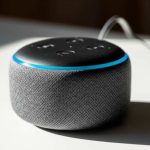
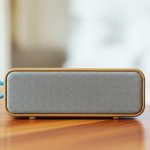
Boost your Bluetooth speaker’s volume with simple tricks and settings. Get ready for richer, louder sound without buying a new gadget!
Hey there, tech explorers! Ever feel like your favorite Bluetooth speaker is a bit too quiet for a party or even just enjoying your music at home? We’ve all been there. You’ve got a great playlist, but the sound just doesn’t fill the room like you hoped. It can be a little frustrating, right? Picking out the perfect speaker can feel like a whole puzzle, and then figuring out how to get the most out of it adds another layer. But don’t worry! I’m here to break it all down. We’ll dive into easy ways to turn up the volume and make your current speaker sound its best. Let’s make your listening experience awesome, step by step.
Let’s Talk About Sound: Why Volume Matters
Imagine this: you’re setting up for a backyard barbecue, and your Bluetooth speaker is playing some chill tunes. But your guests are chatting, the grill is sizzling, and you can barely hear the music over the fun. That’s exactly why speaker volume is a big deal for our good times! Sound makes moments better, whether it’s the beat of your favorite song, the exciting roar of a movie soundtrack, or the clear dialogue in a podcast. When a speaker struggles to get loud enough, it really takes away from the experience.
It’s like having a delicious meal but not enough seasoning – it’s missing that essential oomph! Many people think the only way to get louder sound is to buy an expensive new speaker. But what if I told you there are clever ways to boost the volume of the speaker you already own? It’s true! We’re going to explore simple tweaks and settings that can make a surprising difference. Think of it as unlocking your speaker’s hidden potential.
Why Is My Bluetooth Speaker Not Loud Enough?
Sometimes, a speaker might sound quieter than you expect for a few reasons. Maybe it’s its natural limit, or perhaps something else is going on. Speakers have a maximum volume they can produce without sounding distorted. Pushing them beyond that can cause fuzzy or unpleasant sound. Also, the room you’re in plays a big role. An open, large room will make a speaker sound quieter than a small, enclosed space.
Another common culprit is the device you’re connecting to it. If your phone or tablet is set to a low volume, your speaker will only play what it receives. It’s like trying to pour a lot of water from a small tap; you can only get so much through! We’ll cover how to check and fix these things. It’s all about understanding how the sound travels from your device to your speaker and how to make that journey as powerful as possible.
Hidden Volume Boosters: Simple Tweaks You Can Make
Ready to get your sound game on point? There are several easy things you can do right now to make your Bluetooth speaker louder. These are simple adjustments, not complicated technical stuff. You don’t need to be a tech wizard to make them work. They are quick fixes that fit right into your daily use. Let’s start with the easiest ones!
1. Turn Up Your Device’s Volume
This sounds super obvious, but you’d be surprised how often it’s overlooked! Your Bluetooth speaker can only be as loud as the signal it’s receiving. So, the first step is to crank up the volume on the device you’re using – your smartphone, tablet, or laptop.
On your phone or tablet: Look for the physical volume buttons on the side. Press the ‘up’ button until the volume indicator shows it’s at max. You can also swipe down or up from the top or bottom of your screen to access the on-screen volume slider.
On your computer: You can usually find a speaker icon in the taskbar (Windows) or menu bar (Mac). Click it and drag the slider all the way to the right.
Sometimes, there’s a separate setting for media volume, which controls music and videos, and ringer volume, which is just for calls. Make sure your media volume is maxed out.
2. Check Your Speaker’s Volume Too!
Just like your phone, your Bluetooth speaker also has its own volume control. Make sure that’s turned up all the way as well. Some speakers have physical buttons, while others might be controlled through a mobile app.
Physical Buttons: Look for a ‘+’ or ‘volume up’ button on the speaker itself. Press and hold it, or tap it repeatedly, until you reach the maximum level. You might hear a beep or a chime when you hit the top.
Mobile App Control: If your speaker has a companion app, open it up. You’ll often find a volume slider or button there. Ensure this is also set to its highest setting.
It’s crucial that both your connecting device and your speaker are set to loud volumes to get the best possible output.
3. Remove Obstructions and Find a Better Spot
Where you place your speaker can make a huge difference in how loud it sounds. A speaker placed in a corner or against a wall might sound fuller, but placing it out in the open can sometimes project sound better into the room.
Avoid Enclosed Spaces: Don’t hide your speaker in a cabinet or behind a lot of clutter. This muffles the sound.
Use Surfaces Wisely: Placing a speaker on a hard, flat surface can help reflect sound waves, making them seem louder. Wood or tabletops work well. Avoid soft surfaces like couches or carpets, which absorb sound.
Elevate It: Sometimes, placing the speaker on a shelf or table at ear level can help direct the sound more effectively towards where you are.
Think of it like shouting in an empty room versus shouting in a closet. The empty room carries the sound further!
4. Disable Any Power Saving Modes
Some Bluetooth speakers have power-saving features that might automatically lower the volume to conserve battery. If your speaker has an app, check the settings for any power-saving options and try turning them off. This way, the speaker will stay at its maximum output for longer.
5. Update Your Bluetooth Speaker’s Firmware
Manufacturers sometimes release updates for their speakers, just like your phone gets software updates. These updates can improve performance, fix bugs, and sometimes even enhance sound quality or volume.
Check the Manufacturer’s Website: Go to the support or downloads section for your specific speaker model.
Use the Companion App: Many modern speakers have an app that will notify you when firmware updates are available. The app will guide you through the update process.
Updating is usually pretty straightforward and can sometimes unlock better performance you didn’t know was there.
Boosting Sound: Software and EQ Tricks
Beyond the physical placement and basic volume controls, there are software-based ways to make your speaker sound louder and better. These involve adjusting settings on your phone or computer.
6. Use an Equalizer (EQ) App
An equalizer, or EQ, lets you adjust the different frequencies of sound – like bass, mid-tones, and treble. By boosting certain frequencies, you can make it sound like the speaker is louder or more present. You can often find EQ settings built into your phone’s music app or through separate apps.
Boost Bass and Treble: Often, increasing the bass (low frequencies) and treble (high frequencies) can make the sound feel fuller and more impactful, giving the impression of higher volume. Be careful not to overdo it, as too much bass can make the sound muddy, and too much treble can sound harsh.
Find an EQ App: Search your phone’s app store for “equalizer” or “EQ.” Many are free and easy to use. Examples include Equalizer FX, Bass Booster, and built-in options within music players like Spotify or Apple Music.
Here’s a quick tip: a slight boost to the mid-range frequencies (around 1kHz to 4kHz) can also make vocals and instruments sound clearer and more prominent, which can make the overall sound seem louder.
7. Activate Volume Boosters on Your Phone/Tablet
Some devices have a specific “volume boost” or “loudness” feature in their sound settings. This is essentially a software EQ designed to increase perceived volume.
Android: Go to `Settings` > `Sound & Vibration` (or similar) > `Advanced` or `Sound Quality and Effects`. Look for options like “Dolby Atmos” or “Equalizer.” Some devices have a specific “volume enhancer” under advanced sound settings.
iOS (iPhone/iPad): Go to `Settings` > `Music` > `Equalizer`. You can select presets like “Louder” or “Late Night” which can increase the overall volume. Another setting, `Settings` > `Accessibility` > `Audio/Visual`, has a “Headphone Volume” slider, but this primarily affects headphones, not Bluetooth speakers. However, some apps might benefit from system-wide audio adjustments.
These settings can sometimes add a bit of distortion if pushed too hard, so it’s always good to test them out gradually.
8. Disable Any Volume Normalization Features
Some music streaming apps have a feature called “volume normalization” or “sound check.” This feature adjusts the loudness of different tracks so they play at a similar volume level. While great for playlists, it can sometimes prevent tracks from reaching their maximum stored loudness.
Spotify: Go to `Settings` > `Playback` and toggle off `Volume Normalization`.
Apple Music: Go to `Settings` > `Music` and toggle off `Sound Check`.
YouTube Music: Go to `Settings` > `Playback` and toggle off `Volume normalization`.
Turning this off means each song will play at its original intended volume level, which could be louder for some tracks.
Advanced Techniques and What to Watch Out For
We’ve covered the easy stuff. Now let’s look at a few more things to consider. These might involve slightly more advanced ideas or warnings about pushing your speaker too far.
9. Consider a Stereo Pair
If you have two identical Bluetooth speakers, you might be able to pair them together in stereo mode. This means they’ll play music in true stereo (left and right channels), which can produce a much fuller and louder sound than a single speaker. Many brands, like JBL, Bose, and UE, offer this feature. Check your speaker’s manual or app to see if yours can do this.
10. Understand Speaker Power (Wattage)
The wattage of a speaker indicates how much power it uses and, generally, how loud it can get. A speaker with higher wattage will typically be louder than one with lower wattage.
Here’s a simple comparison of common Bluetooth speaker wattages:
| Speaker Type | Typical Wattage Range | Best For |
| :—————— | :——————– | :——————————— |
| Small Portable | 3W – 10W | Personal listening, quiet rooms |
| Medium Portable | 10W – 30W | Small gatherings, moderate rooms |
| Large Portable/Home | 30W+ | Parties, larger outdoor spaces |
When you see a speaker listed as 20W, it means it can handle up to 20 watts of power. More watts generally mean more volume. If your current speaker is only 5W, it has a natural ceiling compared to a 30W speaker, no matter how much you tweak settings.
11. Beware of Distortion: Don’t Push Too Hard!
While we’re talking about making things louder, it’s super important not to push your speaker past its limit. When you crank the volume up too high, especially with bass-heavy music, the sound can start to crackle, distort, or sound “blown.”
Listen for Changes: If you hear any buzzing, crackling, or fuzzy sounds, you’ve likely reached the speaker’s distortion point.
Back Off Slightly: Lower the volume just a little bit until the sound is clean again.
Protect Your Speaker: Continuously playing a distorted speaker can damage its internal components over time. It’s better to have a clean, slightly less loud sound than a distorted, potentially damaging one.
Think of it like over-inflating a balloon. Eventually, it will pop!
12. Bluetooth Codec Matters (A Little!)
Bluetooth speakers use different “codecs” to transmit audio. Some codecs are better at preserving sound quality and can sometimes allow for a bit more volume without distortion. AAC and aptX are generally considered better than the basic SBC codec.
SBC (Subband Coding): This is the standard, universal codec. It’s compatible with all Bluetooth devices but offers the lowest quality and bandwidth.
AAC (Advanced Audio Coding): Used by Apple devices and many Android phones. It offers better sound quality than SBC.
aptX (and aptX HD/Low Latency): Common on many Android phones. These offer even higher sound quality and lower latency.
You can usually see which codec is being used in your device’s Bluetooth settings when connected. While you can’t always change the codec your speaker uses, knowing this can be helpful if you’re looking to buy a new speaker and want the best possible audio transmission. For more on Bluetooth codecs, check out this explanation from CNET.
13. Consider a Portable Bass Booster
There are small, affordable gadgets that can sometimes act as external amplifiers or Bluetooth receivers. Some of these promise to boost the signal going into your speaker. Their effectiveness can vary wildly, and they might introduce their own audio artifacts or hiss. Use these with caution and read reviews carefully if you consider one.
Will a Case or Cover Affect Volume?
Yes, the case or cover on your Bluetooth speaker can absolutely affect its volume. If your speaker has a particularly thick or tight-fitting silicone cover, it might muffle the sound. The material and design of the case can absorb or reflect sound waves differently.
Remove the Cover (Temporarily): For a quick test, try taking off any case or cover your speaker has. Play some music. If it sounds noticeably louder and clearer, the case was likely hindering the sound.
Look for Speaker Cutouts: If you use a case, ensure it has precise cutouts for the speaker grills. This allows sound to escape freely.
Some portable speaker cases are designed with acoustics in mind, but others are purely for protection and might compromise sound output.
Troubleshooting Common Loudness Issues
Sometimes, even with all the tips, your speaker might still not be as loud as you’d like. Here are a few troubleshooting steps:
Restart Everything: Turn off your speaker and your connected device. Turn them back on and re-pair them. This simple step often fixes temporary glitches.
Forget and Re-pair Device: On your phone or tablet, go to Bluetooth settings, find your speaker, and select “Forget Device.” Then, put your speaker back into pairing mode and connect it again.
Test with a Different Device: Try connecting your speaker to a different phone or tablet. If it’s louder when connected to a different device, the issue might be with your original device’s settings.
Test with Different Audio: Play different types of music or audio files. Some audio files are simply mastered at a lower volume than others. Try playing a track known for being loud and clear.
Frequently Asked Questions (FAQ)
Q1: Can I really make my small Bluetooth speaker sound much louder?
A1: You can definitely make it sound noticeably louder and clearer by adjusting settings, optimizing placement, and ensuring your device volume is up. However, there’s a limit to how loud a small speaker can safely get without distortion. You can boost its performance, but it won’t magically become a concert-sized speaker.
Q2: Is it bad for my speaker to always play it at maximum volume?
A2: Playing your speaker at its absolute maximum volume for extended periods can shorten its lifespan or even cause permanent damage, especially if the sound starts to distort. It’s best to play it at a comfortable, loud volume, and back off slightly if you hear any crackling or fuzziness.
Q3: Why does my speaker sound quieter when connected to my laptop than my phone?
A3: This can happen for several reasons! Your laptop might have its audio output set lower by default, or it might be using a different, less efficient Bluetooth codec. Check your laptop’s sound settings and ensure the media volume is cranked up. Sometimes, the audio driver on a laptop might also be a factor.
Q4: What’s the difference between “volume boost” and “EQ”?
A4: A “volume boost” or “loudness” feature is usually a simplified way to increase the overall perceived volume of your audio, often by slightly compressing or amplifying certain sounds. An EQ (Equalizer) gives you much more control, allowing you to adjust specific frequency ranges (bass, mids, treble) to shape the sound more precisely. You can use EQ to make a speaker seem louder by emphasizing frequencies that our ears perceive as more prominent.
Q5: Should I use a third-party app to boost my speaker’s volume?
A5: Third-party EQ or volume booster apps can be effective, but use them with caution. Some can introduce unwanted noise or distortion. It’s often best to try your phone’s built-in EQ settings or capabilities first. If you do use a third-party app, start with small adjustments and listen carefully for any signs of audio degradation.
Q6: Can I make my speaker louder if it’s already old?
A6: Yes, you can often still apply these tips to older speakers! The principles of optimizing volume levels, placement, and device settings still apply. However, older speakers might have naturally diminished sound quality or be more susceptible to distortion at higher volumes due to wear and tear.
The Final Soundcheck
So there you have it! Making your Bluetooth speaker louder doesn’t have to be complicated. We’ve covered everything from simple volume checks and smart placement to using EQ settings and even considering things like firmware updates and stereo pairing. Remember, the goal is to get the best possible sound out of the speaker you have, whether that’s for a chill evening or a lively get-together.
By