Connecting your LG TV to a Bluetooth speaker is super easy! Follow these simple steps to get amazing sound wirelessly, making movies and music sound way better.
Hey there, tech explorers! Max here from AffTechy.com, your friendly guide to making technology feel super simple. Have you ever wished your LG TV’s sound was just a little bit… more? Like, movie theater booming or concert hall clear? I totally get it. Sometimes those sleek TV speakers just don’t cut it for that epic experience. And diving into speaker specs can feel like learning a new language, right?
Well, guess what? We’re about to make things super clear and easy. Connecting your LG TV to a Bluetooth speaker is a game-changer for your home entertainment. Imagine incredible sound for your favorite shows, games, and music without a tangled mess of wires. It’s simpler than you might think, and I’m here to walk you through it, step by step.
Let’s make this happen. Ready to boost your TV’s audio power? Let’s jump in!
Why Connect a Bluetooth Speaker to Your LG TV?
You’ve got a fantastic LG TV, and it looks amazing. But let’s be real, the built-in speakers are often designed for clarity, not for that heart-thumping bass or immersive surround sound. That’s where a good Bluetooth speaker comes in! Connecting one is like giving your TV a superpower upgrade for its audio capabilities.
Think about your favorite action movie. Wouldn’t it be awesome to feel the rumble of explosions or the subtle rustle of leaves? Or maybe you love listening to music while you cook, and you want rich, full sound filling your kitchen. A Bluetooth speaker can transform these everyday moments into something truly special. It’s all about enhancing your experience and getting more joy from your favorite content.
Understanding Bluetooth: The Wireless Magic
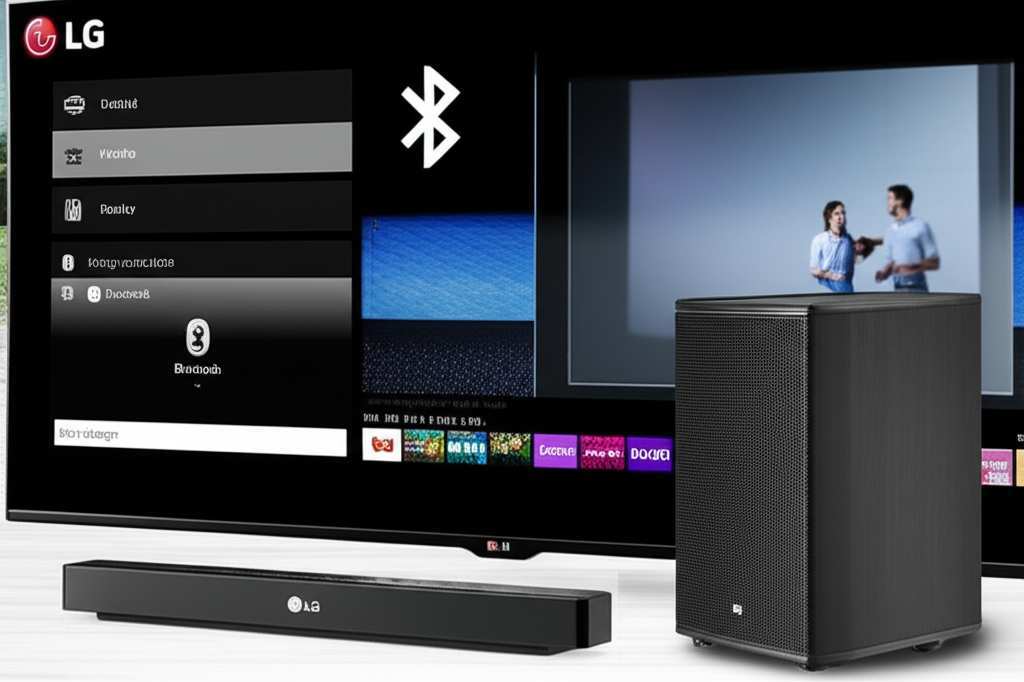
So, what exactly is Bluetooth, and how does it work its magic? In simple terms, Bluetooth is a short-range wireless technology. It lets devices talk to each other without needing cables. Think of it like a friendly invisible handshake between your TV and your speaker. This technology is built into most modern smartphones, laptops, and, of course, your LG TV and Bluetooth speaker.
It uses radio waves to send and receive data, like audio signals, over a distance of about 30 feet (10 meters). This makes it perfect for connecting devices in the same room. It’s super convenient because you don’t have to run wires across your floor, which can be a tripping hazard and just plain unsightly. Plus, it’s pretty energy-efficient, which is always a bonus!
Getting Your LG TV and Bluetooth Speaker Ready
Before we dive into the actual connection process, let’s make sure both your LG TV and your Bluetooth speaker are prepped and ready to go. This little bit of setup can save you a lot of hassle later on. It’s like preparing your ingredients before you start cooking – everything goes much smoother!
First, make sure your LG TV is powered on. You’ll also want your Bluetooth speaker charged up or plugged in. If your speaker has a battery, give it a good charge so it doesn’t cut out halfway through your movie night. It’s also a good idea to have your speaker close to the TV for the initial pairing process, just to ensure a strong connection.
Step-by-Step: Connecting Your LG TV to a Bluetooth Speaker
Alright, this is where the magic really happens! Connecting your LG TV to a Bluetooth speaker is usually a straightforward process. LG TVs have made this pretty user-friendly, and we’ll go through it together. Just follow these steps, and you’ll be enjoying enhanced audio in no time.
Step 1: Access Your LG TV’s Settings Menu
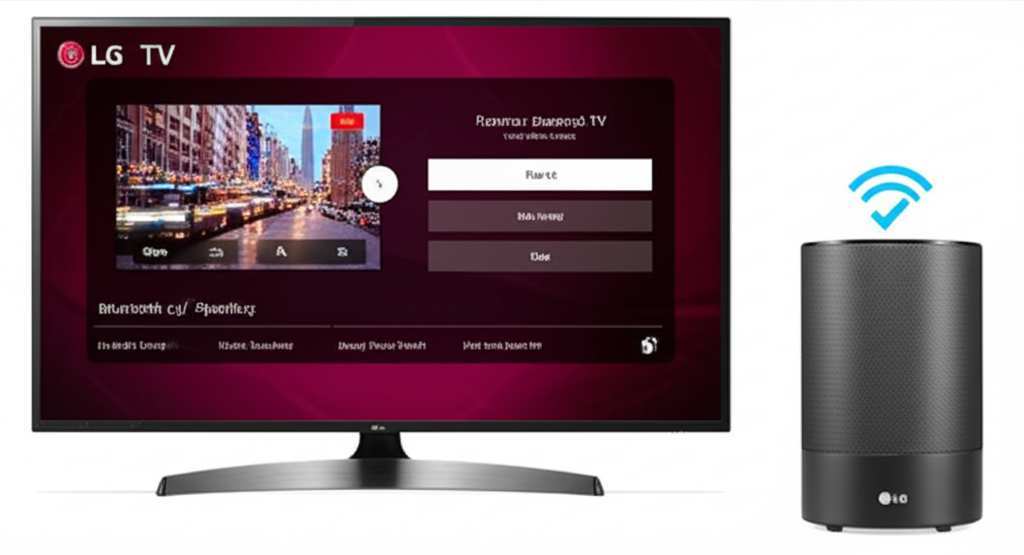
Grab your LG TV remote. You’ll need to navigate to the TV’s settings menu. Look for a button that often has a gear icon or says “Settings” or “Menu.” Press it. This will bring up a side menu or an on-screen dashboard with various options.
Step 2: Navigate to Sound Settings
Once you’re in the main Settings menu, you’ll want to find the section that deals with sound. This is usually labeled something like “Sound,” “Audio,” or “Speaker Settings.” Use the arrow keys on your remote to highlight it and press the center button (usually labeled “Enter” or “OK”) to select it.
Step 3: Find the Sound Output or Device Selection Option
Inside the Sound settings, you’re looking for where you can choose where the audio comes from. This option might be called “Sound Output,” “Speaker Selection,” or something similar. This is where you tell your TV to send sound to an external device instead of its built-in speakers.
Step 4: Select Bluetooth as the Sound Output
In the Sound Output menu, you should see a list of options. Look for “Bluetooth,” “Wireless Speaker,” or “External Speaker.” Select this option. If you’ve never connected a Bluetooth device before, you might see an option to “Add Device” or “Pair Device.”
Step 5: Put Your Bluetooth Speaker into Pairing Mode
Now, you need to tell your Bluetooth speaker to look for a connection. This is called “pairing mode.” The exact way to do this varies by speaker, but usually, there’s a dedicated Bluetooth button on the speaker itself. You might need to press and hold this button for a few seconds until a light starts blinking or you hear a special sound.
Check your speaker’s manual if you’re unsure how to put it into pairing mode. It’s a small detail that’s crucial for the connection to work! Many speakers will have a blue or white LED light that flashes to show they’re ready to pair.
Step 6: Scan for Devices on Your LG TV
Back on your LG TV, once you’ve selected the Bluetooth output, you’ll likely see an option to “Scan” or “Search for Devices.” Select this. Your TV will then start looking for any nearby Bluetooth devices that are in pairing mode.
Step 7: Select Your Speaker from the List
After a moment, your LG TV should display a list of available Bluetooth devices. You should see the name of your speaker in this list. Use your remote to highlight your speaker’s name and select it.
Step 8: Confirm the Connection
Your TV will likely prompt you to confirm the connection. You might see a message asking if you want to pair with this device. Select “Pair” or “Connect.” If your speaker supports it, it might also give an audio cue to confirm the pairing is successful.
Step 9: Test the Sound!
Once paired, the TV should automatically switch its audio output to the Bluetooth speaker. Go back to what you were watching or play some music through an app on your TV. You should now hear the sound coming from your Bluetooth speaker! If not, double-check that the speaker is selected as the audio output in your TV’s sound settings.
Congratulations! You’ve successfully connected your LG TV to your Bluetooth speaker. Enjoy that awesome new sound!
Troubleshooting Common Connection Issues
Sometimes, things don’t go perfectly the first time, and that’s totally okay! Don’t get discouraged if you hit a small snag. Here are a few common issues and how to quickly fix them, so you can get back to enjoying your upgraded audio.
Speaker not showing up: Make sure your speaker is definitely in pairing mode. Sometimes the light might look like it’s on, but it’s just in standby. Try holding the Bluetooth button again. Also, ensure the speaker is within range of your TV.
Cannot pair: Try turning off both your TV’s Bluetooth and your speaker’s Bluetooth, then turn them back on and try the pairing process again. A simple restart can clear up temporary glitches.
Connected but no sound: Go back into your LG TV’s Sound Output settings and make sure the Bluetooth speaker is still selected as the active device. Sometimes, you might need to manually select it after pairing.
Audio skipping or breaking up: This usually means the Bluetooth signal is weak or there’s interference. Try moving the speaker closer to the TV, or remove any objects that might be blocking the signal, like thick furniture or other electronic devices.
LG TV Bluetooth Audio Settings Explained
Your LG TV offers a few cool options to fine-tune your Bluetooth audio experience. Let’s take a quick look at what they might be. Understanding these can help you get the best sound possible.
Number of Audio Devices: LG TVs often allow you to connect more than one Bluetooth device, but usually only one can be used for audio output at a time. Some models might let you connect two speakers simultaneously for a stereo effect, but this is less common and depends on the TV and speaker capabilities.
Device List Management: In your Bluetooth settings, you’ll see a list of devices that have been previously paired. You can usually “disconnect” a device from here or “delete” it entirely if you no longer use it. This helps keep your list tidy.
Volume Control: Once connected, you can control the volume of the Bluetooth speaker directly from your LG TV remote, just like you would with the TV’s internal speakers. You can also adjust the volume on the speaker itself.
Best Bluetooth Speakers for LG TVs: A Quick Look
Choosing the right Bluetooth speaker can really elevate your audio experience. While many speakers will work fine, some offer features that might be particularly great for TV watching. Here’s a quick comparison of a few popular types you might consider.
| Speaker Type | Key Features | Best For | Price Range (Approx.) |
| :—————— | :———————————————- | :———————————————- | :——————– |
| Portable Speaker | Compact, battery-powered, easy to move | Casual listening, moving between rooms | $50 – $200 |
| Soundbar | Slim profile, enhances dialogue, mounts easily | Improving TV audio for movies and shows | $100 – $500+ |
| Smart Speaker | Voice control, Wi-Fi and Bluetooth connectivity | Multi-functional use, music streaming, smart home | $80 – $300+ |
| Bookshelf Speakers | Deeper bass, richer sound, wired (sometimes) | Audiophiles, dedicated home theater setups | $150 – $400+ |
When looking at speakers, consider what you’ll be using it for most. If it’s for booming movie nights, a soundbar or a more powerful portable speaker might be ideal. If you’re just adding a bit more oomph to your music while you do chores, a smaller portable speaker is perfect. For serious audiophiles, dedicated bookshelf speakers can offer an unparalleled listening experience.
Fun Fact: The Journey of Bluetooth!
Did you know the name “Bluetooth” comes from a Viking king? King Harald “Bluetooth” Gormsson united different Danish tribes in the 10th century. Similarly, the Bluetooth technology was designed to unite different communication protocols. The logo is even a combination of two Old Norse runes representing Harald’s initials! How cool is that for a bit of tech history?
Tips for Optimal Bluetooth Audio Performance
Getting the best performance from your Bluetooth connection is all about a few simple strategies. Think of these as little tweaks to make your sound experience as smooth and rich as possible.
Keep Devices Close: Bluetooth signals are strongest over short distances. Try to keep your speaker within about 15-20 feet of your TV for the most stable connection.
Minimize Interference: Other wireless devices, like microwaves, Wi-Fi routers, and even some cordless phones, can interfere with Bluetooth signals. Try to keep your speaker and TV away from these if possible.
Update Your TV Software: Your LG TV’s software (firmware) is important. Manufacturers often release updates that can improve Bluetooth performance and compatibility. Check your TV’s settings for software updates regularly.
Check Speaker Settings: Some Bluetooth speakers have their own companion apps. These apps might offer EQ settings or firmware updates that can enhance sound quality and connection stability.
Use the Right Audio Codec: Most modern devices use efficient audio codecs like SBC, AAC, or aptX. While you usually don’t need to do anything, better speakers might support advanced codecs for higher fidelity. Your TV and speaker will automatically negotiate the best available codec.
Consider Speaker Placement: For the best sound, place your speaker at ear level and in a position that spreads the sound evenly throughout your room. Avoid corners if you have too much bass.
Can I Connect Multiple Bluetooth Speakers to My LG TV?
This is a question I get asked a lot! Generally, most LG TVs can only send audio to one Bluetooth device at a time. So, you can connect your primary Bluetooth speaker, but usually not a second one for true surround sound. Some newer LG TV models might support connecting two speakers for stereo sound, but this feature is not standard across all models and often requires specific compatible speakers.
However, some Bluetooth speakers (like certain models from JBL or Bose) have a feature that allows them to link with another identical speaker wirelessly. If your TV supports multi-device audio pairing, you might be able to connect your TV to two speakers this way, creating a wider soundstage. Always check your TV and speaker manuals for specific compatibility details.
LG TV Bluetooth vs. Other Audio Connections
It’s good to know your options! Bluetooth is super convenient, but it’s not the only way to connect external audio. Here’s a quick comparison:
Bluetooth:
Pros: Wireless, easy setup, widely compatible with many devices.
Cons: Can have slight audio delay (latency), sound quality can be compressed, limited range.
HDMI ARC (Audio Return Channel):
Pros: High-quality audio, no lag, single cable for audio and video control (on compatible devices).
Cons: Requires an HDMI ARC port on both TV and audio device, less flexible placement.
Optical Audio Cable:
Pros: Good digital audio quality, no lag.
Cons: Wired connection, can be less versatile than HDMI ARC.
For most people, the ease and wireless freedom of Bluetooth are the biggest advantages. If you’re an extreme audiophile or a serious gamer where even a tiny delay is noticeable, HDMI ARC might be a better choice. But for everyday TV watching, music, and casual gaming, Bluetooth is a fantastic upgrade.
Frequently Asked Questions (FAQ)
Here are some common questions beginners have about connecting their LG TV to a Bluetooth speaker.
Q1: Do all LG TVs support Bluetooth audio output?
A1: Most LG TVs made in the last few years have Bluetooth capabilities. However, very old or basic models might not. The best way to check is to go into your TV’s Settings and look for the Sound or Bluetooth menu. If you see options for Bluetooth audio, your TV supports it!
Q2: How far can my LG TV’s Bluetooth reach?
A2: A standard Bluetooth connection works best within about 30 feet (10 meters). For the most stable and clear audio, keeping your speaker closer, like within 15-20 feet, is ideal. Walls and other obstacles can weaken the signal.
Q3: Can I use my LG TV remote to control the volume of the Bluetooth speaker?
A3: Yes, you absolutely can! Once your Bluetooth speaker is paired with your LG TV, you can use your LG TV remote to adjust the volume up or down. The TV sends the volume commands wirelessly to the speaker.
Q4: What should I do if my LG TV can’t find my Bluetooth speaker?
A4: First, ensure your speaker is properly in pairing mode. Then, check that it’s close enough to the TV. Try turning off Bluetooth on both devices and then turning them back on and searching again. A quick restart can often solve connection troubles.
Q5: Will connecting a Bluetooth speaker cause a delay in sound (lip-sync issues)?
A5: Bluetooth can sometimes introduce a small delay, known as latency. Most modern TVs and speakers are pretty good at minimizing this. If you notice a delay during dialogue, check your TV’s audio settings for a “lip-sync adjustment” or “audio delay” feature that you can tweak.
Q6: Can I connect my LG TV to more than one Bluetooth speaker at the same time?
A6: Typically, LG TVs can only connect to one Bluetooth audio device at a time for sound output. Some higher-end TVs or specific speaker systems might offer ways to pair two speakers for stereo sound, but this isn’t a universal feature.
Q7: My Bluetooth speaker is connected, but I don’t hear any sound. What’s wrong?
A7: Double-check that your LG TV’s Sound Output settings show the Bluetooth speaker as the selected device. Also, ensure the volume on both the TV and the speaker is turned up. Try unpairing and re-pairing the speaker to your TV.
Making Every Moment Louder and Better!
And there you have it! Connecting your LG TV to a Bluetooth speaker is a fantastic way to dramatically improve your home entertainment experience. You’ve learned how to navigate your TV’s settings, pair your devices, and even troubleshoot common issues. It’s all about making your favorite shows, movies, and music sound as incredible as they deserve to.
Don’t let complicated tech jargon hold you back. With these simple steps, you can enjoy that rich, immersive audio without any hassle. It’s empowering to know you can easily upgrade your sound system and create a more enjoyable atmosphere in your home.
Now go forth and explore! Try connecting your speaker, experiment with different content, and truly feel the difference that great audio makes. Enjoy the clarity, the depth, and the sheer fun of a well-amplified experience. Now