Connect your LG TV to a Bluetooth speaker easily and unlock awesome sound! This guide makes it super simple to boost your TV’s audio for movies, music, and games. Get ready for a better listening experience without the fuss.
Hey there, tech adventurer! So, you’ve got that awesome LG TV, all set for movie nights or gaming marathons. But sometimes, the built-in TV speakers just don’t give you that oomph, right? We’ve all been there, wishing for thunderous explosions or crystal-clear dialogue.
Maybe you’re eyeing a sleek Bluetooth speaker, ready to give your living room a sound upgrade. The thought of connecting it to your TV might seem a little tricky, full of confusing buttons and menus. But don’t you worry! As your friendly tech guide from AffTechy.com, I’m here to make this super easy.
We’ll walk through connecting your LG TV to a Bluetooth speaker step-by-step. Think of it like making a new friend – a friend who makes your music louder and your movies more immersive. Let’s dive in and get that amazing sound flowing!
Why Bother Connecting a Bluetooth Speaker to Your LG TV?
You’ve seen those sleek Bluetooth speakers everywhere. They’re so convenient, aren’t they? The idea is simple: wireless freedom! No messy wires tripping you up or limiting where you can place your sound. This is where connecting one to your LG TV really shines.
Imagine watching your favorite action movie with booming sound that fills the room. Or perhaps you’re playing a video game and want to feel every explosion and whisper. A good Bluetooth speaker can transform your viewing and gaming experience from good to epic. It’s like getting a front-row seat to your own entertainment!
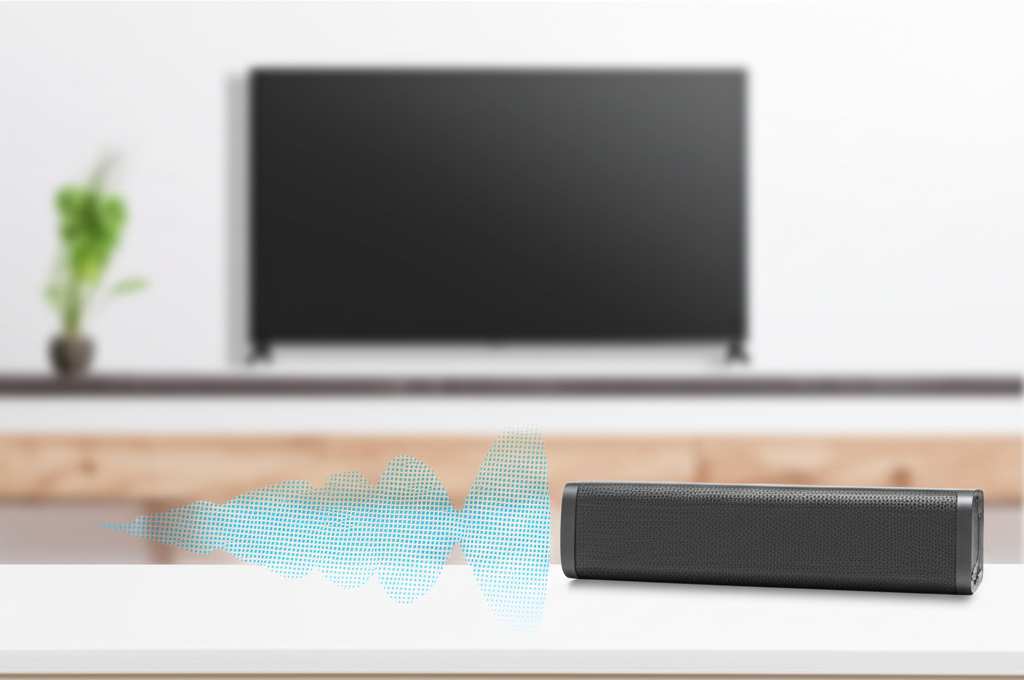
Plus, many Bluetooth speakers are portable. This means you can easily move your enhanced sound from the living room to the patio for a backyard BBQ. Your LG TV’s audio is powerful, but a dedicated speaker can unlock a whole new level of immersion and enjoyment for any situation.
Quick Check: Does Your LG TV Have Bluetooth Built-In?
Before we jump into the connection steps, it’s a good idea to know if your LG TV is ready for wireless action. Most newer LG TVs come with Bluetooth built-in, which is super handy! But older models might not have this feature.
No worries, though! Figuring this out is pretty simple. You can usually find this information in your TV’s settings menu. Look for an option related to sound or audio, and then check for Bluetooth pairing or audio output devices. If you see Bluetooth listed, you’re golden!
If you’re unsure, a quick search on your LG TV model number online will tell you its specs. A quick peek at LG’s support site can also confirm if your specific model supports Bluetooth audio output. Knowing this upfront saves you a lot of guesswork.
Let’s Talk Sound: Understanding Bluetooth Audio
So, what exactly is Bluetooth audio? Think of it like this: it’s a way for devices to talk to each other wirelessly using radio waves. Your LG TV can send its sound signal to your Bluetooth speaker without needing any cables. It’s pretty neat technology!
This wireless connection works best when devices are relatively close to each other. Obstacles like thick walls can sometimes interfere with the signal. But for a typical living room setup, it’s usually a smooth experience. The technology has gotten really good at maintaining a stable connection for clear sound.

The cool part is how easy it is once set up. You pair your speaker once, and then your TV remembers it. Next time you want to use it, it’s usually just a few clicks away.
Getting Your Bluetooth Speaker Ready to Pair
Before your TV can find your speaker, the speaker needs to be ready to be found! This is called “pairing mode.” Every speaker is a little different, but there’s usually a button you need to press for a few seconds.
Have you ever paired your phone to your car stereo or some headphones? It’s exactly the same idea. You’re telling the speaker, “Hey, I’m looking for a device to connect to!” Often, there’s a light that flashes, usually blue, to show it’s in pairing mode.
Check your speaker’s manual if you’re not sure. It’s the best guide for your specific model. Once it’s flashing that little light, it’s like it’s waving hello to your TV, ready to make some noise together!
Step-by-Step: Connecting Your LG TV to a Bluetooth Speaker
Alright, let’s get connecting! This is where the magic happens. We’ll go through the process together, step by simple step. Follow along, and soon you’ll be enjoying richer sound.
Step 1: Power On and Pair Your Speaker
First things first, make sure your Bluetooth speaker is charged or plugged in. Turn it on. Now, put it into pairing mode. This is usually done by pressing and holding a dedicated Bluetooth button. You’ll often see a light on the speaker start to blink, indicating it’s ready to connect.
Step 2: Access Your LG TV’s Settings Menu
Grab your LG TV remote. Press the “Settings” or “Home” button. Navigate to the main settings menu. This is usually represented by a gear icon or a dedicated button on your remote. Once you’re in the settings, you’ll want to find the sound or audio options.
Step 3: Find the Bluetooth Audio Settings
In the sound settings, look for an option like “Sound Output,” “Sound Mode,” or “Bluetooth Audio.” Select this option. You might see different choices for sound output, like TV Speaker, Optical, or HDMI ARC. You’re looking for the one that says “Bluetooth” or “Wireless Speaker.”
Step 4: Search for Available Devices
Once you’ve selected the Bluetooth audio option, your TV should give you a choice to search for available devices. Select “Scan” or “Search.” Your LG TV will start looking for any nearby Bluetooth devices that are in pairing mode. This process usually takes a few seconds.
Step 5: Select Your Speaker from the List
You should see a list of available Bluetooth devices pop up on your TV screen. Find the name of your Bluetooth speaker in the list. It often matches the brand name of your speaker. Select it using your remote.
Step 6: Pair and Connect
After selecting your speaker, your LG TV will attempt to pair with it. You might see a message asking you to confirm the connection or a prompt to enter a PIN (though this is rare for speakers). Once successfully paired, your TV will usually indicate that the speaker is connected. You may also hear a confirmation sound from the speaker itself.
Step 7: Test the Sound!
Now for the fun part! Try playing something on your TV. You should hear the audio coming from your connected Bluetooth speaker. If not, go back to the sound output settings on your TV and make sure your Bluetooth speaker is still selected as the primary audio device.
Troubleshooting Common Connection Issues
Sometimes, things don’t go perfectly on the first try. Don’t get discouraged! Most connection hiccups are easy to fix with a little patience. Here are a few common issues and how to solve them.
Speaker Not Appearing in the List
Is the speaker in pairing mode? Make sure you’ve correctly put your speaker into pairing mode. The blinking light is key!
Is the speaker too far away? Bring the speaker closer to the TV, especially during the initial pairing process.
Is the speaker already connected to another device? Bluetooth speakers can usually only connect to one device at a time. Disconnect it from your phone or tablet if it’s already paired there.
Restart both devices: Sometimes, a simple power cycle can resolve issues. Turn off your TV and speaker, wait a few seconds, and turn them back on. Then try pairing again.
Sound is Choppy or Cutting Out
Interference: Other wireless devices operating on the same frequency (like microwaves or Wi-Fi routers) can cause interference. Try moving your speaker or TV away from these sources if possible.
Distance: Again, distance can be an issue. If you’re trying to use the speaker far from the TV, move it closer.
Low Battery: A low battery on either the TV or the speaker can sometimes lead to a weaker connection. Ensure both are adequately charged.
Outdated TV Software: Make sure your LG TV’s software is up to date. Software updates often include improvements to Bluetooth connectivity. You can usually check for updates in the TV’s settings menu.
No Sound Even After Connecting
Check TV Sound Output: Double-check that your LG TV is still set to output audio to the Bluetooth speaker and not back to the TV speakers. You may need to re-select it in the menu.
Volume Check: Ensure the volume is turned up on both your TV and your Bluetooth speaker. Sometimes one can be muted or set very low.
* Try a Different Audio Source: Play a different channel, app, or input on your TV to rule out an issue with the specific content you were trying to watch.
Frequently Asked Questions (FAQs)
Q1: Can I connect more than one Bluetooth speaker to my LG TV?
A: Most LG TVs that support Bluetooth audio can only connect to one device at a time. Some newer models or specific soundbars might offer multi-speaker or stereo pairing options, but this is less common for standard Bluetooth speakers. Always check your TV’s manual for specifics!
Q2: How do I disconnect my Bluetooth speaker from my LG TV?
A: To disconnect, go back to your LG TV’s sound output settings. Select your connected Bluetooth speaker and choose the “Disconnect” option. You can also turn off Bluetooth on your TV or simply turn off your speaker.
Q3: Will my old LG TV work with a Bluetooth speaker?
A: If your older LG TV doesn’t have built-in Bluetooth, you might be out of luck for a direct wireless connection. However, you can often buy a separate Bluetooth transmitter that plugs into your TV’s audio output (like the headphone jack or optical port) to add Bluetooth functionality.
Q4: What is the optimal range for LG TV Bluetooth?
A: Bluetooth typically has a range of about 30 feet (around 9 meters) in open space. However, this can be reduced by walls, furniture, or other electronic devices. For the best and most stable connection, try to keep your speaker within 15-20 feet of your TV.
Q5: Why does my Bluetooth speaker keep disconnecting from my LG TV?
A: This usually happens due to interference, low battery, or the speaker being too far from the TV. Ensure the speaker is fully charged, close to the TV, and try to minimize other wireless devices nearby that could cause interference. Sometimes, forgetting the device on your TV and re-pairing it can help!
Q6: Can I connect my phone and my LG TV to the same Bluetooth speaker simultaneously?
A: Generally, no. Most Bluetooth speakers can only connect to one source device at a time. If your speaker is connected to your LG TV, it won’t connect to your phone. You’ll need to disconnect it from one device before connecting it to the other.
Q7: I paired my speaker, but there’s no sound. What else can I do?
A: Double-check your TV’s sound output settings to ensure the Bluetooth speaker is selected. Also, check the volume levels on both your TV and the speaker. If those are all correct, try disconnecting the speaker, turning both devices off and on again, and then re-pairing.
Choosing the Right Bluetooth Speaker for Your LG TV
Picking out a Bluetooth speaker is part of the fun! You want one that not only connects easily but also sounds great for your needs. Here are a few things to consider when you’re shopping around.
Sound Quality Matters
This is the big one! Do you love bass-heavy music? Or do you prefer crisp vocals for podcasts and dialogue? Look for speakers that mention clarity, balanced sound, or specific drivers for different frequencies. Don’t be afraid to read reviews to see what others say about the sound.
Battery Life is Key
If you plan to move your speaker around a lot or use it outdoors, battery life is crucial. Some speakers offer a few hours of playback, while others can go for 10-20 hours or even more on a single charge. Think about how long you usually watch or listen.
Durability and Portability
Will your speaker live in one spot, or will it travel with you? If it’s going to be on the move, look for something portable and maybe even water-resistant. Some speakers are built tough for outdoor adventures.
Connectivity Features
Besides Bluetooth, some speakers have other cool features. Things like NFC for super-fast pairing with compatible phones, or the ability to pair two speakers for a stereo sound effect. These extras can enhance your experience.
Here’s a quick look at how some popular speaker types stack up, just to give you an idea:
| Speaker Type | Typical Use Case | Portability | Sound Quality | Price Range (Approx.) |
|---|---|---|---|---|
| Compact Portable | On-the-go, small rooms | Very High | Good for size | $30 – $100 |
| Home Audio Bluetooth | Living room, dedicated listening | Low – Medium | Excellent | $100 – $300+ |
| Rugged Outdoor | Outdoors, travel, parties | High | Varies, often punchy | $70 – $200 |
| Multi-room Capable | Whole-home audio synchronization | Medium | Very Good to Excellent | $150 – $400+ |
As you can see, there’s a wide range of options! For connecting to your LG TV, especially if it’s for your main viewing area, a Home Audio Bluetooth speaker might give you the best sound experience. If you’re looking for something versatile, a good quality compact or rugged speaker can also do the trick for movie nights or casual listening. Remember to check reviews on trusted sites like CNET for up-to-date recommendations.
Making the Most of Your New Sound Setup
Once you’ve connected your LG TV to your Bluetooth speaker, you’ll want to enjoy that fantastic audio! Here are a few tips to get the most out of your amplified entertainment.
Optimize Speaker Placement
Where you put your speaker can make a big difference in sound. Try placing it at ear level for the best listening experience. Avoid having it too close to walls, which can sometimes muffle bass sounds. Experiment a little to see where it sounds best in your room!
Adjust TV Audio Settings
Your LG TV might have some audio settings that can be fine-tuned when using an external speaker. Look for options like equalize (EQ) settings or dialogue enhancement. Adjusting these can help tailor the sound perfectly to your preferences and the speaker’s capabilities.
Keep Your Connections Clear
Remember that Bluetooth is wireless, so keep the path between your TV and speaker as clear as possible. While it’s designed to go through some obstacles, a direct line of sight usually provides the most stable connection.
Explore Speaker Features
Many Bluetooth speakers have companion apps. These apps can offer advanced controls, firmware updates, and even customizable EQ settings. Take a peek at your speaker’s app (if it has one) to unlock its full potential.
Conclusion: Enjoy Your Enhanced LG TV Audio!
And there you have it – connecting your LG TV to a Bluetooth speaker is totally doable and makes a world of difference! We’ve covered how to find the Bluetooth settings on your TV, get your speaker ready to pair, and troubleshoot any little hiccups along the way.
You’re now all set to enjoy your favorite shows, movies, and games with richer, more immersive sound. No more straining to hear dialogue or missing out on those epic soundtrack moments. It’s all about making your entertainment truly come alive.
So go ahead, press play, and let that awesome sound fill your room. You’ve got the simple steps to unlock a better audio experience, and that’s something to celebrate! Now go enjoy amazing sound and make every moment louder and better!