Bluetooth Speaker To Roku TV: Easy Fix!
Quick Fix: Connect your Bluetooth speaker to your Roku TV in minutes! No more struggling – learn the simple steps to boost your TV sound and enjoy clearer audio for movies, shows, and music. It’s easier than you think!
Hey there, tech explorers! Max here from AffTechy.com, your go-to buddy for all things gadgety. Have you ever found yourself squinting at your TV screen, trying to catch every whisper in a dramatic scene? Or maybe you’re jamming out to your favorite concert on Roku and wishing the sound could just… fill the room a little more?
I totally get it! We love our Roku TVs for their amazing streaming options, but sometimes, the built-in speakers just don’t cut it, right? You’ve got this awesome Bluetooth speaker sitting there, practically begging to be part of the action. The good news is, connecting that speaker to your Roku TV isn’t some super-secret tech mission. It’s actually quite straightforward once you know the moves.
We’re going to walk through this together, step-by-step. Think of me as your friendly guide, holding your hand as we unlock better sound for your viewing pleasure. No confusing jargon, just clear, simple instructions. Let’s dive in and make your Roku TV sound incredible!
Why You Want Better Sound
Let’s be honest, part of the magic of watching a movie or playing a game is the sound. Immersive soundtracks, clear dialogue, and powerful effects can totally change your experience. Built-in TV speakers are okay, but they often lack the depth and richness that a dedicated speaker can provide.
Think about it: that booming explosion in an action flick, the subtle rustle of leaves in a nature documentary, or the crisp notes of a catchy song during a music video. A good Bluetooth speaker can bring all of these to life, making your living room feel like a mini theater. It’s about upgrading your entertainment without buying a whole new sound system!
Is Your Roku TV Bluetooth Ready?
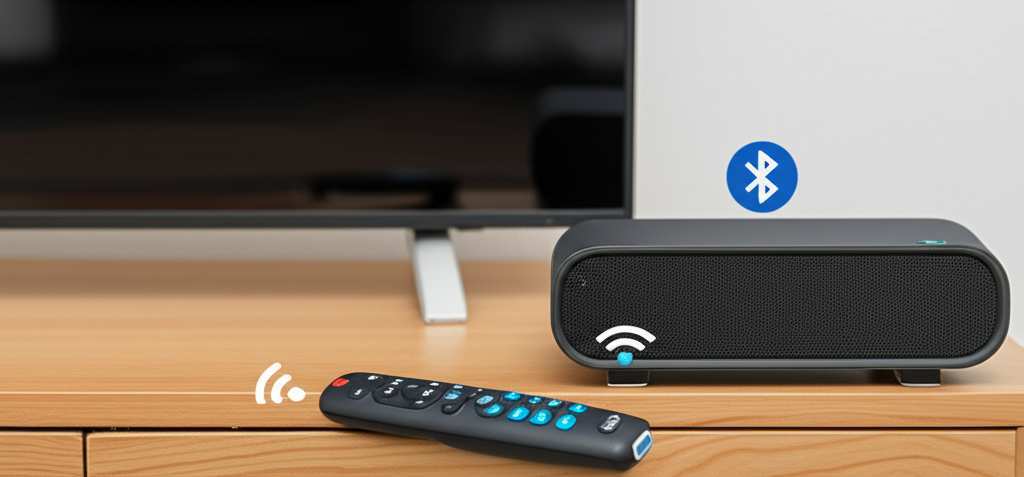
This is the big question! Not all Roku TVs have built-in Bluetooth. This feature got added to select models over time. So, before we start pairing, it’s smart to check if your TV actually supports Bluetooth audio output.
How to Check Your Roku TV for Bluetooth:
- Turn on your Roku TV.
- Navigate to the Settings menu.
- Look for an option like Remotes & devices or System.
- Within that menu, you might see Bluetooth or Add Bluetooth device. If you see these options, yay! Your TV is likely Bluetooth-enabled.
If you don’t see any Bluetooth options, don’t worry! You might still have a way to connect. We’ll cover that too.
Connecting a Bluetooth Speaker to a Bluetooth-Enabled Roku TV
Found the Bluetooth settings? Awesome! This is the most direct way to get that sweet sound flowing.
Step 1: Get Your Speaker Ready
First, make sure your Bluetooth speaker is charged and turned on. You’ll also need to put it in “pairing mode.” This is usually done by holding down a specific button on the speaker – often marked with a Bluetooth symbol or the word “Pair.” Check your speaker’s manual if you’re unsure!
Step 2: Navigate to Bluetooth Settings on Your Roku TV
Go back to that Settings menu on your Roku TV. Find Remotes & devices (or similar). Then, select Pair Bluetooth device.
Step 3: Let Your Roku TV Search
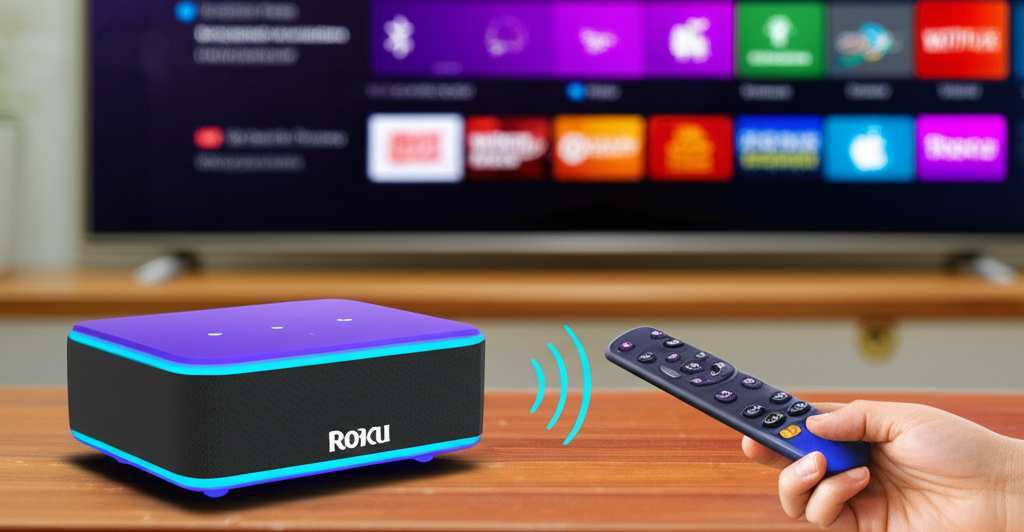
Your TV will now start searching for nearby Bluetooth devices that are in pairing mode. This usually takes a minute or two. You’ll see a list of available devices appear on your screen.
Step 4: Select Your Bluetooth Speaker
Look for the name of your Bluetooth speaker in the list. Once you find it, select it using your Roku remote. Your TV will then attempt to connect to the speaker.
Step 5: Confirm the Connection
If the connection is successful, you should see a confirmation message on your TV screen. Your Bluetooth speaker might also make a sound to let you know it’s connected. Congratulations! You’ve just hooked up your speaker.
Step 6: Test the Sound
Now for the fun part! Play something on your Roku TV. You should now hear the audio coming from your Bluetooth speaker. If it doesn’t work right away, double-check that your speaker is still paired and that the TV’s audio output is set to Bluetooth. Sometimes, you might need to go into the Audio settings on your Roku TV and select the Bluetooth output option.
Pro Tip: Some Roku TVs allow you to connect Bluetooth headphones or even multiple devices. This is super handy if you want to watch late at night without disturbing anyone!
What If My Roku TV Doesn’t Have Bluetooth?
Bummer if your TV isn’t natively Bluetooth-ready. But don’t pack up that speaker just yet! There are still ways to make it work. The most common solution is to use a Bluetooth transmitter.
What’s a Bluetooth Transmitter?
Think of it as a little gadget that plugs into your TV and broadcasts the audio wirelessly via Bluetooth. You plug the transmitter into your TV’s audio output (usually a headphone jack or an optical audio port), and then pair your Bluetooth speaker to the transmitter, just like you would with a phone.
Option 1: Using the Headphone Jack
Many TVs have a standard 3.5mm headphone jack. This is probably the easiest way to use a transmitter.
How to Set It Up:
- Get a Bluetooth Transmitter: Make sure it supports audio output. Many models plug in via USB for power and use the headphone jack for audio.
- Plug It In: Connect one end of the audio cable (usually included) to your TV’s headphone jack. Connect the other end to the audio input port on your Bluetooth transmitter.
- Power the Transmitter: While some transmitters have batteries, most plug into a USB port for power. You can often use a spare USB port on your TV or a separate USB wall adapter.
- Put the Transmitter in Pairing Mode: This is usually similar to putting a speaker in pairing mode – press and hold a button.
- Pair Your Speaker to the Transmitter: Turn on your Bluetooth speaker and put it in pairing mode. Follow the instructions for your specific transmitter to pair the speaker to it.
- Adjust TV Audio Settings: On your Roku TV, go to Settings > Audio > Audio output. You’ll likely need to select “Headphone jack” or a similar option so the sound goes to the transmitter.
- Test! Play some content. The sound should now come through your Bluetooth speaker.
A Little Extra Info: Some transmitters can connect to two speakers at once, so you and a friend can listen privately with headphones. Cool, right?
Option 2: Using the Optical Audio Port (Toslink)
Some newer TVs, and even older ones, have an optical audio port. This provides a cleaner digital audio signal. You’ll need a transmitter that has an optical input.
How to Set It Up:
- Get an Optical Bluetooth Transmitter: Ensure it specifically mentions supporting optical audio input (Toslink).
- Connect the Optical Cable: Plug one end of the optical cable into your TV’s optical audio OUT port. Plug the other end into the optical IN port on your transmitter.
- Power the Transmitter: Connect it to a power source, usually a USB port.
- Put Transmitter and Speaker in Pairing Mode: Follow the pairing steps for both devices.
- Adjust TV Audio Settings: On your Roku TV, go to Settings > Audio > Audio output. Select “Optical” or “Digital audio output.” You might also need to set the digital audio format to “Stereo” if Dolby Digital or Auto doesn’t work with your transmitter/speaker combo.
- Test Your Sound: Fire up your Roku and enjoy!
Why Optical is Good: Optical connections are great because they send pure digital sound. This means no signal loss or interference, leading to potentially clearer audio than a standard headphone jack, especially for higher-quality sound.
Choosing the Right Bluetooth Speaker for Your Roku TV
If you’re in the market for a new Bluetooth speaker, here are a few things to keep in mind. It’s not just about volume; it’s about how well it fits with your TV watching habits.
Key Features to Look For:
- Sound Quality: This is crucial. Does it offer clear highs and decent bass? Read reviews! Brands like Bose, JBL, and Sony often offer great audio.
- battery life: If you move your speaker around or use it for extended movie nights, a long battery life is a big plus.
- Connectivity Range: How far can the speaker be from your TV (or transmitter) and still maintain a strong connection? A longer range is better.
- Latency (Audio Delay): This is SUPER important for TVs. When there’s a delay between what you see and what you hear, it’s really distracting. Look for speakers or transmitters that advertise low latency.
- Portability: Do you want to take it to the kitchen while you cook, or will it live solely next to the TV?
- Durability/Water Resistance: If you have kids or pets, or plan to use it near a kitchen or bathroom, a tougher speaker might be wise.
Bluetooth Speaker vs. Soundbar Comparison
Many people wonder if a Bluetooth speaker is a good alternative to a dedicated soundbar. Both can improve your TV audio, but they have different strengths.
| Feature | Bluetooth Speaker | Soundbar |
|---|---|---|
| Connectivity | Wireless (Bluetooth) | Wired (HDMI ARC, Optical) or Wireless (Wi-Fi, Bluetooth) |
| Setup Ease | Simple pairing | Can be slightly more complex (cables, settings) |
| Portability | High | Low |
| Sound Immersion | Varies greatly by model; can be good but often less spatial | Often designed for better surround sound and wider soundstage inherently |
| Latency | Can be an issue with standard Bluetooth | Minimal to no latency with wired connections |
| Cost | Wide range, many affordable options | Entry-level can be affordable, high-end can be expensive |
| Audio Quality | Dependent on speaker quality; may lack deep bass or clarity of dedicated audio gear | Generally better for TV audio, with deeper bass and clearer dialogue |
What Does This Mean for You? If you already own a good Bluetooth speaker and your Roku TV supports it (or you use a transmitter), it’s a fantastic, budget-friendly way to upgrade your sound. Soundbars are often the “easier” plug-and-play solution for pure TV audio enhancement, especially if you’re not worried about portability. But for a flexible, room-filling boost, a Bluetooth speaker is a great choice!
Troubleshooting Common Issues
Sometimes, technology doesn’t cooperate perfectly on the first try. Here are a few common snags and how to fix them.
Issue 1: Speaker Not Appearing in Roku’s List
- Solution: Make sure your speaker is truly in pairing mode. Most speakers have a specific light or sound to indicate this. Turn your speaker off and on again, then try pairing mode. Also, move the speaker closer to the Roku TV.
Issue 2: Audio Delay (Latency)
- Solution: This is the most frustrating. If your Roku TV has Bluetooth, check its audio settings for a “lip-sync” adjustment. If using a transmitter, ensure it’s advertised as “low latency” or “aptX Low Latency” capable. Some speakers also have a low-latency mode. If it’s really bad, you might need to consider a dedicated audio solution.
Issue 3: Connection Drops Frequently
- Solution: Check for interference. Microwaves, other Bluetooth devices, or even thick walls can disrupt the signal. Try moving your speaker closer and away from potential sources of interference. Ensure your speaker’s firmware is up to date.
Issue 4: No Sound from Speaker
- Solution: Double-check that your Roku TV’s audio output is correctly set to Bluetooth (or your transmitter’s input). Make sure the speaker volume is turned up. Try playing audio from a different app on Roku, or even from your phone, to see if the speaker itself is working.
Issue 5: Roku TV Doesn’t Have Bluetooth Settings
- Solution: As discussed, your best bet is a Bluetooth transmitter. Make sure you choose one compatible with your TV’s audio output ports (headphone jack or optical).
Fun Facts About Bluetooth Audio for Your TV
Did you know that Bluetooth technology is named after a Viking king? Harald Bluetooth was known for uniting Danish tribes, and the technology was designed to unite different communication devices. Pretty neat history lesson for improving your TV sound!
Bluetooth has gone through many versions. Newer versions like Bluetooth 5.0 and higher offer better range, speed, and efficiency. This can mean a more stable connection and less lag for your TV audio.
Some advanced Bluetooth transmitters can connect to two headphones or speakers simultaneously. This is perfect for sharing the sound without bothering others!
Frequently Asked Questions (FAQ)
Can I connect any Bluetooth speaker to my Roku TV?
If your Roku TV model has built-in Bluetooth, you can connect most standard Bluetooth speakers. For Roku TVs without Bluetooth, you can use a Bluetooth transmitter to connect almost any Bluetooth speaker.
How do I find out if my Roku TV has Bluetooth?
Go to your Roku TV’s Settings menu, then look for Remotes & devices. If you see options like “Pair Bluetooth device” or “Bluetooth,” your TV supports it. If not, it likely doesn’t have built-in Bluetooth.
What is audio latency and why is it a problem?
Audio latency, or lag, is a delay between the video on your screen and the sound from your speaker. It happens because Bluetooth signals take time to transmit. This can make dialogue sound out of sync with the characters’ mouths, which is very distracting.
Will using a Bluetooth transmitter affect my TV’s own speakers?
When you connect a transmitter, you usually have to change your TV’s audio output settings. This often disables the TV’s internal speakers automatically. Some TVs let you use both simultaneously, but it’s less common and can sometimes cause echo issues.
How do I put my Bluetooth speaker in pairing mode?
Most speakers have a dedicated button, often with a Bluetooth symbol, that you press and hold until a light flashes or you hear a sound. Refer to your speaker’s manual for the exact steps, as it varies by brand and model.