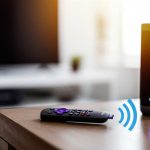
Connect your Roku TV to a Bluetooth speaker in minutes! This easy guide shows you exactly how to boost your TV’s sound for awesome movies, music, and gaming. No tech headaches, just great audio!
Hey there, tech adventurer! Ever find yourself squinting at your Roku TV screen, wishing the sound was just a little bit better? Maybe you love cranking up the volume for your favorite shows, or perhaps you’ve got a cool Bluetooth speaker just sitting there, waiting to be unleashed. I totally get it. Sometimes, the built-in TV speakers just don’t cut it, and that’s where a good speaker comes in.
Picking out the perfect speaker can feel like a quest, right? There are so many options, and the tech jargon can make your head spin. But what if I told you that connecting your Roku TV to that awesome Bluetooth speaker is actually super simple? Yep, no need to be a tech wizard for this one!
We’re going to walk through this together, step by step. Think of me as your friendly guide, holding your hand through the whole process. We’ll make sure your TV and speaker are best buds in no time. Let’s dive in and make your living room sound like a mini-cinema!

Why Bother Connecting a Bluetooth Speaker to Your Roku TV?
Let’s chat about why this is such a game-changer. Imagine watching your favorite action movie. The explosions are a bit… quiet. Or maybe you’re jamming out to a new album while cooking, and the TV’s sound just isn’t doing the bass justice. That’s where the magic of a Bluetooth speaker comes in.
A good Bluetooth speaker can transform your viewing and listening experience. It brings richer sound, deeper bass, and clearer dialogue. Suddenly, those movie nights feel more immersive, and your music sounds like it’s coming straight from a concert hall. Plus, it’s a super easy way to get better sound without buying a whole new sound system.
What You’ll Need to Get Started
Before we jump into the steps, let’s make sure you’ve got everything ready. It’s like packing for a picnic – a few key items make everything smoother!
Your Roku TV: Make sure it’s powered on and connected to your Wi-Fi.
Your Bluetooth Speaker: Ensure it’s charged and in pairing mode. We’ll cover what “pairing mode” means in a bit!
Your Roku Remote: You’ll use this to navigate the menus.
A little bit of patience: Most of the time, this is a breeze. But hey, tech can be quirky sometimes!
Does My Roku TV Actually Support Bluetooth?
This is a super important question! Not all Roku TVs have built-in Bluetooth for audio output (that’s what we need to connect a speaker). Many newer Roku TVs, especially those from brands like TCL and Hisense that have Roku built-in, do support this. Older models or some specific Roku streaming devices might not.
How can you tell? The easiest way is to check your TV’s settings menu. If you see a Bluetooth option under “Remotes & Devices” or a similar category, you’re likely good to go! If you can’t find it, don’t worry, there are still ways, which we’ll touch on later.
Pro Tip: You can also check your Roku TV’s model number online. A quick search on the manufacturer’s website or a tech review site like CNET will tell you if your specific model has Bluetooth audio output capabilities.
Let’s Talk About Pairing Mode: What Is It?
Okay, so what exactly is “pairing mode” for your Bluetooth speaker? Think of it like this: your speaker is saying, “Hey, I’m ready to meet a new device!” It’s a special mode that makes the speaker discoverable by other devices, like your Roku TV.
Every speaker is a little different, but usually, you’ll find a Bluetooth button on the speaker itself. You might need to press and hold this button for a few seconds until a light starts blinking (often blue) or you hear a little sound cue. That blinking light is your signal that it’s ready to pair!
If you’re unsure, peek at your speaker’s manual. It’ll tell you exactly how to get it into pairing mode. Most modern speakers make this super obvious.
Connecting Your Roku TV to a Bluetooth Speaker: Step-by-Step
Alright, let’s get this done! This is the main event. Follow these steps, and you’ll be enjoying boosted sound in no time.
Step 1: Prepare Your Speaker
First things first, grab your Bluetooth speaker. Make sure it’s charged up – you don’t want it dying mid-movie! Then, put it into pairing mode. As we talked about, this usually involves pressing and holding a Bluetooth button until you see a blinking light.
Step 2: Navigate to Bluetooth Settings on Your Roku TV
Now, grab your Roku remote.
Press the Home button.
Scroll down and select Settings.
Scroll down again and select Remotes & Devices.
Look for an option like Set up Bluetooth device or Pair Bluetooth device. Select that.
Your Roku TV will start searching for nearby Bluetooth devices that are in pairing mode.
Step 3: Select Your Speaker from the List
Once your Roku TV has found your speaker, you should see its name pop up on the screen. It might look something like “My Speaker,” “JBL Flip 5,” or “Sony SRS-XB23.”
Use your remote to highlight your speaker’s name.
Press the OK button on your remote to select it.
Step 4: Confirm the Connection
Your Roku TV will now try to connect to your speaker. You might see a message like “Connecting…” or “Pairing…” on the screen.
If the connection is successful, you’ll usually see a confirmation message, and your speaker might make a little chime or its blinking light will turn solid. Now, any sound from your Roku TV should be coming out of your Bluetooth speaker!
Troubleshooting Common Connection Issues
Sometimes, tech throws us a curveball. If your speaker isn’t connecting, don’t panic! Here are a few common hiccups and how to fix them.
Speaker not showing up: Make sure your speaker is still in pairing mode. Sometimes, pairing mode times out after a few minutes. Try putting it back into pairing mode and searching again. Also, check that the speaker isn’t already connected to another device, like your phone.
Connection failed: Try turning both your Roku TV’s Bluetooth off and on again. You can usually do this in the same “Remotes & Devices” menu. Also, try restarting your Roku TV and your Bluetooth speaker. A simple reboot can fix a lot of weird glitches.
Audio cutting out or choppy: This can happen if the speaker is too far from the TV or if there are a lot of things blocking the signal (like walls or other electronics). Try moving the speaker closer to the TV and clearing any obstructions.
No sound after connecting: Double-check that your Roku TV’s volume is turned up. Also, make sure your speaker’s volume is turned up and not muted. Sometimes, the TV might connect, but the volume is just set too low on one of the devices.
If you’re still stuck, check out Roku’s official support pages online. They have tons of helpful articles!
What If My Roku TV Doesn’t Have Built-In Bluetooth?
This is a bummer, but it happens! If your Roku TV doesn’t have Bluetooth audio output, you’re not out of luck. You have a couple of excellent workarounds:
Option 1: Use a Bluetooth Audio Transmitter
This is a really popular solution! A Bluetooth transmitter is a small device that plugs into your TV’s audio output (usually the headphone jack or optical audio port). It then broadcasts the TV’s audio via Bluetooth.
Here’s how it generally works:
- Plug it in: Connect the transmitter to your TV’s audio out port using the provided cables.
- Power it up: Most transmitters need to be powered, often via a USB cable. You can plug this into a USB port on your TV or a wall adapter.
- Pair your speaker: Put your Bluetooth speaker in pairing mode, and then put the transmitter into pairing mode (check the transmitter’s manual for how to do this). They should connect to each other.
- Select audio output on TV: You might need to go into your Roku TV’s audio settings and select the correct output (e.g., “Headphone” or “Optical”).
These transmitters are pretty affordable and widely available online. They’re a fantastic way to add Bluetooth to almost any TV!
Option 2: Use a Roku Wireless Speaker or Soundbar
Roku itself offers wireless speakers and soundbars designed to work seamlessly with Roku TVs. These connect wirelessly through your home network or a dedicated Roku connection, not typically Bluetooth, but they provide a similar enhanced audio experience.
Pros of Roku Wireless Speakers:
- Easy setup with Roku OS.
- Often designed for optimal Roku TV integration.
- Can provide a true surround sound experience with multiple speakers.
Cons:
- Can be more expensive than a standard Bluetooth speaker.
- Limited to the Roku ecosystem.
Option 3: Roku Mobile App for Private Listening
While not exactly a Bluetooth speaker solution, the Roku mobile app is a lifesaver for private listening. You can connect your Bluetooth headphones to your phone and then use the app to stream audio from your Roku TV directly to your phone.
This is perfect for late-night viewing when you don’t want to disturb anyone! It’s a bit different from using a speaker, but it offers a similar benefit of enhanced audio control.
Choosing the Right Bluetooth Speaker for Your Roku TV
So, you’ve decided to get a Bluetooth speaker, or maybe you already have one and are looking to upgrade. What should you look for? It’s not just about the brand!
Here’s a quick rundown of things that matter:
Sound Quality: This is subjective, but generally, you want a speaker that offers clear highs, defined mids, and decent bass. Read reviews! Sites like TechRadar often have great roundups of the best Bluetooth speakers.
Battery Life: If you plan to move your speaker around or use it for long movie marathons, battery life is key. Most speakers offer anywhere from 8 to 20+ hours on a single charge.
Connectivity: While we’re focusing on Bluetooth, some speakers offer other options like Wi-Fi or aux-in, which can be handy. Make sure it has reliable Bluetooth connectivity.
Durability and Portability: Do you need something rugged for outdoor use, or is it just for your living room? Consider its size and how easy it is to move.
* Price: Bluetooth speakers come in all price ranges. You can find great options for under $50, and high-end models can go for several hundred dollars. Set a budget and stick to it!
Let’s look at a quick comparison of a few popular types of Bluetooth speakers. This isn’t exhaustive, but it gives you an idea of what’s out there!
| Speaker Type | Typical Price Range | Best For | Key Features |
|---|---|---|---|
| Portable Mini Speaker | $20 – $70 | On-the-go, small spaces | Compact, long battery life, often water-resistant |
| Mid-Size Portable Speaker | $70 – $150 | Everyday use, parties, room-filling sound | Balanced sound, good bass, durable |
| Home Bluetooth Speaker | $100 – $300+ | Living room, dedicated listening | Superior sound quality, deeper bass, sometimes smart features |
| Waterproof/Rugged Speaker | $50 – $200 | Outdoors, poolside, travel | Durable casing, IP-rated water resistance |
See? There’s a speaker for almost every need and budget. When you’re looking, think about where you’ll use it most. A small, portable speaker is great for the kitchen, but if you want to fill your living room with cinematic sound, you might want to go for a larger, mid-size option.
Quick Tips for the Best Bluetooth Experience
Want to get the absolute most out of your connected speaker? Here are a few pro tips:
- Keep Firmware Updated: For both your Roku TV and your speaker, check for software or firmware updates. These often include performance improvements and bug fixes.
- Position Your Speaker Wisely: Don’t just shove it in a corner! Placing your speaker in an open area, or near a wall for a bit more bass, can significantly improve the sound. Experiment to find the sweet spot.
- Check Roku’s Private Listening Feature: Remember that Roku app feature? It’s fantastic for when you want to use your own headphones. Just connect your headphones to your phone and use the Roku app to stream audio. It’s super convenient!
- Manage Multiple Devices: If you have many Bluetooth devices, your Roku TV might get confused. It’s a good idea to “forget” old or unused devices from your Roku’s Bluetooth list to keep things clean. You can usually do this in the “Remotes & Devices” settings.
- Consider Audio Lag: Sometimes, especially with older Bluetooth versions or transmitters, there can be a slight delay between what you see on screen and what you hear. This is called audio lag. Newer Bluetooth versions (like 5.0 and above) and aptX Low Latency technology in some transmitters/speakers help reduce this significantly. If it’s really bothering you, look for speakers or transmitters that advertise low latency.
Frequently Asked Questions (FAQ)
Got more questions swirling around? Let’s clear them up!
Q1: Can I connect multiple Bluetooth speakers to my Roku TV at once?
A1: Generally, no. Most Roku TVs, and most Bluetooth devices, only support connecting to one Bluetooth audio output device at a time. Some advanced setups might allow for dual audio streaming via specific transmitters, but it’s not a standard feature.
Q2: Will connecting a Bluetooth speaker affect my TV’s picture quality?
A2: Absolutely not! Connecting a Bluetooth speaker only affects the audio. Your picture quality will remain exactly the same. It’s a purely sound-based upgrade.
Q3: How do I disconnect my Bluetooth speaker from my Roku TV?
A3: The easiest way is to go back into your Roku TV’s “Remotes & Devices” settings, find your connected speaker, and select the option to “Disconnect” or “Remove” it. You can also simply turn off your Bluetooth speaker, or turn off Bluetooth on your Roku TV.
Q4: Can I connect my soundbar to my Roku TV via Bluetooth?
A4: It depends! Some soundbars have Bluetooth input, allowing you to pair them with your Roku TV if the TV also has Bluetooth output. However, many soundbars are designed to connect via HDMI ARC or optical cable for the best quality and easiest setup with a TV. Always check your soundbar’s manual!
Q5: Why does my Bluetooth speaker keep disconnecting?
A5: This is usually due to distance, interference, or battery levels. Try moving the speaker closer to the TV, ensuring there are no major obstructions, and making sure both devices have sufficient battery. Also, check if the speaker is connecting to another device nearby.
Q6: Is there a difference between Roku TV Bluetooth and Roku device Bluetooth?
A6: Yes, sometimes! “Roku TV” refers to a TV with Roku built-in. “Roku device” usually means a separate streaming player like a Roku Streaming Stick or Roku Ultra. Both might have Bluetooth, but the exact features and how you access them can vary slightly by model and software version.
Conclusion: Enjoy Your Supercharged Sound!
See? Connecting your Roku TV to a Bluetooth speaker is totally doable and makes a world of difference. You’ve learned how to pair them up directly, what to do if your TV is a bit older, and even how to pick out a fantastic speaker. It’s all about making your entertainment experience better and easier.
So, go ahead and give it a try! Pair up that speaker, queue up your favorite show or playlist, and just soak in that awesome, richer sound. You’ve got this! Now go enjoy amazing sound and make every moment louder and better!