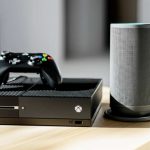
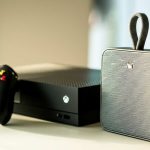
Connect your Bluetooth speaker to your Xbox One in minutes! This guide makes it super simple. Get ready for awesome sound for your games and movies without messy wires. Let’s get your audio booming!
Hey there, gadget lovers! Max here from AffTechy.com, your go-to spot for making tech feel like child’s play. You know, that feeling when you’re about to dive into an epic game or get lost in a movie, and you think, “Man, this would sound SO much better with my cool Bluetooth speaker!” Yeah, I get that. It’s like wanting the full concert experience right in your living room.
Sometimes, though, getting our tech buddies to play nicely together can feel like solving a puzzle. You see all these buttons and settings, and your brain might just go, “Whoa, slow down!” Don’t worry, that’s totally normal. My mission is to take all that confusion and melt it away, leaving you with clear, easy steps.
Think of me as your tech-savvy friend, the one who’s already tried all the confusing ways so you don’t have to. We’re going to unlock the magic of connecting your Bluetooth speaker to your Xbox One, making your gaming and entertainment sessions way more immersive. Ready to turn up the volume on your experience? Let’s dive in!
Why Your Xbox One Needs a Bluetooth Speaker (and How to Get It There!)
We all love our Xbox One, right? It’s our portal to amazing virtual worlds and thrilling adventures. But let’s be honest, the built-in TV speakers or standard headset audio can sometimes leave you wanting more oomph. That’s where a good Bluetooth speaker swoops in, ready to save the day!
Imagine playing your favorite action game and feeling the explosions rumble through your room, or enjoying the sweeping orchestral score of an RPG without being tethered by wires. It’s a game-changer for immersion! Sadly, the Xbox One doesn’t directly support most Bluetooth audio devices like headphones or speakers out of the box. So, how do we bridge this gap?
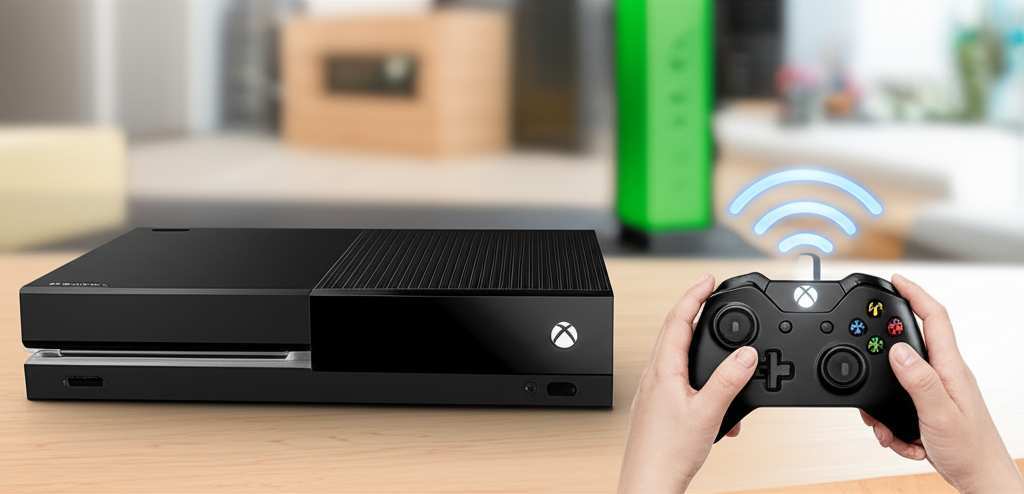
Don’t sweat it! There are a couple of clever ways to get that sweet Bluetooth speaker sound pumping from your Xbox One. We’ll explore the options, from simple adapters to getting the most out of your setup. Just follow along, and soon you’ll be enjoying richer, more dynamic audio.
The Secret’s Out: Xbox One and Bluetooth Audio
So, here’s a little gem of tech knowledge for you: Xbox One consoles (the original, the S, and the X) don’t have built-in Bluetooth audio support like your phone or tablet does. This is a bit of a bummer, I know! It means you can’t just go into the Xbox settings, turn on Bluetooth, and pair your speaker like you would with most other devices.
This is a common point of confusion for many gamers. They see the Bluetooth symbol on their speaker and think, “Easy peasy, Xbox must do this too!” But alas, it’s not quite that simple. The Xbox uses a proprietary wireless technology for its official controllers and headsets. That means standard Bluetooth speakers need a little help to get connected.
But don’t let that stop you! There are workarounds that are surprisingly simple. We’ll focus on the easiest and most effective ways to make this happen, so you can wave goodbye to basic audio and hello to speaker-filling sound.
Let’s Talk Sound Options: Wired vs. Bluetooth
Before we jump into the how-to, let’s quickly chat about why you might want a Bluetooth speaker in the first place. Wired headphones and speakers offer a direct connection, which can sometimes mean zero lag and super crisp sound. For competitive gamers, every millisecond counts, and a wired connection guarantees that.
However, Bluetooth speakers offer freedom! No more tangled wires tripping you up or limiting your movement. Plus, they’re often portable, meaning you can take your enhanced Xbox audio from the living room to your backyard barbecue (if you’re feeling fancy!). They’re also great for sharing sound with friends without everyone needing to huddle around a headset.
While the Xbox One’s direct Bluetooth limitations are there, the solutions we’ll discuss still aim to give you that wire-free bliss for your gaming audio. It’s all about finding the best fit for your setup and your listening style!
Method 1: The Bluetooth Audio Transmitter/Adapter – Your New Best Friend
This is probably the most common and straightforward way to get Bluetooth audio from your Xbox One to your speaker. Think of a Bluetooth transmitter as a translator. Your Xbox sends audio out through a port, the transmitter captures it, and then blasts it via Bluetooth to your speaker.
You’ll need to buy a separate device for this. They’re usually small, plug-and-play gadgets. They typically plug into your Xbox controller or directly into the Xbox’s audio output ports. It’s a super convenient little accessory, and they aren’t usually very expensive.
Many of these transmitters also have a feature called “low latency.” This is super important for gaming! Low latency means the audio signal travels very, very quickly. This helps prevent that annoying delay between what you see on screen and what you hear. It keeps your gaming experience feeling smooth and responsive.
What to Look for in a Bluetooth Transmitter
When you’re shopping for one of these handy devices, keep a few key things in mind. You want something that’s reliable and easy to use. Here’s a quick rundown:
- Low Latency: Seriously, for gaming, this is a must. Look for terms like “aptX Low Latency” or similar.
- Port Compatibility: Does it plug into your controller’s headphone jack, or does it need to go into a USB port? Make sure it matches your Xbox One setup.
- Battery Life: If it’s a wireless transmitter, check how long the battery lasts. You don’t want it dying mid-boss fight! Some can be charged while you play.
- Ease of Pairing: How easy is it to get the transmitter and your speaker to connect? Most are pretty simple, usually involving holding down a button.
It’s like picking out a new gadget for your phone – you want it to be smart, efficient, and make your life easier. These little transmitters are designed to do just that for your Xbox audio.
Step-by-Step: Connecting with an Adapter
Using a Bluetooth audio transmitter is usually a breeze. Here’s how it typically works. Remember that specific steps might vary slightly depending on the exact adapter you buy, so always check its manual too!
- Charge Everything Up: Make sure your Bluetooth transmitter and your Bluetooth speaker are both fully charged, or at least have plenty of juice.
- Plug in the Transmitter:
- If it plugs into your controller’s 3.5mm headphone jack, insert it there.
- If it plugs into another audio port (like an optical audio out, though less common for simple transmitters), connect it there.
- Put Your Speaker in Pairing Mode: Turn on your Bluetooth speaker and put it into its pairing mode. This usually involves holding down a Bluetooth button until a light starts flashing or you hear a sound. Check your speaker’s manual if you’re unsure.
- Pair the Transmitter and Speaker: Turn on your Bluetooth transmitter. It should automatically start searching for nearby Bluetooth devices. Press and hold the button on the transmitter to put it into pairing mode. It will then connect to your speaker.
- Wait for the Magic: You should hear a confirmation sound or see a steady light on both the transmitter and the speaker when they’re successfully connected.
- Adjust Xbox Audio Settings (if needed): Sometimes, you might need to tell your Xbox to send audio to the controller (if using a controller adapter). Go to Settings > Devices & accessories > Select your controller > Audio > Headset format, and choose “Stereo uncompressed”. You may also need to adjust the volume there.
And voilà! You should now be hearing your Xbox One’s audio through your Bluetooth speaker. It’s like a little bit of tech magic, and it’s so satisfying when it works.
Method 2: The Xbox Wireless Adapter for PC (with Nuances)
Okay, this one bends the rules a bit, but it’s worth mentioning because many people already have one for PC gaming. The Xbox Wireless Adapter for Windows connects Xbox controllers wirelessly to a PC. Some of these adapters can be used to stream audio if you have the right setup.
Here’s where it gets a bit technical, and honestly, it’s not the most straightforward way for just audio. This adapter is primarily for controllers. While newer versions can sometimes carry audio, it often requires specific configurations or might be tied to using an Xbox headset that supports the Windows Sonic spatial sound.
For simply connecting a Bluetooth speaker, the dedicated Bluetooth transmitter (Method 1) is almost always a better, more direct, and simpler solution. Think of this adapter as a specialized tool, not a general-purpose audio adapter. If you’re already using it for PC gaming and have a compatible headset, it can be a neat addition, but it’s not the primary path for Bluetooth speakers on Xbox One.
For the general user aiming for Bluetooth speaker audio, stick with the transmitter for ease and reliability.
Method 3: TV Bluetooth Output – The Indirect Route
This method sidesteps the Xbox entirely and uses your TV’s Bluetooth capabilities. If your TV has built-in Bluetooth audio output, you can pair your Bluetooth speaker directly to your television. Then, when you connect your Xbox One to the TV (via HDMI, which is standard), the audio from the Xbox will be sent through the TV and broadcast by your Bluetooth speaker.
This is a fantastic option because it uses features you might already have! It’s clean, requires no extra adapters, and keeps your Xbox setup as simple as ever. The audio quality will depend on your TV’s Bluetooth transmitter, but it’s often quite good for casual gaming and media consumption.
A small caveat here: some TVs might introduce a slight audio lag when using Bluetooth. This again can be a minor issue for very fast-paced games where timing is critical, but for most things, it’s perfectly fine.
How to Connect via TV Bluetooth
The exact steps will vary based on your TV brand and model. But here’s a general guide:
- Enable Bluetooth on Your TV: Go into your TV’s settings menu. Look for an option related to “Sound,” “Audio Output,” “Bluetooth,” or “Wireless Devices.”
- Put Your TV in Pairing Mode: Select the option to add a new Bluetooth device or initiate Bluetooth pairing. Your TV will then scan for nearby devices.
- Put Your Speaker in Pairing Mode: Just like in Method 1, turn on your Bluetooth speaker and put it into its pairing mode.
- Select Your Speaker on the TV: Your TV should display a list of available Bluetooth devices. Select your speaker from the list.
- Confirm Pairing: Your TV might show a confirmation message, or you might hear a sound from the speaker indicating it’s connected.
- Set TV Audio Output: Ensure your TV’s audio output is set to Bluetooth or the paired speaker. You might find this in the same audio settings menu.
- Connect Xbox to TV: Make sure your Xbox One is connected to your TV via HDMI as usual. All audio from the Xbox should now travel through the HDMI cable to the TV, and then be broadcast wirelessly to your Bluetooth speaker.
Super neat, right? It’s all about leveraging the tech you already have to make things better.
Understanding Bluetooth Codecs: The “Secret Sauce” of Sound
You might hear about something called “Bluetooth codecs” when you’re looking at Bluetooth devices, especially transmitters. Don’t let this scare you! It’s just the way audio data is compressed and sent over Bluetooth. Different codecs offer different levels of quality and speed.
Here’s a quick rundown of common ones and what they mean for you:
| Codec | Quality | Latency (Lag) | Notes |
|---|---|---|---|
| SBC (Standard Bluetooth Codec) | Basic | Moderate | Works with almost all Bluetooth devices. It’s the default. |
| AAC (Advanced Audio Coding) | Good | Moderate | Commonly used by Apple devices. Better than SBC. |
| aptX | Very Good | Low | Popular for Android and many audio devices. Offers great sound. |
| aptX HD | Excellent | Low | Higher fidelity audio than regular aptX. |
| aptX Low Latency | Very Good | Very Low | Designed specifically for video and gaming to minimize delay. This is the one you want for Xbox! |
When you’re picking out a Bluetooth transmitter for gaming, aiming for one that supports aptX Low Latency is your golden ticket. This ensures that the sound syncs up really well with what’s happening on your screen. If your speaker also supports aptX Low Latency, you get the best possible performance!
It’s kind of like choosing the right highway for your data. Some highways are slower, some are faster. For gaming, you want the express lane!
Bluetooth Speaker vs. Xbox Wireless Headset: What’s the Diff?
You might be wondering why you’d bother with a Bluetooth speaker if you can just buy an official Xbox Wireless Headset. That’s a fair question! They both offer wireless audio, but they serve different purposes.
Xbox Wireless Headsets connect directly to your Xbox using the console’s own proprietary wireless technology. This means they have incredibly low latency (virtually no lag) and are designed specifically for the Xbox ecosystem. They’re perfect for solo gaming or online multiplayer where every sound cue matters.
Table 2: Comparing Wireless Audio Options for Xbox One
| Feature | Bluetooth Speaker (with Adapter/TV) | Xbox Wireless Headset |
|---|---|---|
| Connection Type | Bluetooth (via adapter or TV) | Xbox Wireless Technology |
| Latency (Lag) | Varies (Low latency codecs are best for gaming) | Extremely Low (Optimal for gaming) |
| Audio Output | Room-filling sound (good for shared experiences) | Personalized audio (for individual listening) |
| Setup Complexity | Can require an adapter or TV setup | Direct plug-and-play with Xbox |
| Versatility | Can be used with many devices (phone, tablet, PC) | Primarily for Xbox, some PC compatibility |
| Sharing Sound | Excellent (everyone can hear) | Not typically sharable |
As you can see, they are different tools for different jobs. If you want to share your game’s sounds with everyone in the room or enjoy movies with the whole family, a Bluetooth speaker is the way to go. If your priority is crystal-clear, lag-free private audio for intense gaming, an Xbox Wireless Headset is fantastic. Both are great, but they offer distinct experiences!
Troubleshooting Common Connection Issues
Even with the easiest guides, sometimes tech throws a curveball. If you’re having trouble getting your Bluetooth speaker connected to your Xbox One, don’t panic! Here are a few common hiccups and how to fix them:
- No Sound? Double-check that your speaker is actually paired and connected. Also, ensure the volume on both the speaker and your Xbox (or controller/adapter) is turned up. Sometimes, you might need to explicitly set the audio output on the Xbox or TV.
- Audio Lag/Delay? This is the most common issue with Bluetooth. If you can, try switching to a transmitter that supports aptX Low Latency. If you’re using the TV method, check your TV’s audio settings for any “game mode” or “low latency” options.
- Speaker Won’t Pair? Make sure both the transmitter/TV and the speaker are in pairing mode at the same time. Try turning both devices off and on again, then initiate pairing from scratch. Sometimes, “forgetting” the device on one of the paired items and re-pairing can help.
- Intermittent Audio Drops? This can be caused by interference or distance. Make sure your speaker isn’t too far from the transmitter or TV. Try to minimize obstructions between them, like thick walls or large metal objects.
- Low Volume? Check the master volume on your Xbox. Also, ensure the volume on your Bluetooth speaker is turned up. Some transmitters also have their own volume controls.
Remember that tech is often just about trying things a couple of times. A quick restart here, a re-pair there, and suddenly it’s working! It’s part of the adventure.
Fun Fact: The History of Bluetooth!
Did you know Bluetooth technology is named after a Viking king? That’s right! Harald “Bluetooth” Gormsson was a king in Denmark and Norway in the 10th century. He was known for uniting warring Danish tribes. The inventor of Bluetooth, Jim Kardach, thought the technology, which was designed to unite different communication protocols, was a perfect fit for the king’s name. How cool is that for a tech origin story?