Yes, you can connect a Bluetooth speaker to your Roku TV! Many Roku TVs have built-in Bluetooth, and if yours doesn’t, there are simple ways to add it. Get ready to boost your TV’s sound without any hassle.
Hey there, tech explorer! Ever feel like your Roku TV’s sound just isn’t cutting it for movie nights or that epic gaming session? You’re not alone. Sometimes, those built-in TV speakers are a bit… well, quiet. You’ve got this awesome Bluetooth speaker just sitting there, and you’re probably wondering, “Can I connect this to my TV and make everything sound HUGE?”
I totally get it. We love our gadgets, but figuring out how they all play nicely together can sometimes feel like solving a puzzle. You see all these buttons and settings, and it’s easy to get lost. But don’t worry! Today, we’re going to make connecting your Bluetooth speaker to your Roku TV super simple. Think of me as your friendly guide, showing you exactly what to do.
We’ll cover everything from checking if your TV is ready for Bluetooth to the quick steps you’ll take to pair your speaker. It’s all about making your TV experience sound so much better, and we’ll do it without any confusing tech jargon. Ready to turn up the volume? Let’s break it down step by step.
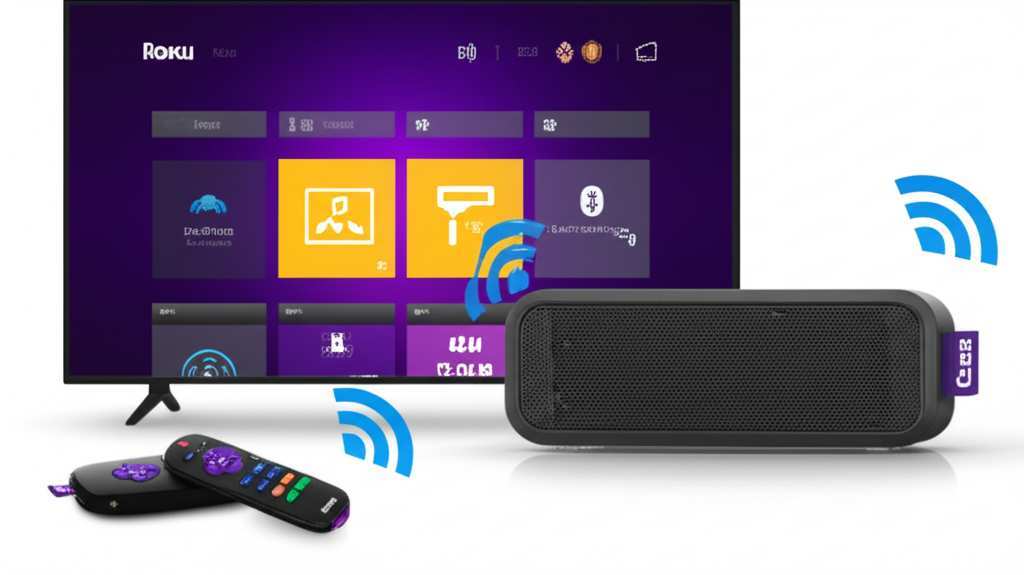
Let’s Talk About Sound!
Imagine this: you’re watching your favorite action movie, and all the explosions sound like a gentle pop. Or you’re playing a thrilling game, and the roar of the dragon is more like a whisper. That’s usually because TV speakers are small and often not designed for deep, rich sound. They’re okay for everyday watching, but they don’t really immerse you in the action.
This is where your trusty Bluetooth speaker comes in! These portable powerhouses are designed to pump out great sound, whether it’s for music or for making your movies sound epic. Connecting one to your Roku TV is like giving your TV a supercharge for its audio. It’s a fantastic way to enjoy a richer, more engaging entertainment experience without needing a whole home theater system.
Does My Roku TV Have Bluetooth?
This is the first big question, right? Not all Roku TVs come with Bluetooth built-in. It’s a feature that’s become more common in newer models, but older or more basic ones might not have it. Don’t worry if yours doesn’t; we’ll cover alternatives!
Here’s how to quickly check if your Roku TV has Bluetooth:
Go to your Roku TV’s Settings: Use your remote to navigate to the main menu and select “Settings.”
Look for “Remotes & Devices”: In the Settings menu, find and select “Remotes & Devices.”
Check for Bluetooth Options: If your TV has Bluetooth, you’ll likely see an option like “Bluetooth,” “Pair Bluetooth device,” or “Add Bluetooth device.” If you see this, great news! Your TV is ready to connect.
If you don’t see any Bluetooth options in the “Remotes & Devices” menu, your TV likely doesn’t have built-in Bluetooth. But don’t despair! We’ve got other awesome ways to get that speaker connected.
Connecting Your Bluetooth Speaker (If Your TV Has It!)
If your Roku TV does have built-in Bluetooth, this process is super straightforward. It’s very similar to pairing your phone or tablet with a speaker.
Here are the simple steps:
1. Turn on Your Bluetooth Speaker: Make sure your speaker is charged and powered on.
2. Put Your Speaker in Pairing Mode: Most speakers have a dedicated button for this, or you might need to hold down the power or Bluetooth button for a few seconds. You’ll usually hear a sound or see a blinking light indicating it’s ready to pair. Check your speaker’s manual if you’re unsure!
3. On Your Roku TV, Go to Bluetooth Settings: Navigate back to Settings > Remotes & Devices.
4. Select “Pair Bluetooth device”: Choose this option. Your Roku TV will start searching for nearby Bluetooth devices.
5. Select Your Speaker from the List: Your speaker’s name should appear on the screen. Use your remote to select it.
6. Confirm Pairing: Your TV might ask you to confirm the pairing. Follow the on-screen prompts.
7. Success! Once paired, you should hear a confirmation sound, and your TV’s audio should now be coming from your Bluetooth speaker.
It’s that easy! Now, when you play anything on your Roku TV, the sound will come through your speaker, giving you a much richer experience.
What If My Roku TV Doesn’t Have Built-in Bluetooth? No Problem!
So, your TV doesn’t have that handy Bluetooth option? That’s okay! You’ve still got a couple of really smart ways to get your Bluetooth speaker connected. These methods involve a small extra gadget, but they work like a charm.
Option 1: Use a Bluetooth Transmitter/Adapter
This is probably the most common and effective way to add Bluetooth to a non-Bluetooth TV. A Bluetooth transmitter is a small device that plugs into your TV and sends the audio signal wirelessly to your speaker.
Here’s how it works:
What is a Bluetooth Transmitter? Think of it as a little translator. It takes the audio output from your TV (usually through the headphone jack or optical audio port) and converts it into a Bluetooth signal that your speaker can understand.
What You’ll Need:
A Bluetooth transmitter.
Your Bluetooth speaker.
Your Roku TV.
The necessary cables (often included with the transmitter).
How to Set Up a Bluetooth Transmitter:
1. Choose Your Audio Output: Look at the back or side of your Roku TV for audio output ports. The most common ones are:
3.5mm Headphone Jack: This looks like a standard headphone port.
Optical Audio Out (S/PDIF): This is a small port that usually has a red light inside.
RCA Audio Out (Red and White ports): These are often labeled “Audio Out.”
Your Bluetooth transmitter will likely come with cables to connect to one of these. The headphone jack is usually the easiest.
2. Connect the Transmitter to Your TV: Plug one end of the audio cable into the chosen port on your TV and the other end into the audio input on your Bluetooth transmitter.
3. Power Up the Transmitter: Most transmitters are powered by a USB cable. You can often plug this into a USB port on your TV, or use a wall adapter if one is provided.
4. Put the Transmitter in Pairing Mode: Just like with the speaker, your transmitter will have a button to put it into pairing mode. You’ll usually see a blinking light.
5. Put Your Speaker in Pairing Mode: Do the same for your Bluetooth speaker. Make sure it’s close to the transmitter.
6. Let Them Connect: The transmitter and speaker should find each other and pair automatically. Once they’re connected, you should see a solid light on the transmitter and hear a confirmation sound from your speaker.
7. Select the Right Audio Setting on Your TV (if needed): Sometimes, you might need to tell your Roku TV to send audio through the port you used. Go to Settings > Audio > Audio output and select the appropriate option (e.g., “Headphone” or “Optical”). You may also need to adjust the TV volume to ensure the transmitter receives a signal.
This method is fantastic because it works with almost any TV and any Bluetooth speaker. It’s a great way to modernize older TVs.
Option 2: Use a Roku Wireless Speaker (If Compatible)
Roku also offers its own wireless speakers, like the Roku Wireless Soundbar and the Roku Wireless Bass. These are designed specifically to work with Roku devices, offering a seamless audio experience.
How They Work: These speakers connect to your Roku TV wirelessly through your home Wi-Fi network, not directly via Bluetooth. This can sometimes offer a more stable connection.
Compatibility is Key: Crucially, these speakers are designed to work with specific Roku TV models or Roku streaming devices. You’ll need to check the compatibility list on Roku’s website to see if your Roku TV model supports these accessories.
Setup: The setup is usually integrated into the Roku TV interface. You’ll typically go to Settings > Remotes & Devices and select the option to add a Roku wireless speaker. Your TV will guide you through the connection process.
This is a great option if you want a truly integrated system and your Roku TV is compatible. It often offers simpler setup than a separate transmitter.
Understanding Audio Output Ports on Your TV
Knowing what ports your TV has is super helpful for connecting audio devices. Here’s a quick rundown:
| Port Name | What it Looks Like | Best For | Notes |
| :—————— | :————————————————— | :———————————————————— | :——————————————————————————————————– |
| 3.5mm Headphone Jack | Small, round port (like for headphones) | Connecting Bluetooth transmitters, headphones, or small speakers. | Usually the easiest to use. May mute TV speakers when used. |
| Optical Audio Out | Small, square-ish port with a red light inside. | High-quality digital audio, connecting soundbars or receivers. | Requires an optical cable. Provides excellent sound quality. |
| RCA Audio Out | Two colored ports: Red (Right) and White (Left). | Connecting older audio systems or some Bluetooth transmitters. | Look for “Audio Out” labels. Not as common on newer TVs. |
| HDMI ARC/eARC | Standard HDMI port, often labeled “ARC” or “eARC”. | Connecting soundbars or receivers that support ARC/eARC. | ARC (Audio Return Channel) sends audio back from the TV to the device. eARC is an enhanced version. |
When choosing a Bluetooth transmitter, check which cables it comes with and compare that to the audio output ports available on your Roku TV.
Bluetooth Speaker Features to Consider
When you’re picking out a Bluetooth speaker to use with your TV, or just looking at what makes a good one, here are a few things that matter:
Sound Quality: This is huge! Some speakers have deep bass, while others have clearer highs. For TV, you often want a balanced sound that handles dialogue and action well.
Battery Life: If you plan to move the speaker around or use it for long movie marathons, good battery life is a must.
Connectivity Range: How far can the speaker be from your TV (or transmitter) and still maintain a good connection? A longer range is always better.
Durability: If you’re a bit clumsy or have kids or pets, a speaker that can handle a bump or two is a smart choice.
Extra Features: Some speakers have waterproofing, built-in microphones for voice assistants, or can be paired with other speakers for stereo sound.
For example, a speaker known for its strong bass might be amazing for action movies but could make dialogue a bit muddy if not well-balanced. Reading reviews can help you find one that suits your listening style.
Tips for the Best Bluetooth Audio Experience
Once you’re connected, here are some friendly tips to make sure everything sounds its best:
Speaker Placement Matters: Don’t just shove your speaker in a corner. Try placing it in front of the TV, at ear level if possible, for the clearest sound.
Minimize Obstacles: Try to avoid placing walls or large furniture between your TV (or transmitter) and your speaker. This helps maintain a strong Bluetooth signal.
Check for Lag (Lip Sync Issues): Sometimes, there can be a slight delay between the video and audio, known as lip sync issues.
If you’re using a Bluetooth transmitter, many have a “low latency” mode specifically designed to reduce this delay. Look for this feature when buying one!
Some Roku TVs also have a “Lip Sync Adjustment” setting in their Audio settings menu that you can tweak.
Keep Firmware Updated: For both your Roku TV and your Bluetooth speaker, checking for firmware updates can sometimes improve performance and fix bugs.
Test Different Audio Settings: Play around with your TV’s audio settings (like surround sound options, if available) and your speaker’s own EQ settings (if it has them) to find what sounds best for different types of content.
Here’s a little fun fact: Bluetooth technology has evolved a lot! Newer versions, like Bluetooth 5.0 and above, offer better range, faster speeds, and more stable connections compared to older versions. If you’re buying a new transmitter or speaker, aiming for a newer Bluetooth version is generally a good idea.
Troubleshooting Common Issues
Even with the easiest setups, sometimes things get a little tricky. Here are a few common hiccups and how to fix them:
Speaker Not Pairing:
Make sure both your TV/transmitter and speaker are in pairing mode.
Turn both devices off and on again.
Make sure your speaker isn’t already connected to another device (like your phone).
Try moving the speaker closer to the TV/transmitter.
If using a transmitter, ensure it’s plugged in and powered correctly.
No Sound Coming Through Speaker:
Check that your speaker is powered on and volume is turned up.
Confirm that your TV’s audio output is set to the correct source (e.g., Headphone, Optical, or Bluetooth).
If using a transmitter, ensure the audio cable is securely plugged into both devices.
Make sure the TV volume isn’t set to mute.
Choppy or Intermittent Sound:
This often means the Bluetooth signal is weak. Try moving the speaker closer to the TV/transmitter.
Remove any potential obstructions between the devices.
Turn off other nearby Bluetooth devices that aren’t in use to reduce interference.
Consider a low-latency transmitter if lip sync is also an issue.
Lip Sync Issues (Audio and Video Out of Sync):
As mentioned, look for a “Low Latency” mode on your Bluetooth transmitter.
Check your Roku TV’s Audio settings for a “Lip Sync Adjustment” and try to correct it there.
Some speakers have their own sync adjustments, but this is less common.
If you’re still stuck, don’t hesitate to check the user manuals for your Roku TV, speaker, and any transmitter you’re using. You can also find great troubleshooting guides on tech websites like CNET or TechRadar.
Frequently Asked Questions (FAQ)
Here are some quick answers to common questions about connecting Bluetooth speakers to Roku TVs:
Q: Can I connect any Bluetooth speaker to my Roku TV?
A: If your Roku TV has built-in Bluetooth, yes, you can connect most standard Bluetooth speakers. If your TV doesn’t have Bluetooth, you can use a Bluetooth transmitter with almost any speaker.
Q: Will connecting a Bluetooth speaker mute the TV speakers?
A: Usually, yes. When you connect a Bluetooth speaker or a transmitter via the headphone jack, the TV speakers will typically turn off automatically to avoid echo. Some TVs might have settings to control this.
Q: Can I connect multiple Bluetooth speakers to my Roku TV at once?
A: Most Roku TVs and standard Bluetooth transmitters only support connecting one audio device at a time. Some advanced transmitters or specialized apps might offer multi-device support, but it’s not a common feature.
Q: Is there a delay when using a Bluetooth speaker with my TV?
A: Sometimes, yes. This is called lip sync delay. Newer Bluetooth versions and “low latency” transmitters help reduce this, but it can still occur. Your TV might have a lip-sync adjustment setting to help.
Q: Do I need a special Roku app to connect a Bluetooth speaker?
A: No, if your TV has built-in Bluetooth, you connect directly through the TV’s settings menu. If you’re using a Bluetooth transmitter, the connection happens between the transmitter and the speaker, not through a Roku app.
Q: How far can my Bluetooth speaker be from the Roku TV?
A: For built-in Bluetooth, the range is typically around 30 feet (10 meters) in open space. With a good quality Bluetooth transmitter, you can often achieve a similar or even slightly better range. Walls and other obstructions can reduce this range.
* Q: What if my Roku TV is very old? Can I still connect a speaker?
A: Absolutely! If your old Roku TV lacks Bluetooth and has an optical audio out or RCA audio out port, you can use a Bluetooth transmitter. Even if it only has a headphone jack, that works too!
Your Sound, Your Way!
See? Connecting a Bluetooth speaker to your Roku TV is totally doable, whether your TV has Bluetooth built-in or you use a simple transmitter. You’ve learned how to check your TV, the easy steps for pairing, and even how to add Bluetooth if your TV doesn’t have it. Plus, we’ve covered what to look for in a speaker and how to troubleshoot any little bumps along the way.
It’s all about making your entertainment more enjoyable. A great Bluetooth speaker can transform your movie nights, gaming sessions, or even just casual TV watching into a much more immersive and satisfying experience. Don’t let basic TV sound hold you back!
Now go forth and enjoy that amazing audio upgrade! Make every scene louder, clearer, and more exciting. Happy streaming!