Connect your Mac to a Bluetooth speaker in minutes! This simple guide shows you how to pair your devices for amazing sound, whether you’re streaming music, watching movies, or gaming. No tech wizardry needed, just easy steps for everyone!
Hey there, tech adventurer! Max here from AffTechy.com, your go-to spot for making technology feel super simple and fun. Today, we’re diving into something that can seriously boost your audio game: connecting your Mac to a Bluetooth speaker. Imagine blasting your favorite tunes without a single wire, or making movie nights epic with richer sound. It’s totally achievable, and I’m here to make it a breeze.
You know that feeling when you get a new gadget, or you just want to enjoy your music a bit more? Sometimes, getting things to talk to each other can feel like a puzzle. You might look at all the buttons and settings and think, “Whoa, is this going to be complicated?” But trust me, connecting your Mac to a Bluetooth speaker is way easier than you think. We’ll go through it step-by-step, just like we’re sitting together, and I’ll show you exactly what to do.
Think about it: your Mac is awesome for work and play, but its built-in speakers are usually just… okay. A good Bluetooth speaker can transform your listening experience. Whether you’re a music lover, a movie buff, or a gamer who wants to feel every explosion, adding a Bluetooth speaker is a game-changer. And the best part? You don’t need to be a tech guru to set it up.
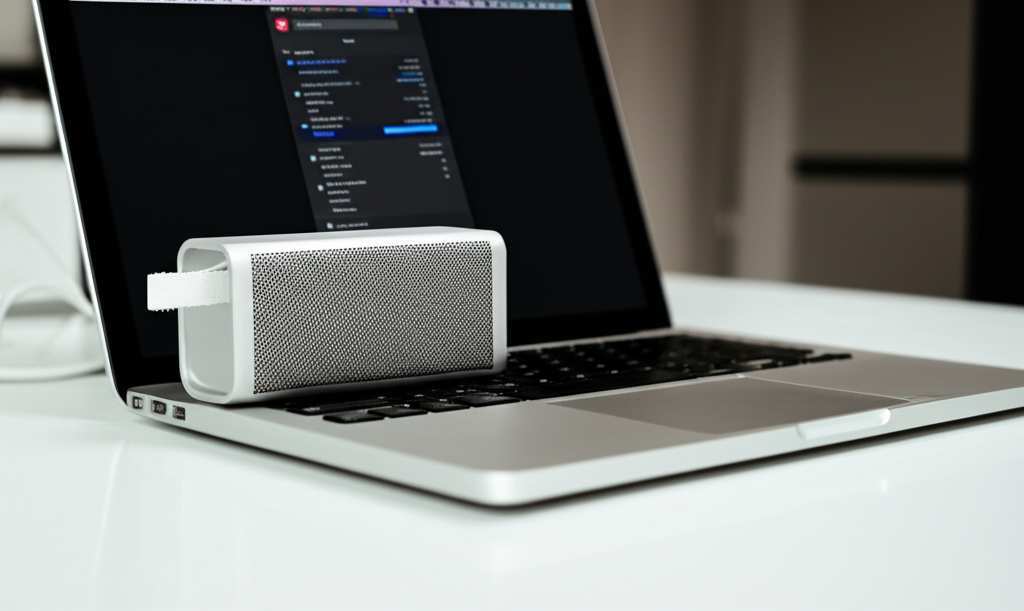
So, get ready to unleash some awesome sound! We’ll cover everything from making sure your speaker is ready to go, to finding it on your Mac, and finally, hitting play. Let’s break it down, step by step, and get you enjoying crystal-clear audio in no time.
Let’s Talk About Sound: Why Bluetooth Speakers Rock
Music, podcasts, movies, video calls – they all sound so much better with a little extra oomph. Your Mac is a powerhouse of entertainment, but its internal speakers are designed to be compact. They do their job, but they often lack the depth and volume that makes audio truly immersive. That’s where Bluetooth speakers come in! They’re portable, easy to use, and can deliver sound that fills a room.
Think of your Mac as the brain and the Bluetooth speaker as the voice. They need to connect to communicate. Bluetooth is like a secret, invisible handshake that lets your devices talk wirelessly. It’s super convenient because you don’t have to worry about tangled wires or finding the right port. Just pair them up, and you’re good to go! It’s a simple technology that has made our lives so much more convenient.
Getting Your Bluetooth Speaker Ready
Before we even touch your Mac, we need to make sure your speaker is ready for its close-up. Most Bluetooth speakers have a simple process to get them discoverable. This means they’re broadcasting a signal, telling other devices like your Mac, “Hey, I’m here and ready to connect!”
Step 1: Power Up Your Speaker
First things first, make sure your speaker has enough juice. Plug it in to charge or check its battery level if it’s portable. Many speakers have indicator lights that show you the battery status. A speaker that’s about to die won’t be much fun, so a good charge is key.
Step 2: Put Your Speaker in Pairing Mode
This is the most important step for connecting! Every speaker is a little different, but there’s almost always a button you need to press and hold. It’s often labeled with the Bluetooth symbol (it looks like a little sideways ‘B’). Sometimes, it’s a dedicated button, and other times it might be a secondary function of another button.
When your speaker is in pairing mode, you’ll usually hear a sound or see a blinking light. This light often changes color or blinks faster to signal it’s ready to be found. If you’re unsure, check the little manual that came with your speaker. It’s usually tucked away in the box, but it holds all the secrets!
Fun Fact: Some speakers have NFC (Near Field Communication) for even quicker pairing. You just tap your phone or Mac near a specific spot on the speaker, and boom – they connect! But for most standard connections, the button press is your best friend.
Connecting Your Mac to the Bluetooth Speaker
Now that your speaker is all set and broadcasting its signal, let’s get your Mac to see it. It’s all done through your Mac’s System Settings. Don’t worry, it’s super straightforward.
Step 3: Open System Settings on Your Mac
You can find System Settings in a couple of easy ways. Click on the Apple logo in the top-left corner of your screen. Then, choose “System Settings” (or “System Preferences” on older macOS versions). Alternatively, you can click the System Settings icon in your Dock – it usually looks like a set of gears.
Step 4: Navigate to Bluetooth Settings
Once System Settings is open, look for the “Bluetooth” option in the sidebar. Click on it. This is where all the magic happens for wireless connections on your Mac. You’ll see a list of devices that are already connected, or devices that are available to connect.
Step 5: Turn Bluetooth On (If It’s Not Already)
On the Bluetooth screen, there’s a toggle switch. Make sure it’s turned on. If it’s already on, you’ll see a list of nearby Bluetooth devices. If it’s off, just click the switch to turn it on, and your Mac will start scanning for devices.
Step 6: Find and Connect Your Speaker
Your Mac will now scan for any Bluetooth devices that are in pairing mode. You should see your speaker’s name appear in the list under “Nearby Devices” or “Devices.” It might take a few seconds. Once you see it, click the “Connect” button next to its name.
You might see a prompt asking you to confirm a code or just a simple confirmation. Follow the on-screen instructions. If it asks for a PIN and you don’t know it, try “0000” or “1234,” as these are common defaults. But most modern speakers don’t require a PIN.
Voila! Once connected, your speaker’s name will move up to the “My Devices” list, and it will say “Connected.” You’ll probably hear a little chime from your speaker confirming the connection.
Choosing the Right Bluetooth Speaker for Your Mac
Not all Bluetooth speakers are created equal, and picking the right one can make a big difference. Think about how and where you’ll use it. This will help you find a speaker that fits your lifestyle and your Mac perfectly.
What to Look For in a Bluetooth Speaker
Here are a few things to consider when you’re shopping around:
Sound Quality: This is subjective, but look for reviews that mention clear highs, solid mids, and decent bass. Some speakers are better for podcasts, others for bass-heavy music.
Battery Life: If you plan to use it on the go, longer battery life is a must. Aim for 10+ hours for a good portable experience.
Portability: Do you need something small and lightweight to carry around, or a larger speaker for a permanent spot?
Durability/Water Resistance: If you’re using it outdoors or near water, look for speakers with good water-resistance ratings (like IPX7).
Extra Features: Some speakers have built-in microphones for calls, multi-device pairing, or even app control for EQ settings.
Let’s look at a quick comparison of popular speaker types. This can give you a general idea of what to expect.
Speaker Type
Typical Use Case
Key Features to Consider
Approximate Price Range
Ultra-Portable Mini Speakers
On-the-go, personal listening, small rooms
Compact size, long battery life, durability
$30 – $100
Mid-Size Portable Speakers
Gatherings, larger rooms, outdoor use
Balanced sound, good volume, water resistance
$80 – $250
Home/Smart Speakers
Desk use, living room, voice assistant integration
Superior sound quality, connectivity options, smart features
$150 – $400+
This table gives you a snapshot. For example, if you’re mostly listening at your desk while working on your Mac, a “Home/Smart Speaker” might offer the best audio fidelity. But if you want to take your tunes to the park, an “Ultra-Portable Mini Speaker” would be the better choice for its size and battery.
Understanding Key Bluetooth Speaker Features
You’ll see terms like “Bluetooth version,” “codecs,” and “drivers” when researching speakers. Here’s a super simple breakdown:
Bluetooth Version: Newer versions (like Bluetooth 5.0 or 5.1) offer better range, faster speeds, and more stable connections than older versions. It’s like having a faster, more reliable internet connection for your audio.
Codecs (e.g., aptX, AAC): These are like translators for your audio data. Some codecs are better at preserving sound quality. AAC is great for Apple devices like your Mac, while aptX is good for Android and Windows. Don’t stress too much about this unless you’re an audiophile!
Drivers: These are the actual speaker components that produce sound. Bigger drivers generally mean more powerful sound and better bass.
Fun Fact:
The Bluetooth technology itself was inspired by the real-life Danish king, Harald “Bluetooth” Gormsson, who united Danish tribes. The logo is actually a combination of two runes representing his initials!
Troubleshooting Common Connection Issues
Sometimes, things don’t go perfectly on the first try. That’s totally normal! Here are a few common hiccups and how to fix them.
Speaker Not Showing Up on Your Mac?
Is it in pairing mode? Double-check that you’ve pressed and held the Bluetooth button until the light is blinking.
Is it too far away? Bluetooth works best when devices are relatively close. Try moving the speaker closer to your Mac.
Is it already connected to another device? Most speakers can only connect to one device at a time. Turn off Bluetooth on your phone or tablet to ensure it’s free.
Restart both devices: Sometimes, a simple restart of your Mac and your speaker can clear up temporary glitches.
Sound Cutting Out or Stuttering?
Check the distance: Walls, furniture, and even your own body can interfere with the signal. Try to have a clear line of sight.
Too many devices: If you have a lot of Bluetooth devices active nearby, it can cause interference. Try turning off other Bluetooth devices you aren’t using.
Low battery: Both your speaker and your Mac’s Bluetooth can sometimes act up if their batteries are very low.
Update your Mac: Make sure your macOS is up to date. Apple often includes improvements for Bluetooth connectivity in software updates.
Speaker Connected But No Sound?
Check your Mac’s volume: Make sure your Mac’s volume isn’t muted or turned all the way down.
Select the correct output: Go back to System Settings > Sound. Under the “Output” tab, ensure your Bluetooth speaker is selected as the audio output device. Sometimes, your Mac might default back to its internal speakers.
Check the speaker’s volume: Some speakers have their own physical volume controls. Make sure those are turned up too!
Making Your Bluetooth Speaker the Default on Mac
Once you’ve connected your speaker, you’ll want to make sure your Mac automatically uses it whenever you play audio.
Step 7: Set Your Speaker as the Default Output
After your speaker is connected, go back to System Settings > Sound.
At the top, you’ll see a “Choose where to play sound” or “Output” section.
Click on your Bluetooth speaker’s name in the list.
Now, any sound that plays from your Mac will automatically go through your speaker. If you want to switch back to your Mac’s speakers, just select them from this list.
Fun Fact: Most modern Bluetooth speakers remember the last device they were paired with. So, the next time you turn on your speaker and your Mac’s Bluetooth is on, they should reconnect automatically without you having to go through the pairing process again!
Tips for a Better Bluetooth Audio Experience
Here are some quick tips to keep your audio sounding great and your connections smooth:
Keep firmware updated: Some speakers have companion apps that allow you to update their firmware. This can improve performance and fix bugs.
Experiment with speaker placement: The room’s acoustics can affect sound. Try placing your speaker on different surfaces or in different spots to see what sounds best.
Use the right app: For critical listening or watching movies, ensure the app you’re using (like music players or video streaming services) is set to output audio correctly.
* Manage your Bluetooth devices:** In System Settings > Bluetooth, you can see all your paired devices. You can choose to forget a device if you no longer use it or if you’re having persistent issues.
Let’s compare some popular Bluetooth speaker brands known for their reliability and sound quality. This isn’t an exhaustive list, but it gives you an idea of what’s out there.
| Brand | Popular Models | Key Strengths | Price Point (Approx.) |
|---|---|---|---|
| JBL | Flip Series, Charge Series | Good balance of sound, portability, and water resistance | $50 – $150 |
| Bose | SoundLink Flex, SoundLink Revolve | Excellent sound clarity and a premium feel | $100 – $250 |
| Sony | SRS-XB Series | Strong bass performance and battery life | $70 – $200 |
| UE (Ultimate Ears) | Boom Series, Wonderboom Series | Rugged design, loud volume, good for parties | $70 – $150 |
When looking at these, consider what “Key Strengths” matter most to you. If you’re a bass lover, Sony might be your jam. If you prioritize crystal-clear vocals for podcasts, Bose could be the way to go. For general all-around performance and durability, JBL and UE are fantastic choices.
For more in-depth reviews and comparisons, check out trusted tech sites like CNET or TechRadar. They often have great guides on the best Bluetooth speakers available.
Frequently Asked Questions (FAQ)
Got more questions? That’s what I’m here for! Here are some common queries beginners have.
Q1: How do I make my Bluetooth speaker connect automatically to my Mac?
Once you’ve paired your speaker for the first time, your Mac should remember it. Just make sure Bluetooth is turned on on your Mac, and turn on your speaker. They should connect automatically. If not, go to System Settings > Bluetooth, find your speaker in “My Devices,” and click “Connect.”
Q2: Can I connect multiple Bluetooth speakers to my Mac at once?
Generally, a Mac can only output audio to one Bluetooth speaker at a time for standard stereo sound. Some advanced audio software or specific speaker systems might offer multi-speaker setups, but for most users, one speaker is the limit for simplicity.
Q3: Why does my Bluetooth speaker sound distorted?
Distortion can happen if the volume is too high on either your Mac or the speaker itself. Try lowering the volume on both. It can also be a sign of a weak Bluetooth signal or a speaker struggling to play very complex audio at high volumes.
Q4: How far can my Mac be from the Bluetooth speaker?
The typical range for Bluetooth is about 30 feet (around 10 meters). However, this can be affected by obstacles like walls, furniture, and even interference from other electronic devices. For the best, most stable connection, keep them within 10-15 feet of each other.
Q5: What if my Mac doesn’t see my Bluetooth speaker at all?
Ensure your speaker is definitely in “pairing mode” (usually indicated by a blinking light). Also, try turning off Bluetooth on your Mac for 10 seconds, then turning it back on. Restarting both devices is also a great troubleshooting step.
Q6: Do I need to disconnect my speaker from my phone before connecting to my Mac?
Yes, most Bluetooth speakers can only actively connect to one device at a time. If your speaker is connected to your phone, you’ll need to disconnect it from your phone first before your Mac can connect. Some newer speakers have “multi-point pairing” that allows them to connect to two devices simultaneously, but you might still need to manage which device is playing audio.
Q7: How do I update my Bluetooth speaker’s software?
Many speaker manufacturers offer a dedicated app for iOS or Android devices. You’ll usually need to connect your speaker to your phone via Bluetooth, open the app, and look for a “firmware update” or “software update” option within the app’s settings.
Conclusion: Enjoy Your New Wireless Sound!
And there you have it! Connecting your Mac to a Bluetooth speaker is a straightforward process that opens up a world of better audio. We’ve covered powering up your speaker, putting it into pairing mode, finding it on your Mac’s System Settings, and making it your default audio output. Plus, we’ve touched on choosing the right speaker and troubleshooting common issues.
You’ve got this! It’s all about those simple steps, and now you know exactly how to make it happen. Don’t be afraid to experiment with different speakers or placements to find what sounds best for you. The freedom of wireless audio is awesome, and it’s now at your fingertips.
Now go enjoy amazing sound and make every moment louder and better! Happy listening!