Yes, in many cases, you can change the wake word on your AI sound box! While some devices have fixed wake words, many popular smart speakers offer customization. This article explores how to check for this feature, the benefits of changing it, and what to do if your device doesn’t support it. Personalizing your smart speaker experience is often just a few taps away.
Are you tired of your smart speaker responding to every mention of a certain word? Maybe you’ve got a mischievous pet, a partner who says a particular name often, or you simply want a more unique way to interact with your AI sound box. The good news is, for many of us, the answer to “Can I change wake word on AI sound box?” is a resounding **yes!** It’s a fantastic way to make your smart assistant truly your own and avoid those embarrassing moments when your speaker pipes up unexpectedly.
Smart speakers, or AI sound boxes, have become incredibly popular. They can play music, answer questions, control smart home devices, and so much more, all with just our voice. The magic behind this is the “wake word” – that specific phrase your device is always listening for to know when to spring into action. But what if that wake word isn’t quite working for you anymore? Let’s dive into whether you can indeed change it and how to go about it.
## Understanding the Wake Word
Before we talk about changing it, it’s essential to understand what a wake word is and how it functions. Think of it as a key that unlocks your smart speaker’s listening capabilities. Your AI sound box is constantly in a low-power listening mode, but it’s only processing audio to detect that specific wake word. Once it hears it, it then activates its full listening mode and sends your subsequent commands to the cloud for processing.
The common wake words are usually short, distinctive, and unlikely to be uttered accidentally in everyday conversation. For Amazon Echo devices, it’s “Alexa.” For Google Assistant devices, it’s “Hey Google” or “Ok Google.” Apple’s HomePod uses “Hey Siri.” These are the default settings programmed by the manufacturers. However, the technology is evolving, and so are the options for users.
## Can I Change the Wake Word on My AI Sound Box?
This is the million-dollar question, and the answer, as with many tech-related queries, is: **it depends.**
Manufacturer and Model Specifics
The ability to change the wake word is not a universal feature across all AI sound boxes. It’s a decision made by the manufacturer for each specific device and its associated ecosystem.
- Amazon Echo Devices: Amazon has been one of the leaders in offering wake word customization for its Echo devices. Initially, users were limited to “Alexa,” but they later introduced options like “Computer,” “Echo,” “Amazon,” and “Ziggy.” This feature is managed through the Alexa app.
- Google Assistant Devices: Google Assistant devices, including Google Nest speakers and displays, primarily use “Hey Google” or “Ok Google.” While you can adjust the sensitivity of the “Hey Google” detection, changing the wake word itself to something entirely different is not currently a widely available option for most Google Assistant hardware.
- Apple HomePod: Apple’s HomePod devices rely solely on “Hey Siri.” There is no option to change this wake word.
- Third-Party Smart Speakers: Many other brands produce smart speakers that use either Alexa or Google Assistant. Whether they allow wake word changes usually depends on whether the manufacturer has enabled that specific feature within their device’s firmware and app integration.
So, to get a definitive answer for *your* specific AI sound box, you’ll need to check its accompanying app or the manufacturer’s support documentation.
Key Takeaways
- Wake Word Customization Varies: Not all AI sound boxes allow you to change the wake word. It depends on the manufacturer and the specific model.
- Check Your Device’s App: The most common place to find wake word settings is within the companion mobile app for your smart speaker.
- Benefits of Changing: Changing the wake word can prevent accidental activations, differentiate between multiple smart assistants, and add a touch of personal preference.
- Default Wake Words: Popular defaults include “Alexa,” “Hey Google,” and “Siri.”
- If Not Supported: If your device doesn’t allow wake word changes, you can still manage its sensitivity or explore alternative methods for voice control.
- Privacy and Security: Be mindful of privacy settings when customizing wake words and ensure you understand how your voice data is handled.
📑 Table of Contents
How to Check if You Can Change Your Wake Word
The primary way to find out if you can customize your wake word is by looking within the mobile application that controls your smart speaker. These apps are the central hub for managing settings, connecting to services, and personalizing your experience.
Navigating the Companion App
Let’s look at the general steps for popular platforms:
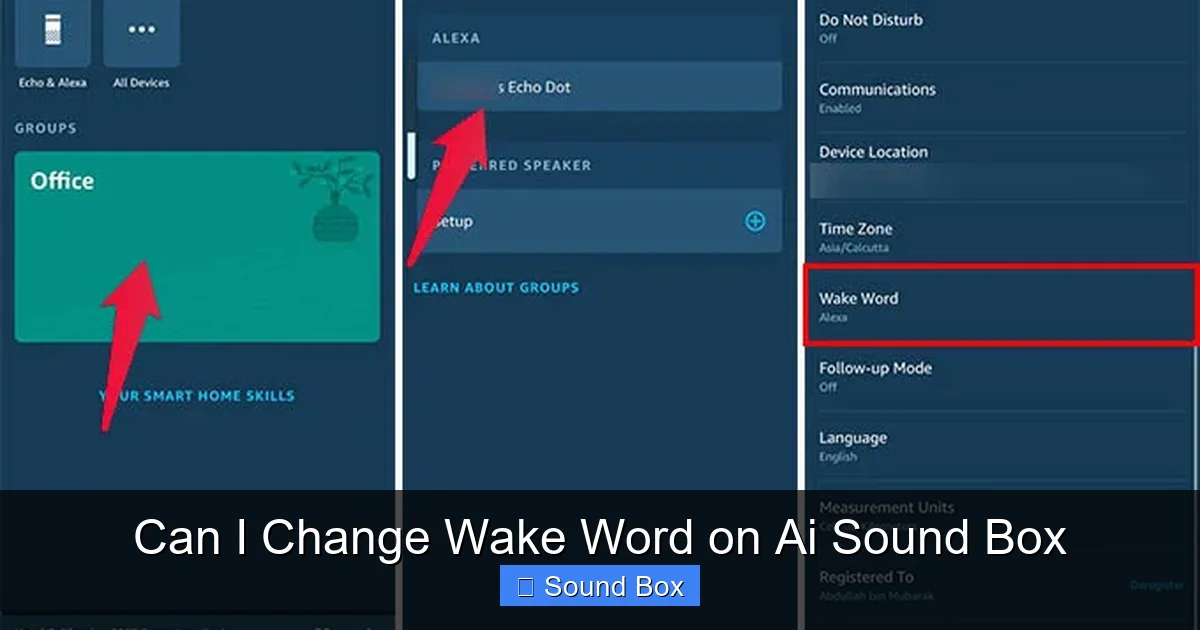
For Amazon Echo Devices (Alexa):
- Open the Alexa app on your smartphone or tablet.
- Tap on Devices in the bottom navigation bar.
- Select the specific Echo device you want to modify.
- Scroll down and tap on Wake Word.
- You should see a list of available wake words. Select your preferred option and confirm.
If you don’t see a “Wake Word” option in your device’s settings, it’s possible your specific model doesn’t support this feature, or the option might be located elsewhere within the app. Always ensure your Alexa app is updated to the latest version, as features are often rolled out or changed with updates.
For Google Assistant Devices:
- Open the Google Home app.
- Tap on the Settings gear icon.
- Look for an option related to Voice Match or Assistant settings.
- Within these settings, you might find options to adjust the sensitivity of “Hey Google” detection or enable/disable certain Assistant features. However, changing the actual wake word is generally not an option here.
While Google is constantly evolving its Assistant, the core wake word (“Hey Google” or “Ok Google”) remains consistent for most hardware.
For Apple HomePod:
As mentioned, Apple’s HomePod is strictly “Hey Siri.” There are no settings within the Home app or device settings to alter this. The focus is on the seamless integration and the brand’s established voice assistant.
Checking Manufacturer Websites and Support
If you’ve explored the app and can’t find the option, your next step should be to visit the manufacturer’s official website. Look for the support or FAQ section for your specific AI sound box model. Search for terms like “change wake word,” “custom wake word,” or “voice commands.” This is the most reliable way to get accurate information directly from the source.
Why Change Your Wake Word? The Benefits
Visual guide about Can I Change Wake Word on Ai Sound Box
Image source: llama-assistant.nrl.ai
So, why would you even want to change your wake word? It might seem like a small detail, but it can significantly improve your smart speaker experience.
Avoiding Accidental Activations
This is probably the most common reason. If your name is “Alexa,” or you live with someone whose name is “Alex,” or you simply use words similar to the default wake word frequently, your speaker might be chiming in more often than you’d like. Changing to something less common in your household conversation can drastically reduce these unwanted activations, making the device feel less intrusive.
Personalization and Fun
Let’s face it, having a unique wake word can be fun! You could choose something quirky, a character’s name from your favorite show, or simply a word that resonates with you. It adds a layer of personality to your technology, making it feel more like a personal assistant tailored to your preferences. Imagine saying “Computer, play my morning playlist” – it adds a bit of sci-fi flair!
Differentiating Between Devices
In homes with multiple smart assistants from different brands (e.g., an Amazon Echo and a Google Nest speaker), having different wake words is crucial. If both devices share the same wake word, you might find yourself calling out to one and having both respond, or worse, the wrong one. While most people naturally choose different wake words for different ecosystems, the option to customize within one ecosystem can still be useful if you have multiple devices of the same type.
Privacy Concerns
While AI assistants are designed to be privacy-conscious, some users feel more comfortable with a wake word that isn’t a common name or word. Changing it can provide a subtle psychological boost in feeling more in control of when the device is actively listening.
What to Do If Your AI Sound Box Doesn’t Support Changing the Wake Word
Visual guide about Can I Change Wake Word on Ai Sound Box
Image source: mashtips.com
It can be disappointing if your AI sound box doesn’t offer the wake word customization you’re looking for. However, don’t despair! There are still ways to manage your smart speaker experience.
Adjusting Wake Word Sensitivity
Some devices, particularly Google Assistant speakers, allow you to adjust the sensitivity of the wake word detection. This means you can make it harder or easier for the device to hear “Hey Google” (or “Ok Google”). If accidental activations are your primary concern, increasing the sensitivity threshold might be enough to solve the problem. You can usually find this setting within the voice assistant’s app under device settings or “Hey Google” sensitivity.
Using Alternative Activation Methods
Many smart speakers also have a physical button that you can press to activate the microphone. This is a surefire way to ensure the device only listens when you explicitly tell it to. While it means you can’t activate it completely hands-free in that moment, it provides an excellent fallback if you’re concerned about constant listening or accidental triggers.
Exploring Different Devices
If changing the wake word is a high priority for you, and your current device doesn’t support it, you might consider purchasing a different model or brand in the future that does. Amazon Echo devices are a good place to start if wake word customization is a must-have feature.
Focusing on Privacy Features
Instead of focusing solely on the wake word, you can explore other privacy features offered by your smart speaker. This includes managing your voice recording history, setting up “do not disturb” schedules, or disabling the microphone entirely when not in use. Understanding how to manage your data is crucial for any smart device user.
Tips for Choosing a New Wake Word
If you’re lucky enough to have an AI sound box that allows wake word changes, choosing a new one is part of the fun. Here are a few tips:
- Keep it Relatively Short: Shorter wake words are generally easier for the device to recognize quickly.
- Make it Distinctive: Choose a word that is phonetically distinct from common words in your language and household.
- Avoid Common Names: Unless you want constant accidental activations, steer clear of very common names.
- Test It Out: Say the potential wake word aloud several times to see how it feels and if it’s easy to pronounce.
- Consider Your Household: If you have children or pets, think about words that might be difficult for them to accidentally trigger.
For instance, if “Alexa” is causing issues, and Amazon offers alternative wake words like “Computer,” it’s a straightforward swap. If you wanted something more personal, perhaps a unique character name from a book or movie that isn’t frequently spoken in your home.
The Future of Wake Words
The technology behind AI sound boxes is constantly improving. We might see more sophisticated wake word detection that can better distinguish between similar-sounding words or even learn individual user voices more effectively. Some developers are exploring the possibility of user-defined wake words, where you could literally say anything you want to activate your device.
As smart home technology becomes more integrated into our lives, user control and personalization will likely become even more important. The ability to customize settings like the wake word is a step in that direction, making our AI companions feel less like generic gadgets and more like personalized assistants. If you’re looking to enhance your smart home experience, exploring how your devices connect and interact is key. For example, understanding how to connect your speaker to other devices can open up a world of possibilities, much like changing a wake word does for your personal interaction. If you’re wondering about connecting to gaming consoles, articles on connecting a PS4 or PS5 to a Bluetooth speaker can show how versatile these devices are.
Conclusion: Personalize Your Smart Speaker
So, can you change the wake word on your AI sound box? For many users, the answer is yes! It’s a feature that enhances usability, adds a personal touch, and can help prevent those frustrating accidental activations. The key is to explore the companion app for your specific device and check the manufacturer’s support resources.
If your device doesn’t offer this flexibility, don’t worry. There are often workarounds like adjusting sensitivity or utilizing physical activation buttons. Ultimately, the goal is to make your AI sound box a helpful and seamless part of your daily life. By taking a few minutes to explore its settings, you can ensure your smart speaker is tuned perfectly to your needs and preferences. Enjoy your personalized AI experience!
Frequently Asked Questions
Can I change the wake word on any smart speaker?
No, you cannot change the wake word on every smart speaker. The ability to customize the wake word is dependent on the manufacturer and the specific model of the smart speaker. Some popular brands like Amazon Echo offer this feature, while others, like Apple HomePod, do not.
Where can I find the wake word settings for my AI sound box?
Typically, wake word settings are found within the companion mobile application that you use to control your smart speaker. For example, on Amazon Echo devices, you would look in the Alexa app under the settings for your specific device.
What are the benefits of changing my smart speaker’s wake word?
Changing your wake word can help prevent accidental activations, especially if common words or names are used frequently in your home. It also allows for personalization, making your smart assistant feel more unique and tailored to your preferences.
If I can’t change the wake word, what else can I do?
If your AI sound box doesn’t support changing the wake word, you might be able to adjust its sensitivity to reduce accidental triggers. Alternatively, you can use the physical microphone mute button or explore other privacy settings within the device’s app.
Are there any security risks associated with changing the wake word?
Changing the wake word itself does not typically introduce new security risks. The primary security considerations for smart speakers relate to how your data is handled by the manufacturer and the privacy settings you configure within the app.
What if I forget my custom wake word?
If you set a custom wake word and forget it, you will need to access your smart speaker’s settings through its companion app to see what it is set to or to change it again. There isn’t usually a way to retrieve it directly from the speaker itself without using the app.
=== END FAQS ===