To whitelist devices on your Wi-Fi router, simply access your router’s admin panel, locate the device filtering or MAC address filtering section, and add the devices’ MAC addresses you want to allow. Save your settings, and those devices will be granted access, effectively bypassing any restrictions. It’s a straightforward process that enhances your control over your home network, ensuring only trusted devices connect.
Whitelisting devices on your Wi-Fi router is a handy way to secure your network by allowing only trusted devices to access it. It involves logging into your router’s settings, then adding the unique MAC addresses of the devices you want to permit. This ensures better security and prevents unauthorized users from connecting, giving you peace of mind. Whether you’re managing a busy household or a small office, knowing how to whitelist devices helps you stay in charge of who joins your network effortlessly.

How to Whitelist Devices on WiFi Router
Whitelisting devices on your WiFi router helps you control who connects to your network. It allows only specific devices you trust to access your internet. This process is useful for improving security and managing network traffic efficiently.
Understanding Whitelisting and Its Benefits
Whitelisting involves creating a list of approved devices based on their unique identifiers. Only these devices can connect to your WiFi network. This step prevents unauthorized users from accessing your internet and protects your data.
One key advantage is increased security. By whitelisting devices, you reduce the risk of intruders and malicious software. It also helps in managing bandwidth by controlling which devices use your network resources.
Identifying Your Devices’ Unique Addresses
MAC addresses explained
Every device has a Media Access Control or MAC address. This unique identifier helps your router distinguish between devices. Find your device’s MAC address in the settings or system info.
How to find MAC addresses on common devices
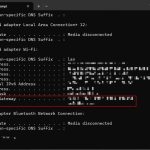
- Windows: Open Command Prompt and type ipconfig /all. Look for the “Physical Address” under your network adapter.
- Mac: Go to System Preferences, then Network. Select your connection and click Advanced. MAC address appears as “Wi-Fi Address”.
- Smartphones: Check settings in WiFi or About Phone section for network details.
Preparing Your Router for Whitelisting
Accessing your router’s admin interface
Connect your device to the router via WiFi or Ethernet. Open a browser, type your router’s IP address (commonly 192.168.1.1 or 192.168.0.1), and login with admin credentials.
Locating the whitelisting or MAC filtering options
Once logged in, look for sections labeled Wireless, Security, or MAC Filtering. Every router interface is different, but these options are usually under settings or security menus.
Adding Devices to Your Whitelist
Enabling MAC filtering
Activate the MAC filtering feature. You may see options for Allow or Deny list. Choose Allow to whitelist devices.
Inputting device MAC addresses
- Enter each device’s MAC address in the provided field.
- Label each device if your router offers naming options. This helps you remember which device is which.
- Save the settings after entering all MAC addresses.
Configuring Access Control Settings
Using the whitelist for better control
Some routers have specific options called Access Control or Device Management. Enable this feature to restrict network access only to whitelisted devices.
Setting rules for network access
Set rules to allow only listed devices to connect. You can block new devices from accessing the network unless added to the whitelist later.
Testing Your Whitelisted Devices
Verifying connection success
After saving settings, disconnect and reconnect each device to see if it gains access. If a device is denied, double-check the MAC address entered.
Troubleshooting common issues
- If a device cannot connect, verify the MAC address is correct.
- Ensure MAC filtering is enabled and configured properly.
- Restart your router to apply changes fully.
Maintaining Your Whitelist
Adding new devices
When new devices need access, repeat the process by adding their MAC addresses to the whitelist. Keep your list updated regularly.
Removing devices from the list
If a device should no longer access your network, delete its MAC address from the whitelist. This prevents unauthorized use without affecting other devices.
Alternative Methods to Whitelist Devices
Using Static IP Addresses
Assign static IP addresses to trusted devices through your router’s DHCP settings. Then, create rules to allow only these IP addresses to connect.
Guest Network Management
Some routers allow a separate guest network. You can control device access here, allowing only trusted devices to connect to the main network.
Additional Security Tips
- Use strong WiFi passwords and update them regularly.
- Enable WPA3 security if your router supports it.
- Keep your router firmware updated to patch security vulnerabilities.
- Disable WPS to prevent easy hacks on your network.
Benefits of Proper Whitelisting
By accurately whitelisting devices, you create a safer, more manageable network environment. It helps prevent unauthorized access and ensures your trusted devices work smoothly.
Understanding how to whitelist devices on your WiFi router is essential for robust network security. Regularly updating your whitelist and following best practices can protect your digital space effectively.
How To Setup Wifi Mac Address Filtering In Broadband Wifi | Blacklist & Whitelist In Router, English
Frequently Asked Questions
What are the steps to add a device to the whitelist on a Wi-Fi router?
To add a device to the whitelist, access your router’s admin panel by entering its IP address into your web browser. Log in with your credentials, navigate to the ‘Wireless’ or ‘Access Control’ section, and find the ‘Whitelist’ or ‘MAC Filtering’ options. Enter the MAC address of the device you want to allow, then save the changes. Ensure that MAC filtering is enabled so the device can connect without restrictions.
How can I find the MAC address of my device for whitelisting?
You can locate your device’s MAC address by checking its network settings. On Windows, open the Command Prompt and type ‘ipconfig /all’ to view details. On macOS, go to ‘System Preferences’ > ‘Network,’ select your network, and click ‘Advanced’ to see the MAC address. For smartphones, find this information in the device’s settings under ‘About’ or ‘Network.’ Use this MAC address to whitelist the device on your router.
Is it necessary to disable security features to whitelist devices on my router?
No, it is not necessary to disable security features like WPA2 or WPA3 to whitelist devices. Instead, adjust the MAC filtering or access control settings in your router’s admin panel. Enable the feature, add the device’s MAC address to the list, and save your settings. This process allows specific devices to connect while maintaining your network security.
What should I do if a device I whitelisted still cannot connect to the Wi-Fi?
First, double-check that you entered the correct MAC address when whitelisting. Ensure that MAC filtering is enabled on your router. Restart both the router and the device to refresh their network settings. Confirm that there are no additional restrictions, such as IP filtering or DHCP issues, that might prevent the device from connecting. If problems persist, remove and re-add the device to the whitelist.
Final Thoughts
To whitelist devices on your wifi router, access your router’s admin panel through a web browser. Locate the device management or security section to find the whitelist options. Add the MAC addresses or device names of the devices you want to allow.
Remember, the process varies slightly depending on your router model, so consult your user manual if needed. Regularly update your whitelist to ensure only trusted devices connect.
In conclusion, knowing how to whitelist devices on wifi router helps maintain your network’s security and control. Follow these steps to easily manage authorized devices and protect your connection.