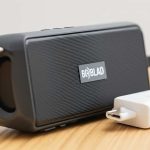
Need to reset your Billboard Bluetooth speaker? It’s usually a quick fix! Just hold down the power button for about 10-15 seconds until the lights flash or the speaker turns off and on again. This gets it back to a fresh start.
Hey there, tech explorers! Max here from AffTechy.com, your go-to spot for making gadgets easy and fun. You know, there’s something amazing about music filling a room, a podcast adding to your commute, or a movie feeling way more immersive thanks to great sound. That’s where speakers come in, and Bluetooth speakers are super popular because they’re so easy to use. But sometimes, even the coolest gadgets can act a little… well, quirky.
We’ve all been there, right? You’ve got your trusty Billboard Bluetooth speaker ready to blast your favorite tunes, but it’s just not connecting, or maybe the sound is acting weird. It can be a bit frustrating when technology doesn’t play nice. Picking out the right speaker can already feel like a puzzle, so troubleshooting shouldn’t be another headache!
Don’t worry, though! As your friendly tech guide, I’m here to make things simple. We’ll walk through how to get your Billboard Bluetooth speaker back in tip-top shape. Think of it like giving your speaker a quick nap to wake it up refreshed. We’re going to break down the easiest ways to fix common issues, step by step.
Ready to get your groove back? Let’s dive in and make that sound sing again!
Why Would You Need to Reset Your Billboard Bluetooth Speaker?
Sometimes, your speaker just needs a little refresh. Think of it like restarting your computer when it’s acting slow. A reset can fix a bunch of little glitches without you needing to be a tech wizard.
It’s especially helpful when your speaker isn’t pairing with your device. Maybe it’s stuck trying to connect to an old phone, or it’s just not showing up in your Bluetooth list. A reset clears its memory and lets it start fresh.
Other times, the sound might be cutting out, or the speaker might not be responding to button presses. These can all be signs that a simple reset is all that’s needed to get things back to normal. It’s a great first step before trying anything more complicated.
Understanding Your Billboard Bluetooth Speaker
Before we jump into resetting, let’s get a quick lay of the land. Billboard Bluetooth speakers are known for being pretty straightforward. They’re designed to be easy to use, which is awesome.
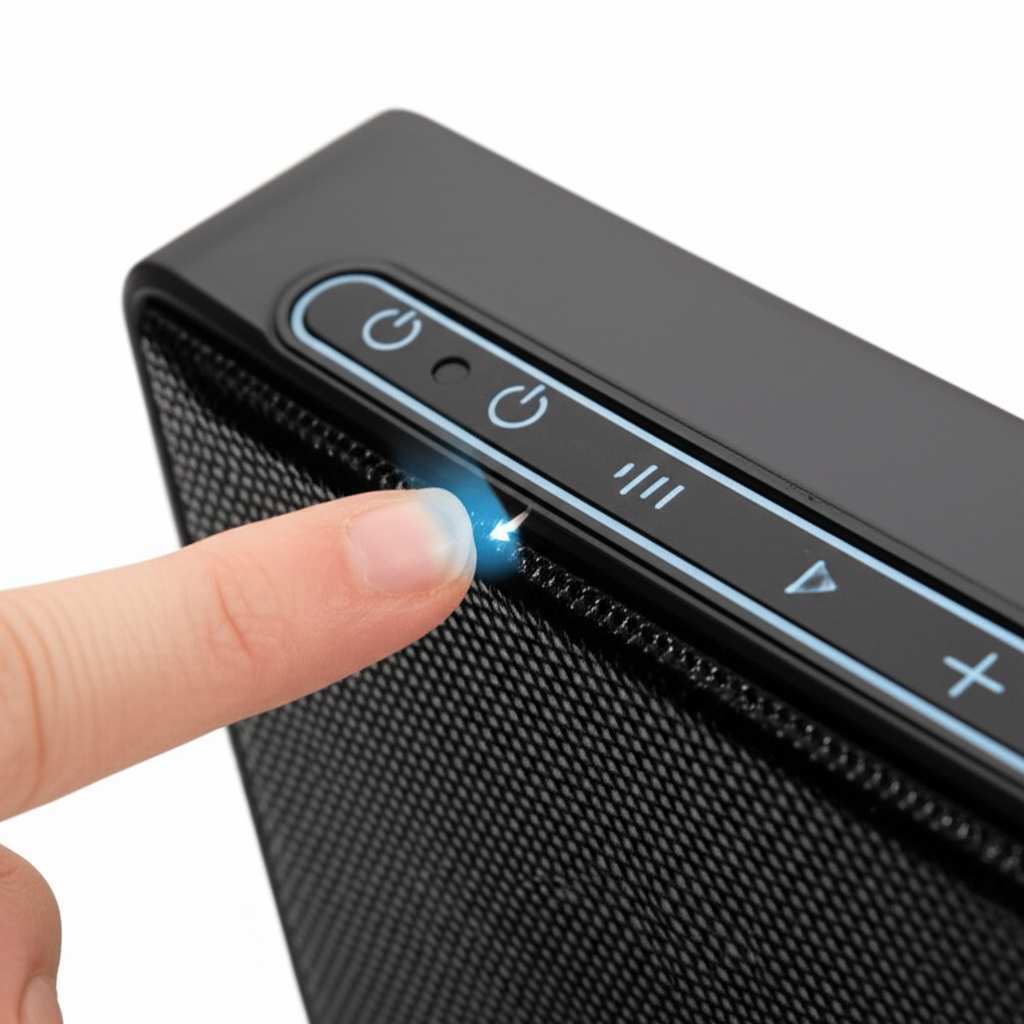
Most of them have a few key buttons you’ll want to know. There’s usually a power button, of course, volume controls (up and down), and often a play/pause or skip track button. Some might have a dedicated Bluetooth pairing button too.
Knowing where these buttons are is super handy. It helps you know exactly what you’re pressing when we get to the resetting part. Don’t stress if you don’t remember them all – we’ll cover the important ones for resetting.
The Quickest Way to Reset: The Power Button Trick
This is the most common and usually the easiest fix. It’s like a magic button for many tech problems!
Step 1: Power Off Your Speaker
First things first, make sure your speaker is turned off. If it’s on and acting up, it might not respond properly. Just press and hold the power button until the lights go out.
Step 2: Press and Hold the Power Button (Again!)
Now, here’s the key move. With the speaker off, press and hold the power button down for a longer period. We’re talking about 10 to 15 seconds.
Step 3: Look for a Signal
Keep holding that button! You’re looking for a sign that the reset is happening. This might be a blinking light, a different colored light, or the speaker might even make a little sound. Some speakers will turn off and then back on by themselves, which is also a good sign.
Step 4: Release the Button
Once you see or hear that reset signal, you can let go of the power button.
Step 5: Turn Your Speaker Back On
Now, try turning your speaker on normally. It should be like a brand new speaker, ready to pair.
Step 6: Re-Pair Your Device
Go to your phone, tablet, or computer’s Bluetooth settings. You’ll likely need to search for your Billboard speaker again and connect to it. It might show up as a new device or you might need to “forget” the old connection first.
This method basically tells your speaker to forget all previously paired devices and settings. It’s a clean slate!
When the Power Button Trick Isn’t Enough: Other Reset Methods
Sometimes, that simple power button hold might not do the trick, or your specific Billboard model might have a slightly different reset process. No worries, we have backup plans!
Checking the Manual: Your Speaker’s Best Friend
Every speaker is a little bit different. The best place to find exact instructions for your model is usually its user manual. If you’ve lost it, don’t fret!
Most manufacturers have their manuals available online. Just search for “[Your Billboard Speaker Model] manual PDF” on Google. You’ll often find it on the Billboard website or a general electronics site.
Looking for a Reset Button
Some Bluetooth speakers, including certain Billboard models, have a tiny, dedicated reset button. This button is often recessed, meaning you need something small and pointy to press it.
What to look for: It might be a small hole, often labeled “Reset.”
What to use: A paperclip, a toothpick, or the SIM card tool from your phone usually works perfectly.
How to do it: With the speaker turned on or off (check your manual!), gently insert the pointy object into the reset button hole and press it for a few seconds. You might feel a click.
This type of reset forces a complete system reboot, clearing out any stubborn glitches.
The Power Cycle Method (Slightly Different from the First Trick)
This is similar to the first method but sometimes involves unplugging the speaker if it has a power adapter.
1. Turn off the speaker.
2. Unplug it from any power source (if applicable).
3. Wait for about 30 seconds. This gives any residual power time to drain.
4. Plug it back in (if applicable).
5. Turn the speaker on and try to pair again.
This method can be effective for clearing temporary memory issues.
Troubleshooting Pairing Issues After Reset
Even after a reset, you might run into pairing problems. Here are a few common hiccups and how to fix them:
Make Sure Bluetooth is On
This sounds obvious, but it’s easy to forget! Double-check that Bluetooth is enabled on your phone, tablet, or computer.
Bring Devices Closer Together
Bluetooth has a range, usually around 30 feet (10 meters). For initial pairing, it’s best to have your speaker and device very close, like within a few feet.
Forget the Device and Re-Pair
Sometimes, your device might still be trying to connect to the old, unpaired version of the speaker.
On your phone/tablet: Go to Bluetooth settings. Find your Billboard speaker in the list of paired devices. Tap on it and select “Forget Device” or “Unpair.”
On your computer: The process is similar in your Bluetooth settings.
After forgetting: Turn off Bluetooth on your device, then turn it back on. Scan for new devices and select your Billboard speaker.
Check for Interference
Other electronic devices can sometimes interfere with Bluetooth signals. Try moving away from microwaves, Wi-Fi routers, or other strong wireless devices.
Update Your Device’s Software
An outdated operating system on your phone or tablet can sometimes cause Bluetooth issues. Make sure your device’s software is up to date.
Test with Another Device
If possible, try pairing your Billboard speaker with a different phone or tablet. This helps determine if the issue is with the speaker or your original device.
Billboard Bluetooth Speaker Features: What to Know
Billboard speakers often come with a few cool features that make them stand out. Knowing what they do can help you get the most out of your speaker.
Key Features and What They Mean
Bluetooth Version: Newer versions (like Bluetooth 5.0 or 5.1) offer faster connections, better range, and more stable performance. Older versions (like 4.2) still work fine but might be a bit less efficient.
Battery Life: This tells you how long you can play music on a single charge. Billboard speakers can vary, but many offer 6-10 hours of playtime.
Water Resistance (IP Rating): Look for an IP rating like IPX4 or IPX7. This means the speaker can handle splashes (IPX4) or even be submerged in water for a short time (IPX7). Great for parties by the pool or bathroom singalongs!
TWS (True Wireless Stereo): This feature lets you pair two identical Billboard speakers together for a true stereo sound experience. It really makes music come alive!
Built-in Microphone: Some speakers have a microphone, allowing you to use them as a speakerphone for calls.
Comparing Billboard Speaker Models (Example Data)
Here’s a quick look at how some hypothetical Billboard speaker models might stack up. This can give you an idea of what to expect.
| Feature | Billboard BE-100 | Billboard BE-250 | Billboard BE-500 |
| :————— | :————— | :————— | :————— |
| Bluetooth Version | 4.2 | 5.0 | 5.1 |
| Playtime | 8 Hours | 12 Hours | 15 Hours |
| Water Resistance | Splash Proof (IPX4) | Water Resistant (IPX5) | Waterproof (IPX7) |
| TWS Function | No | Yes | Yes |
| Microphone | No | Yes | Yes |
| Price (Approx.) | $30 | $50 | $70 |
What does this table mean for you? As you can see, the BE-250 and BE-500 models offer newer Bluetooth technology, which means a more reliable connection and potentially better sound quality over a longer distance. The BE-500 is great if you need something fully waterproof for outdoor adventures, while the BE-250 is a solid all-rounder with a good balance of features and price. Battery life also increases with the higher models, meaning less charging and more music!
Pro Tips for Keeping Your Billboard Speaker Happy
Once you’ve got your speaker working, here are some simple tips to keep it in great shape:
Charge it Properly: Don’t leave it plugged in for days on end after it’s fully charged. Most modern batteries don’t need this.
Keep it Clean: Dust can get into the speaker grille. Wipe it down with a dry, soft cloth occasionally. If it gets dirty, a slightly damp cloth can work, but make sure it’s not wet, especially if your speaker isn’t waterproof.
Store it Safely: When you’re not using it, keep it somewhere it won’t get knocked over or damaged. Avoid extreme temperatures.
Update Your Devices: As mentioned, keeping your phone or tablet’s software updated can prevent Bluetooth connection issues.
Read the Manual (Seriously!): It really is the best resource for your specific model. You might discover hidden features you never knew about! For more general Bluetooth tips, check out resources like CNET’s guide to Bluetooth.
Fun Fact!
Did you know that Bluetooth technology is named after a Viking king? King Harald “Bluetooth” Gormsson was known for uniting Danish tribes, just as Bluetooth technology aims to unite different devices! Pretty cool, right?
Frequently Asked Questions (FAQ)
Q1: How do I know if my Billboard speaker is reset?
You’ll usually see the indicator lights flash in a specific pattern, or the speaker might make a sound indicating it’s back to its default settings. It will also likely disconnect from any currently paired devices.
Q2: My speaker still won’t connect after resetting. What else can I do?
Try forgetting the speaker on your device’s Bluetooth settings and then re-pairing it. Also, ensure your device’s Bluetooth is on and that the speaker is in pairing mode (often indicated by a flashing light).
Q3: Can I reset my Billboard speaker without my phone?
Yes, the reset process is done directly on the speaker itself using its buttons. You only need your phone or other device to re-pair it after the reset.
Q4: How long should I hold the power button to reset?
For most Billboard speakers, holding the power button for about 10-15 seconds should trigger a reset. If that doesn’t work, consult your speaker’s manual for the exact duration.
Q5: Will resetting my speaker erase all my paired devices?
Yes, a reset typically clears the speaker’s memory of all previously paired Bluetooth devices. This is why you’ll need to re-pair your phone, tablet, or computer afterward.
Q6: My Billboard speaker won’t turn on at all. Can a reset help?
If the speaker won’t even turn on, a reset might not be possible or helpful. First, ensure it’s fully charged. If it still won’t power on, it might indicate a battery issue or a more serious hardware problem, and you may need to contact customer support.
Q7: Is there a factory reset for Billboard speakers?
The methods described (holding the power button or using a reset button) are essentially factory resets, as they return the speaker to its original, out-of-the-box state, clearing all custom settings and pairings.
Wrapping Up: Get Back to the Music!
So there you have it! Resetting your Billboard Bluetooth speaker is usually a super simple process that can save you a lot of hassle. Whether it’s the quick power button hold or using a tiny reset button, you’ve got the tools to get your speaker back in action.
Remember, technology is meant to make our lives more fun and convenient. If something isn’t working right, don’t get discouraged! A quick reset is often all it takes to get back to enjoying your favorite podcasts, music, or movie soundtracks.
Now go ahead and try that reset. You’ll likely be streaming your favorite tunes again in no time. Keep exploring, keep enjoying your gadgets, and don’t hesitate to reach out if you have more tech questions!
Now go enjoy amazing sound and make every moment louder and better!