Quick Summary: Pairing your Sony Bluetooth speaker is super simple! Just turn on your speaker, put it in pairing mode, and select it from your phone or device’s Bluetooth settings. Easy peasy, and you’ll be jamming in no time!
Hey there, tech adventurers! Max here from AffTechy.com. You know, there’s nothing quite like the freedom of wireless sound. Whether you’re chilling with your favorite playlist, getting lost in a movie, or powering up your gaming session, a good speaker can totally transform the experience. And Sony? They make some seriously awesome speakers that pack a punch.
But sometimes, getting that perfect connection can feel like a puzzle. You’ve got your shiny new Sony speaker, you’re ready to blast some tunes, and then… nothing. The Bluetooth pairing seems to be playing hide-and-seek. I’ve been there, staring at my phone screen, wondering why my speaker isn’t showing up. It’s frustrating, right?
Don’t worry, though! That’s exactly why I’m here. We’re going to demystify this whole Bluetooth pairing thing. Think of me as your friendly tech guide, ready to walk you through it step-by-step. We’ll make sure your Sony speaker connects smoothly, so you can get back to what matters most: enjoying your sound.
Let’s dive in and make sure you’re always ready to party with your Sony speaker!
Understanding the Magic of Bluetooth
So, what exactly is Bluetooth? It’s like a secret handshake for your gadgets. It lets devices talk to each other wirelessly over short distances. No more tangled wires! This makes our tech life so much simpler. Your phone, tablet, or laptop can send audio to your Sony speaker without needing any cables. Pretty neat, huh?
Sony speakers are designed to be super user-friendly. They use Bluetooth technology to give you that freedom. This means you can move around, keep your phone in your pocket, and still have your music follow you. It’s all about convenience and a cleaner setup.
Getting Your Sony Speaker Ready to Pair
The first step to pairing is making sure your speaker is actually ready to connect. Most Sony speakers have a specific way to enter “pairing mode.” This is like telling your speaker, “Hey, I’m looking for a new friend to connect to!” It usually involves pressing and holding a button.
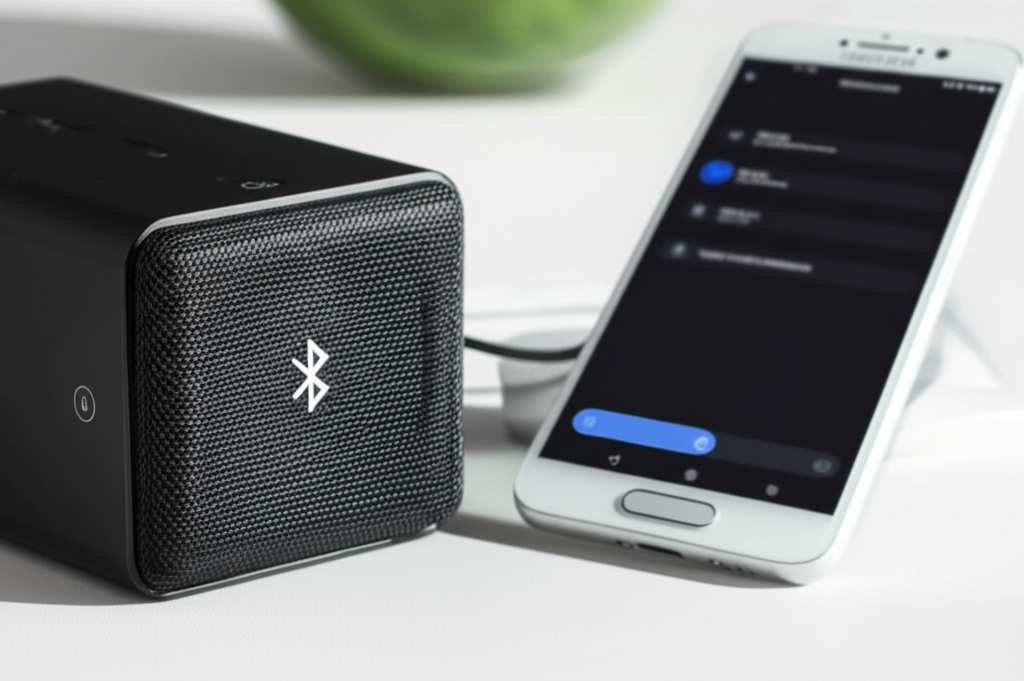
You’ll often find a Bluetooth icon on the button. It might look like a stylized ‘B’. Keep an eye out for it! Once you press and hold it for a few seconds, your speaker will usually make a sound or a light will start blinking. This blinking light is your signal that it’s in pairing mode and waiting for a connection.
Finding the Pairing Button
Where is this magical pairing button? It can vary a bit between different Sony models. On many portable speakers, like the popular SRS-XB series, the Bluetooth button is usually on the top or front panel. It’s often a dedicated button, separate from the power or volume controls.
Sometimes, it might be integrated into another button, or you might need to use a combination. Always check your speaker’s manual if you’re unsure! But generally, a quick press of the Bluetooth button powers it on/off, while a longer press puts it into pairing mode.
Entering Pairing Mode: Step-by-Step
Let’s make this super clear. Here’s how to get most Sony Bluetooth speakers into pairing mode:
1. Turn on your Sony speaker. Press the power button. You should hear a chime or see a light come on.
2. Locate the Bluetooth button. Look for the button with the Bluetooth symbol.
3. Press and hold the Bluetooth button. Do this for about 3-5 seconds.
4. Listen for a sound or watch for a blinking light. Your speaker is now in pairing mode! The light might blink blue, or a voice prompt might tell you it’s ready.
Once it’s in pairing mode, you have a limited time to connect your device. So, it’s best to have your phone or tablet ready to go!
Connecting Your Phone or Device
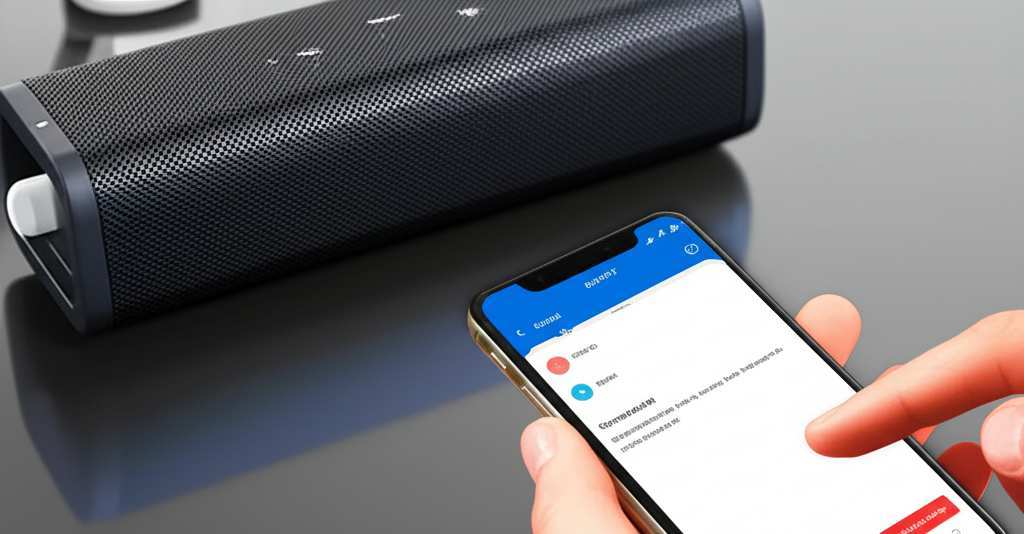
Now that your speaker is broadcasting its presence, it’s time for your phone or tablet to find it. This process is also pretty straightforward. You’ll be using your device’s Bluetooth settings menu.
Think of this as your phone searching for available Bluetooth devices nearby. It will scan and then list everything it finds. Your Sony speaker should pop up on that list!
Pairing on iOS (iPhones and iPads)
If you’re using an iPhone or iPad, follow these steps:
1. Go to Settings.
2. Tap on Bluetooth. Make sure the Bluetooth toggle is switched ON (it will be green).
3. Your iPhone will start searching for devices. Under the “Other Devices” or “My Devices” section, you should see your Sony speaker’s name. It might look something like “SRS-XB33” or “Sony_XXXX”.
4. Tap on your speaker’s name.
5. You might hear a confirmation sound from your speaker, and the blinking light should turn solid, indicating a successful connection. Your speaker will now appear under “My Devices.”
Pairing on Android Phones and Tablets
For Android users, it’s very similar:
1. Open the Settings app on your Android device.
2. Tap on Connected devices or Connections, then select Bluetooth. Ensure Bluetooth is turned ON.
3. Your device will scan for available devices. Look for your Sony speaker’s name in the list of “Available devices.”
4. Tap on the name of your Sony speaker.
5. Your speaker should connect, and you’ll likely see a confirmation message or hear a sound. The blinking light on the speaker will become solid.
Pairing with Computers (Windows and Mac)
Connecting to a computer is also doable!
On Windows: Go to Settings > Devices > Bluetooth & other devices. Click “Add Bluetooth or other device,” then “Bluetooth.” Your Sony speaker should appear in the list.
On Mac: Go to System Preferences > Bluetooth. Make sure Bluetooth is on. Your speaker will show up in the list of nearby devices. Click “Connect.”
Troubleshooting Common Pairing Problems
Sometimes, even with the best intentions, things don’t connect right away. Don’t throw your speaker out the window just yet! We can fix this. Most issues are pretty common and have simple solutions.
Here are some common hiccups and how to sort them out:
Speaker Not Showing Up in the List
This is a classic. Why isn’t my speaker appearing?
Is it in pairing mode? Double-check that you held the Bluetooth button long enough. Some speakers only stay in pairing mode for a few minutes, so you might need to try again.
Is it too far away? Bluetooth has a range. Make sure your speaker and device are close to each other, ideally within 10 meters (about 30 feet).
Is it already connected to another device? Many speakers can only connect to one device at a time. If your speaker was previously paired with your tablet, it might still be trying to connect to that. Turn off Bluetooth on the other device or disconnect it.
Pairing Fails or Disconnects Frequently
So, it connected, but then it dropped? Or it just won’t stay connected?
Low Battery: A weak battery can cause connection instability. Make sure both your speaker and your phone/tablet have enough charge.
Interference: Other wireless devices, like microwaves or other Bluetooth devices, can sometimes interfere. Try moving to a different spot or turning off other nearby wireless devices.
Outdated Software: Ensure your phone or tablet’s operating system is up to date. Sometimes, software glitches can affect Bluetooth performance.
Reset the Speaker: Many Sony speakers have a reset function. This can clear out any weird glitches. Check your manual for instructions, as it often involves pressing a small button with a paperclip or holding a combination of buttons.
Speaker Says Connected, But No Sound
This can be a bit confusing!
Check Volume Levels: Make sure the volume is turned up on both your device and your speaker. It sounds simple, but it’s often overlooked!
Verify Audio Output: On your phone or tablet, ensure that the audio output is set to your Sony speaker, not the device’s internal speaker.
Restart Both Devices: A simple restart of both your speaker and your phone/tablet can often resolve hidden software conflicts.
Tips for a Smooth Sony Bluetooth Experience
Beyond just pairing, a few smart habits can keep your audio flowing perfectly.
Keep Your Firmware Updated
Sony sometimes releases updates for their speakers. These can improve performance and fix bugs. Check the Sony support website for your specific model to see if there are any firmware updates available. You might need to use a computer and a USB cable for this.
Manage Multiple Devices
Most Sony speakers can remember several devices they’ve been paired with. However, they usually only actively connect to one at a time. If you’re switching between your phone and laptop, you might need to disconnect from the first device before connecting to the second.
Use the Sony App
Many Sony speakers work with a companion app, like the Sony | Music Center app. This app can unlock extra features, like equalizer settings, battery status, and sometimes even help with pairing or firmware updates. It’s a great way to get the most out of your speaker.
Comparing Popular Sony Bluetooth Speakers
Sony offers a wide range of Bluetooth speakers, each with its own strengths. Choosing the right one depends on your needs and budget. Here’s a quick look at a couple of popular series:
| Feature | Sony SRS-XB Series (e.g., XB23, XB33) | Sony XG Series (e.g., XG500) | Sony Extra Bass Series (Older Models) |
| :————– | :———————————- | :————————— | :———————————— |
| Sound Focus | Deep Bass, Party Sound | Powerful, Clear Sound | Enhanced Bass for Electronic Music |
| Portability | Very Portable, Lightweight | Portable, Larger Size | Varies, some quite portable |
| Battery Life| Up to 24 hours | Up to 30 hours | Up to 20-25 hours |
| Waterproof | Yes (IP67) | Yes (IP66) | Varies by model |
| Connectivity| Bluetooth, USB-C charging | Bluetooth, USB-C charging | Bluetooth, USB-A charging |
| App Support | Sony | Music Center | Sony | Music Center | Varies by model |
What this means for you: The SRS-XB series is fantastic for on-the-go listening with great bass. The XG series offers a bit more power and clarity for larger gatherings. If you love deep, thumping bass for genres like EDM or hip-hop, looking for speakers specifically tagged “Extra Bass” can be a great idea, though newer models often integrate this feature into their core sound profiles. Always check the latest reviews for the most up-to-date comparisons! For more detailed specs, CNET often has excellent reviews.
Frequently Asked Questions About Pairing
Let’s tackle some common questions beginners might have.
Q: How do I know if my Sony speaker is discoverable?
A: Your speaker is discoverable when it’s in pairing mode. You’ll usually see a blue light blinking, and sometimes you’ll hear a voice prompt saying it’s ready to connect. Just press and hold that Bluetooth button for a few seconds to get it there!
Q: Can I pair my Sony speaker to more than one device at a time?
A: Most Sony speakers can only actively connect and play audio from one device at a time. However, they can usually remember multiple devices you’ve paired with. You’ll just need to disconnect from the current device before connecting a new one.
Q: What does it mean if the Bluetooth light is solid blue?
A: A solid blue light on your Sony speaker means it’s successfully connected to a Bluetooth device and ready to play sound. If it’s blinking, it’s usually in pairing mode or trying to reconnect.
Q: How do I unpair my speaker from a device?
A: The easiest way is to go into your device’s Bluetooth settings and “forget” or “unpair” the speaker. On the speaker itself, sometimes turning it off or putting it back into pairing mode will disconnect it from the current device.
Q: Can I use my Sony speaker while it’s charging?
A: Yes, absolutely! Most Sony Bluetooth speakers can be used while they are charging. Just plug them in, and you can keep the music going. It’s a great feature for parties that last all day and night.
Q: Why is the sound quality bad even after pairing?
A: Poor sound quality can happen for a few reasons. Ensure you’re within range of the speaker, check for interference, make sure the volume is up on both devices, and verify that your device is set to output audio to the speaker. Sometimes, restarting both devices can also help clear up audio issues.
Q: Do I need an internet connection to pair my speaker?
A: No, you do not need an internet connection to pair your Sony Bluetooth speaker. Bluetooth is a wireless technology that works independently of Wi-Fi or cellular data. You only need Bluetooth enabled on both your speaker and your device.
Conclusion: Your Sound Journey Awaits!
And there you have it! Pairing your Sony Bluetooth speaker is really that straightforward. We’ve covered how to get your speaker into pairing mode, connect it to your devices, and even troubleshoot those little hiccups that can sometimes pop up. You’ve learned about the blinking lights, the magic buttons, and how to make your phone or tablet play nice with your speaker.
Remember, technology is meant to make our lives easier and more enjoyable. With these simple steps, you’re now fully equipped to enjoy crystal-clear music, immersive movie sound, or epic gaming audio from your Sony speaker anytime, anywhere. Don’t be afraid to experiment with different playlists or even connect it to your TV for a cinematic experience at home.
So go ahead, fire up that speaker, pick your favorite track, and let the good times roll. Now go enjoy amazing sound and make every moment louder and better! Happy listening!