
Quick Summary: Pairing your Insignia Bluetooth speaker is super simple! Just turn on your speaker, put it in pairing mode (usually by holding a Bluetooth button), and then find it on your phone or tablet’s Bluetooth settings to connect. Easy peasy!
Hey there, tech explorer! I’m Max Donovan from AffTechy.com, your go-to buddy for making gadgets easy and fun. You know how music just makes everything better? Whether it’s powering your workout, setting the mood for a dinner party, or just chilling with your favorite tunes, a good speaker is key.
But sometimes, getting that speaker to talk to your phone can feel like cracking a secret code, right? Especially with nifty devices like Insignia Bluetooth speakers. Don’t worry, though! We’re going to break down exactly how to pair your Insignia speaker so you can get the good vibes flowing in no time.
Think of me as your friendly guide, holding your hand through the tech maze. We’ll skip the jargon and get straight to what matters: enjoying your music. Ready to get your Insignia speaker connected and booming? Let’s dive in!
Why Syncing Your Insignia Speaker is a Game-Changer
Imagine this: you just got a cool new Insignia Bluetooth speaker, and you can’t wait to blast your road trip playlist or listen to that podcast everyone’s talking about. But wait, how does it actually connect to your phone? That’s where the magic of Bluetooth pairing comes in!
Bluetooth is like a wireless handshake between your devices. It lets them chat and share audio without any messy wires hanging around. Getting your Insignia speaker paired means unlocking a world of wireless sound, allowing you to move around freely while your music follows you.
It’s not just about convenience, either. A good wireless connection ensures your music plays smoothly without annoying skips or drops. So, learning how to pair your Insignia Bluetooth speaker is your first step to a much more enjoyable audio experience. Pretty neat, huh?
Getting Your Insignia Speaker Ready: The First Steps
Alright, before we can make sweet music together, we need to get your Insignia speaker powered up and ready to mingle. Think of it as prepping for a party – you need to make sure the guest of honor is ready to go!
First things first, give your Insignia speaker some juice. Plug it in using the charging cable that came with it, or if it has a removable battery, make sure those are fresh. You don’t want its playlist to cut out halfway through your favorite song!
Once it’s charged or has good batteries, find the power button. It’s usually pretty obvious, often marked with a power symbol (a circle with a line through it). Give it a good press and hold until you see a light flicker on or hear a little welcome chime. Now your speaker is awake and waiting!
Making Your Speaker Discoverable: The Pairing Mode Dance
This is where the real fun begins! To connect your Insignia speaker to your phone or tablet, you need to tell the speaker, “Hey, I’m ready to connect to a new friend!” This is done by putting it into “pairing mode.”
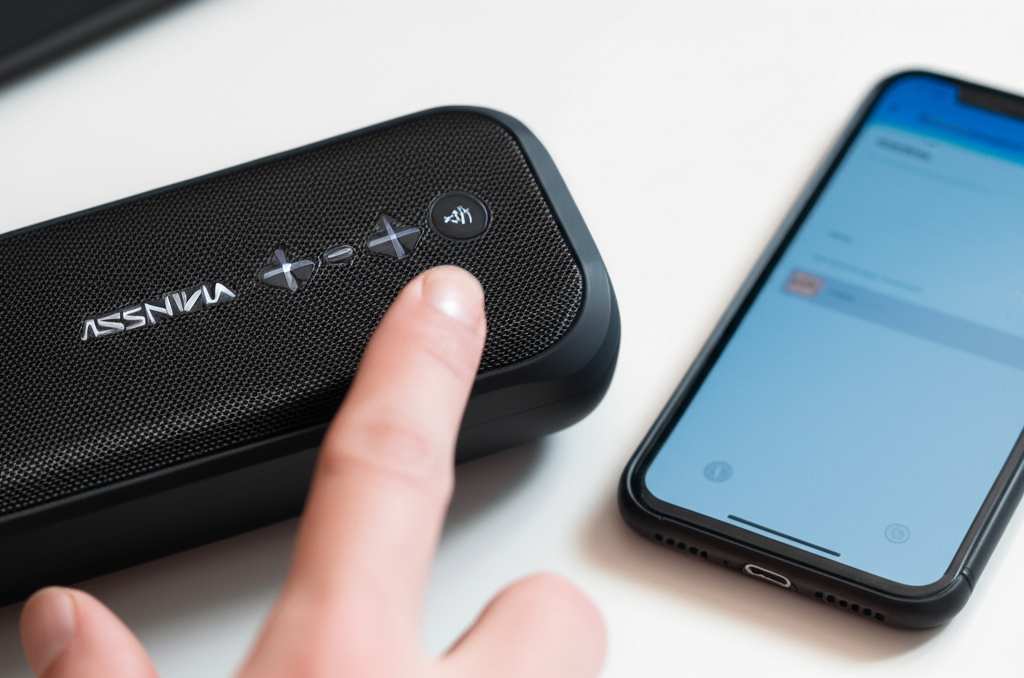
Most Insignia speakers have a dedicated Bluetooth button. This button can sometimes be a bit shy and might look like a Bluetooth symbol (three curved lines forming a triangle). You’ll typically need to press and hold this button for a few seconds.
You’ll usually know you’re in pairing mode when you hear a specific sound – often a series of beeps or a distinct tone – or see a light on the speaker start to flash. This flashing light is like a little beacon saying, “I’m lookin’ for a device to pair with!” Keep that Bluetooth button pressed until you see or hear this signal.
Finding Your Speaker on Your Device: The Device Hunt
Now that your Insignia speaker is in pairing mode, it’s time to get your phone or tablet involved in the search. Think of your phone as the matchmaking service, looking for available Bluetooth devices.
Head to the settings menu on your smartphone or tablet. You’ll need to find the Bluetooth section. On iPhones and iPads, it’s usually near the top of the Settings app. On Android devices, you’ll often find it under “Connections” or directly in the main Settings menu.
Once you’re in the Bluetooth settings, make sure Bluetooth is switched ON. You should see a list of available devices that your phone has found. If your Insignia speaker is in pairing mode, it should pop up in this list fairly quickly!
Connecting the Dots: The Final Pairing Step
You’re almost there! Your Insignia speaker is broadcasting its availability, and your device is showing a list of potential connections. Now comes the moment of truth: the actual pairing.
Look for the name of your Insignia speaker in the list on your phone or tablet. The name usually includes “Insignia” and might have a model number or a specific name for that speaker. Once you spot it, tap on its name.
Your device will then attempt to connect to the speaker. In most cases, it will connect automatically. Sometimes, you might be prompted to confirm a pairing code, but this is rare for speakers. If it connects successfully, you’ll usually hear a confirmation sound from the speaker, and the flashing light might turn solid. Congratulations, you’re synced!
Troubleshooting Your Insignia Speaker: When Things Get Tricky
Sometimes, even with the best intentions, tech doesn’t cooperate right away. If your Insignia speaker isn’t pairing, don’t throw it across the room! We’ve got some simple fixes that usually do the trick.
The most common culprit is simply that the speaker isn’t in pairing mode, or your device’s Bluetooth isn’t on. Double-check those first! Ensure the flashing light is on the speaker and that Bluetooth is enabled on your phone/tablet.
Another easy win is to try turning both devices off and on again. Power off the Insignia speaker, toggle your device’s Bluetooth off and then back on, and then restart the pairing process. This “reboot” can often clear up temporary connection glitches.
Common Insignia Speaker Pairing Issues and How to Conquer Them
Let’s get a bit more specific with those troubleshooting steps. Facing a connection frustration? We’ve got your back!
If your speaker was previously paired with another device (like a different phone or a laptop), it might be trying to reconnect to that old friend. You might need to “forget” the speaker on the old device’s Bluetooth settings to clear its memory and allow it to pair with your new device.
Distance can also be a sneaky problem. Make sure your speaker and your phone are relatively close to each other when you’re trying to pair, ideally within 30 feet (about 10 meters). Sometimes, walls or other electronic devices can get in the way.
Consider a factory reset. This is usually a last resort, as it wipes any custom settings. The method varies by Insignia model, so you might need to check your speaker’s manual, but it often involves holding down a combination of buttons. A fresh start can often fix persistent issues.
Insignia Bluetooth Speaker Models: A Quick Look
Insignia makes a range of Bluetooth speakers, and while the pairing process is very similar, there can be slight differences. Knowing your model can sometimes help if you need to find specific instructions.
Here’s a quick peek at some common types of Insignia speakers and what to expect:
| Speaker Type | Typical Pairing Button | Indicator Light Behavior | Key Feature Example |
|---|---|---|---|
| Compact Portable Speaker (e.g., Insignia NS-CSPxxx) | Dedicated Bluetooth icon button | Flashes blue when pairing, solid blue when connected | Great for travel, up to 6 hours battery life |
| Boombox Style Speaker (e.g., Insignia NS-BSTxxx) | May have a dedicated Bluetooth button or require a button press combo | Often a distinct audible tone and flashing light | Louder sound, longer playback, sometimes larger size |
| Waterproof/Shower Speaker (e.g., Insignia NS-PSxxx-WB) | Similar to compact, look for Bluetooth icon | Usually flashes or pulses | Designed for durability and use near water |
| Smart Speaker (if applicable with Insignia) | May involve app setup rather than direct button pairing | Voice prompts and status lights | Voice assistant integration (check model capabilities) |
Don’t worry too much if your specific model isn’t listed. The core steps—power on, enter pairing mode, search on device, connect—remain the same for most Insignia speakers!
Maximizing Your Insignia Speaker Experience: Beyond Pairing
Once you’ve successfully paired your Insignia speaker, a whole new world of sound opens up! But there’s more you can do to ensure you’re getting the most out of it.
Keep your speaker’s firmware updated if your model supports it. Some Insignia speakers might have companion apps or specific update processes that can improve performance and add features. Check the Insignia support website for your model if you’re curious.
Consider the environment where you use your speaker. While many are designed for portability, extreme temperatures or moisture (unless it’s a waterproof model!) can affect battery life and sound quality. Positioning your speaker can also make a difference – often, placing it on a solid surface can enhance bass.
Essential Pairings: What Your Insignia Speaker Works With
The beauty of Bluetooth is its versatility! Your Insignia speaker can connect to a wide range of devices, essentially anything with Bluetooth capabilities.
Here are some common devices you can pair your Insignia speaker with:
- Smartphones: Both Android and iOS devices are generally compatible.
- Tablets: Like iPads, Samsung Galaxy Tabs, and others.
- Laptops/Computers: Most modern laptops (Windows and macOS) have Bluetooth.
- Smart TVs: Many newer smart TVs can output audio via Bluetooth.
- MP3 Players: Older or newer portable music players with Bluetooth.
- Gaming Consoles: Some consoles allow Bluetooth audio output, though it’s less common.
This wide compatibility means your Insignia speaker can be the central hub for all your audio needs, from casual listening to movie nights!
FAQs: Your Burning Insignia Pairing Questions Answered
Got more questions swirling in your head? That’s perfectly normal! Here are some common queries folks have about pairing their Insignia speakers.
Q1: How do I know if my Insignia speaker is in pairing mode?
Great question! You’ll typically hear a distinct sound, like a series of beeps or a musical tone, and see a light on the speaker flashing. This flashing light is the universal sign that it’s ready to connect to a new device.
Q2: My phone doesn’t see my Insignia speaker. What now?
First, double-check that your Insignia speaker is definitely in pairing mode (look for that flashing light!). Then, ensure Bluetooth is turned ON on your phone or tablet. Sometimes, simply turning your phone’s Bluetooth off and then back on can help it discover new devices.
Q3: Can I connect my Insignia speaker to two devices at once?
Some Insignia models support “multipoint” connectivity, which means they can be paired with two devices simultaneously. However, they can usually only play audio from one device at a time. If yours doesn’t support this, you’ll need to disconnect from one device before connecting to another.
Q4: My Insignia speaker keeps disconnecting. What’s wrong?
Disconnections can happen if the speaker is too far from your device, if there are a lot of other wireless signals interfering, or if the speaker’s battery is low. Try bringing the devices closer together, moving away from other electronics, or making sure the speaker is well-charged.
Q5: Do I need to pair my Insignia speaker every time I use it?
Nope! Once you’ve paired your Insignia speaker with a device successfully, they should remember each other. The next time you turn on your speaker and have Bluetooth enabled on your device, they’ll usually reconnect automatically.
Q6: What if I forgot my Insignia speaker on my phone? How do I re-pair it?
If you “forgot” the device from your phone’s Bluetooth settings, you’ll just need to treat it like a new connection. Put your Insignia speaker back into pairing mode, then go to your phone’s Bluetooth settings and select it from the list of available devices again.
Q7: Can I connect my Insignia speaker to my TV?
Many modern smart TVs have Bluetooth audio output capabilities. You’ll need to check your TV’s settings to see if it supports Bluetooth connections, and then follow the standard pairing process to connect your Insignia speaker.
Wrapping It Up: Your Sound Adventure Awaits!
See? Pairing your Insignia Bluetooth speaker is totally doable and way simpler than it might seem at first. We’ve walked through powering it up, getting it into that all-important pairing mode, finding it on your device, and making that final connection. You even learned some handy troubleshooting tips!
The world of wireless audio is pretty awesome, and with your Insignia speaker now connected, you’re all set to enjoy your favorite tunes, podcasts, or movies with way more freedom and better sound. Don’t be afraid to experiment with different devices and see what else your speaker can do.
Remember, tech is all about making life more enjoyable. So go ahead, crank up that volume, and let the good times roll. Happy listening!



