Experiencing sound delay with your Bluetooth party sound box? This isn’t a party pooper; it’s a common issue with Bluetooth audio. Our guide offers practical solutions to fix sound delay, from basic troubleshooting to advanced tips, ensuring your music plays in sync.
Having a party? You’ve got your friends, your snacks, and your awesome Bluetooth party sound box ready to blast your favorite tunes. But then it happens. The music starts, and you notice it – a slight lag. The beat feels off, the vocals are a fraction of a second behind the rhythm, and suddenly, your epic party vibe is a little… well, delayed. This sound delay in your Bluetooth party sound box can be a real mood killer, turning a potential dance-off into a synchronized (or unsynchronized) mess.
Don’t worry, though! You’re not alone, and this isn’t an insurmountable problem. Bluetooth audio, by its very nature, involves transmitting sound wirelessly. This process can sometimes introduce a slight delay, often referred to as latency. While usually unnoticeable for casual listening, it becomes very apparent when you’re trying to enjoy music with a strong beat or, worse, when you’re trying to sync video with audio. Fortunately, there are several effective ways to fix sound delay in a Bluetooth party sound box. Let’s dive into how you can get your audio back in sync and your party rocking.
Key Takeaways
- Understand Bluetooth Latency: Bluetooth audio inherently has a slight delay due to data processing.
- Check Your Source Device: Ensure your phone or tablet isn’t the bottleneck by closing unnecessary apps and updating software.
- Optimize Proximity: Keep your sound box and source device close together, minimizing signal interference.
- Manage Connections: Disconnect other Bluetooth devices to free up bandwidth for your party sound box.
- Adjust Audio Settings: Some devices allow for audio delay adjustments, which can significantly help.
- Firmware Updates: Ensure both your sound box and source device have the latest firmware or software updates.
- Consider Wired Options: For critical timing, a wired connection might be the most reliable solution.
📑 Table of Contents
Understanding Bluetooth Latency and Your Party Sound Box
Before we jump into fixing it, it’s helpful to understand *why* this delay happens. Bluetooth technology works by compressing audio data, transmitting it wirelessly, and then decompressing it at the receiving end (your sound box). This entire process, while incredibly convenient, takes a tiny amount of time. Think of it like sending a package: it needs to be packed, shipped, and then unpacked. Each step adds a bit of time.
Different Bluetooth versions, codecs (the way audio is compressed and decompressed), and the quality of the hardware in both your source device (phone, tablet, laptop) and your party sound box can all influence how much latency you experience. Some codecs are designed for lower latency, while others prioritize audio quality. For a party sound box, you want a good balance, but when lag strikes, it often means the processing time is just a bit too long for perfect synchronization.
Common Culprits for Sound Delay
Several factors can contribute to that annoying sound delay:
- Device Processing Power: Older or less powerful source devices might struggle to process and transmit audio smoothly, especially if they’re juggling multiple tasks.
- Bluetooth Version Mismatch: While generally backward compatible, using older Bluetooth versions on either the source or the speaker can increase latency.
- Interference: Other wireless devices (Wi-Fi routers, microwaves, other Bluetooth devices) can interfere with the Bluetooth signal, causing data to be re-sent, which adds delay.
- Distance: The further your source device is from your sound box, the weaker the signal, and the more prone it is to errors and delays.
- Audio Codec: The specific Bluetooth audio codec being used (e.g., SBC, AAC, aptX) can impact latency. Some are faster than others.
- Software Glitches: Sometimes, a simple software hiccup on your phone or the sound box itself can cause temporary issues.
Troubleshooting Your Source Device
Visual guide about How to Fix Sound Delay in Bluetooth Party Sound Box
Image source: euromusiccontest.com
Often, the solution to sound delay in your Bluetooth party sound box isn’t with the speaker itself, but with the device you’re using to play music. Your phone or tablet is the origin of the audio signal, and if it’s struggling, the sound box will reflect that.
Restart Your Device
This is the classic IT solution for a reason. A simple restart can clear out temporary software glitches, free up memory, and reset network connections. Before you do anything else, power down your phone or tablet completely, wait for about 30 seconds, and then turn it back on. Once it’s fully booted up, reconnect your Bluetooth party sound box and see if the delay has improved.
Close Unnecessary Apps
Your phone or tablet is likely running several apps in the background, even if you’re not actively using them. These background processes consume processing power and memory, which can affect the Bluetooth audio stream. Go through your running apps and close anything you don’t need. This is especially important if you’re multitasking with other demanding applications.
Update Your Device’s Software
Manufacturers frequently release software updates that include bug fixes and performance improvements. These updates can often address issues related to Bluetooth connectivity and audio processing. Check your device’s settings for any available system updates and install them. Similarly, if you’re using a specific app to play music, ensure that app is also up-to-date.
Manage Bluetooth Connections on Your Source
Having too many devices connected to your phone or tablet via Bluetooth simultaneously can sometimes strain its resources and affect audio performance. Try disconnecting any other Bluetooth devices that aren’t essential for your party. This can free up bandwidth and give your party sound box a clearer channel. If you’re struggling with multiple connections, this guide on how to fix Bluetooth connectivity issues might offer some useful general strategies.
Optimizing the Bluetooth Connection Itself
Visual guide about How to Fix Sound Delay in Bluetooth Party Sound Box
Image source: techsynchron.com
Once you’ve ensured your source device is in good shape, it’s time to focus on the wireless link between it and your party sound box.
Check Proximity and Obstructions
The closer your source device and your Bluetooth party sound box are, the stronger and more stable the connection will be. Try to keep them within a reasonable range (usually around 30 feet or 10 meters, but this can vary). Also, be mindful of physical obstructions like walls, large furniture, or even your own body, which can weaken the Bluetooth signal. Position your sound box in a central location where it can receive a clear signal.
Minimize Interference
As mentioned earlier, other wireless devices can cause interference. If you’re in an environment with many Wi-Fi networks or other Bluetooth devices operating, this can lead to signal congestion. Try turning off any other unnecessary Bluetooth devices in the vicinity. If your Wi-Fi router is very close to your sound box or source device, try repositioning it or your audio setup. Sometimes, even a microwave oven can disrupt Bluetooth signals when it’s in use.
Forget and Re-pair the Device
Sometimes, the Bluetooth pairing between your source device and your sound box can become corrupted. The fix is usually simple: “forget” the device on your source and then re-pair it.
On your smartphone or tablet:
- Go to your Bluetooth settings.
- Find your party sound box in the list of paired devices.
- Tap on it and select “Forget Device” or “Unpair.”
- Turn off Bluetooth on your source device for about 10 seconds, then turn it back on.
- Put your party sound box back into pairing mode (usually by holding down a specific button).
- Scan for devices on your source and select your sound box to re-pair it.
This process essentially creates a fresh connection and can resolve many connectivity-related issues, including sound delay.
Adjusting Sound Box and Source Settings
Visual guide about How to Fix Sound Delay in Bluetooth Party Sound Box
Image source: thewindowsclub.com
Some advanced settings on your source device or even within the sound box’s companion app (if it has one) can help mitigate Bluetooth audio latency.
Check for Device-Specific Apps
Many modern party sound boxes come with a dedicated app that you can download from your device’s app store. These apps often provide firmware updates, EQ settings, and sometimes even options to adjust Bluetooth latency or sync. If your sound box has a companion app, make sure to download it, check for updates, and explore its settings for any audio delay adjustments.
Look for Audio Delay Settings (Rare on Source)
While less common on standard smartphones, some operating systems or specific audio player apps might offer an audio delay or lip-sync adjustment. This setting allows you to manually shift the audio timing to match video or correct for inherent latency. If you can find such a setting, experiment with small adjustments until the audio and video are in sync. This is a more advanced fix, but it can be very effective.
Advanced Solutions and When to Consider Them
When the basic troubleshooting steps don’t fully resolve the sound delay in your Bluetooth party sound box, you might need to consider more advanced options or understand the limitations of Bluetooth.
Update Firmware on Your Party Sound Box
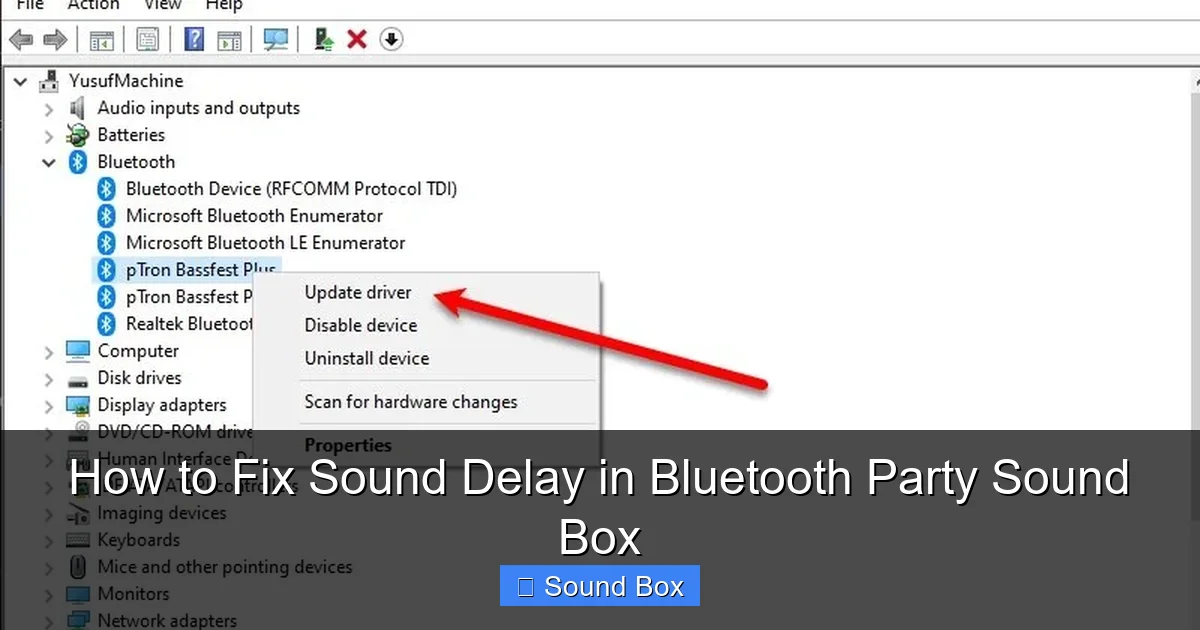
Just like your phone, your Bluetooth party sound box itself has firmware – the internal software that controls its operations. Manufacturers release firmware updates to fix bugs, improve performance, and add new features. Check the manufacturer’s website or the companion app (if available) for instructions on how to update the firmware on your party sound box. Keeping your firmware up-to-date is crucial for optimal performance.
Test with a Different Source Device
To determine if the issue lies with your sound box or your primary source device, try pairing it with a different phone, tablet, or laptop. If the sound delay disappears when using another device, then the problem is likely with your original source device’s hardware or software.
Consider the Audio Codec
As mentioned, different Bluetooth audio codecs have varying levels of latency. For example, Qualcomm’s aptX Low Latency codec is specifically designed to reduce delay. If your source device and your party sound box both support aptX Low Latency, ensure they are using it. You might find settings in your developer options (on Android) or within a specific app to prioritize certain codecs. However, most devices will automatically choose the best available codec. If your device only supports the standard SBC codec, some latency is to be expected.
The Wired Connection Option
For situations where absolutely no sound delay is acceptable, such as live performances or gaming where audio sync is critical, Bluetooth might not be the best choice. Many party sound boxes have an auxiliary (AUX) input. Using an AUX cable to connect your source device directly to the sound box bypasses Bluetooth entirely and provides a near-zero latency audio experience. While it sacrifices some wireless convenience, it guarantees perfect synchronization. If you’re looking for the most reliable way to connect, exploring wired options is always a good idea. You can learn more about connecting speakers via cables in articles like how to connect a Bluetooth speaker to a TV with an AUX cable.
Conclusion
Experiencing sound delay with your Bluetooth party sound box can be frustrating, but it’s usually a fixable issue. By systematically working through the troubleshooting steps outlined above, you can identify the cause of the latency and implement the appropriate solution. Start with the simplest fixes like restarting your devices and checking proximity, then move on to re-pairing, checking for updates, and optimizing settings. Remember that Bluetooth technology has inherent limitations, and in some rare cases, a wired connection might be the most reliable way to achieve perfect synchronization. With a little patience and these practical tips, you can banish that annoying sound delay and get back to enjoying seamless, synchronized audio for your parties and gatherings. Happy listening!
Frequently Asked Questions
Why is there a delay in my Bluetooth speaker?
Bluetooth audio inherently has a small delay due to the process of compressing, transmitting, and decompressing sound wirelessly. Factors like distance, interference, device processing power, and the specific Bluetooth codec used can all contribute to this latency.
How can I reduce Bluetooth audio lag?
To reduce Bluetooth audio lag, try keeping your source device and speaker close, minimizing other wireless devices, closing unnecessary apps on your source, updating software, and re-pairing the devices. Sometimes, adjusting audio settings or ensuring your sound box and device use low-latency codecs can help.
Is it possible to completely eliminate Bluetooth sound delay?
While it’s difficult to completely eliminate Bluetooth sound delay, you can significantly reduce it to barely noticeable levels. For absolute zero latency, a wired connection via an AUX cable is the most reliable solution, bypassing the wireless transmission process altogether.
Does the type of Bluetooth codec affect sound delay?
Yes, the Bluetooth audio codec plays a significant role in latency. Codecs like aptX Low Latency are specifically designed to minimize delay, whereas older or more basic codecs like SBC might introduce more noticeable lag.
What should I do if my sound box’s app offers audio delay settings?
If your sound box has a companion app with audio delay settings, this is a great feature to use. Carefully adjust the slider or value provided to either advance or delay the audio output until it’s perfectly synchronized with your video or other audio sources.
Can my phone’s performance impact Bluetooth speaker delay?
Absolutely. If your phone is old, has low processing power, or is running many apps in the background, it might struggle to transmit a smooth, unlagged audio signal to your Bluetooth speaker. Closing unnecessary apps and ensuring your phone’s software is updated can help improve performance.