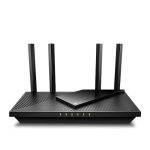
To enable the 6GHz band on your router, simply access your router’s settings, find the wireless or Wi-Fi options, and turn on the 6GHz network. Make sure your router supports Wi-Fi 6E, and update its firmware if necessary. Connect your device to the new 6GHz network for faster speeds and less interference.
Enabling the 6GHz band on your router can seem tricky at first, but with a few simple steps, you’ll unlock the latest in Wi-Fi technology for a faster and more reliable internet experience. The process involves accessing your router’s admin panel, enabling the 6GHz band in the wireless settings, and ensuring your device supports Wi-Fi 6E. Once set up, you’ll enjoy significantly improved speeds and reduced congestion, especially in busy households or offices with many connected devices. Whether you’re upgrading your existing Wi-Fi or setting up a new network, turning on the 6GHz band is a straightforward way to stay ahead with cutting-edge internet tech.

How to Enable 6GHz Band on Router
Understanding the 6GHz Wi-Fi Band
Enabling the 6GHz band on your router can significantly improve your wireless experience. The 6GHz spectrum offers faster speeds, lower latency, and less interference compared to older bands. It’s important to understand that only compatible routers and devices can connect to this new band.
Why Choose the 6GHz Band?
The main advantage of the 6GHz band is its ability to provide a cleaner, less congested connection. It supports Wi-Fi 6E, which increases overall network capacity and speeds. This band is perfect for activities like 4K streaming, online gaming, and transferring large files.
Check Compatibility of Your Router
Before attempting to enable the 6GHz band, verify if your router supports Wi-Fi 6E. Many newer models are designed with this feature, but older routers may only support 2.4GHz and 5GHz. Look for specifications mentioning Wi-Fi 6E or 6GHz support.
Steps to Verify Compatibility
- Review the router’s user manual or packaging.
- Visit the manufacturer’s website to find detailed specs.
- Check your router’s admin interface for Wi-Fi bands listed as 6GHz or Wi-Fi 6E.
Preparing Your Devices
Ensure your devices support Wi-Fi 6E so they can connect to the 6GHz band. This includes smartphones, laptops, and other IoT devices. Updating device firmware can sometimes add support for newer Wi-Fi bands.
Device Compatibility Tips
- Look for Wi-Fi 6E compatibility in device specifications.
- Update device firmware regularly to support new Wi-Fi features.
- Use compatible network adapters for older devices if necessary.
Accessing Your Router’s Admin Panel
To enable the 6GHz band, you must log in to your router’s administration interface. Use a device connected to your network and open a web browser. Enter your router’s IP address, usually 192.168.1.1 or 192.168.0.1.
Login Credentials
Your default username and password are often printed on the router or included in the user manual. Change these credentials to enhance security after your initial login.
Locating the Wireless Settings
Once logged in, navigate to the wireless or Wi-Fi settings section. Different brands have various menus, but look for options labeled as “Wireless,” “Wi-Fi,” or “Advanced Settings.”
Finding the 6GHz Option
In the wireless settings, find the section dedicated to Wi-Fi bands. You should see options for 2.4GHz, 5GHz, and possibly 6GHz if supported. Enable the 6GHz band by toggling it on.
Enabling the 6GHz Band
Turn on the 6GHz feature, often labeled as “Wi-Fi 6E,” “6GHz,” or similar. Some routers allow you to set the band as default or as a separate network.
Configuring Network Names (SSID)
Create a unique SSID for the 6GHz band so you can distinguish it from the other bands. Use a simple name that’s easy to recognize, such as “MyNetwork_6E.”
Adjusting Security Settings
Set the security mode to WPA3 if available for better protection. Use a strong password to secure your 6GHz network just like your other Wi-Fi networks.
Finalizing and Testing the Connection
After enabling the 6GHz band, save your settings and reboot the router if necessary. Then, check if your device detects the new network.
Connecting Devices to the 6GHz Band
Open your device’s Wi-Fi settings, scan for available networks, and select the SSID you assigned for the 6GHz band. Enter the password if prompted and verify connection speed.
Troubleshooting Common Issues
If you cannot see the 6GHz network or connect properly, ensure your device supports Wi-Fi 6E. Confirm the router firmware is up to date and restart both your router and devices.
Router Firmware Updates
Visit your router manufacturer’s support page to download the latest firmware. Follow the update instructions carefully to avoid bricking your device.
Device Compatibility Challenges
Not all devices support 6GHz yet. Check device specifications and update firmware. If necessary, use devices that are compatible to access the faster network.
Optimizing Performance of Your 6GHz Network
Position your router in a central location, free from obstacles and interference, to maximize signal strength. Keep the router firmware up to date to benefit from improvements and security patches.
Additional Tips for Better Connectivity
- Use at least one device to test the network speed using speed testing tools.
- Avoid placing the router near metal objects, microwaves, or cordless phones that can cause interference.
- Use Quality of Service (QoS) settings to prioritize bandwidth for critical applications.
Related Topics to Explore
Understanding Wi-Fi 6 and Wi-Fi 6E
Wi-Fi 6 offers improved speed and efficiency, while Wi-Fi 6E adds the 6GHz band for even faster connections. Both are important for future-proofing your network.
Benefits of Mesh Wi-Fi Systems with 6GHz Support
Mesh systems can extend coverage while supporting the 6GHz band, ensuring fast and reliable Wi-Fi throughout your home.
Security Enhancements in Wi-Fi 6E
Wi-Fi 6E uses WPA3 security by default, providing stronger encryption and better protection against cyber threats.
Summary
Enabling the 6GHz band on your router involves verifying compatibility, accessing the router’s settings, turning on the feature, and securing your network. Regularly update firmware and ensure device support to enjoy the benefits of faster, less congested Wi-Fi. Proper placement and configuration will maximize your network’s capabilities, providing a smoother online experience.
How To Enable 6ghz On Windows 11 | This Is All You Need.. Thank Me Later 😏
Frequently Asked Questions
What steps should I follow to activate the 6GHz band on my router?
To activate the 6GHz band, access your router’s web interface by entering its IP address in your browser. Log in using your admin credentials. Navigate to the wireless or Wi-Fi settings section, locate the 6GHz band option, and enable it. Save your settings and restart the router if necessary to apply changes.
How can I ensure my device connects to the 6GHz network?
Make sure your device supports the 6GHz frequency band and that its Wi-Fi adapter is updated. After enabling the 6GHz band on your router, scan for available networks on your device. Select the 6GHz network name (SSID), and enter the password if prompted. Confirm the device successfully connects to the 6GHz network.
Why isn’t the 6GHz band showing up in my network list?
If you don’t see the 6GHz network, verify that your router firmware is up to date and that the 6GHz band is enabled in the settings. Also, confirm that your device supports 6GHz Wi-Fi and is within range. Restart your router and device to refresh network detection. If issues persist, consult your router’s manual or firmware support resources.
Final Thoughts
To enable 6ghz band on router, access your router’s admin settings through a web browser. Locate the wireless or Wi-Fi settings menu, then find the option for the 6GHz band. Turn it on and save your changes.
Ensure your router supports the 6GHz band before proceeding. Update firmware if necessary to access the latest features.
In conclusion, how to enable 6ghz band on router involves simple steps involving access, activation, and saving settings. Following these instructions ensures you can effectively set up the 6GHz wireless network.