
Connecting your Bluetooth speaker to your TV is super easy! This guide shows you exactly how to get awesome sound for movies, music, and games without messy wires. Let’s get your TV singing!
Hey there, tech explorers! Max here from AffTechy.com. You know, sometimes you’re watching a movie or playing a game, and the TV’s sound just doesn’t cut it. You wish for that bigger, richer sound that really pulls you into the action. Or maybe you’re just trying to blast your favorite playlist through your TV speakers. It can feel a bit tricky when you start thinking about all those different speakers and how they connect.
That’s where the magic of Bluetooth comes in! It’s like a secret handshake between your TV and your speaker, letting them talk wirelessly. No more fumbling with cables or worrying if you bought the right adapter. We’re going to walk through connecting your Bluetooth speaker to your TV step-by-step. You’ll be enjoying cinematic sound or a concert hall experience in no time.
So, grab your remote and your favorite speaker. We’ll make this tech stuff feel like a breeze, I promise! Let’s dive into how we can boost your TV’s sound and make your entertainment way more awesome.
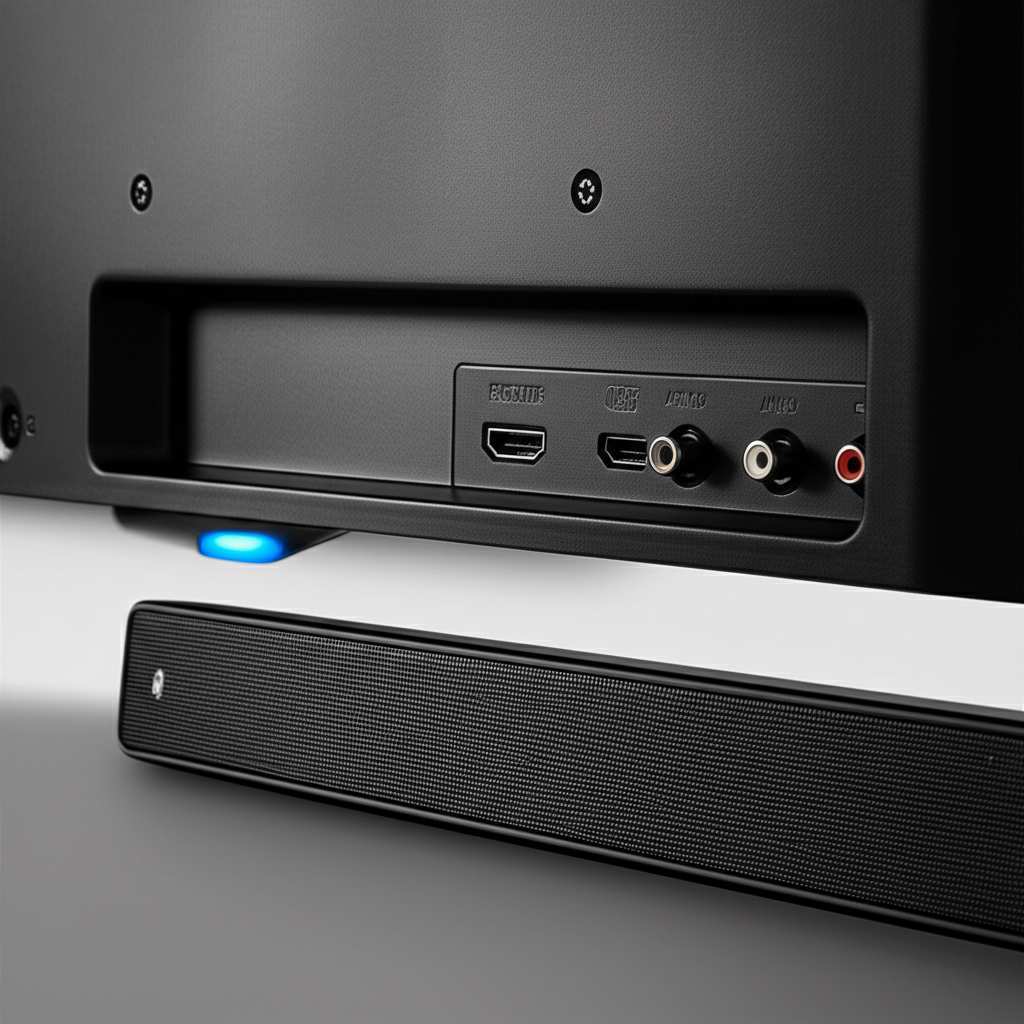
Why Go Wireless with Your TV Sound?
Imagine this: you’re settling in for movie night. The picture is amazing, but the sound is just… okay. It’s coming from tiny speakers inside your TV. It’s like watching a blockbuster on a tiny phone screen, right? You’re missing out on all those booming explosions, the subtle whispers, and the epic soundtracks.
Now, picture this instead: you’ve got a fantastic Bluetooth speaker connected to your TV. Suddenly, the sound fills the room. You can feel the rumble of the action and hear every detail crystal clear. It’s a totally different experience! Plus, with Bluetooth, you can place that speaker anywhere in the room without being tied down by cords. It’s pure audio freedom.
This guide is all about making that happen for you. We’ll break down how to connect your Bluetooth speaker to your TV so you can enjoy that enhanced sound. No confusing jargon, just simple steps. We’ll cover what to look for, how to pair them up, and some handy tips to make sure everything runs smoothly.
Let’s Talk Bluetooth: What It Is and Why It’s Great
So, what exactly is this “Bluetooth” thing? Think of it as a short-range radio wave that lets devices talk to each other without wires. It’s like having a super-short, invisible cable connecting your TV to your speaker. This technology is in tons of gadgets these days, from your phone to your headphones and, of course, your speakers and TVs.

The best part about Bluetooth for connecting speakers to your TV is its simplicity and convenience. You don’t need any special apps or complicated setups most of the time. Once your TV and speaker are paired, they remember each other. This means you can easily switch between your TV’s built-in sound and your Bluetooth speaker whenever you want. It’s perfect for upgrading your home theater without a major overhaul.
Does My TV Even Have Bluetooth? Finding Out is Easy!
This is the first big question, right? Not all TVs are created equal, and some older models might not have built-in Bluetooth. But don’t worry, finding out is usually pretty straightforward. Most modern smart TVs, especially those made in the last few years, come with Bluetooth.
How to Check Your TV for Bluetooth:
Dive into the Settings Menu: This is your best bet. Grab your TV remote and head to the main Settings or Menu. Look for sections like “Sound,” “Audio,” “Network,” “Connections,” or “Bluetooth.” If you see a “Bluetooth” option, chances are your TV supports it!
Check Your TV’s Manual: If you still have the instruction booklet that came with your TV, it will definitely tell you if it has Bluetooth capabilities. You can often find digital versions of these manuals on the manufacturer’s website too.
Look Up Your TV Model Online: If you know your TV’s exact model number, a quick search on Google or the manufacturer’s website will tell you all its features, including whether it has Bluetooth.
If your TV doesn’t have Bluetooth, don’t despair! There are still ways to add this magic. We’ll talk about those later in the guide. For now, let’s assume your TV is ready to party wirelessly.
Getting Your Bluetooth Speaker Ready to Pair
Your speaker needs to be in a special mode to find and connect to your TV. This is called “pairing mode.” It’s like telling your speaker, “Hey, I’m looking for a new friend to connect with!” Every speaker is a little different, but the basic idea is the same.
How to Put Your Speaker in Pairing Mode:
Find the Bluetooth Button: Most portable Bluetooth speakers have a dedicated button for Bluetooth. It might have a Bluetooth symbol on it.
Press and Hold: Usually, you need to press and hold this button for a few seconds. You might hear a sound, see a flashing light, or both. This indicates it’s ready to pair.
Check Your Speaker’s Manual: If you’re unsure, your speaker’s manual is your best friend. It will tell you exactly how to activate pairing mode for your specific model.
Once your speaker is in pairing mode, it will usually stay that way for a few minutes, waiting to be discovered by your TV.
Connecting Your Speaker to Your TV: The Step-by-Step Magic
Alright, the moment of truth! With your TV checked and your speaker ready in pairing mode, it’s time to make them friends. This process can vary slightly depending on your TV brand, but the general steps are very similar.
Steps to Connect:
1.
Turn On Your TV and Speaker: Make sure both devices are powered on.
2. Put Your Speaker in Pairing Mode: As we just discussed, get that speaker ready to be found. Look for a flashing light or listen for a sound.
3. Navigate to Your TV’s Bluetooth Settings: On your TV, go back to the Settings menu. Find the Bluetooth section.
4. Scan for Devices: Your TV should have an option to “Scan,” “Search,” or “Add Device.” Select this. Your TV will start looking for nearby Bluetooth devices.
5. Select Your Speaker: After a moment, your TV should display a list of available Bluetooth devices. Find the name of your speaker in the list and select it. It might be something like “JBL Flip 5” or “Sony SRS-XB23.”
6. Confirm Connection: Your TV might ask you to confirm the connection. If it requires a PIN code, it’s often “0000” or “1234,” but check your speaker’s manual if you’re not sure.
7. Success! If everything goes well, you’ll see a confirmation message on your TV, and your speaker might make a sound to let you know it’s connected. The light on the speaker will likely change from flashing to solid.
Now, try playing something on your TV! The sound should come through your Bluetooth speaker. If it doesn’t, don’t worry. Sometimes you might need to go into your TV’s sound output settings and manually select your Bluetooth speaker as the audio output device.
What If My TV Doesn’t Have Bluetooth? No Problem!
Don’t let a lack of built-in Bluetooth get you down. There are fantastic workarounds that will give you that wireless sound. These usually involve a small device called a Bluetooth transmitter or an audio adapter.
Option 1: Bluetooth Transmitter/Adapter
These nifty gadgets plug into your TV’s audio output port (like the headphone jack or optical audio out). Then, they broadcast the sound wirelessly via Bluetooth to your speaker.
How it Works: You connect the transmitter to your TV using the provided cables. Then, you put the transmitter in pairing mode and pair your Bluetooth speaker to it, just like you would with a TV.
What to Look For:
Audio Output Compatibility: Make sure it works with your TV’s audio ports (3.5mm headphone jack, RCA, or Optical). Optical is usually the best quality.
Bluetooth Version: Newer versions (like 5.0 or higher) offer better range and stability.
Battery Life or Power: Some are rechargeable, others plug into a USB port on your TV.
Low Latency: This is important for watching videos! It means the audio syncs up with the video better, so you don’t get that annoying delay. Look for “aptX Low Latency” if possible.
Option 2: Bluetooth Audio Receiver (Less Common for TV Output)
While usually used to make non-Bluetooth speakers Bluetooth-enabled, some receivers can also take an audio input and transmit it. However, a transmitter is generally the more direct solution for getting TV sound out wirelessly.
Connecting with a transmitter is a great way to add Bluetooth functionality to older TVs or sound systems. It’s a small investment for a big upgrade in sound experience.
Choosing the Right Bluetooth Speaker for Your TV
Not all Bluetooth speakers are created equal, and some are better suited for TV use than others. When you’re looking for a speaker to pair with your TV, consider a few key things. This will help you get the best bang for your buck and the most immersive sound.
Key Features to Consider:
Sound Quality: This is number one! Listen to the speaker if you can, or read reviews. Look for speakers that offer clear dialogue, good bass for action scenes, and a balanced sound profile.
Battery Life: If you plan on using it for long movie marathons, battery life matters. Most portable speakers offer 8-20 hours, which is usually plenty.
Range: How far can the speaker be from your TV and still maintain a good connection? A longer range (like 30-50 feet) gives you more flexibility.
Durability/Build Quality: If you move it around a lot, a sturdy speaker is a good idea. Some are even water-resistant, which is great if you use them outdoors too.
Connectivity Options: While we’re focusing on Bluetooth, some speakers also have an auxiliary input (3.5mm jack). This can be a handy backup.
Latency: As mentioned before, low latency is crucial for video. If a speaker explicitly mentions low latency or aptX support, that’s a big plus for TV watching.
Speaker Comparison Table: What to Look For
Here’s a quick look at how different types of Bluetooth speakers might stack up for TV use.
Speaker Type
Pros for TV
Cons for TV
Best For
Portable Bluetooth Speaker
Easy to set up, versatile, good for casual viewing
Can have noticeable audio lag without aptX Low Latency
Small apartments, moving between rooms, casual movie watchers
Soundbar with Bluetooth
Designed for TV audio, often better bass and dialogue clarity, reduced lag
Less portable, can be more expensive
Dedicated home theater setups, serious movie buffs
Smart Speaker (e.g., Echo Studio, Google Nest Audio)
Can sometimes connect via Bluetooth or specific apps, good sound quality
May require specific TV compatibility or casting features, not always direct Bluetooth
Users already in a smart home ecosystem
When you’re browsing, don’t just look at the brand name. Read reviews specifically mentioning TV use. Some speakers are tuned more for music and might make dialogue harder to understand.
Troubleshooting Common Connection Issues
Even with the best tech, sometimes things don’t connect perfectly on the first try. It’s totally normal! Here are a few common hiccups and how to fix them.
Common Problems & Solutions:
Speaker Not Appearing in TV’s List:
Make Sure It’s in Pairing Mode: Double-check that your speaker is actively trying to connect.
Turn Both Devices Off and On: A simple restart can solve many issues.
Move Them Closer: Bluetooth has a limited range. Bring the speaker right next to the TV.
Forget Other Devices: If your speaker is connected to your phone, it might not be available for your TV. Disconnect it from your phone first.
Connected, But No Sound:
Check TV’s Audio Output Settings: Go back to your TV’s sound menu and ensure your Bluetooth speaker is selected as the primary audio output.
Check Speaker Volume: Make sure the volume on the speaker itself isn’t turned all the way down.
Check TV Volume: Ensure the TV’s volume isn’t muted or set too low.
Restart Both Devices: Again, a simple reboot can work wonders.
Audio Lag (Sound is Delayed):
Use a Low Latency Transmitter: If you’re using an external transmitter, make sure it supports aptX Low Latency and that your speaker also supports it.
Connect Speaker Directly to TV (if possible): If your TV has Bluetooth and your speaker supports aptX Low Latency, this is usually the best option.
Try a Wired Connection: If lag is a persistent issue, a wired connection might be necessary for critical viewing.
Connection Drops Frequently:
Check for Interference: Other wireless devices (like microwaves or Wi-Fi routers) can sometimes interfere. Try moving your speaker or TV away from potential sources of interference.
Update Firmware: Check if your TV or speaker has firmware updates available. These can sometimes improve Bluetooth performance.
Consider a Newer Bluetooth Version: Older Bluetooth versions can be less stable.
Remember, patience is key! Most connection problems are solvable with a few simple troubleshooting steps.
Tips for the Best Bluetooth TV Sound Experience
Once you’re connected, you’ll want to make sure you’re getting the most out of your new wireless setup. Here are a few Pro Tips from your friendly tech guide!
Pro Tips for Awesome Sound:
Position Your Speaker Wisely: Don’t just shove it in a corner. For the best sound, place your speaker at ear level, facing you. Experiment with placement to see what sounds best in your room.
Use TV Settings to Your Advantage: Some TVs allow you to adjust the equalizer (EQ) settings for external speakers. Play around with these to fine-tune the sound to your liking. You might want to boost bass for action movies or clarity for dialogue-heavy shows.
Keep Your Speaker Charged: A dead speaker means no sound! Keep it charged when not in use, or plug it in if it has that option and you’re in for a long session.
Explore Multi-Point Pairing: Some speakers can connect to two devices at once. This is handy if you want to quickly switch from TV audio to taking a call on your phone.
Consider a Pair of Speakers: For a truly immersive stereo experience, some speakers can be paired together (often called TWS – True Wireless Stereo). This requires two identical speakers but can significantly enhance your viewing.
Check Out Reputable Tech Reviews: Sites like CNET and TechRadar often have in-depth reviews of Bluetooth speakers that can help you find models known for good TV performance and low latency.
By following these tips, you can elevate your TV viewing from just watching to a full sensory experience.
Frequently Asked Questions (FAQ)
Q1: Can I connect multiple Bluetooth speakers to my TV at once?
A1: Generally, most TVs can only connect to one Bluetooth audio device at a time. Some newer TVs or specific audio systems might support connecting two speakers for stereo sound, but it’s not a common feature. You might need a special Bluetooth transmitter that supports multi-device output for this.
Q2: Will there be a delay between the video and the sound?
A2: There can be a slight delay, known as latency. This is more common with older Bluetooth versions or if your TV and speaker don’t support advanced codecs like aptX Low Latency. If the delay is noticeable, look for devices that specifically mention low latency support.
Q3: Does connecting a Bluetooth speaker drain my TV’s battery?
A3: Most TVs are plugged into a power source, so they don’t have battery concerns. If you have a battery-powered TV or a portable display, connecting Bluetooth will use some power, but it’s usually not a significant drain compared to the screen itself.
Q4: How do I disconnect my speaker from the TV?
A4: You can usually disconnect by going back to your TV’s Bluetooth settings and selecting your speaker, then choosing “Disconnect” or “Unpair.” You can also often just turn off the speaker, and the TV will revert to its default audio output.
Q5: Can I use my phone’s Bluetooth speaker with my TV?
A5: Yes, absolutely! As long as both your TV and speaker support Bluetooth, you can pair them. Just follow the steps we outlined earlier. Make sure your speaker isn’t currently connected to your phone when you try to pair it with the TV.
Q6: Is a soundbar better than a Bluetooth speaker for TV?
A6: Soundbars are specifically designed for TV audio and often provide a more powerful, room-filling sound with clearer dialogue and better bass. Many soundbars also have Bluetooth for wireless connectivity. However, a good Bluetooth speaker can be a more affordable and portable option, especially if your TV already has Bluetooth.
Q7: How far can my Bluetooth speaker be from my TV?
A7: The typical range for Bluetooth is about 30 feet (around 10 meters). However, this can be affected by obstacles like walls and furniture, as well as interference from other electronic devices. For the best, most stable connection, try to keep your speaker within 15-20 feet of your TV.
Conclusion: Your Sound, Your Way!
See? Connecting your Bluetooth speaker to your TV is totally doable and can make a massive difference in how you enjoy your favorite shows, movies, and games. You’ve learned how to check your TV, get your speaker ready, pair them up, and even what to do if your TV isn’t Bluetooth-ready. Plus, you’ve got some handy tips and troubleshooting advice to keep the good times rolling.
Don’t let complicated tech hold back your entertainment. With these simple steps, you’re all set to enjoy richer, more immersive sound without the hassle of wires. So go ahead, connect that speaker, crank it up a bit, and really feel the difference. Now go enjoy amazing sound and make every moment louder and better! Happy watching!


