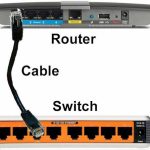
To connect a router to a switch, simply plug an Ethernet cable into an available LAN port on the router and connect the other end to any port on the switch. This setup creates a seamless network allowing multiple devices to communicate and access the internet efficiently. Make sure your switch and router are powered on and configured properly for smooth operation.
Connecting a router to a switch is a straightforward task that expands your network and boosts connectivity. Whether you’re setting up a home office or a larger workspace, understanding how to link these devices ensures your network runs smoothly. The process involves basic Ethernet connections and a few configuration steps, making it accessible even for beginners. Once connected, your switch acts as a hub, distributing internet and network access to multiple devices without the need for additional routers. Keep in mind that proper setup helps avoid IP conflicts and ensures optimal performance. Here’s everything you need to know to get your network up and running quickly and effortlessly.

How to Connect Router to Switch: A Step-by-Step Guide
Connecting a router to a switch is a common task that helps expand your network and improve connectivity across multiple devices. Whether you want to set up a small home network or a larger office environment, understanding this process is essential. This guide will walk you through each step, making sure your devices communicate smoothly and efficiently.
Understanding the Basics of Routers and Switches
Before we dive into the connection process, it’s important to understand what routers and switches do. A router connects different networks together, such as your home network to the internet. A switch, on the other hand, links multiple devices within the same network, allowing them to communicate with each other.
Both devices are crucial for building a reliable network. When you connect a router to a switch, you extend your network’s capacity, supporting more devices and better management. Recognizing their roles helps ensure proper setup and troubleshooting.
Gathering the Necessary Equipment
To connect your router to a switch, you need a few essential components. First, ensure you have a functional router and a switch compatible with your network needs. Additionally, you will need:
- Ethernet cables: Usually, Cat 5e or Cat 6 cables work well for most setups.
- Power adapters: Make sure your devices are powered properly.
- A computer or device: For configuration purposes if needed.
Having all these ready before starting will make the process smooth and hassle-free.
Step-by-Step Process to Connect Router to Switch
Step 1: Turn Off Your Devices
Before connecting any cables, power off both the router and the switch. This prevents potential electrical issues and ensures a safe connection process.
Step 2: Choose the Correct Ethernet Ports
Locate an available LAN port on your router and an Ethernet port on your switch. These are typically labeled as “LAN” on routers and numbered on switches.
Step 3: Use an Ethernet Cable to Connect Devices
Plug one end of the Ethernet cable into an available LAN port on your router. Connect the other end to any available port on the switch. Avoid using the uplink or WAN ports for this connection unless specified by your networking equipment.
Step 4: Power On the Devices
Turn on your switch first, then your router. Wait for both devices to complete their startup sequence. Indicators such as LED lights will confirm proper connection and operation.
Step 5: Verify the Connection
Check the LED indicators on both devices. The LAN port on the router and the switch should have blinking or solid lights showing an active connection. You can also test the network by connecting a computer to the switch and checking internet access.
Configuring Your Network After Connection
Adjusting Router Settings
Access your router’s admin panel via a web browser—usually by typing its IP address like 192.168.1.1. Log in using your credentials and verify that DHCP is enabled to assign IP addresses automatically.
Setting Up Your Switch
Most unmanaged switches do not require additional configuration. However, if you have a managed switch, access its interface to set up VLANs or quality of service features as needed.
Additional Tips for a Successful Connection
- Use quality Ethernet cables: Poor cables can cause connectivity issues.
- Keep firmware updated: Regularly update your router and switch for security and performance improvements.
- Proper cable management: Avoid tangled cables to simplify troubleshooting and maintenance.
- Place devices optimally: Position the router and switch in central locations to maximize network coverage.
Common Troubleshooting Scenarios
No Internet Access After Connecting
Ensure all cables are firmly connected and powered on. Restart your router and check the LED indicators.
Slow Network Speeds
Verify that your Ethernet cables support the required speed and replace any old or damaged cables. Also, check for network congestion or interference.
Devices Not Detecting the Switch
Confirm that the switch is powered, the cables are properly plugged in, and the switch’s ports are functioning correctly. Test with different ports if necessary.
Related Topics for Better Network Expansion
- Adding additional switches: Extending your network beyond the first switch.
- Wireless routers and switches: Combining wired and wireless setups for flexible connectivity.
- Network security tips: Protecting your network from unauthorized access after expansion.
Connecting a router to a switch is a straightforward process that significantly enhances your network capabilities. Proper equipment, correct cabling, and careful setup ensure a stable and fast connection. Remember to keep devices updated and organized for the best performance.
How to Set Up an Ethernet Switch | Internet Setup
Frequently Asked Questions
What type of Ethernet cable should I use to connect my router to a switch?
Use a straight-through Ethernet cable, typically a Cat5e or Cat6 cable, to connect your router to the switch. These cables are widely available and suitable for most network setups. Ensure the cable length is sufficient for your setup without stressing or stretching the cable.
Where should I connect the Ethernet cable on each device?
Connect one end of the Ethernet cable to a LAN port on your router. Plug the other end into any available port on the switch. Make sure both ports are active and that the cables are securely inserted to establish a reliable connection.
Do I need to configure any settings after physically connecting the router and switch?
In most cases, no additional configuration is necessary. However, ensure that your router’s DHCP server is enabled so devices can obtain IP addresses automatically. If you assign static IP addresses, configure them to match your network’s subnet to prevent conflicts.
Can I connect multiple switches to my router using the same method?
Yes, you can connect multiple switches to your router by using Ethernet cables from the router’s LAN ports or from a switch to another switch. Just ensure that your network’s capacity supports the number of devices and that you avoid creating loops, which can disrupt network performance.
What should I check if my devices do not recognize the network after connecting the router to the switch?
Verify that all Ethernet cables are properly connected and functioning. Check that the switch is powered on and that the ports are active. Also, confirm that your router’s DHCP server is enabled and that your devices are set to obtain IP addresses automatically. Restarting devices can also resolve connection issues.
Final Thoughts
Connecting a router to a switch involves a simple Ethernet cable. First, plug one end into the router’s LAN port and the other into the switch’s port. Ensure both devices are powered on. This setup allows devices connected to the switch to access the internet via the router.
To ensure proper functionality, verify the connections and configure network settings if needed. Often, no additional configuration is necessary if DHCP is enabled on the router.
In conclusion, understanding how to connect router to switch makes expanding your network straightforward. Proper connection methods ensure reliable connectivity and optimal network performance.