
Want to blast music from multiple Bluetooth speakers at your office party? It’s easier than you think! This guide shows you how to link up two or more speakers for an awesome, room-filling sound experience, making your next office bash unforgettable.
Hey there, tech adventurers! Max here from AffTechy.com. Ever feel like one speaker just isn’t enough to get a party going? You know, you’ve got your favorite playlist ready, the office is buzzing, but the sound is kinda… contained? I’ve been there! Picking out speakers can feel like a puzzle sometimes, with all those technical terms flying around.
But what if I told you that you can take your audio experience from “nice” to “WOW” by using more than one Bluetooth speaker? Imagine filling the entire office with crystal-clear sound, making your next get-together truly epic. It’s not as complicated as it sounds, and I’m here to make it super simple for you.
We’re going to dive into how you can connect multiple Bluetooth speakers to one device. Whether you’re using your phone, tablet, or computer, we’ll cover the magic that makes it happen. Get ready to level up your office parties with awesome sound everywhere. Let’s break it down step by step!

Why Connect Multiple Bluetooth Speakers?
Think about your favorite movie scene or a song that just gives you chills. Great sound makes a huge difference, right? For an office party, you want that immersive feeling. You want everyone to hear the music clearly, no matter where they are in the room.
Using just one speaker can leave some areas with weak sound. It’s like having a great conversation but only one person can hear you! By connecting multiple speakers, you spread the sound evenly. This means no more “dead zones” where the music fades away.
It’s also about creating an atmosphere. Multiple speakers can give you a richer, fuller sound. You might even be able to create a stereo effect, making the music feel more alive and dynamic. Your colleagues will definitely notice the upgrade!
Let’s Talk About Sound (The Easy Way)
So, how does all this sound magic happen? Bluetooth is a wireless technology that lets devices talk to each other over short distances. For a long time, Bluetooth devices could only connect to one other device at a time. You could connect your phone to your headphones, or your laptop to a speaker, but not your phone to two speakers at once.
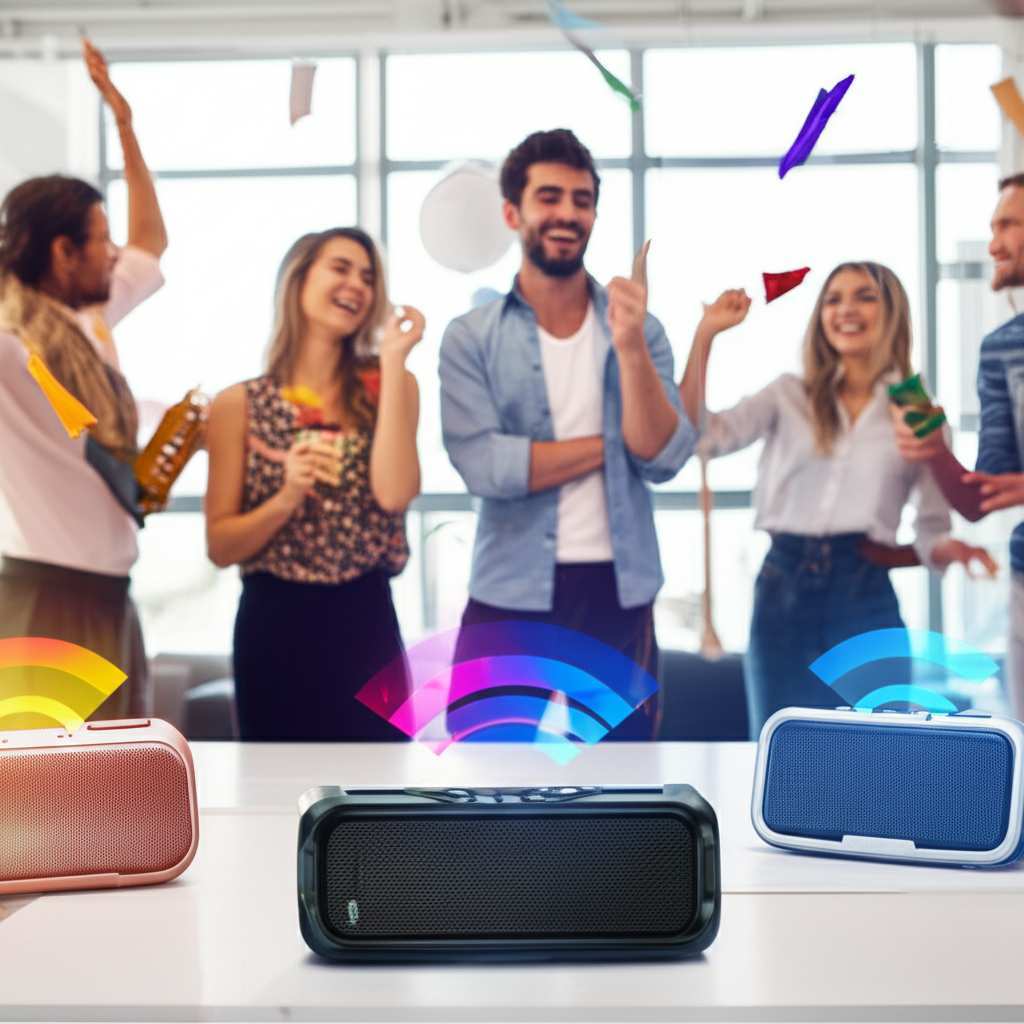
This is where things get exciting! Manufacturers realized that people wanted more. They wanted to fill bigger spaces or create a more powerful sound experience. So, they developed new ways to send audio to multiple speakers simultaneously using Bluetooth. It’s like upgrading from a one-lane road to a multi-lane highway for your music!
Your Phone & Multiple Speakers: The Dream Team
Most of us use our smartphones to play music. The good news is that modern smartphones are pretty good at handling multiple Bluetooth connections. However, not all phones are created equal when it comes to simultaneously playing audio through multiple speakers.
There are a few ways this can work:
- Built-in Phone Features: Some phone operating systems have features that let you connect to multiple audio devices.
- Speaker-Specific Apps: Many speaker brands have their own apps that allow you to pair and control multiple speakers from the same brand.
- Third-Party Apps: There are also apps that claim to help you connect multiple speakers, but they can be hit or miss.
We’ll explore these in more detail. For an office party, the goal is simple: great sound, no hassle.
Method 1: The “True Wireless Stereo” (TWS) Magic
This is one of the most common and easiest ways to connect multiple speakers. Many portable Bluetooth speakers come with a feature called “True Wireless Stereo” or TWS. This lets you pair two identical speakers together to act as a left and right stereo pair.
Here’s how TWS typically works:
- Turn on both speakers. Make sure they are both fully charged or plugged in.
- Put them in pairing mode. Usually, there’s a dedicated TWS button, or you might need to press and hold the Bluetooth button on one of them. Check your speaker’s manual for the exact steps.
- Pair the speakers to each other. One speaker will act as the “master” and the other as the “slave.” They’ll communicate with each other.
- Connect your phone to the master speaker. Once the speakers are linked, you’ll only see one of them in your phone’s Bluetooth list. Connect your phone to that master speaker.
- Enjoy stereo sound! Now, one speaker will play the left channel of the audio, and the other will play the right channel, giving you a much richer sound experience.
Pro Tip: TWS is fantastic for creating a stereo soundstage. It’s perfect if you have two of the same speaker model. It makes music sound so much more immersive!
Method 2: Manufacturer Apps for Multi-Speaker Sync
Some speaker brands have gone a step further. They allow you to connect more than two speakers, or even speakers of different models from the same brand, using their dedicated mobile app. Brands like JBL, Sony, and Bose often have such features.
Here’s a general idea of how these apps work:
- Download the App: First, find and download the official app for your speaker brand from your phone’s app store (like Google Play Store or Apple App Store).
- Turn on Speakers: Power up all the speakers you want to connect.
- Open the App: Launch the app and look for an option to add or connect speakers.
- Pair Speakers: The app will guide you through the process of finding and linking your speakers together. You might need to put each speaker in a specific pairing mode as the app instructs.
- Connect Your Device: Once the speakers are linked via the app, you’ll connect your phone or other audio source to just one of the speakers. The app then distributes the audio to all the connected speakers.
Example: JBL’s Connect+ or PartyBoost app lets you link many JBL speakers together. Sony’s Music Center app offers similar functionality for their speakers. It’s a great way to fill a large office space with synchronized sound.
Fun Fact: Some of these apps allow you to control the volume and even customize EQ settings for all connected speakers from one place! It’s like having a mini soundboard in your pocket.
Method 3: Your Phone’s Built-in Audio Sharing
This is where things can get a little trickier, and it heavily depends on your phone’s operating system and Bluetooth version. Some newer phones, especially iPhones, have features that allow them to output audio to two Bluetooth devices simultaneously.
For iPhones (iOS 13 and later)
Apple has a feature called “Audio Sharing” which is pretty neat. It lets you share audio from your iPhone or iPad to two sets of compatible AirPods or Beats headphones, and sometimes even two Bluetooth speakers if they support the standard.
Here’s how to try it:
- Connect your first speaker: Pair and connect your first Bluetooth speaker to your iPhone as you normally would.
- Connect your second speaker: Pair and connect your second Bluetooth speaker to your iPhone.
- Open Control Center: Swipe down from the top-right corner of your screen (or up from the bottom on older iPhones) to open Control Center.
- Tap the AirPlay icon: In the Now Playing widget, tap the AirPlay icon (it looks like a triangle with a circle above it).
- Select “Share Audio”: If your second speaker is compatible and connected, you might see an option to “Share Audio” or a “+” icon to add another device. Follow the on-screen prompts.
Important Note: This feature is primarily designed for headphones. Its compatibility with two Bluetooth speakers can vary greatly. It’s worth a try, but don’t be surprised if it doesn’t work for every speaker model.
For Android Devices
Android’s capabilities here have been evolving. Older Android versions or some specific phone models might not natively support playing audio to two Bluetooth speakers at once. However, some newer Android versions and manufacturers are adding this feature.
Look for settings like:
- Dual Audio: Samsung phones often have a “Dual Audio” option in their Bluetooth settings. This allows you to play audio to two devices simultaneously.
- Advanced Bluetooth Settings: Explore your phone’s Bluetooth settings for any advanced options related to audio output or multi-device connections.
How to check for Dual Audio on Samsung:
- Go to Settings > Connections > Bluetooth.
- Tap the three dots menu (More options) in the top right.
- Select “Advanced”.
- Toggle on “Dual Audio”.
- Connect your first speaker. Then, go back to Bluetooth, tap the three dots menu again, and select “Show system apps” if needed. You might see an option to connect a second audio device.
Keep in Mind: Not all Android phones have this feature. If you don’t see it, you might need to rely on manufacturer apps or TWS for your office party.
Method 4: Third-Party Apps (Use with Caution!)
There are apps on the app stores that claim to let you connect multiple Bluetooth speakers. Apps like AmpMe or SoundSeeder are examples. These apps often work by having all users install the app and sync their devices to play the same music.
How they generally work:
- Install the App: Everyone who wants to contribute sound downloads the app.
- Host or Join: One person acts as the “host” and starts a playlist.
- Sync: Other users join the host’s session, and their phones then send the music to their own connected Bluetooth speakers.
The Catch: These apps can be a bit complex to set up, especially for a large office party where not everyone is tech-savvy. They also rely on good network connections between devices. Sometimes, the audio might not be perfectly synchronized, leading to a slight echo effect. For a simple office party, sticking to TWS or manufacturer apps is usually more reliable.
Choosing the Right Speakers for Your Party
If you’re looking to buy new speakers for your office parties, here are a few things to consider:
Key Features to Look For:
- TWS Capability: If you plan to buy two speakers, make sure they support TWS. This is the easiest way to get stereo sound.
- Manufacturer Multi-Speaker App: If you want to connect three or more speakers, check if the brand offers an app that supports this.
- Battery Life: For a party, you don’t want speakers dying halfway through! Look for speakers with long battery life.
- Sound Quality: Read reviews! Some speakers sound great at low volumes but distort at higher ones.
- Portability & Durability: Are they easy to move around the office? Are they built to last?
- Water Resistance (Optional): If there’s any chance of drinks spilling, a water-resistant speaker is a good idea.
Speaker Comparison Table: Popular Options
Here’s a look at some popular speaker types and what makes them good for parties:
| Speaker Type | TWS Support | Multi-Speaker App | Typical Battery Life | Best For |
|---|---|---|---|---|
| JBL Flip Series | Yes (Pair 2) | JBL Connect+ / PartyBoost (Link many JBL speakers) | 12-15 hours | Portable, great sound, easy multi-speaker linking. |
| Sony SRS-XB Series | Yes (Pair 2) | Sony Music Center (Link multiple Sony speakers) | 15-24 hours | Deep bass, long battery, good for larger spaces. |
| Bose SoundLink Series | Yes (Pair 2) | Bose Connect App (Link 2 speakers for stereo) | 12-15 hours | Excellent sound clarity, premium feel. |
| Anker Soundcore Series | Yes (Pair 2) | Soundcore App (Link many speakers) | 15-24 hours | Great value, long battery, robust app features. |
This table gives you a quick snapshot. For instance, if your office has a lot of space, a speaker with longer battery life and good app support like the Sony SRS-XB series might be perfect. If you just want a simple stereo setup, any speaker with TWS will do a great job!
For more in-depth reviews and comparisons, check out resources like CNET’s best Bluetooth speakers guide.
Setting Up for the Office Party: Step-by-Step
Okay, let’s get your office party sounding amazing. Here’s a clear plan:
Step 1: Choose Your Method
Decide which method works best for your speakers and phone:
- Two identical speakers? Use TWS.
- Multiple speakers from the same brand? Use the manufacturer’s app.
- iPhone and two compatible speakers? Try Audio Sharing.
- Samsung phone with Dual Audio? Enable that feature.
Step 2: Prepare Your Speakers
- Charge them up: Make sure all speakers are fully charged or plugged into power outlets. You don’t want the music to stop early!
- Update firmware (if needed): Some speakers get better performance with firmware updates. Check the manufacturer’s app for any available updates.
- Reset if necessary: If a speaker is acting up, try resetting it to factory settings. Consult your manual.
Step 3: Connect Your Speakers
Follow the steps for your chosen method:
- For TWS: Turn on both speakers. Press the TWS button on one (or both, depending on instructions) to link them. Wait for the confirmation light or sound.
- For Manufacturer App: Open the app. Add your speakers one by one, following the app’s prompts. Ensure they are all recognized and linked in the app.
- For Phone Audio Sharing (iPhone/Android): Connect your first speaker. Then, try to connect the second one and use the sharing/dual audio feature in your phone’s settings or control center.
Step 4: Connect Your Phone (or Audio Source)
Once your speakers are linked to each other:
- Find the “Master” Speaker: If using TWS or a manufacturer app, you’ll typically connect your phone to just one of the speakers. This is often called the “master” or “primary” speaker.
- Pair via Bluetooth: Go to your phone’s Bluetooth settings, find the name of the master speaker, and tap to connect.
- If using Phone’s Direct Sharing: You might connect both speakers directly to your phone, and then use the phone’s feature to play audio to both.
Step 5: Test the Sound
Play a song! Walk around the party area. Does the sound seem balanced? Is it loud enough? Are all speakers playing the same thing without a noticeable delay?
Troubleshooting Tip: If you hear an echo or delay, it might mean the speakers aren’t perfectly synchronized. Try unpairing and re-pairing them. Sometimes, turning Bluetooth off and on again on your phone helps.
Tips for an Amazing Office Party Sound Experience
Here are some extra tips to make your office party sound setup a huge success:
- Placement is Key: Don’t just put all speakers in one corner. Spread them out to cover the whole area evenly. Try placing them at different heights or corners for wider sound distribution.
- Avoid Obstructions: Walls, furniture, and even large groups of people can block sound waves. Try to keep speaker placement clear.
- Volume Control: Start with a moderate volume and gradually increase it. You don’t want to blast everyone away right at the start! Use your phone or the speaker’s controls to adjust.
- Music Choice Matters: Upbeat, energetic music works best for parties. Consider a collaborative playlist where colleagues can add their favorites.
- Backup Plan: Always have a backup. Maybe have a smaller, portable speaker ready just in case one of the main ones has an issue.
- Test Before the Party: Do a full test run a day before the event. This way, you can fix any problems without the pressure of guests waiting.
Interesting Stat: Sound intensity decreases with distance. Doubling the distance from a speaker can reduce the perceived loudness by about 6 decibels, which is quite noticeable!
Frequently Asked Questions (FAQ)
Q1: Can I connect any two Bluetooth speakers together?
A1: Not usually. Most Bluetooth speakers can only connect to one device at a time. To connect two speakers to play the same audio, they typically need to support a specific feature like TWS, or be linked via a manufacturer’s app or your phone’s special audio sharing feature.
Q2: Do I need to buy two of the exact same speaker model to use TWS?
A2: Yes, for True Wireless Stereo (TWS), you almost always need two identical speakers. They are designed to work as a matched pair. Manufacturer apps might allow linking different models, but TWS is usually model-specific.
Q3: Will connecting multiple speakers drain my phone battery faster?
A3: Yes, a little. Your phone’s Bluetooth radio will be working harder to communicate with multiple devices simultaneously. It’s a good idea to have your phone fully charged or keep a power bank handy for longer parties.
Q4: Is there a limit to how many speakers I can connect?
A4: It depends on the technology. TWS usually supports only two speakers. Manufacturer apps can often link 3, 10, or even more speakers. Your phone’s direct audio sharing features might be limited to two devices.
Q5: What if my speakers don’t support TWS or a linking app?
A5: If your speakers don’t have these features, you generally can’t connect them to play the same audio simultaneously from a single source. You might need to consider upgrading to speakers that support these multi-speaker technologies for your parties.
Q6: How do I know if my phone supports connecting to multiple Bluetooth audio devices?
A6: Check your phone’s Bluetooth settings for options like “Dual Audio” (common on Samsung) or explore advanced Bluetooth settings. For iPhones (iOS 13+), look for “Audio Sharing” in the Control Center when two devices are connected. If you don’t see these, your phone likely doesn’t support it natively.
Q7: Can I mix brands of speakers?
A7: Generally, no. You can’t usually mix speakers from different brands and expect them to link up automatically. For multi-speaker setups, stick to speakers from the same brand that support their specific linking technology.
Conclusion: Your Office Parties Just Got Louder!
See? Connecting multiple Bluetooth speakers isn’t some mystical tech wizardry. With TWS, manufacturer apps, or even your phone’s smart features, you can transform your office parties from good to absolutely fantastic. You’ve learned how to choose the right speakers, set them up, and troubleshoot common issues.
So, next time you’re planning an office event, don’t settle for one speaker struggling to fill the room. Embrace the power of synchronized sound! Experiment with TWS if you have two identical speakers, explore the app options for more, and enjoy the richer, more immersive audio experience.
Now go forth, connect those speakers, and make every office gathering a memorable sonic celebration. Your colleagues (and your ears) will thank you for it!


