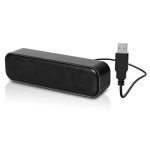
Connecting your MacBook to a Bluetooth speaker is super simple! Just follow a few easy steps to pair them up and enjoy your music, podcasts, or movies with awesome sound.
Hey there, tech adventurer! Ever feel like your MacBook’s built-in speakers just don’t cut it for that epic movie night or your favorite playlist? I totally get it. Sometimes, you just need that extra oomph, that richer sound that only a dedicated speaker can bring. But then comes the tech part – how do you actually get your MacBook to talk to that cool Bluetooth speaker? It can seem a bit daunting with all those buttons and settings, right?
Well, that’s where I come in! Think of me as your friendly guide through the wonderful world of gadgets. We’re going to make connecting your MacBook to a Bluetooth speaker as easy as, well, hitting play on your favorite song. No confusing jargon, no techy headaches, just straightforward steps. We’ll get you from “hmm, how does this work?” to “wow, that sounds amazing!” in no time. Ready to boost your audio game? Let’s dive in!
Let’s Talk About Sound: Why a Bluetooth Speaker Rocks
Imagine this: you’re chilling, ready to watch a movie, but the dialogue is a little muffled, and the explosions don’t quite rumble. A good Bluetooth speaker changes all that. It fills your room with clear, powerful sound, making everything you watch or listen to way more immersive. It’s like upgrading from a tiny radio to a full concert hall experience, right in your living room.

And the best part? Wireless freedom! No messy cables to trip over or hide. You can place your speaker anywhere, move it around, and even take it outside for a backyard hangout. Plus, they’re super portable, so your amazing sound can follow you from room to room or even on vacation. It’s all about making your tech work for you, effortlessly.
Getting Your MacBook Ready for Bluetooth
Before we connect, let’s make sure your MacBook is all set. Most MacBooks made in the last decade or so have Bluetooth built-in, so chances are, you’re good to go! You just need to make sure it’s turned on. It’s usually active by default, but it’s always good to double-check.
Think of Bluetooth like a secret handshake between devices. Your MacBook needs to know it’s ready to “talk” to other gadgets wirelessly. We’ll just take a quick peek to make sure that feature is switched on. It’s a small step, but it’s key to unlocking all that wireless audio goodness.
Step-by-Step: Connecting Your MacBook to a Bluetooth Speaker
Alright, let’s get down to business! This is the fun part where we actually make the magic happen. Don’t worry, it’s way simpler than assembling furniture. We’ll go through each step together, nice and slow.

Step 1: Power Up Your Bluetooth Speaker and Put it in Pairing Mode
First things first, grab your Bluetooth speaker and turn it on. You’ll usually see a little light blink or hear a soft chime to let you know it’s ready. Now, here’s the crucial part: you need to put it in “pairing mode.”
This mode tells the speaker, “Hey, I’m looking for a new device to connect to!” How you do this varies by speaker. Sometimes there’s a dedicated Bluetooth button you press and hold. Other times, it might be a combination of buttons, or it could even happen automatically when you first turn it on. Check your speaker’s manual if you’re unsure – it’s usually a pretty simple instruction.
For example, many speakers have a Bluetooth icon (it looks like a little B with some wavy lines) on them. Pressing and holding this button for a few seconds is often all it takes. You’ll usually see a blinking light on the speaker to confirm it’s in pairing mode.
Step 2: Open Bluetooth Settings on Your MacBook
Now, let’s switch over to your MacBook. We need to tell it to look for available Bluetooth devices. It’s like opening a window to see who’s out there.
Click on the Apple menu in the top-left corner of your screen. From the dropdown menu, select “System Settings” (on newer macOS versions) or “System Preferences” (on older versions). This will open up a window with lots of options.
Step 3: Find and Turn On Bluetooth
Once you’re in System Settings or System Preferences, look for the “Bluetooth” option. It’s usually pretty easy to spot. Click on it.
If Bluetooth is off, you’ll see a toggle switch. Click that switch to turn it ON. You’ll know it’s on when the switch turns blue or green, depending on your macOS version. Your MacBook will then start scanning for any nearby Bluetooth devices that are in pairing mode.
Step 4: Select Your Speaker from the List
On the Bluetooth screen, you’ll see a list of devices. Under “Nearby Devices” or “Devices,” you should see the name of your Bluetooth speaker appear. It might take a few seconds, so be patient!
Once you see your speaker’s name pop up, click the “Connect” button next to it. It’s that simple! Your MacBook will try to pair with the speaker.
Step 5: Confirm the Connection
Your MacBook might ask you to confirm the pairing. Sometimes it’s just a click, other times it might involve entering a code (though this is rare for speakers). If prompted, just follow the on-screen instructions.
Once successfully paired, your speaker’s name will move to the “My Devices” or “Connected Devices” list, and the blinking light on the speaker will usually turn solid. You might even hear a little “connected” sound from the speaker itself. Success!
Step 6: Play Some Tunes!
Now for the best part – testing it out! Open your favorite music app, podcast player, or video. Play something and see how it sounds. You might need to adjust the volume on both your MacBook and the speaker to get it just right.
If you don’t hear sound immediately, don’t panic! Sometimes you need to tell your MacBook to use the Bluetooth speaker as its audio output. Go back to System Settings/Preferences, find “Sound,” and under the “Output” tab, select your Bluetooth speaker. Easy peasy!
Troubleshooting: When Things Don’t Go as Planned
Sometimes, even with the best intentions, tech can be a little stubborn. If your MacBook isn’t connecting to your Bluetooth speaker, don’t get frustrated! We’ve all been there. Here are a few common hiccups and how to fix them.
Speaker Not Showing Up?
Double-check Pairing Mode: Make sure your speaker is definitely in pairing mode. Try turning it off and on again, then putting it back into pairing mode.
Bring Them Closer: Bluetooth has a limited range. Move your speaker closer to your MacBook, ideally within a few feet, to ensure a strong connection.
Other Devices Interfering? If your speaker is already connected to another device (like your phone), it might not be discoverable. Disconnect it from the other device first.
Restart Both Devices: The classic tech fix! Turn off your speaker and restart your MacBook. Then try pairing again.
Connected, But No Sound?
Check Audio Output: As mentioned before, go to System Settings/Preferences > Sound > Output on your MacBook and make sure your Bluetooth speaker is selected as the audio output device.
Volume Check: Is the volume turned up on both your MacBook and the speaker? Sometimes one is set low, making it seem like nothing is working.
Try a Different App: Play something from a different app to see if the issue is with a specific program.
Re-pair the Device: Sometimes, simply removing the speaker from your MacBook’s Bluetooth list and then pairing it again can solve connection glitches.
Connection Drops Frequently?
Interference: Other wireless devices (like Wi-Fi routers or microwaves) can sometimes interfere with Bluetooth signals. Try moving your speaker and MacBook away from potential sources of interference.
Low Battery: A speaker with a low battery might have trouble maintaining a stable connection. Charge your speaker fully.
Outdated Software: Ensure your macOS is up-to-date. Sometimes, software updates include improvements for Bluetooth connectivity.
Fun Facts About Bluetooth Technology
Did you know Bluetooth technology is named after a Viking king? That’s right, Harald Bluetooth united Danish tribes back in the 10th century, and the inventor of Bluetooth, Jim Kardach, thought naming the wireless technology after him was fitting because it was meant to unite different communication protocols. Pretty cool, huh?
Bluetooth works by using short-wavelength UHF radio waves. This allows devices to communicate with each other over short distances, typically up to 30 feet (10 meters), though some newer versions can reach much further. It’s a robust system designed for simplicity and convenience.
Choosing the Right Bluetooth Speaker for Your MacBook
While connecting is the main event, picking the right* speaker can make your audio experience even better. Think about what you’ll use it for most.
Here’s a quick look at some factors to consider:
| Feature | What it Means | Why it Matters for Your MacBook |
|---|---|---|
| Sound Quality | Clarity, bass response, and overall richness of the audio. | Makes music, movies, and calls sound better. |
| Battery Life | How long the speaker can play music on a single charge. | Essential for portability and longer listening sessions. |
| Portability | Size, weight, and durability of the speaker. | Great for moving it around your house or taking it outdoors. |
| Connectivity Options | Besides Bluetooth, does it have an aux input or NFC? | More ways to connect if Bluetooth has issues or for older devices. |
| Water Resistance | Ability to withstand splashes or submersion in water. | Perfect for use near pools, in the bathroom, or outdoors. |
When you’re looking at speakers, think about where you’ll be using it. If it’s for your desk, a smaller, more compact speaker might be perfect. If you want to fill a whole room or use it for parties, you’ll want something with more power and better bass. Brands like Bose, JBL, and Sony offer a wide range of options, from tiny portable units to larger sound systems. For more insights, check out reviews on sites like CNET.
Popular Bluetooth Speaker Features to Look For
Many speakers come with extra goodies that make them even more appealing. Here are a few to keep an eye out for:
- Multi-Point Pairing: This lets your speaker connect to two devices at once. So, you could be listening to music from your MacBook and then instantly take a call from your iPhone without re-pairing. Super handy!
- Voice Assistant Integration: Some speakers have built-in assistants like Siri, Google Assistant, or Alexa. You can use voice commands to play music, get information, or control smart home devices.
- Stereo Pairing: If you buy two identical speakers, you can often pair them together to create a true stereo sound experience. This makes music sound much richer and more immersive.
- App Control: Many brands offer companion apps that let you customize EQ settings, update firmware, or manage your speaker’s features right from your MacBook or iPhone.
Comparing Speaker Specs: What’s the Deal?
Sometimes, speaker specs can look like a foreign language. Let’s break down a couple of common ones you might see when shopping.
| Specification | Typical Range | What it Means for You |
|---|---|---|
| Bluetooth Version | 4.0, 4.2, 5.0, 5.1, 5.2, 5.3 | Higher numbers generally mean better efficiency, range, and stability. Bluetooth 5.0 and newer are great for a consistent connection with your MacBook. |
| Driver Size | 1.5 inches to 4 inches (or larger for big speakers) | Larger drivers usually produce deeper bass and a fuller sound. |
| Wattage (W) | 10W to 100W+ | Indicates the speaker’s power output. Higher wattage usually means it can get louder without distortion, good for larger spaces. |
| Frequency Response | e.g., 50Hz – 20kHz | This shows the range of sound frequencies the speaker can reproduce. Lower numbers mean better bass, and higher numbers mean better treble. A wider range is generally better. |
Don’t get too bogged down by every single number. For most users, focusing on Bluetooth version, driver size, and overall wattage will give you a good idea of what to expect. A speaker with Bluetooth 5.0 and a decent wattage will likely provide a great experience for connecting to your MacBook.
Frequently Asked Questions (FAQ)
Got more questions buzzing around? No worries, here are some common ones!
- Q1: Can I connect multiple Bluetooth speakers to my MacBook at once?
- Generally, MacBooks can only connect to one audio output device at a time via Bluetooth for a single audio stream. However, some advanced software or specific speaker setups might allow for multi-speaker systems, but it’s not a standard feature for simple pairing.
- Q2: Will connecting a Bluetooth speaker drain my MacBook’s battery faster?
- Yes, using Bluetooth does consume a bit of battery power on your MacBook, as it’s actively transmitting a signal. However, modern Bluetooth technology is very efficient, so the impact is usually minimal for everyday use.
- Q3: How do I disconnect my MacBook from a Bluetooth speaker?
- It’s super easy! Go to System Settings/Preferences > Bluetooth. Find your speaker in the “My Devices” list, and click the “Disconnect” or “X” button next to it. Or, simply turn off Bluetooth on your MacBook.
- Q4: My speaker connects to my phone but not my MacBook. What’s wrong?
- This usually means the speaker is already connected to your phone. Disconnect it from your phone first, then try pairing it with your MacBook. Also, ensure your MacBook’s Bluetooth is on and discoverable.
- Q5: Is it better to use a wired connection or Bluetooth for my speaker?
- For convenience and freedom of movement, Bluetooth is fantastic. For the absolute highest audio fidelity with no potential for interference or compression, a wired connection (like an aux cable) can sometimes be superior, but the difference is often subtle for casual listening.
- Q6: How do I update my Bluetooth speaker’s firmware?
- Most modern Bluetooth speakers that have companion apps allow you to update firmware through that app. Check your speaker manufacturer’s website or the app store for their dedicated app. Updates can improve performance and fix bugs.
Enjoy Your Amplified Audio Experience!
And there you have it! Connecting your MacBook to a Bluetooth speaker is a breeze once you know the steps. We’ve covered powering up, pairing, troubleshooting, and even choosing a new speaker. It’s all about making your tech work for you and enhancing your everyday listening.
Remember, the goal is to enjoy your favorite sounds with the best quality possible. Don’t be afraid to experiment a little, try out different speakers if you can, and most importantly, have fun with it! Technology is meant to be enjoyed, and great sound can make a big difference in your day.
Now go forth and experience your music, podcasts, and movies like never before. Your ears will thank you!