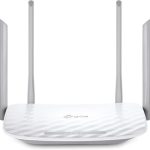
To quickly check your Wi-Fi router speed, run an online speed test like Ookla’s Speedtest or Fast.com. These tools give instant results on your current upload and download speeds, helping you identify if your connection meets your needs. For more accuracy, test at different times and locations within your home.
In just a few clicks, you can determine whether your Wi-Fi is performing optimally or if there’s room for improvement. Knowing your router’s speed helps troubleshoot issues and ensures you’re getting the service you’re paying for.
If you’re experiencing slow internet or frequent disconnects, checking your Wi-Fi router speed is the first step to diagnosing the problem. Many factors can affect your connection, from interference to outdated hardware, so it’s essential to verify your network’s performance regularly. Testing the speed isn’t complicated—just use a trusted online tool, and you’ll have the information you need to take action or contact your provider.

How to Check WiFi Router Speed: A Complete Guide
Understanding WiFi Router Speed
Knowing your WiFi router speed is essential to ensure you get the fastest internet connection possible. It helps you identify whether your internet service provider is delivering the promised speed. A router’s speed affects how quickly you can stream videos, play games, upload files, or browse websites.
The actual speed you experience depends on multiple factors including your router’s capabilities, your internet plan, and interference from other devices. Therefore, regularly checking your WiFi speed can help you troubleshoot issues and improve your overall internet experience.
Why Is Checking Your Router Speed Important?
Regularly testing your WiFi speed can reveal if your connection is slow or inconsistent. If your speed is below what your internet plan offers, you might need to troubleshoot or upgrade your equipment. It also helps determine if other devices or signals are affecting your network quality.
Additionally, knowing your router’s actual speed allows you to optimize your setup. You might find that moving your router or changing a few settings can significantly boost your WiFi performance.
Preparing to Check Your WiFi Speed
Before testing, it’s helpful to prepare your environment. Make sure no other devices are heavily using the internet during tests. For more accurate results, perform tests when your network is idle or during typical usage times.
Also, ensure your device is connected either via WiFi or Ethernet, depending on what you want to test. Using an Ethernet connection can give you the most precise measurement of your internet speed, as WiFi signals can fluctuate.
How to Use Online Speed Test Tools
One simple way to check your WiFi router speed is by using online tools. These tools measure your current download and upload speeds quickly. Popular options include Speedtest by Ookla, Fast.com, and Google’s Speed Test.
To use these:
- Connect your device to your WiFi network.
- Open your preferred browser and navigate to the speed test website.
- Click the “Go” or “Start” button, and wait for the results.
The results show your current download speed, upload speed, and ping. Keep in mind that speeds can vary depending on the website’s server and network traffic.
Performing Multiple Tests for Accurate Results
It’s best to run several tests at different times of the day to get a reliable picture of your WiFi speed. Testing during peak hours can reveal if your connection drops or slows down under heavy use.
Record each test result for comparison. This helps you identify patterns or issues that need fixing, such as slow speeds during certain times or when multiple devices are connected.
Using Your Router’s Admin Panel to Check Speed
Many routers come with built-in tools to monitor speed and network activity. To access this feature:
- Log in to your router’s admin panel using its IP address, usually 192.168.1.1 or 192.168.0.1.
- Enter your username and password. If you haven’t changed these, default credentials are often “admin” / “password.”
- Look for sections labeled “Status,” “Network,” or similar.
Some routers display real-time data transfer speeds, connected devices, and network usage. This can help you identify if a particular device or application is slowing down your connection.
Using Smartphone Apps to Test WiFi Speed
Many free apps make testing WiFi speeds easy directly from your phone. Popular apps include Speedtest by Ookla, FAST Speed Test, and Network Analyzer.
To test:
- Download and install your preferred app.
- Connect to your WiFi network.
- Open the app and start a speed test.
- Review the download and upload speeds displayed.
Apps also often provide insights into your network’s signal strength and help locate WiFi dead zones in your home.
Interpreting Your Speed Test Results
Understanding what your results mean helps in making decisions. For example:
- A download speed of 100 Mbps is fast enough for streaming 4K videos and gaming online.
- Upload speeds below 10 Mbps might slow down file sharing and video calls.
- Ping under 50 ms is ideal for gaming; higher ping indicates lag issues.
Compare your results with your internet plan. If your speeds are consistently lower, troubleshooting or upgrading might be necessary.
Troubleshooting Common WiFi Speed Issues
If your tests show lower-than-expected speeds, try these troubleshooting tips:
Check Your Internet Plan
Verify your plan offers the speeds you’re testing. Call your provider if necessary.
Restart Your Router
A simple reboot can resolve temporary glitches affecting speed.
Update Router Firmware
Keeping your router’s firmware current can improve performance and security.
Position Your Router Properly
Place your router in a central location, away from obstacles and electronic interference.
Limit Devices and Background Apps
Reduce the number of devices connected during testing and pause any background downloads or streaming.
Use a Wired Connection
Ethernet connections are faster and more stable than WiFi, suitable for critical tasks.
Upgrading Your WiFi Router for Better Speeds
If your current router can’t deliver the speeds you need, upgrading might be essential. Look for routers supporting the latest standards like WiFi 6 or WiFi 6E for faster connections.
Consider your home size and the number of devices connected. Mesh WiFi systems can help eliminate dead zones for larger homes.
Additional Tips for Optimizing WiFi Performance
Enhance your network by:
- Changing your WiFi channel to avoid interference.
- Enabling Quality of Service (QoS) settings to prioritize bandwidth.
- Securing your network with a strong password to prevent unauthorized use.
- Using dual-band or tri-band routers to distribute devices across multiple frequencies.
Regularly testing and adjusting your setup ensures consistent, high-speed WiFi throughout your home.
Related Topics to Explore
To deepen your understanding, consider exploring:
How to Improve WiFi Signal Range
Difference Between WiFi 5 and WiFi 6
Best Practices for Securing Your Wireless Network
Choosing the Right Internet Service Provider
By following these steps and tips, you’ll be able to properly measure your WiFi router speed and take action to improve your internet experience. Remember, a well-optimized network makes a noticeable difference in your daily online activities.
How To Check Signal Strength On Wi-Fi Router
Frequently Asked Questions
What tools can I use to evaluate my Wi-Fi router’s performance?
You can use various online speed test websites such as Speedtest.net, Fast.com, or Google’s speed test to gauge your Wi-Fi router’s performance. These tools measure your internet download and upload speeds, providing a clear understanding of your connection quality. For more detailed analysis, some network monitoring applications like NetSpot or PingPlotter can help identify potential issues and assess your router’s capabilities more comprehensively.
How can I check the actual speed of my Wi-Fi connection at different locations in my home?
To measure your Wi-Fi speed in different areas, bring a device like a laptop or smartphone to each location and run a speed test using reliable apps or websites. Make sure other devices are not heavily using the network during testing to get accurate results. This approach helps you identify dead zones or areas with weak signals, guiding you to optimize your router placement or consider range extenders if necessary.
What steps should I take to verify if my router is operating at its maximum speed potential?
First, connect your device directly to the router with an Ethernet cable to eliminate Wi-Fi variability. Run a speed test to see if your connection matches your internet plan’s advertised speeds. Check your router’s specifications and firmware updates to ensure it’s functioning correctly. Additionally, review your network settings for any limitations or QoS configurations that might restrict bandwidth. Performing these checks helps confirm whether your router performs at expected levels.
How can I tell if my Wi-Fi speed issues are caused by the router or my internet service provider?
Start by connecting your device directly to the modem with an Ethernet cable and running a speed test. If speeds are high and stable, but wireless devices experience slower connections, the issue may lie with your router or Wi-Fi configuration. If wired speeds are low, contact your internet service provider to check for outages or plan limitations. Regularly updating your router firmware and optimizing its settings can also help improve wireless performance and determine where the bottleneck occurs.
Final Thoughts
To check wifi router speed, start by running an online speed test from your device. Ensure you’re connected to your Wi-Fi network during the test for accurate results.
Compare the results with your internet plan to see if your router delivers the expected speed. If the speeds are lower, restart your router or check for firmware updates.
Knowing how to check wifi router speed helps identify if your connection meets your needs. Regular testing ensures you get the most out of your internet service.