Can’t find your Bluetooth speaker’s power button? Don’t worry! You can often turn it on using its charging port, voice assistant, or by simply connecting your device. Let’s get your music playing fast!
Hey there, tech explorers! Ever had that moment where you just want to blast your favorite tunes, but your trusty Bluetooth speaker seems to be playing hide-and-seek with its power button? It’s a common little puzzle, and I get it. We all love the freedom that wireless sound gives us, whether it’s for a chill backyard party, an epic gaming session, or just making your morning coffee routine a bit more lively. Sometimes, though, technology throws us a curveball, and a missing or stubborn power button can feel like a major bummer.
But before you start thinking your speaker is a lost cause, take a breath! Most of the time, there’s a super simple fix. I’ve been there myself, fumbling around, wondering if I missed something obvious. That’s why I’m here to guide you through it, step by step. We’ll explore some clever ways to wake up your speaker without ever touching a power button. Think of me as your friendly tech sidekick, making all this gadget stuff feel like a walk in the park.
We’ll dive into how your speaker might be designed to turn on automatically, how charging can be your secret weapon, and even how some smart speakers can be woken up with just your voice. It’s all about understanding a few cool tricks that manufacturers build into these devices. So, get ready to unlock the hidden power of your speaker. Let’s break it down and get that sound flowing!
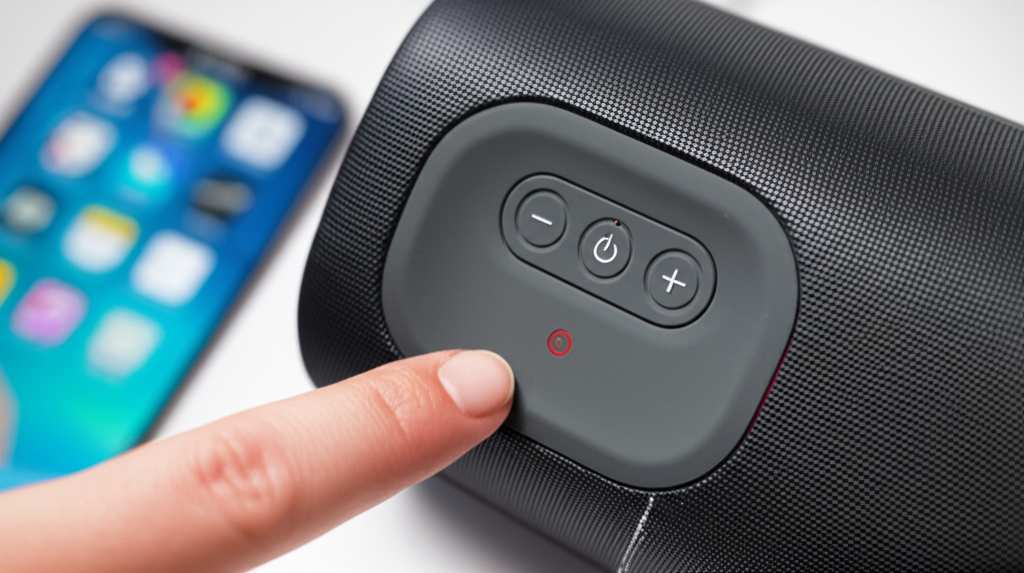
Why Your Bluetooth Speaker Might Not Have an Obvious Power Button
It sounds a bit strange, right? A speaker without a power button? But manufacturers are always looking for ways to make gadgets sleeker and easier to use. Sometimes, they design speakers to be super simple. This often means the button you’d expect to be the power button is actually for something else, or the speaker has an automatic on/off feature.
Think about your smartphone. You don’t usually “turn it on” with a power button in the same way you used to. It wakes up when you tap the screen or lift it. Bluetooth speakers can have similar smart features. They might be designed to power up automatically when they detect a connection or when they are plugged in to charge. It’s all about making things smoother for you.
The Quickest Way: How Charging Can Be Your “Power On” Switch
This is often the most common and easiest fix. Many Bluetooth speakers are designed to power on automatically as soon as they are connected to a power source. So, if you can’t find a power button, or if it’s just not responding, try plugging it in.
Grab the charging cable that came with your speaker. It’s usually a USB cable. Plug one end into the speaker’s charging port and the other into a power adapter or a USB port on your computer. You might see a small LED light turn on, indicating it’s charging. For many speakers, this is enough to wake them up and make them ready to pair.
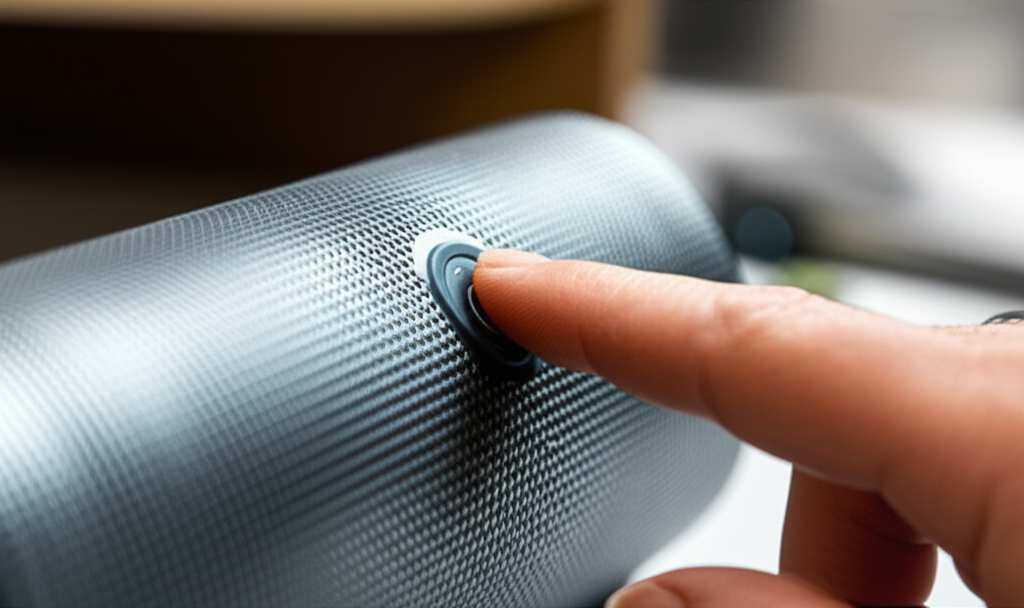
Here’s a little pro-tip: sometimes, the speaker might enter a low-power standby mode instead of fully shutting down. Plugging it in can give it that little jolt of energy it needs to become fully active and discoverable again. It’s like giving it a quick wake-up call!
The “Automatic On” Feature: It’s Smarter Than You Think!
Some modern Bluetooth speakers are built with convenience in mind. They’re programmed to turn themselves on when they detect a few specific things. The most common trigger is when a paired device tries to connect to it. So, if you’ve already paired your phone or tablet with the speaker, just try connecting through your device’s Bluetooth settings.
Go to your phone’s Bluetooth menu. Look for your speaker’s name in the list of available devices. If it’s already paired, you should see an option to connect. Tap it! If your speaker is in its low-power state, this connection attempt can often be enough to power it back up and establish a connection. It’s like the speaker knows you’re ready for music!
Another automatic trigger can be the presence of an audio signal. If the speaker detects an incoming audio stream, it might power on by itself to play it. This is less common for initial power-up but can be a lifesaver if the speaker seems to have powered down during playback.
Voice Commands: Your Speaker’s Secret Wake-Up Call (For Smart Speakers)
If you have a smart Bluetooth speaker, like one from the Amazon Echo or Google Nest family, it might have a voice-activated power-on feature. These speakers are always listening for their wake word, even when they seem off. This is a really neat trick that often bypasses the need for a physical button altogether.
For example, if you have an Amazon Echo Dot, you might say, “Alexa, turn on the speaker.” Or with a Google Nest Mini, you could say, “Hey Google, wake up.” The speaker is designed to respond to these commands even if it’s not actively playing music or in a fully powered-on state. It’s like having a personal assistant for your speaker!
It’s important to note that this feature is usually reserved for speakers with built-in voice assistants. If your speaker is a simpler model, this trick probably won’t work. But for smart speakers, it’s a game-changer and a great way to avoid hunting for buttons.
What If There’s No Button AND No Charging Fix? Let’s Investigate!
Okay, so you’ve tried charging, and you’ve tried connecting. Still no sound? Don’t despair just yet! There are a few other possibilities and troubleshooting steps we can explore. Sometimes, the “power button” isn’t a button at all, but a touch-sensitive area, or it might be disguised as something else.
Let’s talk about the physical design of your speaker. Many modern speakers have a very minimalist look. The power button might be a small, flush icon, or it could be integrated into the speaker grille or a touch-sensitive panel. Spend a few moments carefully examining the speaker’s surface, looking for subtle markings or areas that feel slightly different.
Common Speaker Designs and Their “Power” Quirks
Manufacturers get creative! Here are some common designs you might encounter and how they handle powering on:
Minimalist Button: A single, small, often round or square button. Sometimes it’s flush with the casing, making it hard to spot. It might be labeled with a power symbol (a circle with a line through it) or simply be the only button present.
Multi-Function Button: Some speakers have one button that does everything: power on/off, play/pause, and even skip tracks. You might need to press and hold it for a few seconds to turn it on.
Touch Controls: Instead of physical buttons, some speakers use touch-sensitive areas. These might be icons printed on the surface. You usually just tap or press and hold the power icon.
Automatic Activation: As we discussed, many speakers power on when charged or when a Bluetooth connection is initiated. There might not be a separate “power on” button at all.
Hidden Buttons: Occasionally, a button might be located on the bottom of the speaker, in a small recess, or on the back near ports. You might need to tilt the speaker to find it.
This table shows how different speaker types might handle powering on. It’s a good reminder that not all speakers are the same!
| Speaker Type | Primary Power-On Method | Secondary Power-On Method | Notes |
|---|---|---|---|
| Basic Portable Speaker | Physical Power Button (Press & Hold) | Connect to Charger | Button might be small or flush. |
| Smart Speaker (e.g., Echo Dot, Nest Mini) | Voice Command (Wake Word) | Connect to Charger / App Control | Always listening for wake word. |
| Waterproof/Rugged Speaker | Physical Power Button (Often on top or side) | Connect to Charger | Buttons may be slightly recessed for water resistance. |
| Ultra-Compact Speaker | Multi-Function Button (Play/Pause also Power) | Connect to Charger | Press and hold for power. |
| Speaker with Touch Controls | Touch-Sensitive Power Icon | Connect to Charger | Requires a gentle press or tap. |
See? There are many ways these little sound machines can get going. The key is to observe your specific speaker’s design and look for clues.
Troubleshooting Steps: When All Else Fails
If you’ve gone through the charging and connection methods and your speaker is still stubbornly silent, it’s time for some deeper troubleshooting. Think of it like being a tech detective!
Here are some steps to try:
1. Check the Charging Cable and Adapter: Make sure the cable and adapter are working correctly. Try using a different USB cable or a different power adapter if you have one. Sometimes, the cable itself can be faulty.
2. Try a Different USB Port or Outlet: The USB port on your computer or the wall outlet might be the issue. Try plugging the charger into a different port or outlet to rule that out.
3. Look for a Reset Button: Some speakers have a tiny reset button, often located near the charging port. You might need a paperclip or a toothpick to press it. A reset can sometimes clear internal glitches that prevent it from powering on.
4. Consult the Manual (Yes, Really!): If you still have the user manual for your speaker, it’s the best resource. It will tell you exactly how the speaker is designed to be turned on and any specific troubleshooting steps. If you don’t have the physical manual, a quick search online for “[Your Speaker Brand and Model] manual” should bring it up.
5. Check Online Forums and Support Pages: Many brands have online communities or support pages where other users might have encountered the same issue. A quick search on the brand’s website or a general tech forum can often reveal solutions. For example, checking out CNET’s troubleshooting guides can offer general insights into common speaker issues.
Understanding Speaker Battery Life and Charging Indicators
A quick word on batteries. Most Bluetooth speakers rely on internal rechargeable batteries. If the battery is completely drained, the speaker might not respond immediately even when plugged in. You might need to let it charge for a bit before it has enough power to turn on.
Look for LED indicator lights on your speaker. These lights are super helpful!
Solid Red or Orange: Usually means the speaker is charging.
Solid Green or Blue (while plugged in): Often indicates the battery is fully charged.
Flashing Blue: Typically means the speaker is in pairing mode or searching for a device.
Solid Blue (not flashing): Generally means it’s connected to a device.
No Light: Could mean it’s off, the battery is completely dead, or the indicator light itself is faulty.
These indicators can give you clues about your speaker’s status. If it’s plugged in and showing no lights at all, it might indicate a problem with the charging port, the cable, or the battery itself.
When to Consider a “Hard Reset”
Sometimes, electronics get a bit confused. A hard reset can often sort out these glitches. For most Bluetooth speakers, a hard reset isn’t as straightforward as on a computer. There isn’t always a dedicated reset button.
However, one method that sometimes works is to perform a “power cycle” while the speaker is plugged in. Unplug the charger, and then press and hold the multi-function button (if there is one) or any accessible buttons for an extended period (e.g., 30-60 seconds). Then, plug the charger back in. This can sometimes force the speaker to reboot its system.
Another common method for resetting Bluetooth connections is to forget the device on your phone or tablet and then re-pair it. This doesn’t technically turn the speaker on, but it can fix connectivity issues that might make you think the speaker isn’t turning on.
Comparing Popular Bluetooth Speaker Features (and How They Power On)
Let’s look at a few popular types of Bluetooth speakers and how they generally handle powering on. This might help you identify the pattern for your own speaker.
| Speaker Model Example | Primary Power-On Method | Secondary Power-On Method | Key Feature Highlight |
|---|---|---|---|
| JBL Flip Series | Physical Power Button (Press & Hold) | Connect to Charger | Waterproof design, great for outdoor use. |
| Sony SRS-XB Series | Physical Power Button (Press & Hold) | Connect to Charger | Enhanced bass for party music. |
| Bose SoundLink Series | Physical Power Button (Press & Hold) | Connect to Charger | Premium sound quality and portability. |
| Amazon Echo Dot (3rd Gen & Later) | Voice Command (“Alexa”) | App Control / Connect to Charger | Smart assistant integration, music streaming. |
| Google Nest Mini | Voice Command (“Hey Google”) | App Control / Connect to Charger | Smart assistant integration, smart home control. |
As you can see, most portable speakers rely on a physical button and charging for power. Smart speakers are the ones that really leverage voice control for turning on and off. This table is just a snapshot, but it shows a common trend: if you’re unsure, charging it up is always your first best bet! For more detailed comparisons and reviews, sites like TechRadar offer excellent in-depth looks at various speakers.
What to Do If Your Speaker Still Won’t Turn On
If you’ve tried everything – charging, connecting, looking for hidden buttons, checking manuals, and even performing a hard reset – and your speaker remains unresponsive, it might be time to consider a few less common issues.
One possibility is a completely dead battery. If the speaker is old, the battery might have reached the end of its lifespan and can no longer hold a charge. In this case, you might be able to get it repaired by a professional, or it might be time to consider a new speaker.
Another, though less frequent, issue could be a faulty charging port or internal component. If the charging cable isn’t making proper contact, or if something inside the speaker has failed, it won’t power up.
In these situations, it’s often best to contact the manufacturer’s customer support. They can guide you through specific warranty claims or repair options. If the speaker is out of warranty, you might have to weigh the cost of repair against buying a new one.
Frequently Asked Questions (FAQs)
Got more questions? I’ve got answers! Here are some common things people wonder about when their Bluetooth speaker won’t power on.
Q1: My speaker won’t turn on, but it’s plugged in. What’s wrong?
It could be a few things! First, try a different charging cable and power adapter to make sure those aren’t faulty. Also, ensure the charging port on the speaker is clean and free of debris. Sometimes, if the battery is completely drained, it needs to charge for a little while (like 15-30 minutes) before it has enough juice to power on.
Q2: Can I turn on my Bluetooth speaker with my phone?
Generally, you can’t “turn on” a speaker with your phone in the sense of pressing a button remotely. However, if your speaker is in a low-power state, trying to connect to it from your phone’s Bluetooth settings might wake it up. For smart speakers with voice assistants, you can often turn them on with a voice command via your phone if they’re linked.
Q3: What does it mean if the charging light on my speaker isn’t turning on?
If the charging light doesn’t come on at all, it usually means there’s no power getting to the speaker. This could be an issue with the charger, the cable, the power outlet, or the speaker’s charging port itself. Double-check all your connections and try different charging accessories.
Q4: How long should I charge my Bluetooth speaker before trying to turn it on?
If the battery was completely dead, it’s a good idea to let it charge for at least 30 minutes to an hour before trying to power it on. Most speakers will indicate charging with a light, so you can see if it’s receiving power. If the light turns on, it’s a good sign!
Q5: Is it bad for my speaker if I leave it plugged in all the time?
For most modern Bluetooth speakers with lithium-ion batteries, it’s generally okay to leave them plugged in. They have circuitry to prevent overcharging. However, to prolong battery life in the long run, it’s often recommended not to keep them plugged in 24/7. Letting the battery discharge a bit periodically is good practice.
Q6: My speaker has no buttons at all. How do I turn it on?
If your speaker has absolutely no visible buttons, it’s likely designed to turn on automatically. The most common triggers are when it’s plugged in to charge or when a Bluetooth-enabled device attempts to connect to it. Try both of those methods first!
Q7: What if I lost my speaker’s charger? Can I use any USB charger?
You can usually use any standard USB charger (like the one for your phone) with a compatible USB cable. However, it’s best to use a charger with a similar amperage (mA) rating to the original one to avoid damaging the speaker or charging too slowly. Check your speaker’s manual or the manufacturer’s website for recommended charger specifications.
Wrapping It Up: Get Your Groove On!
So there you have it! We’ve explored how to get your Bluetooth speaker up and running, even when the power button seems to be playing hard to get. From using the charging port as a secret on-switch to understanding automatic activation and voice commands for smart speakers, you’re now equipped with the knowledge to bring your music back to life.
Remember, technology is here to make our lives easier and more fun. Sometimes, it just requires a little know-how to unlock its full potential. Don’t let a tricky button get in the way of your favorite playlists or podcasts. Give these simple steps a try, and you’ll likely be enjoying great sound in no time.
Now go forth and explore! Whether you’re troubleshooting an old favorite or setting up a new gadget, remember these quick fixes. Your speaker is ready to fill your world with sound. Now go enjoy amazing sound and make every moment louder and better!