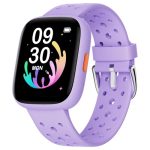
To connect your smartwatch to your phone quickly, turn on Bluetooth on both devices, open the smartwatch app on your phone, and follow the pairing instructions. Make sure your devices are close together, and you’ll be synced in no time! This process is simple and involves a few taps to ensure your smartwatch and phone communicate seamlessly.
Connecting a smartwatch to your phone might seem daunting at first, but it’s easier than you think. The key is to ensure Bluetooth is enabled on both devices, then use the dedicated app or settings to pair them. Once paired, your watch will automatically sync notifications, calls, and other data, making your tech work together smoothly. Whether you’re setting up a new device or reconnecting, this step-by-step process helps you stay connected and make the most out of your smartwatch’s features.

How to Connect Smart Watch to Phone
Connecting a smart watch to your phone might seem tricky at first, but it is simple once you follow the right steps. Whether you have an Apple Watch, Samsung Galaxy Watch, or any other brand, the process involves a few basic actions. Proper pairing ensures you get notifications, track your health, and access apps right on your wrist. Let’s explore how to connect a smart watch to your phone in detail.
Step 1: Prepare Your Phone and Smart Watch
Before starting, make sure both devices are ready. Charge your smart watch and phone so they won’t run out of power during setup. Also, enable Bluetooth on your phone as it is essential for pairing. If your watch has a specific app, download and install it from your app store.
Step 2: Turn On Your Smart Watch
Power up your watch by pressing and holding the main button until the logo appears. Some watches turn on automatically when they detect power. If your device isn’t turning on, check the battery level and connect it to a charger for a few minutes.
Step 3: Enable Bluetooth on Your Phone
Open your phone’s settings menu and locate Bluetooth. Turn it on, making your device discoverable. You should see a list of available devices shortly after enabling Bluetooth. If not, toggle Bluetooth off and on again to refresh the list.
Step 4: Pair Your Devices
On your phone, select your watch’s name from the list of available Bluetooth devices. A pairing request might pop up, asking for a confirmation code or PIN. Confirm the code matches on both devices and tap “Pair” or “Connect” to proceed.
Step 5: Install and Set Up the Companion App
Most smart watches require a dedicated app to function properly. For example, Apple Watch uses the Watch app, Samsung Galaxy Watch uses Galaxy Wearable, and Fitbit has its own app. Download the correct app for your device from your app store. Launch the app and follow the on-screen instructions to complete the setup.
Step 6: Follow Setup Instructions within the App
Once the app detects your watch, it will guide you through setting preferences, permissions, and syncing data. This may include enabling notifications, location access, and health tracking. Make sure to grant all necessary permissions for optimal performance.
Step 7: Confirm Connection and Synchronization
After setup, your watch should vibrate or display a confirmation message indicating a successful connection. Check your app to see if the watch is syncing data like steps, heart rate, and notifications. Keep your phone close to your watch during initial setup to ensure a smooth connection.
Additional Tips for a Smooth Connection
Update Firmware and Software
Always keep your watch and phone updated to the latest software versions. Manufacturers release updates to fix bugs and improve compatibility. Check for updates in your device’s settings or within the companion app.
Reset Devices If Needed
If your watch isn’t connecting properly, try resetting it to factory settings. On most watches, this can be done via settings or by holding specific buttons. Similarly, restart your phone to refresh Bluetooth connections.
Troubleshooting Common Issues
Devices Not Seeing Each Other
Ensure Bluetooth is enabled on both devices and they are within close range. Restart both devices and attempt pairing again. It helps to turn Bluetooth off and on to refresh the connection.
Pairing Fails or Gets Distracted
Delete the previous pairing on both devices if necessary. Remove the watch from your phone’s Bluetooth list and try pairing from scratch. Also, avoid other devices interfering with Bluetooth signals during setup.
Health Data or Notifications Not Syncing
Verify permissions are enabled in your companion app and device settings. Make sure your watch is fully charged and connected. Sometimes, disconnecting and reconnecting fixes syncing issues.
Different Types of Smart Watches and Their Connection Methods
Apple Watch
Apple Watch pairs exclusively with iPhones. Use the Watch app pre-installed on iPhones. Enable Bluetooth, turn on the watch, and follow on-screen prompts to pair.
Samsung Galaxy Watch
Compatible with both Android phones and iPhones, but optimal with Samsung devices. Use the Galaxy Wearable app to pair via Bluetooth. Follow the app instructions carefully.
Fitbit Devices
Generally, Fitbit devices connect via Bluetooth. Download the Fitbit app, create an account, and follow pairing instructions within the app to connect your device.
Other Brands (Garmin, Fossil, etc.)
Most use their respective companion apps. Enable Bluetooth, open the app, and follow the prompts to connect your watch.
Benefits of Proper Connection
Properly pairing your smart watch with your phone unlocks many features. Notifications about calls, messages, and apps arrive directly on your wrist. You can monitor your health, track exercises, and even control music.
Additional Connection Features to Explore
- Notification Management: Customize which alerts appear on your watch.
- Health Tracking: Sync heart rate, sleep, and activity data seamlessly.
- App Integration: Use compatible apps for weather, calendar, and navigation.
- Remote Controls: Manage your smartphone camera or music player through your watch.
Connecting your smartwatch to your phone is straightforward once you understand the steps involved. Preparation, enabling Bluetooth, pairing, and setting up the companion app are essential. Following these detailed instructions will help you enjoy all the benefits your smartwatch offers and keep your data synchronized effortlessly. Proper connection ensures you get timely alerts, health insights, and convenient controls right at your fingertips.
How to connect the smart watch to your phone ? #smartwatch #Amazon
Frequently Asked Questions
What steps should I follow to pair my smartwatch with my phone via Bluetooth?
First, ensure that Bluetooth is enabled on your phone. Turn on your smartwatch and put it in pairing mode, usually by selecting the Bluetooth or pairing option within its settings. On your phone, open the Bluetooth settings and search for available devices. When your smartwatch appears on the list, select it to initiate the pairing process. Confirm any prompts on both devices to establish the connection successfully.
How can I troubleshoot when my smart watch isn’t connecting to my phone?
Start by checking that both devices are within close proximity and have Bluetooth enabled. Restart both your smartwatch and phone to refresh their connection capabilities. Make sure your smartwatch is discoverable and not connected to another device. If issues persist, remove the device from your phone’s Bluetooth list and try pairing again. Updating your smartwatch and phone software can also resolve compatibility problems.
Is there a specific app I need to install to connect my smartwatch to my phone?
Yes, most smartwatches require a dedicated companion app provided by the manufacturer. Download and install this app from your phone’s app store. Open the app and follow its instructions to pair your device, which typically involves enabling Bluetooth and selecting your smartwatch from a list of available devices. The app helps facilitate the pairing process and allows you to customize settings.
Can I connect my smartwatch to multiple phones simultaneously?
Generally, most smartwatches are designed to connect to only one phone at a time. To switch between devices, you usually need to disconnect from the current phone and then pair with the new one. Refer to your smartwatch’s user manual for specific instructions on managing device connections, as some models may support multi-device pairing or have special features for switching between phones.
Final Thoughts
To connect your smartwatch to your phone, ensure Bluetooth is enabled on both devices. Open the smartwatch app and follow the pairing instructions. Confirm the pairing request on your phone when prompted.
Once paired, the watch syncs seamlessly with your phone, allowing notifications and data sharing. Keep both devices within close range to maintain the connection.
In conclusion, knowing how to connect smart watch to phone is easy by activating Bluetooth, opening the app, and following the on-screen prompts. This simple process ensures your devices work together efficiently.