
Connect your Bluetooth speaker to your Smart TV easily! This guide makes it simple to boost your TV’s sound for movies, music, and games. Get ready for an awesome audio upgrade without the fuss!
Hey there, tech adventurer! Ever feel like your Smart TV’s sound just doesn’t quite cut it? You know, that moment when the big explosion in a movie is a bit of a thud instead of a BOOM? Or when your favorite song playing through the TV is missing that rich, deep bass? It’s a common feeling, and luckily, there’s a super easy fix: a Bluetooth speaker!
Connecting a Bluetooth speaker to your Smart TV can totally transform your viewing and listening experience. Suddenly, those dramatic scenes feel more epic, and your music fills the room with a whole new level of awesome. But I get it, sometimes tech can feel a little… well, techy. You might be wondering, “Is this complicated?” “Will it even work with my TV?”
Don’t you worry one bit! I’m here to break it all down for you. Think of me as your friendly guide, walking you through every single step. We’ll make sure you get that amazing sound without any of the headaches. It’s like making your TV sing with a much bigger, better voice!
So, grab your favorite snack, get comfy, and let’s dive into the simple magic of connecting your Bluetooth speaker to your Smart TV. It’s easier than you think, and the payoff is totally worth it. Let’s make some noise!
Why Connect a Bluetooth Speaker to Your Smart TV?
Okay, so why bother with all this? Your TV already has speakers, right? That’s true, but let’s be honest, they’re usually pretty basic. They’re designed to be small and fit into the TV’s sleek design. This means they often lack the power, clarity, and depth that a dedicated speaker can provide.
Think about it: a good Bluetooth speaker is built for sound. It’s got bigger drivers, better acoustics, and often more advanced audio technology packed inside. Connecting one to your TV means you’re upgrading from a whisper to a roar, from a tinny note to a full concert hall. It’s about immersing yourself more in what you’re watching or listening to.
Whether you’re a movie buff who wants to feel every rumble, a gamer who needs to hear every footstep, or just someone who loves pumping up the volume for music videos, a Bluetooth speaker makes a huge difference. It’s a simple upgrade that brings a massive improvement to your entertainment.
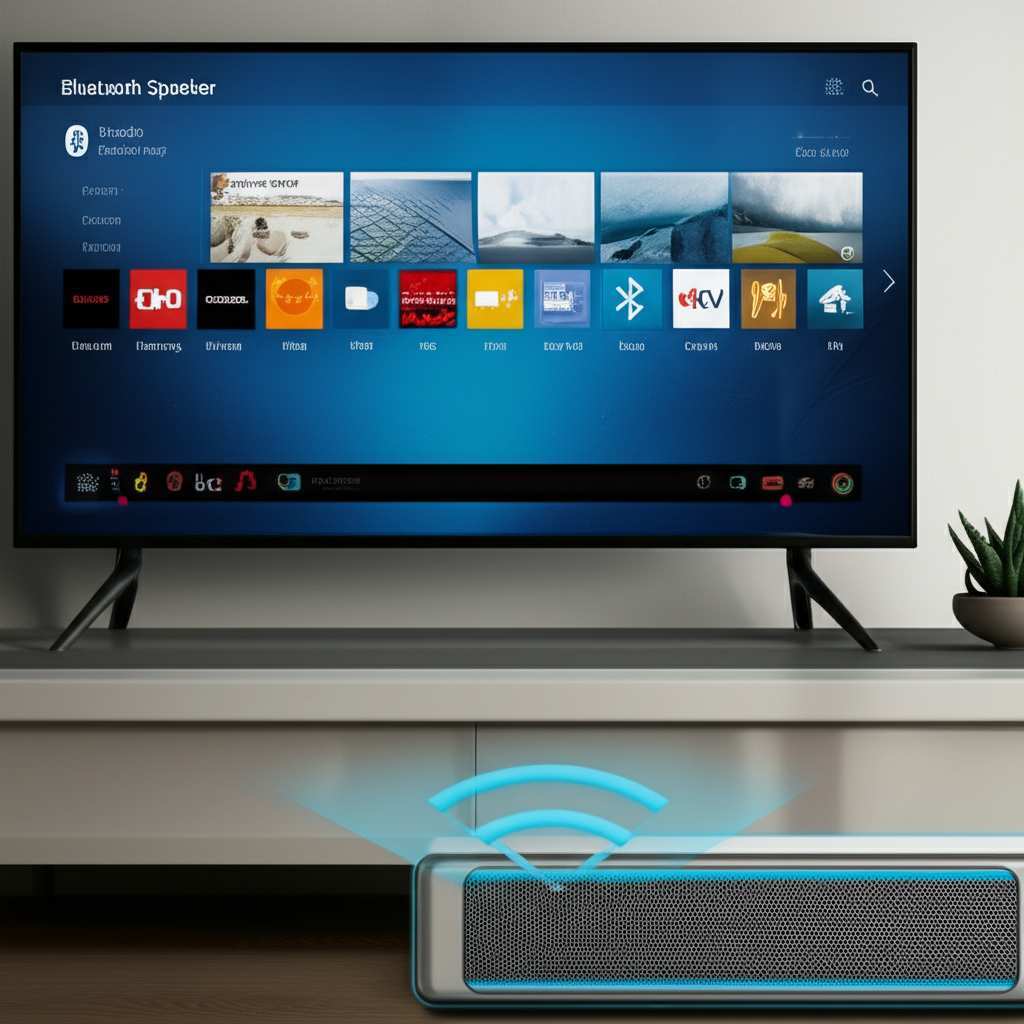
Let’s Talk About Sound: What Makes a Bluetooth Speaker Great?
Before we jump into the how-to, let’s quickly chat about what makes a Bluetooth speaker a great companion for your TV. It’s not just about volume; it’s about the quality of the sound.
You’ll hear terms like “bass response,” “treble clarity,” and “soundstage.” Don’t let these scare you! In simple terms:
Bass: This is the deep, booming sound, like the drums in a song or the explosions in an action movie. A good speaker will have rich, satisfying bass.
Treble: This is the higher-pitched sound, like the cymbals in music or the crisp dialogue in a show. Clear treble makes everything sound sharp and detailed.
Soundstage: This is how the speaker makes the sound feel like it’s coming from different directions, creating a sense of space. It’s like being at a live concert!
When choosing a speaker, think about what you’ll use it for most. If it’s for movies, you might want something with strong bass. For music, you might want a balanced sound across all frequencies. Many modern Bluetooth speakers offer impressive sound for their size, and connecting them to your TV is a game-changer.
How to Connect Bluetooth Speaker to Smart TV: The Step-by-Step Guide
Alright, the moment you’ve been waiting for! Connecting your Bluetooth speaker to your Smart TV is usually pretty straightforward. Most modern Smart TVs have built-in Bluetooth capabilities, and so do most Bluetooth speakers. Here’s how to get them talking to each other:
Step 1: Make Sure Your Devices are Ready
First things first, let’s get everything prepped.
Charge Your Speaker: Make sure your Bluetooth speaker has enough battery life. You don’t want it dying mid-movie!
Turn On Your TV: Power up your Smart TV and make sure it’s connected to your home Wi-Fi.
Check Your TV’s Manual: If you’re unsure if your TV has Bluetooth, or where to find the settings, a quick peek at your TV’s user manual (or a search on the manufacturer’s website) is a great idea.
Step 2: Put Your Bluetooth Speaker in Pairing Mode
This is a crucial step! Your speaker needs to be discoverable so your TV can find it.
Find the Pairing Button: Most Bluetooth speakers have a dedicated button for pairing. It might be labeled with a Bluetooth symbol or the word “Pair.”
Press and Hold: Usually, you need to press and hold this button for a few seconds. You’ll often hear a sound or see a light blinking, indicating it’s ready to pair. The specific method can vary slightly between brands, so check your speaker’s manual if you’re not sure.
Step 3: Navigate to Your TV’s Bluetooth Settings
Now, let’s head over to your TV. The exact menu names can differ depending on your TV brand (Samsung, LG, Sony, TCL, etc.), but the general process is similar.
Open Settings: Use your TV remote to access the main Settings menu. This is usually represented by a gear icon.
Find Sound or Audio Settings: Look for a section labeled “Sound,” “Audio,” or sometimes “General.”
Locate Bluetooth or Device Connection: Within the sound settings, you should find an option for “Bluetooth,” “External Speakers,” “Wireless Speakers,” or “Device List.”
Step 4: Scan for Devices
Once you’re in the Bluetooth settings on your TV, you’ll want to initiate a scan.
Select “Add Device” or “Scan”: Your TV will start looking for nearby Bluetooth devices that are in pairing mode.
Wait for Your Speaker to Appear: Give it a minute. Your Bluetooth speaker’s name should pop up on the list of available devices on your TV screen. It might be the brand name, the model name, or a combination.
Step 5: Select and Connect Your Speaker
Found it? Great! Now it’s time to make the connection.
Choose Your Speaker: Highlight your speaker’s name on the TV screen and select it.
Confirm Connection: Your TV might ask you to confirm the pairing. Follow any on-screen prompts. You should hear a confirmation sound from your speaker, and your TV screen should indicate that the device is connected.
Step 6: Select the Speaker as Your Audio Output
This is the final step to ensure sound comes out of your Bluetooth speaker.
Confirm Audio Output: Your TV might automatically set the Bluetooth speaker as the default audio output. If not, you might need to go back into the Sound settings and manually select your connected Bluetooth speaker as the audio output device.
Test the Sound: Play something on your TV – a video, music, or even just the TV menu sounds. You should now hear it coming from your Bluetooth speaker!
And voilà! You’ve successfully connected your Bluetooth speaker to your Smart TV. It’s like giving your TV a superpower!
Troubleshooting Common Connection Issues
Sometimes, things don’t go perfectly the first time. Don’t get discouraged! Here are a few common issues and how to fix them:
Speaker Not Appearing on TV:
Make sure the speaker is definitely in pairing mode. Try turning it off and on again and re-entering pairing mode.
Ensure the speaker is close enough to the TV. Bluetooth has a limited range.
Restart both your TV and your speaker. Sometimes a simple reboot fixes everything.
Check if your TV has a limit on the number of paired devices. You might need to remove an old device to make room for the new one.
Connection Fails or is Interrupted:
Obstructions can interfere with Bluetooth signals. Try to ensure a clear line of sight between the TV and speaker.
Other wireless devices (like microwaves or Wi-Fi routers) can sometimes cause interference. Try moving them further away if possible.
Update your TV’s firmware. Manufacturers often release updates that improve Bluetooth connectivity.
Audio Lag or Sync Issues:
This is a common Bluetooth annoyance, especially with video. Some TVs have an “audio delay” or “lip sync” setting that you can adjust.
If possible, try connecting a different Bluetooth speaker to see if the issue persists. It might be a specific speaker compatibility problem.
For critical viewing where lip-sync is paramount, a wired connection (if your TV and speaker support it) or a dedicated TV soundbar might offer better performance.
When Your TV Doesn’t Have Bluetooth: What Are Your Options?
Don’t have a Smart TV with built-in Bluetooth? No sweat! There are still ways to get that awesome wireless sound.
Option 1: Use a Bluetooth Audio Transmitter
This is a small device that plugs into your TV’s audio output (like the headphone jack or an optical audio port). It then transmits the audio wirelessly via Bluetooth to your speaker.
How it works: You connect the transmitter to your TV, plug in your speaker, put both in pairing mode, and they connect. It’s like giving your older TV Bluetooth superpowers!
What to look for: Some transmitters can connect to two speakers at once, which is cool for shared listening. Others have very low latency, meaning less audio delay.
Option 2: Use a Bluetooth Audio Receiver (Less Common for TVs)
While less common for directly connecting to a TV, a Bluetooth receiver can be used if your TV has an auxiliary output and your speaker has an auxiliary input, and you want to connect them wirelessly. However, for TV audio, a transmitter is usually the better choice.
Option 3: Consider a Smart Soundbar or Home Theater System
If you’re looking for a more significant audio upgrade, many modern soundbars and home theater systems come with built-in Bluetooth, Wi-Fi, and other connectivity options. This is a bigger investment, but it can offer a truly premium sound experience.
Quick Buying Tips for Your Next Bluetooth Speaker
Thinking of getting a new Bluetooth speaker to pair with your TV? Here are a few things to keep in mind:
Sound Quality: Listen to it if you can! Or read reviews from reputable sites like CNET or TechRadar.
Battery Life: If you plan to move it around or use it away from an outlet, longer battery life is key.
Durability: If you’re clumsy or have pets/kids, a rugged, water-resistant speaker might be a good choice.
Connectivity Options: While we’re focusing on Bluetooth, some speakers also have Wi-Fi or aux inputs, which can be handy.
Price:** Bluetooth speakers come in all price ranges. Set a budget and find the best option within it.
Let’s look at a quick comparison of some popular types of Bluetooth speakers you might consider:
| Speaker Type | Best For | Pros | Cons |
|---|---|---|---|
| Portable Mini Speaker | Casual listening, small rooms | Compact, affordable, good battery | Limited bass, not ideal for large rooms |
| Mid-Size All-Rounder | Movies, music, general TV use | Balanced sound, good volume, portable | Can be pricier than minis |
| Waterproof/Rugged Speaker | Outdoor use, active households | Durable, water-resistant, good sound | Design might be bulky, sound can vary |
| Smart Speaker (with Bluetooth) | Voice control, music streaming, TV audio | Versatile, integrates with smart home | Often requires Wi-Fi for full features, can be expensive |
This table gives you a quick idea of what to expect from different types of speakers. For connecting to your TV, a mid-size all-rounder often hits the sweet spot, offering a great balance of sound quality, volume, and portability.
Why Low Latency Matters for TV Audio
You might have heard the term “low latency” when talking about Bluetooth audio. This is super important for connecting to a TV! Latency is basically the delay between when the sound is produced by the TV and when you actually hear it from the speaker.
If there’s high latency, you’ll notice that the audio is slightly out of sync with the video. This is really distracting, especially during conversations or action scenes. It’s like watching a badly dubbed movie!
| Bluetooth Version/Codec | Typical Latency | Impact on TV Viewing |
|---|---|---|
| Standard Bluetooth (SBC) | ~100-200ms | Noticeable delay, can be distracting. |
| aptX Low Latency (if supported by both devices) | ~30-50ms | Minimal to no perceptible delay, ideal for video. |
| Other Advanced Codecs (e.g., LDAC, aptX HD) | Varies, can be higher than aptX LL | Excellent for music quality, but check for low latency support for video. |
See? If your TV and speaker both support something like aptX Low Latency, you’re in for a much smoother experience. When you’re looking at Bluetooth transmitters or speakers, keep an eye out for this feature if you plan to use it primarily for your TV. It can make a world of difference!
Frequently Asked Questions (FAQ)
Got more questions? I’ve got answers! Here are some common ones beginners ask:
Q1: Can any Bluetooth speaker connect to any Smart TV?
Generally, yes! As long as your Smart TV has Bluetooth capability and your speaker is a standard Bluetooth device, they should be able to connect. Some older TVs or very specific speaker models might have compatibility quirks, but it’s rare.
Q2: Will the TV remote control the speaker volume?
This depends on your TV and speaker. Many Smart TVs will allow you to control the connected Bluetooth speaker’s volume using your TV remote. If not, you’ll use the controls on the speaker itself.
Q3: Can I connect multiple Bluetooth speakers to my TV at once?
This is uncommon for standard TV Bluetooth. Some TVs might have a feature for dual audio, but it’s not universal. However, some Bluetooth speakers are designed to be paired together (stereo mode), and some Bluetooth transmitters can connect to two speakers simultaneously.
Q4: How far can my Bluetooth speaker be from the TV?
The typical range for Bluetooth is about 30 feet (around 10 meters) in an open space. Walls, furniture, and other electronic devices can reduce this range.
Q5: Is it better to use Bluetooth or a wired connection?
For pure audio quality and zero delay, a wired connection (like an optical cable or headphone jack) is often superior. However, Bluetooth offers the convenience of wireless freedom, which is why it’s so popular!
Q6: Do I need to re-pair my speaker every time I turn on the TV?
Usually, no. Once paired, your TV and speaker should remember each other. When you turn both on and ensure Bluetooth is enabled on the TV and the speaker is discoverable (or just turned on), they should reconnect automatically.
Q7: Can I connect my Bluetooth headphones to my TV too?
Yes, absolutely! The process is exactly the same as connecting a Bluetooth speaker. Many people prefer headphones for late-night viewing to avoid disturbing others, and the connection steps are identical.
Conclusion: Your Sound Upgrade Awaits!
See? Connecting a Bluetooth speaker to your Smart TV is totally doable and incredibly rewarding. You’ve learned how to put your speaker in pairing mode, find it on your TV, and get that rich, immersive sound you’ve been craving. Whether you’re settling in for a movie marathon, battling it out in a video game, or just chilling with some tunes, that upgraded audio experience is now within your reach.
Don’t be afraid to experiment with different settings on your TV or speaker to find the perfect sound balance for you. And if your TV doesn’t have built-in Bluetooth, remember those handy transmitters can work wonders! It’s all about making your tech work for you and enhancing your everyday entertainment.
Now go forth and enjoy amazing sound! Make every movie more thrilling, every song more vibrant, and every gaming session more epic. Your ears will thank you! Happy listening!


