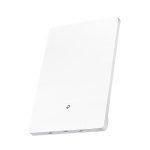
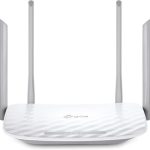
To maximize your WiFi speed, start by positioning your router in a central, open location, and ensure your device is close enough to avoid signal drop-offs. Updating your router’s firmware, reducing interference from other electronics, and upgrading to a faster plan can also make a big difference. A few simple tweaks can significantly boost your connection speed and keep your browsing smooth and fast.
Getting full speed on your WiFi isn’t just about having a good internet plan—it’s about optimizing your setup and minimizing interference. By choosing the right router placement, updating firmware, and reducing obstacles, you can unlock the full potential of your internet connection. In this article, we’ll guide you through easy steps to improve your WiFi speed, whether you’re working from home, streaming movies, or gaming online. Let’s get your WiFi performing at its best!

How do I get full speed on my WiFi?
Understanding Your WiFi Speed
Getting the most out of your WiFi starts with understanding what affects its speed. Several factors influence how fast your internet connection feels, including your internet plan, your router’s capabilities, and physical obstacles. Recognizing these elements helps you troubleshoot and optimize your network effectively.
Check Your Internet Service Plan
Your internet subscription sets a limit on your maximum possible speed. For example, if you pay for a 50 Mbps plan, that’s your ceiling, regardless of your WiFi setup. To improve your speed, consider upgrading your plan if your current one doesn’t meet your needs.
Test Your Internet Speed
Before making adjustments, run a speed test using websites like Speedtest.net or Fast.com. This provides a baseline measurement of your current WiFi speed. Conduct tests at different times of the day to identify if your speed varies during peak hours.
Upgrade Your Router for Faster Performance
Your router plays a key role in WiFi speed. Older models may not support the latest standards, resulting in slower connections. Invest in a router supporting **802.11ac** or **802.11ax** (WiFi 6), which offer faster speeds and better handling of multiple devices.
Router Placement Tips for Optimal Speed
Place your router in a central, elevated location away from walls and obstacles. Avoid placing it near microwaves, cordless phones, or other electronics that can cause interference. Clear visibility to your devices ensures a strong, stable signal.
Maximize WiFi Signal Strength
Signal strength directly impacts WiFi speed. Use tools like NetSpot or WiFi Analyzer to find dead zones and weak spots in your home. Moving your router or reorganizing furniture can significantly boost signal strength and speed.
Update Router Firmware
Check your router’s manufacturer website for firmware updates. Firmware updates fix bugs and often improve performance, security, and stability. Keeping firmware current ensures your router runs efficiently.
Reduce Wireless Interference
Interference from other electronic devices and neighboring WiFi networks can slow down your connection. Use the **2.4 GHz** band for longer range and better penetration through walls, or switch to the **5 GHz** band for faster speeds over shorter distances.
Change WiFi Channels
WiFi channels can get crowded, especially in apartment buildings. Use a WiFi analyzer app to find the least congested channel and change your router’s channel settings accordingly. This can reduce interference and improve speed.
Secure Your WiFi Network
An open or poorly secured WiFi network can be used by neighbors or intruders, causing slowdowns. Use strong WPA3 or WPA2 passwords, and consider setting up a separate guest network for visitors to keep your main network fast and secure.
Limit Connected Devices and Manage Bandwidth
Too many devices streaming or downloading at once can strain your network. Disconnect unused devices and prioritize important ones. Use Quality of Service (**QoS**) settings on your router to allocate bandwidth efficiently for streaming, gaming, and work.
Schedule Heavy Usage Off-Peak
Certain activities like large downloads or system updates can slow down your WiFi during peak hours. Schedule these tasks overnight or during off-peak times when fewer devices are active.
Use Wired Connections When Possible
Ethernet cables provide a faster, more stable connection than WiFi. For devices that need maximum speed like gaming consoles or desktop computers, consider connecting directly to the router via Ethernet.
Consider Powerline Adapters
If running Ethernet cables isn’t feasible, powerline adapters use your home’s electrical wiring to transmit internet signals. They provide faster speeds than WiFi in some cases and are easy to set up.
Monitor and Optimize Your Network Regularly
Periodically checking your network can reveal issues before they impact your experience. Regularly update firmware, change channels, and test speeds to maintain optimal performance.
Additional Tips for Better WiFi Speed
- Disable unused devices and apps that consume bandwidth
- Turn off background updates on devices
- Remove physical obstructions between your device and router
- Use WiFi extenders or mesh systems for larger homes
Using Mesh WiFi Systems for Larger Homes
Mesh networks use multiple nodes to create a seamless WiFi blanket across your house, reducing dead zones. They provide consistent speeds and better coverage, making them ideal for bigger spaces.
Achieving full WiFi speed involves a combination of choosing the right plan, updating your equipment, optimizing placement, and managing interference. Regular maintenance and smart usage habits ensure your WiFi remains fast and reliable, making online activities smoother and more enjoyable.
Boost WIFI On Your PC!
Frequently Asked Questions
What are some effective ways to reduce WiFi interference in my home?
To minimize WiFi interference, position your router away from devices like cordless phones, microwave ovens, and Bluetooth gadgets that operate on similar frequencies. Keep your router elevated and free from obstructions such as thick walls or furniture. Using a dual-band router allows you to switch between 2.4 GHz and 5 GHz bands, reducing congestion and improving overall speed.
How can I optimize my router’s placement for better performance?
Place your router in a central location within your home to ensure even coverage. Elevate the device on a shelf or mount it on a wall rather than placing it on the floor. Avoid hiding the router behind furniture or inside cabinets, which can block signals. Keeping it positioned away from thick walls and metal objects can also help maximize speed and reduce dead zones.
What settings should I adjust on my router to improve WiFi speed?
Access your router’s configuration page and select the appropriate wireless channel to minimize interference from neighboring networks. Enable Quality of Service (QoS) settings to prioritize bandwidth for your most important devices or applications. Updating your router’s firmware regularly ensures you have the latest performance improvements and security patches.
Final Thoughts
To get full speed on your WiFi, start by placing your router in a central, open location away from obstructions. Update your router’s firmware regularly to ensure optimal performance. Limit the number of devices connected simultaneously to reduce congestion.
Regularly restart your router and consider upgrading to a higher-speed plan if needed. Using a wired connection for critical devices can also boost speed.
How do I get full speed on my WiFi? Focusing on these steps ensures better performance, making your internet faster and more reliable.