
Absolutely! Connecting a party sound box to your laptop is straightforward and opens up a world of enhanced audio possibilities. Whether you prefer a wireless Bluetooth connection or a wired audio jack, you can easily share your music, movies, or game sounds with powerful, room-filling audio. This guide will walk you through the simple steps to get your party sound box rocking with your laptop.
Imagine this: you’ve got your favorite playlist ready, you’re about to dive into an epic movie, or maybe you’re showing off your gaming skills. But then you realize… your laptop’s built-in speakers just aren’t cutting it. They’re tinny, quiet, and simply don’t deliver the immersive experience you crave. This is where a party sound box swoops in to save the day! These powerful audio companions are designed to fill a room with rich, booming sound, making every movie, song, or game come alive.
So, the big question on your mind might be: “Can a party sound box connect to my laptop?” The short answer is a resounding YES! It’s not as complicated as you might think, and there are generally two main ways to get your laptop’s audio pumping through your impressive sound box: wirelessly via Bluetooth, or through a good old-fashioned wired connection. Let’s dive into how you can achieve this and unlock a whole new level of audio enjoyment.
Key Takeaways
- Bluetooth is the Easiest Way: Most modern party sound boxes and laptops have Bluetooth, making wireless connection the simplest and most common method.
- Wired Connections Still Work: If Bluetooth isn’t an option or you prefer a stable connection, a 3.5mm audio cable is a reliable alternative for wired audio.
- Pairing is Key for Bluetooth: For wireless connections, you’ll need to put your sound box into pairing mode and then select it from your laptop’s Bluetooth device list.
- Check Your Laptop’s Audio Settings: Once connected, ensure your laptop is set to output audio to the connected party sound box, not its internal speakers.
- Troubleshooting is Simple: Common issues like no sound or connection problems can often be resolved by re-pairing devices, checking volume levels, or updating drivers.
- Consider Latency: While usually minimal, there can be a slight delay (latency) with Bluetooth, which might be noticeable in fast-paced gaming or video editing.
📑 Table of Contents
Understanding Your Connection Options
Before we get into the step-by-step process, it’s helpful to understand the two primary methods you’ll likely use. Each has its own advantages, and knowing them will help you choose the best one for your situation.
1. Bluetooth: The Wireless Wonder
Bluetooth is, without a doubt, the most popular and convenient way to connect your party sound box to your laptop. It’s a wireless technology that allows devices to communicate with each other over short distances. The beauty of Bluetooth is that it eliminates messy cables, giving you freedom of movement and a cleaner setup.
- Pros: Wireless, easy setup, no cables needed, often allows for multi-device pairing (though we’ll focus on one-to-one here).
- Cons: Can sometimes experience slight audio lag (latency), depends on the quality of the Bluetooth chips in both devices.
2. Wired (Auxiliary Cable): The Reliable Classic
For those who prefer a rock-solid, consistent connection or if your devices lack Bluetooth, a wired connection using a 3.5mm audio auxiliary cable is a fantastic option. This is the same kind of cable you might use for headphones. It directly transmits the audio signal from your laptop to the sound box, minimizing any potential for interference or lag.
- Pros: Stable connection, no latency, works even if devices don’t have Bluetooth.
- Cons: Requires a physical cable, limits how far your sound box can be from your laptop.
Connecting Your Party Sound Box via Bluetooth
This is likely the method you’ll want to use. Connecting via Bluetooth is generally a breeze, but it does involve a few key steps. Think of it like introducing two new friends – they need to be properly introduced and then recognize each other.
Visual guide about Can Party Sound Box Connect to Laptop
Image source: techsynchron.com
Step 1: Prepare Your Party Sound Box
First things first, make sure your party sound box is powered on and fully charged, or plugged into a power source. Then, you need to put it into “pairing mode.” This is crucial because it tells the sound box to actively look for new devices to connect to. How you do this varies slightly between models, but it’s usually indicated by a specific button (often marked with a Bluetooth symbol or “Pair”) or a flashing light. Check your sound box’s manual if you’re unsure. The goal is to have the sound box discoverable.
Step 2: Enable Bluetooth on Your Laptop
Next, turn your attention to your laptop. You need to make sure its Bluetooth is switched on and ready to find new devices. The exact steps for this depend on your laptop’s operating system (Windows or macOS).
For Windows Users:
- Click on the Start menu.
- Go to Settings (the gear icon).
- Select Devices.
- Click on Bluetooth & other devices in the left-hand menu.
- Make sure the Bluetooth toggle switch is turned to On.
- Click on Add Bluetooth or other device.
- Select Bluetooth. Your laptop will now start scanning for available devices.
For macOS Users:
- Click on the Apple menu () in the top-left corner.
- Select System Settings (or System Preferences on older versions).
- Click on Bluetooth in the sidebar.
- Ensure Bluetooth is turned On. If it’s off, you’ll see an option to turn it on.
Step 3: Pair Your Devices
Now that both your sound box and laptop are in discovery mode, they should find each other. On your laptop, you’ll see a list of nearby Bluetooth devices. Look for the name of your party sound box (e.g., “JBL PartyBox,” “Sony SRS-XG500,” etc.) and click on it. You might be prompted to confirm a pairing code, or it might just connect automatically. Once successful, you’ll usually see a confirmation message on your laptop, and the flashing light on your sound box might turn solid, indicating a successful connection.
Step 4: Select the Sound Box as Your Audio Output
Even after pairing, your laptop might still be set to play sound through its internal speakers. You need to tell it to use the party sound box. This is another operating system-specific step:
For Windows Users:
- Right-click on the speaker icon in the taskbar (usually in the bottom-right corner).
- Select Open Sound settings.
- Under the “Output” section, click the dropdown menu labeled Choose your output device.
- Select your party sound box from the list.
For macOS Users:
- Click on the Apple menu () > System Settings (or System Preferences).
- Click on Sound.
- Go to the Output tab.
- Select your party sound box from the list of available devices.
Once you’ve done this, any sound playing from your laptop should now be coming out of your party sound box! You can test this by playing a song or a YouTube video.
Connecting Your Party Sound Box via Auxiliary Cable
If Bluetooth isn’t your preferred method, or if your devices aren’t Bluetooth-enabled, the auxiliary cable connection is straightforward. This is also a great option if you’re experiencing any latency issues with Bluetooth, especially if you’re doing anything that requires precise timing, like video editing or gaming. For more insights into connecting speakers to gaming consoles, check out articles on how to connect a PS4 to a Bluetooth speaker or connect a PS5 to a Bluetooth speaker. The principles are similar for laptops.
Visual guide about Can Party Sound Box Connect to Laptop
Image source: techsynchron.com
Step 1: Identify the Ports
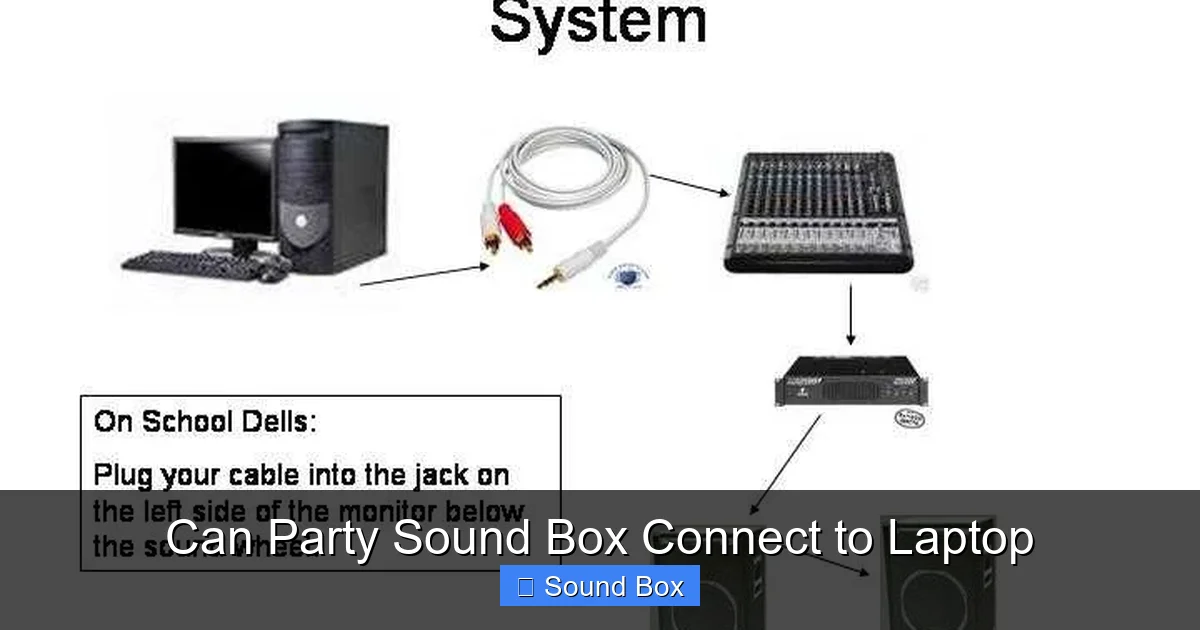
On your laptop, you’ll need to find the 3.5mm headphone or audio output jack. It usually looks like a small, circular port, often accompanied by a headphone icon. On your party sound box, look for an “AUX IN” or “Audio In” port, which will also be a 3.5mm jack. Some sound boxes might have RCA inputs, in which case you’d need an RCA to 3.5mm adapter cable.
Step 2: Connect the Cable
Plug one end of your 3.5mm audio cable into the headphone jack on your laptop. Then, plug the other end into the “AUX IN” port on your party sound box. Make sure the cable is fully inserted into both ports.
Step 3: Select the Correct Input on Your Sound Box
Most party sound boxes have multiple input options (Bluetooth, USB, AUX). You’ll need to select the “AUX” or “Audio In” input mode on your sound box. This is usually done by pressing a button on the sound box itself or on its remote control. Your sound box should indicate which input is currently active.
Step 4: Adjust Volume and Play
Once connected and the correct input is selected, any audio playing from your laptop should now be routed through your sound box. You might need to adjust the volume on both your laptop and the sound box to get the perfect balance. Unlike Bluetooth, you generally don’t need to change audio output settings on your laptop because the wired connection bypasses the laptop’s internal sound management for output selection.
Troubleshooting Common Connection Issues
Even with the simplest of setups, you might occasionally run into a hiccup. Don’t worry, most connection problems are easy to fix!
Visual guide about Can Party Sound Box Connect to Laptop
Image source: techsynchron.com
No Sound at All?
- Check Volume Levels: It sounds obvious, but make sure the volume is turned up on both your laptop AND your party sound box.
- Verify Input Source (Wired): If using an AUX cable, ensure your sound box is set to the correct “AUX IN” input.
- Check Audio Output (Bluetooth): On your laptop, confirm that the party sound box is selected as the default audio output device in your sound settings.
- Unmute Mute Buttons: Double-check that neither your laptop nor the sound box is muted.
Bluetooth Connection Keeps Dropping?
- Distance: Ensure your laptop and sound box are within the recommended Bluetooth range (usually around 30 feet or 10 meters, but obstacles can reduce this).
- Interference: Other wireless devices (microwaves, Wi-Fi routers, other Bluetooth devices) can sometimes cause interference. Try moving away from these.
- Re-pair Devices: Sometimes, simply “forgetting” the device on your laptop and then re-pairing it can resolve persistent issues. Go back to your Bluetooth settings, remove the sound box, and then go through the pairing process again.
- Update Drivers: On your laptop, ensure your Bluetooth drivers are up to date. You can usually do this through your laptop manufacturer’s support website or your operating system’s update manager.
Sound is Distorted or Choppy?
- Low Battery: A low battery on either the sound box or even the laptop can sometimes affect Bluetooth performance.
- Too Many Devices: If your sound box supports connecting to multiple devices, ensure it’s only actively connected to your laptop for now.
- Quality of Audio File: A poorly encoded or low-quality audio file can sound bad on any speaker. Test with a known good audio source.
- Wired Connection Check: If using a cable, ensure it’s not damaged. Try a different cable if possible.
Enhancing Your Experience: Tips and Tricks
Once you’ve got your party sound box connected, you’ll want to make the most of it. Here are a few tips:
- Positioning Matters: For the best sound, place your party sound box in a good spot. Avoid corners that can make bass too boomy, and try to position it at ear level if possible.
- Explore EQ Settings: Many party sound boxes have built-in equalization (EQ) settings. Experiment with these to tailor the sound to your preference or the type of audio you’re listening to.
- Consider a Dedicated Music Player: For long listening sessions, dedicated music player apps on your laptop might offer better audio quality and features than web-based players.
- Party Mode (If Available): Some sound boxes have specific modes for parties or outdoor use that can boost volume or bass.
- Multi-Speaker Possibilities: If your sound box supports it, you can explore options for connecting multiple speakers for an even more immersive experience. If you’re curious, you might find articles on how to connect multiple Bluetooth speakers helpful.
Conclusion: Get Ready to Amplify Your Audio!
So, to wrap things up, yes, your party sound box can absolutely connect to your laptop. Whether you’re a fan of the convenience of wireless Bluetooth connections or the unwavering reliability of a wired auxiliary cable, the process is designed to be user-friendly. You’re no longer limited by your laptop’s modest speakers. You can now transform your personal listening experience into a room-filling, high-fidelity event.
Take the time to try out both connection methods if you can, and see which one works best for your setup and preferences. With a little setup, you’ll be enjoying your music, movies, and games with a sound quality that truly does them justice. Happy listening, and get ready to party with your laptop!
Frequently Asked Questions
Can I connect my party sound box to my laptop if it doesn’t have Bluetooth?
Absolutely! If your laptop lacks Bluetooth, you can easily connect your party sound box using a 3.5mm auxiliary audio cable. Just plug one end into your laptop’s headphone jack and the other into your sound box’s AUX input.
How do I ensure the sound is coming from my party sound box and not my laptop speakers?
After connecting (especially via Bluetooth), you need to select your party sound box as the audio output device in your laptop’s sound settings. For Windows, right-click the speaker icon and choose “Open Sound settings.” For macOS, go to System Settings > Sound > Output.
What if my party sound box is not showing up in my laptop’s Bluetooth device list?
First, ensure your party sound box is in pairing mode and discoverable. Then, on your laptop, make sure Bluetooth is enabled and try refreshing the device list. Sometimes, restarting both devices can also help them find each other.
Is there a delay when connecting my party sound box to my laptop via Bluetooth?
There can be a slight delay (latency) with Bluetooth connections, which is more noticeable in fast-paced activities like gaming or precise audio editing. For lag-free audio, a wired connection using an auxiliary cable is often preferred.
Can I use my party sound box for video calls with my laptop?
Yes, you can! Once connected, your party sound box will act as the speaker for your laptop. However, for the microphone part of video calls, you’ll likely still need to use your laptop’s built-in microphone or an external one, as sound boxes typically don’t have microphones for this purpose.
What kind of cable do I need for a wired connection?
For a wired connection, you will typically need a standard 3.5mm male-to-male audio auxiliary (AUX) cable. Ensure both your laptop and party sound box have a 3.5mm audio input/output jack for this connection.


