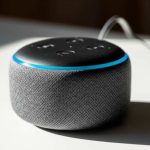
Yes! Alexa can totally control most non-Amazon Bluetooth speakers. You can stream music, podcasts, and more through your favorite speaker using just your voice. It’s an awesome way to get more out of your gadgets!
Hey there, tech explorer! Max here from AffTechy.com, your go-to spot for making technology simple and fun. You know how much we all love our music, right? Or maybe you’re a podcast buff, or you love movie nights with epic sound. Speakers are key to all of that! But sometimes, you might have a fantastic Bluetooth speaker that isn’t from Amazon, and you’re wondering if your trusty Alexa can still be the DJ.
It can feel a bit like trying to connect two puzzle pieces that aren’t quite the same shape, can’t it? You’ve got Alexa, your voice assistant, ready to play whatever you ask. And then you have your awesome non-Amazon speaker, just waiting to blast out the tunes. The big question is: do they play nice together?
Well, get ready for some good news! The answer is a resounding yes, for the most part. We’re going to dive deep into how you can link your Alexa device to almost any Bluetooth speaker, no matter the brand. Think of it as giving your Alexa superpowers to control sound systems beyond its own family.
This guide is all about making that connection super simple. We’ll skip the confusing jargon and get straight to what you need to know. We’ll cover how to pair them, what to do if things get a little tricky, and how to get the most out of this awesome setup. So, let’s get this party started and make your home sound even better!
Alexa and Your Bluetooth Speaker: The Perfect Match?
Imagine this: you’re chilling on the couch, and you want to listen to your favorite playlist. Instead of fumbling for your phone, you just say, “Alexa, play my chill vibes playlist.” Your voice command zips through the air, and boom – the music starts playing, not from a small Echo Dot, but from that big, beautiful Bluetooth speaker you bought last year. Pretty cool, right?
This is where the magic of Bluetooth and smart assistants like Alexa really shines. It’s all about making your life easier and your entertainment better. You don’t need to buy all new Amazon-branded speakers to enjoy voice control. Your existing gear can often join the party!
Think about all the possibilities! You can fill your whole house with music from different speakers, control them from another room, or just enjoy richer sound for your movies and games. It’s like upgrading your sound system without buying a whole new one. We’ll show you how to make it happen.
Understanding the Magic: How Does it Work?
So, how does Alexa, which lives inside Amazon’s Echo devices, manage to control a speaker from, say, Bose, Sony, or JBL? It all comes down to a technology we all know and love: Bluetooth.
Bluetooth is a wireless technology that allows devices to talk to each other over short distances. Think of it like a secret handshake between your Alexa device (like an Echo Dot, Echo Show, or even the Alexa app on your phone) and your Bluetooth speaker. Once they’ve done the handshake (paired), they can send audio signals back and forth.
Your Alexa device acts as the brain, receiving your voice commands. When you ask it to play music, Alexa sends that audio through Bluetooth to your non-Amazon speaker. The speaker then does what it does best – produce amazing sound! It’s a seamless process that makes your non-smart speaker feel much smarter.
Let’s Get Pairing! Step-by-Step Setup
Ready to connect your Alexa device to your non-Amazon Bluetooth speaker? It’s easier than you might think! We’ll walk through the process together. You’ll need your Alexa device and your Bluetooth speaker nearby, both powered on.
Here’s how to make it happen:
Step 1: Put Your Bluetooth Speaker in Pairing Mode
This is the first and most crucial step. Every Bluetooth speaker is a little different, but they all have a way to make themselves discoverable by other devices.
Look for a Bluetooth button: Many speakers have a dedicated button with the Bluetooth symbol (it looks like a sideways ‘B’). You might need to press and hold it for a few seconds.
Check your speaker’s manual: If you can’t find a button, or you’re unsure, your speaker’s instruction manual is your best friend. It will tell you exactly how to activate pairing mode.
Listen for a sound or look for a light: When your speaker is in pairing mode, it usually makes a little sound or a light will start blinking, often blue. This tells you it’s ready to connect!
Step 2: Tell Alexa to Find Your Speaker
Now, it’s time to get Alexa involved. You’ll use your voice to tell Alexa to look for new Bluetooth devices.
Use your wake word: Say “Alexa” (or your chosen wake word).
Give the command: Then say, “Pair Bluetooth.” Alexa will then start searching for nearby devices that are in pairing mode.
Wait for confirmation: Alexa will usually say something like, “Searching for devices,” and then, “Your speaker should be discoverable now. Tell me to connect to [speaker’s name].”
Step 3: Connect Alexa to Your Speaker
Once Alexa has found your speaker, you’ll tell it to make the connection.
Identify your speaker: Alexa will usually tell you which devices it has found. If you know your speaker’s name (e.g., “JBL Flip 5”), you can say, “Alexa, connect to [speaker’s name].”
Alternative command: If you’re not sure of the exact name or just want Alexa to connect to the most recently found device, you can simply say, “Alexa, connect my Bluetooth.”
Confirmation: Alexa will confirm once the connection is successful. You might hear a chime or a voice saying, “Connected to [speaker’s name].”
Step 4: Play Some Tunes!
You’re all set! Now you can start enjoying your music, podcasts, or audiobooks through your Bluetooth speaker, controlled by Alexa.
Ask Alexa to play: Try saying, “Alexa, play some jazz music,” or “Alexa, resume my podcast.” The audio should now come out of your connected Bluetooth speaker.
Control the volume: You can also use your voice to adjust the volume: “Alexa, turn up the volume,” or “Alexa, set volume to 5.”
That’s it! You’ve successfully paired your Alexa device with your non-Amazon Bluetooth speaker. It’s a fantastic way to boost your audio experience.
Troubleshooting Tips: When Things Don’t Go as Planned
Sometimes, technology likes to keep us on our toes! If your Alexa isn’t connecting to your Bluetooth speaker, don’t worry. We’ve all been there. Here are a few common issues and how to fix them:
Issue 1: Alexa Can’t Find My Speaker
Is the speaker in pairing mode? Double-check that your speaker is actively in pairing mode. The blinking light is usually a good indicator.
Is the speaker already connected to another device? Most Bluetooth speakers can only connect to one device at a time. If your phone or tablet is already connected, disconnect it first.
Is the speaker too far away? Make sure your speaker is within a reasonable range of your Alexa device (usually within 30 feet or 10 meters).
Restart both devices: Sometimes, a simple restart can fix connection glitches. Turn off your speaker and your Alexa device, wait a few seconds, and turn them back on. Then, try pairing again.
Issue 2: The Speaker Connects, But There’s No Sound
Check the volume on both devices: Make sure the volume is turned up on both your Alexa device and your Bluetooth speaker.
Is the correct output selected? Sometimes, Alexa might default to its internal speaker. You might need to tell Alexa to switch to your Bluetooth speaker if it’s not automatic. Try saying, “Alexa, switch audio to Bluetooth.”
Is the audio playing? Make sure you’re actually asking Alexa to play something!
Issue 3: The Connection Keeps Dropping
Interference: Other wireless devices (like microwaves or Wi-Fi routers) can sometimes interfere with Bluetooth signals. Try moving your devices away from potential sources of interference.
Low battery: A low battery on either device can sometimes cause unstable connections. Make sure both are charged.
Update Alexa app: Ensure your Alexa app on your smartphone or tablet is up to date. You can find updates in your phone’s app store.
Issue 4: Alexa Won’t Disconnect from a Previous Speaker
Tell Alexa to disconnect: You can usually tell Alexa to disconnect by saying, “Alexa, disconnect Bluetooth.”
Use the Alexa app: Open the Alexa app on your phone, go to Devices, select your Echo device, then go to Bluetooth Devices and select your speaker to disconnect.
If you’re still having trouble, consulting the support pages for your specific Bluetooth speaker brand or Amazon’s Alexa support can be very helpful. Websites like CNET’s Alexa troubleshooting guide often have excellent tips.
Choosing the Right Bluetooth Speaker for Alexa
While Alexa can connect to most Bluetooth speakers, some might offer a slightly better experience. Here’s what to consider:
Sound Quality
This is the most obvious one! Do you want booming bass for parties, clear vocals for podcasts, or a balanced sound for everything? Read reviews and compare options.
Battery Life
If you plan to use your speaker wirelessly around the house or outdoors, longer battery life is a big plus.
Portability
Are you looking for a small speaker you can easily move from room to room, or a larger one that stays put?
Durability
If you’re an adventurer, look for water-resistant or rugged speakers.
Connectivity Features
Some speakers have extra features like multi-point pairing (connecting to two devices at once) or built-in microphones, though for Alexa control, this isn’t usually necessary.
Here’s a quick look at how some popular non-Amazon Bluetooth speakers stack up for general use, which translates well for Alexa pairing:
| Speaker Model | Brand | Typical Price Range | Key Feature | Battery Life (Hours) | Water Resistance |
|---|---|---|---|---|---|
| JBL Flip 6 | JBL | $100 – $130 | Durable, good sound balance | 12 | IP67 (Water & Dustproof) |
| Sonos Roam | Sonos | $179 | Excellent sound, Wi-Fi and Bluetooth | 10 (Bluetooth) | IP67 (Water & Dustproof) |
| Bose SoundLink Flex | Bose | $149 | Rich sound, rugged design | 12 | IP67 (Water & Dustproof) |
| UE Boom 3 | Ultimate Ears | $130 – $150 | 360-degree sound, floating design | 15 | IP67 (Waterproof & Dustproof) |
This table gives you a snapshot of what to expect. For example, the UE Boom 3 offers a really impressive 15 hours of battery life, making it great for long listening sessions. The Sonos Roam is a bit pricier but offers the flexibility of both Wi-Fi and Bluetooth, which can be handy if you use Sonos speakers too. The key takeaway is that you can find fantastic speakers from brands other than Amazon that will work wonderfully with Alexa.
Alexa and Bluetooth Speakers: The Sound Experience
Once connected, how does the sound actually feel? It’s like upgrading from standard definition to high definition for your ears!
When you stream music through a dedicated Bluetooth speaker, you’ll often notice a richer, fuller sound. These speakers are designed with audio quality in mind, offering better bass, clearer mids, and crisper highs than the smaller speakers built into many smart home devices. This means your favorite songs will sound more vibrant, your podcasts will be easier to understand, and your movies will have more impact.
Think about listening to a song with a deep bassline. A good Bluetooth speaker will make that bass rumble and feel alive, something a small smart speaker might struggle with. Or imagine a movie with dramatic sound effects – the explosion will feel bigger, the whispers clearer, all thanks to the superior audio capabilities of your non-Amazon speaker.
Plus, the range is usually much better. You can place your Bluetooth speaker in the perfect spot in the room for optimal sound, rather than being limited by where your Alexa device is plugged in. And all of this is still controlled by your voice!
Using Alexa for More Than Just Music
It’s not just about playlists! Once your non-Amazon Bluetooth speaker is connected to Alexa, you can use it for all sorts of things:
Podcasts and Audiobooks: Catch up on your favorite shows or dive into a new story with clear, immersive audio.
News Briefings: Get your daily dose of news with better sound quality.
Radio Stations: Listen to your favorite radio stations from around the world.
Alexa Calls and Announcements: If you have an Echo device, you can even use your Bluetooth speaker to make and receive calls or hear announcements from other Alexa devices in your home. The audio for these will come through the connected speaker.
Smart Home Control: While the audio goes through the Bluetooth speaker, you can still ask Alexa to control your smart lights, thermostats, and other connected devices. The speaker is just the sound output.
This versatility is what makes connecting Alexa to a non-Amazon Bluetooth speaker so powerful. You’re not just adding music playback; you’re enhancing your entire smart home audio experience.
Alexa App vs. Voice Commands: Your Connection Hub
While voice commands are super convenient, the Alexa app on your smartphone or tablet is your central hub for managing Bluetooth connections. It’s incredibly useful if you want more control or are having trouble with voice commands.
Here’s how to manage your Bluetooth devices through the app:
1. Open the Alexa App: Make sure you’re logged into your Amazon account.
2. Go to Devices: Tap the “Devices” icon, usually found at the bottom of the screen.
3. Select Your Echo Device: Tap on the specific Echo device you want to manage (e.g., “Echo Dot Living Room”).
4. Find Bluetooth: Scroll down the device settings until you see “Bluetooth Devices.”
5. Pair New Device: Here, you can see all your previously paired devices. You can also tap “Pair a New Device” to initiate the pairing process, just like you would with a voice command.
6. Manage Connections: You can also disconnect, reconnect, or forget devices from this menu. If your speaker isn’t showing up, this is a great place to troubleshoot.
Using the app ensures you have a visual guide to your connections, which can be very helpful for beginners or when diagnosing issues. It’s like having a remote control for your Alexa’s Bluetooth settings!
Can Alexa Control Multiple Non-Amazon Bluetooth Speakers?
This is a common question! Can you pair Alexa with more than one non-Amazon Bluetooth speaker? The short answer is: yes, but not simultaneously for audio playback.
Your Alexa device can remember multiple Bluetooth devices. You can pair your Echo Dot with your JBL speaker, your Sony speaker, and maybe even a portable speaker for a picnic. However, when you ask Alexa to play audio, it will only play through one Bluetooth speaker at a time.
To switch between speakers, you’ll need to tell Alexa to disconnect from the current one and then connect to the new one. For example:
“Alexa, disconnect from JBL Flip 6.”
“Alexa, connect to Bose SoundLink Flex.”
If you’re looking to play music on multiple speakers at the same time, you’d typically need to look into Amazon’s own multi-room audio features with compatible Echo devices and Amazon-branded speakers, or third-party solutions like Sonos which are designed for multi-room audio over Wi-Fi. But for simply controlling different Bluetooth speakers with Alexa, one at a time, you’re good to go!
Alexa and Bluetooth Speakers: What About Latency?
Latency, or delay, can sometimes be an issue with Bluetooth audio. This is the slight lag between when the sound is supposed to play and when it actually does. For music, it’s usually not a big problem. But for videos or gaming, it can be quite noticeable and annoying.
Bluetooth technology has gotten much better over the years, and for most modern speakers and Alexa devices, latency for music playback is minimal and unnoticeable. However, if you plan to use your Bluetooth speaker for watching videos or playing games with Alexa controlling the audio, you might experience a slight delay.
For Videos: If you’re watching a video on a tablet or phone and using Alexa to play audio through a Bluetooth speaker, the video’s audio might be slightly out of sync. This is a common Bluetooth limitation.
For Gaming: Gaming requires very precise timing, so Bluetooth latency can be a deal-breaker.
If latency is a major concern for video or gaming, you might need to stick to wired connections or consider speakers designed for low-latency performance. However, for the vast majority of Alexa use cases – music, podcasts, and general listening – latency with a good Bluetooth speaker is unlikely to be an issue.
Frequently Asked Questions (FAQs)
Here are some common questions beginners have about using Alexa with non-Amazon Bluetooth speakers:
Q1: Do I need a specific type of Bluetooth speaker to work with Alexa?
No, not really! Alexa can connect to most standard Bluetooth speakers. The key is that the speaker needs to be able to enter pairing mode so Alexa can find and connect to it.
Q2: Can I control the volume of my Bluetooth speaker with Alexa?
Yes! Once connected, you can use voice commands like “Alexa, turn up the volume” or “Alexa, set volume to 7.” The volume control should work seamlessly.
Q3: What if my speaker is not showing up when I ask Alexa to pair?
Make sure your speaker is definitely in pairing mode. Also, check if it’s already connected to another device. Try turning both devices off and on again, and then attempt pairing.
Q4: Can I use my phone’s Bluetooth speaker with Alexa?
Yes, if you have the Alexa app on your phone and your phone is connected to a Bluetooth speaker, you can often direct Alexa’s audio output to that speaker through the app. However, it’s typically easier and more reliable to pair directly from an Echo device.
Q5: Is it free to connect my Bluetooth speaker to Alexa?
Yes, connecting your Bluetooth speaker to an Alexa device is completely free. There are no hidden fees for using the Bluetooth pairing feature.
Q6: Will connecting my Bluetooth speaker affect its warranty?
Generally, no. Using the standard Bluetooth functionality of your speaker to connect to other devices like Alexa is a normal feature and should not void your warranty. Always check the specific warranty terms for your speaker, though.
Q7: Can Alexa stream music from Spotify/Apple Music/etc. to my Bluetooth speaker?
Absolutely! As long as you have linked your music streaming service accounts to your Alexa account (e.g., Spotify, Apple Music, Amazon Music), you can ask Alexa to play music from those services, and the audio will come through your connected Bluetooth speaker.
Conclusion: Your Sound, Your Way!
So, there you have it! You can absolutely use Alexa to control your favorite non-Amazon Bluetooth speakers. It’s a fantastic way to boost your audio quality and enjoy the convenience of voice control without needing to replace all your existing gear.
We’ve walked through the simple pairing process, shared tips for troubleshooting, and even looked at what makes a good speaker for Alexa. You’ve learned that with a few easy steps, your music, podcasts, and more can sound better than ever, all at your command.
Don’t be afraid to experiment! Try connecting different speakers you might have lying around. See how the sound compares. You might be surprised at how powerful and versatile your setup can become. This is all about making technology work for you, making your home more enjoyable and your entertainment more immersive.
Now go forth and enjoy amazing sound! Make every moment louder, clearer, and better with Alexa and your favorite Bluetooth speaker. Happy listening!